Synchronization issues with mobile devices
Below are some things you can investigate and monitor when you are having issues with BlueMind synchronization on mobile devices.
Trouble connecting
Symptoms: Connection fails despite correct server and identifier settings
Actions: Make sure the device has permission to connect to the server:
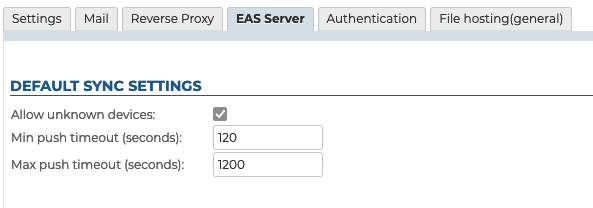
- Domain-wide permission: you can allow all BlueMind users to connect to a mobile device. To do this, go to System Management > System Configuration > EAS Server tab and check the box "Allow unknown devices":
- User-specific permission: if the permission above isn't enabled, you can allow specific users and specific devices to synchronize with BlueMind. To do this:
- set up the handset and launch a connection request
- go to the user's administration card > Maintenance tabThe device will be listed with the corresponding row grayed out and no last sync date:
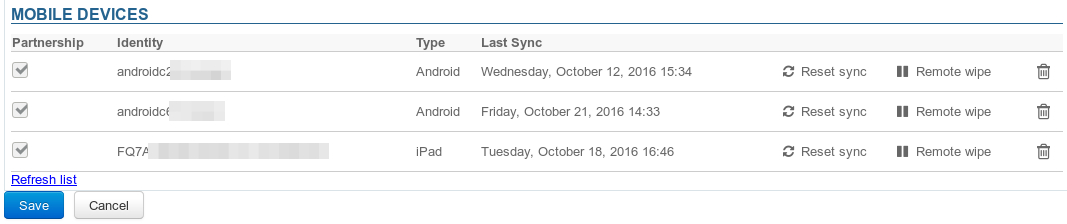
- Tick the box at the beginning of the lineNB : if global authorization is given, these boxes are not active.
- Validate authorization request. Note : no need to click on "Save", authorization is effective immediately
- Restart synchronization on the phone
Issues with message synchronization
Symptoms: some folders are missing or inbox contents are not shown
Cause: folder hierarchy is probably corrupt
Actions: you must repair the inbox:
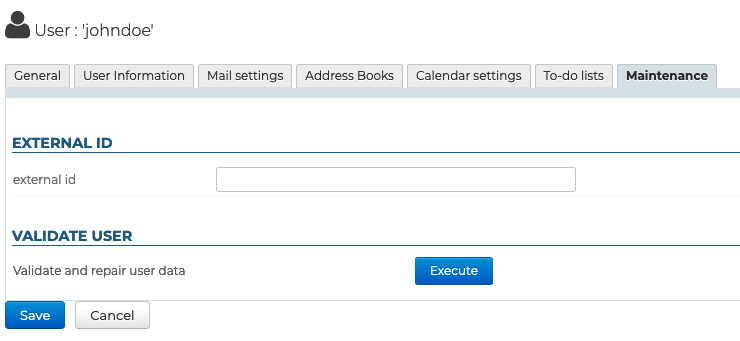
- Run check&repair: go to the user's administration card, Maintenance tab, "Validate User" section, click the "Execute" button:
- If this doesn't work, and the user continues to encounter the same issues, check the EAS logs (
/var/log/bm-eas/eas.loget/var/log/bm-eas/user-eas-<identifiant>.log) and core logs (/var/log/bm/core.log) during check&repair:- check the files at the time when the above operation was carried out
- restart the operation above after putting a tail on the files.
restart the operation above after putting a tail on the files Open a ticket including the information collected if it hasn't enabled you to find the cause and resolve the issues.
Using EAS logs
The use of EAS logs makes it easy to identify connection or synchronization problems on cell phones - for all users or just one.
Enable EAS logs in debug mode
To activate the logs, you must add the file /etc/bm-eas/data.in.logs.
This action, as well as disabling logs, can be done manually or with the client CLI of BlueMind.
It is not necessary to restart the service for the activation to take effect.
- Manual activation
- Activation using bm-cli
touch /etc/bm-eas/data.in.logs
bm-cli eas content-logs --enable --all
- Manual Deactivation
- Disabling with bm-cli
rm /etc/bm-eas/data.in.logs
bm-cli eas content-logs --disable --all
- Manual activation
- Activation using bm-cli
Edit the file
vim /etc/bm-eas/data.in.logs
"{username}at{domain}"
bm-cli eas content-logs --enable --email=<user_email>
- Manual Deactivation
- Disabling with bm-cli
Edit the file
vim /etc/bm-eas/data.in.logs
bm-cli eas content-logs --disable --email=<user_email>
See the list of EAS sessions
It is also possible to obtain a list of active EAS sessions for a given date:
bj=# select count(*) from t_eas_device where last_sync > '2023-03-30';
 count
-------
   132
(1 row)

bj=#