Outlook: Known issues
Account creation error due to wrong password saved
Issue/symptoms: Outlook doesn't let you create an account when you enter a password. Outlook says that the password is wrong.
Cause: The user has saved a wrong password for this account during a previous attempt to create an account
Diagnosis: In the server's log file /var/log/nginx/access.log, you will find lines such as:
192.168.61.133 - - [06/May/2019:16:57:53 +0200] "POST /autodiscover/autodiscover.xml HTTP/1.1" 401 0 "-" "Microsoft Office/16.0 (Windows NT 10.0; Microsoft Outlook 16.0.11601; Pro)"
or
192.168.61.133 - tom@bm.lan [06/May/2019:16:58:31 +0200] "POST /mapi/nspi/?MailboxId=94a5c596-90a8-4985-91fd-57629ee06561@bm.lan HTTP/1.1" 200 149 "-" "Microsoft Office/16.0(Windows NT 10.0; Microsoft Outlook 16.0.11601; Pro)"
These lines indicate that there is a wrong password for tom@bm.lan submitted by the account creation
Resolution :
To remove the wrong password:
- make sure that Outlook and the account creation window are closed.
- open the Credential Manager by typing Windows + R
- then type "
control /name Microsoft.CredentialManager":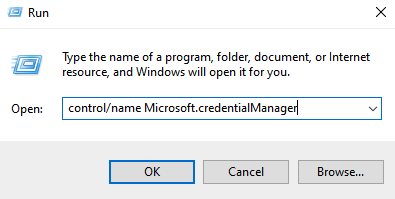
- click OK (or type
<Enter>) - Delete entries of the type
autodiscover.domain.tldandMicrosoftOffice16_SSPI:utilisateur@domaine.tld.
For example, to remove the password for tom@bm.lan: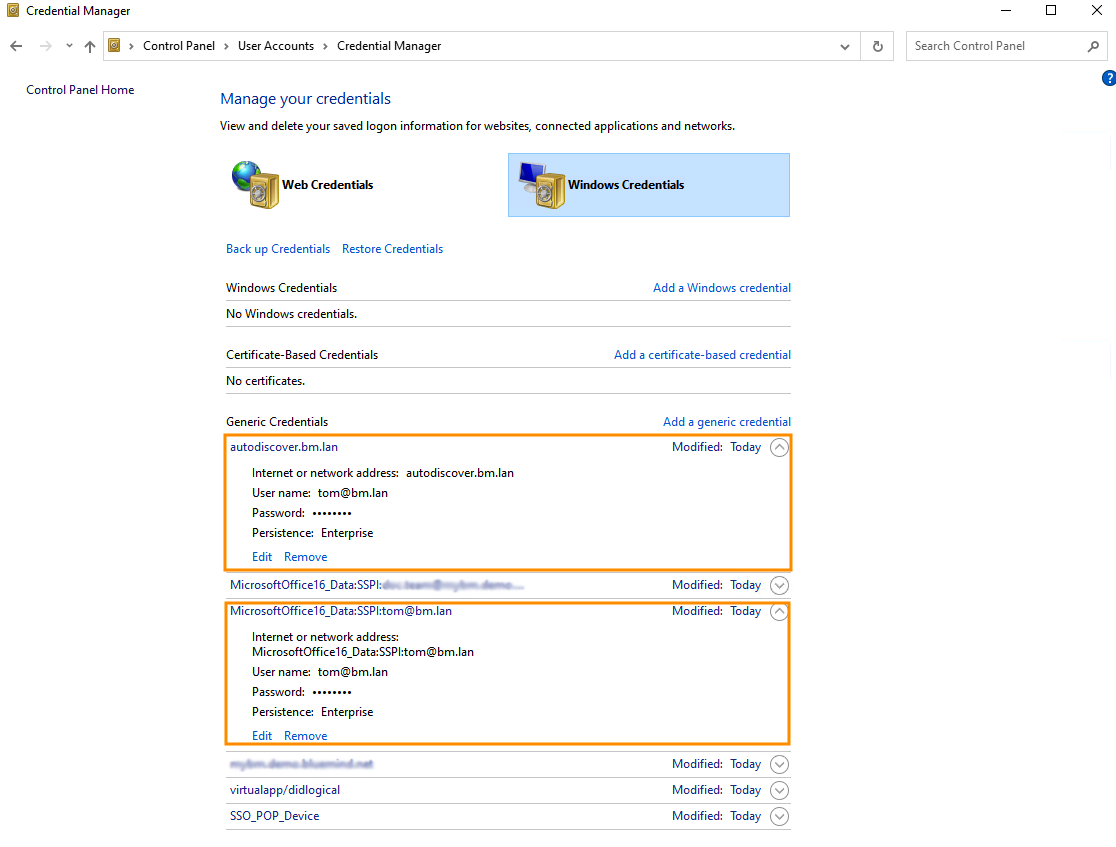
The password is requested in a loop
Issue/Symptom: The account creation and synchronization have been successful but then Outlook keeps asking for the user's password repeatedly.
Causes : This problem can have multiple causes:
- the role "Outlook Connector Synchronization" has not been assigned to the user (also see Implementing MAPI for Outlook)
- if a CAS authentication method is in place, Outlook may not find the right method to use to contact the auto-discovery service
Solutions :
- Check that the role is checked on the user management record concerned, possibly inherited from a group. If this is not the case, check the role for the user alone or activate it for one of the groups to which the user belongs.
- The registry key must be forced to instruct Outlook to exclude the direct connection method to Office365:
- Open regedit:
- Click the start button
- Type
regediteither in the Run application or in the Windows search bar. - Press Enter
- (HIGHLY RECOMMENDED BUT OPTIONAL) Back-up your registry. Click here to find out how.
- In the registry, go to
HKEY_CURRENT_USER\Software\Microsoft\Office\16.0\Outlook\AutoDiscover - Right-click anywhere in the right column, select NEW and then DWORD (32-bit).
- Name this entry:
ExcludeExplicitO365EndPoint - Right-click this entry and select Edit
- Change the value to 1 in the value field and click OK
- Restart your computer
- Create your Outlook profile again
- Open Outlook and when asked, enter your email address and password.
- Open regedit:
For more information about this issue, go to: https://docs.microsoft.com/fr-fr/outlook/troubleshoot/domain-management/unexpected-autodiscover-behavior
A profile is already on the job
Issue/Symptom:
- The documentation indicates that Outlook should be configured in a blank profile, but a profile already exists on the workstation.
- When I create a new profile, old data is presented by default when entering information.
Resolution : Several profiles can coexist, but if the workstation is no longer used by the previous person, or if the configured account is no longer required, it's best to delete the unused profile and its data.
-
In Outlook, go to File > Manage account > Manage profiles
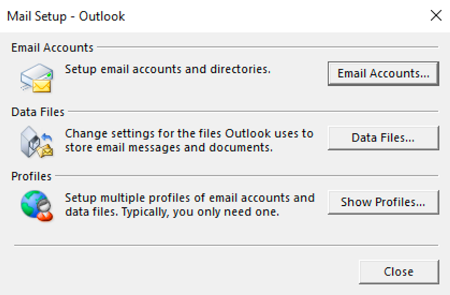
tipDepending on Outlook and/or Windows versions, the "Manage profiles" option may not be present in this menu. In this case, go to the Windows Control Panel and select "Mail":
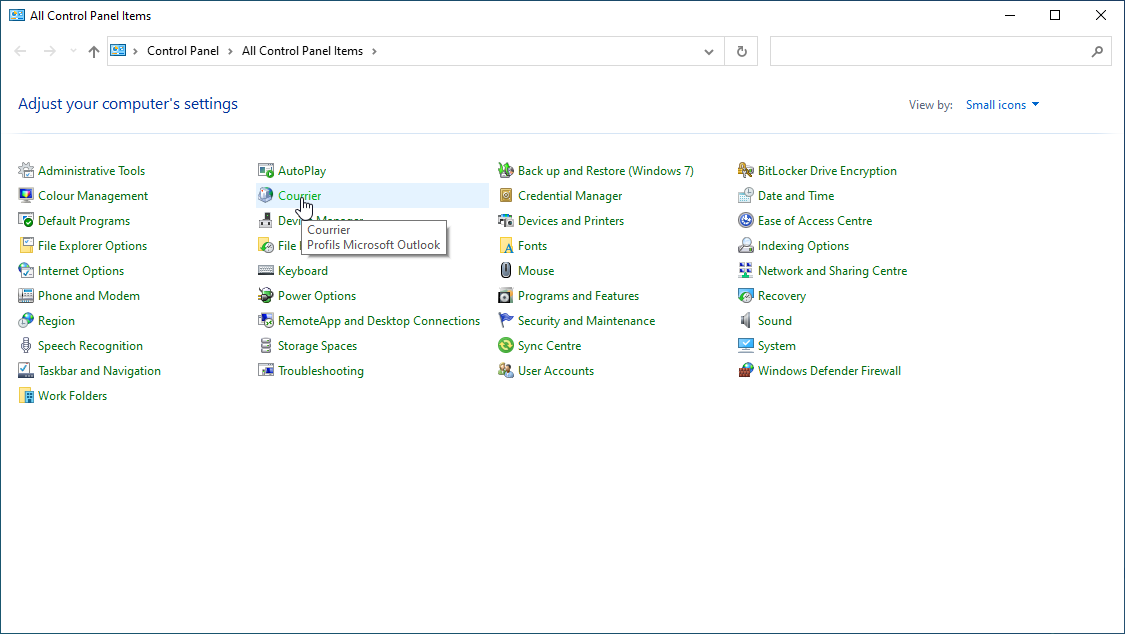
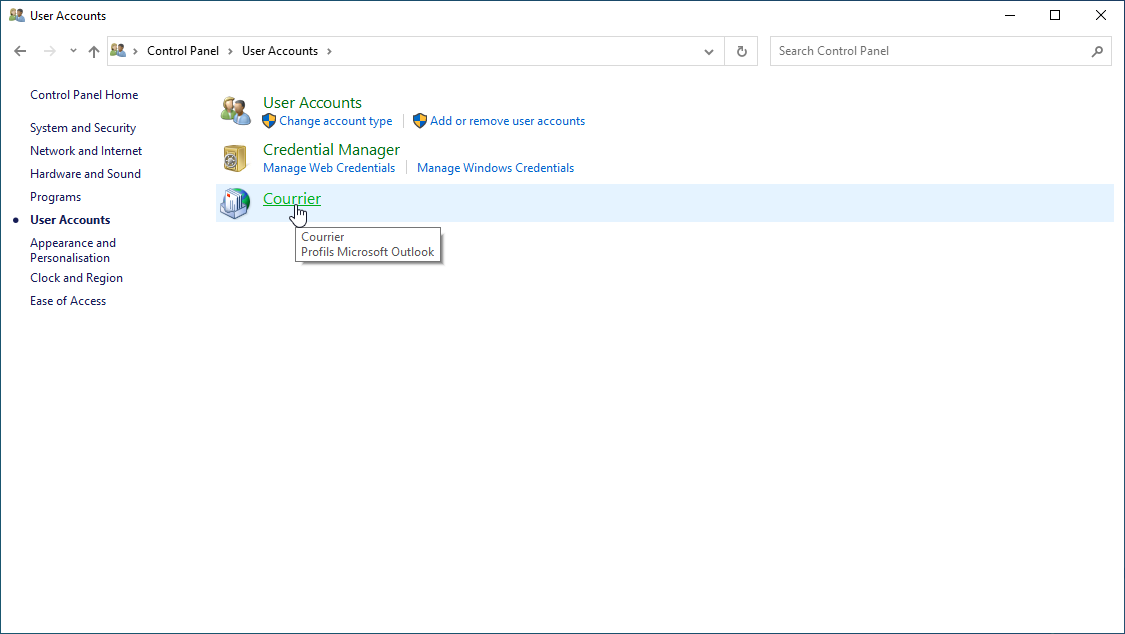
If sorting by category is enabled, the option can be found in Control Panel > User accounts :
-
Click on the "View profiles" button:
-
A dialog box for managing profiles appears:
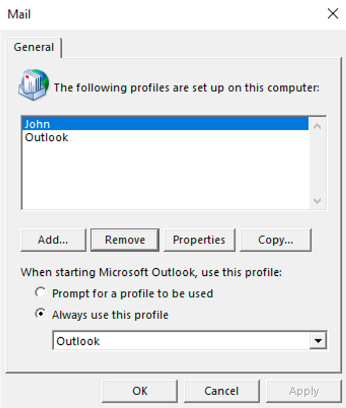
- If you wish to use only one profile, delete the unused profile.
- If you want 2 profiles to coexist, check "Choose the profile to use". Each time Outlook starts up, it will ask which profile to load.
-
Relaunch Outlook
In the event of a persistent data problem (information from an old profile continues to appear, for example when entering the e-mail address when creating a new profile), all data can be deleted as follows:
- In a browser, go to
%localappdata%\Microsoft(copy this string into the destination field of the file explorer) - Delete Outlook directory completely (Shift+Delete)
- Then go to
%APPDATA%\Microsoft(this should correspond toC:\users\[username]\AppData\Roaming\Microsofton Windows 10) - Delete the entire Outlook directory (Shift+suppr)
The folders are empty
Issue/Symptom: The default folders (Inbox, Sent, Trash, etc.) are present but empty. In webmail, they do contain messages.
Cause: This is because of an account replication issue.
Resolution: Perform specific maintenance repairs:
bm-cli maintenance repair --ops replication.subtree user@domain.tld
bm-cli maintenance repair --ops replication.parentUid user@domain.tld
Then restart Outlook and check that the messages are coming in properly.
Outlook's global address list is incomplete
Problem/Symptom : Names and addresses are not up to date in the global address list (commonly known as GAL1), some are missing or should have been deleted.
Example of a finding:
- I start Outlook
- I write a message
- I click the "To" button
- I can't find all the addresses from the BlueMind server
Verification:
Check the /var/log/bm-mapi/mapi.log. log file. You will find errors such as:
2019-11-22 10:51:07,079 [OAB-generation-pool-2-thread-7] n.b.e.p.c.o.OABGenerator WARN - Cannot handle directory entry a25a572f-eadd-4232-a183-4c0c41e56d0b of type USER
java.lang.NullPointerException: null
        at net.bluemind.exchange.mapi.commons.DistinguishedName.userDN(DistinguishedName.java:96)
        at net.bluemind.exchange.provider.core.impl.gal.UserAddressProps.getDn(UserAddressProps.java:60)
        at net.bluemind.exchange.provider.core.impl.gal.UserAddressProps.<init>(UserAddressProps.java:54)
        at net.bluemind.exchange.provider.core.oab.OABGenerator.userRecord(OABGenerator.java:221)
        at net.bluemind.exchange.provider.core.oab.OABGenerator.create(OABGenerator.java:119)
        at net.bluemind.exchange.oab.impl.OABIndexHandler.lambda$1(OABIndexHandler.java:121)
Cause: Regenerate the hollow directory which maps BlueMind uids with "Outlook for mapi uids".
e. g.: To read mapping information
bm-cli hollow directory domain.tld
Record{uid=a25a572f-eadd-4232-a183-4c0c41e56d0b, dn=/o=mapi/ou=domain.tld/cn=recipients/cn=user:a25a572f-eadd-4232-a183-4c0c41e56d0b}
Resolution: Regenerate the hollow directory using this procedure:
- BlueMind 4.0.x
- BlueMind 4.1 and later
systemctl stop bm-mapi && systemctl stop bm-core
rm -fr /var/spool/bm-hollowed/directory/domain.tld/
systemctl start bm-core
bm-cli maintenance repair --ops hollow.directory domain.tld
An email cannot be sent to a domain address
When a message to a domain address cannot be sent or when a non-delivery message is received, it may be necessary to update the Offline AddressBook (OAB), containing all domain addresses.
To do this:
-
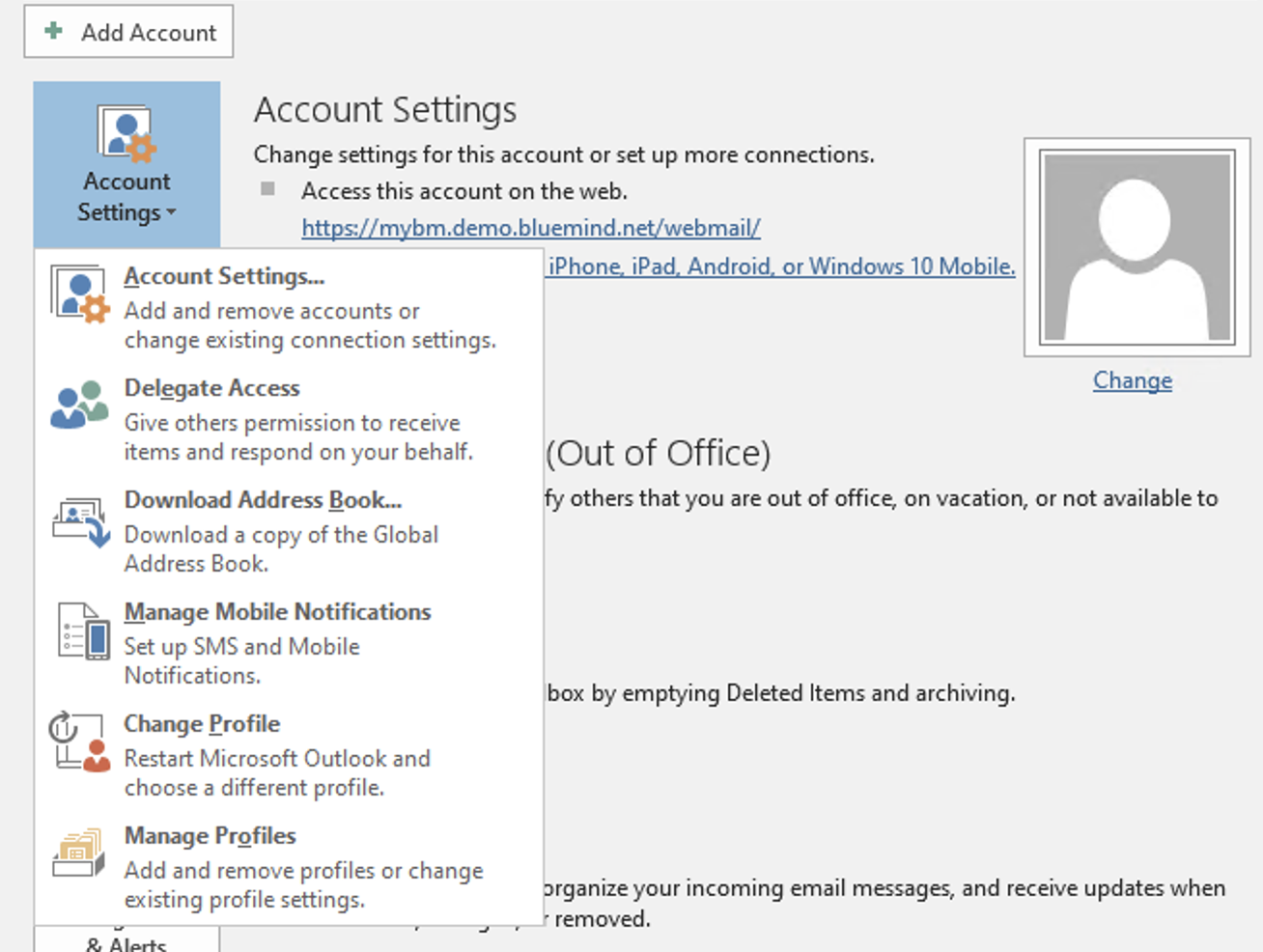
Open Outlook, click on File then Account Settings > Download Address Book
-
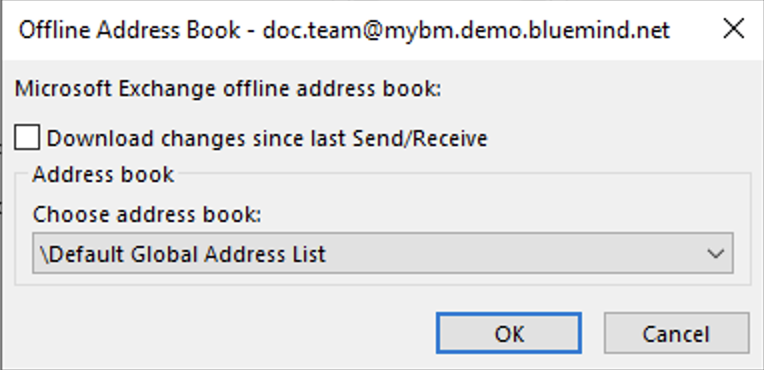
Uncheck the box "Download changes since last sent or received" then click on OK
When creating a profile, Outlook displays an email stating that the name cannot be found in the address list.
Problem/Symptom : When creating a profile, Outlook fails with the error message "Could not complete the action. This name does not match any name in the address list":

Cause: When you create an Outlook profile, Outlook checks that the account's email address is present in the GAL1, but only the default email address is present in the GAL.
Consequence : A mapi profile cannot be created using an e-mail alias, but only using the account's default address.
Resolution : There are two possible solutions:
- On the user side: use the account's default e-mail address
- On the administrator side: in the account settings, designate the e-mail address used to create the outlook profile as the default e-mail address.
For further details, see Entity management > tab Mail