Domain Calendars
Domain calendars are a calendar shared between all users. In addition to viewing rights, administrators can assign calendar editing or management rights to users or groups.
Domain calendars are managed as full-fledged entities: they can be administered from directory entry management, set up as organizers (if you have the appropriate rights), fed by ICS import or exported in ICS format, and exported with a private or public address for external sharing.
Usage
These calendars are considered to be user information calendars, for example, to publicize public holidays, company closures, commercial events (trade fairs, presentations, etc.), etc. or municipal events (council meeting, exhibition, school council, etc.), training courses, team actions, etc. or municipal events (council meeting, exhibition, school council, etc.), training courses, team actions, etc.
As a result, domain calendars can not be set as event organizers or be invited. You can only create events.
Use cases
Domain calendars can be considered in 2 cases:
- information agenda, through which users can consult information ⇒ The domain agenda is a good way to manage this type of agenda. For example, a marketing agenda containing the trade shows attended by the sales team, or a municipal agenda informing the public meetings and events organized.
- operational agenda, used to create events for users ⇒ It is preferable to use a resource agenda to allow this functionality. For example, on a standby agenda: create a weekly "weekend standby" event and invite the relevant user each week. This allows you to centralize information and allows users to accept, reject or set their availability.
Creating
To create a new domain calendar:
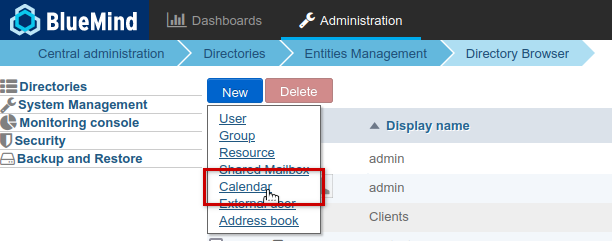
- From the Directories home page, click on "Create a calendar" or from the list of directory entries use the button New > Calendar:
- Enter a name and, if applicable, select a domain in the popup that opens:
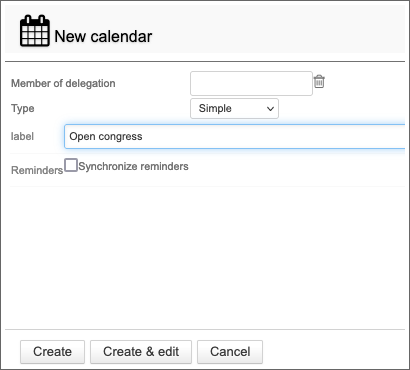
- Click on "Create" for a simple and direct creation of the calendar, or click on "Create & edit" to create the calendar and access the configuration options.
Configuration
General Options
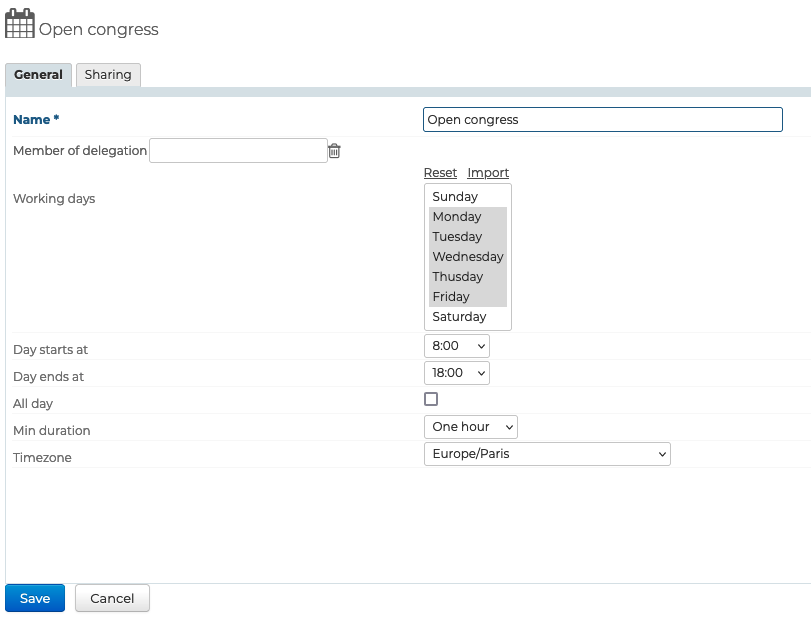
A domain calendar's general tab allows you to specify calendar characteristics: working days, day start and end time, minimum appointment duration, time zone.
Sharing
By default, newly-created calendars are not shared with any users, which means that users can neither view nor add appointments into them.
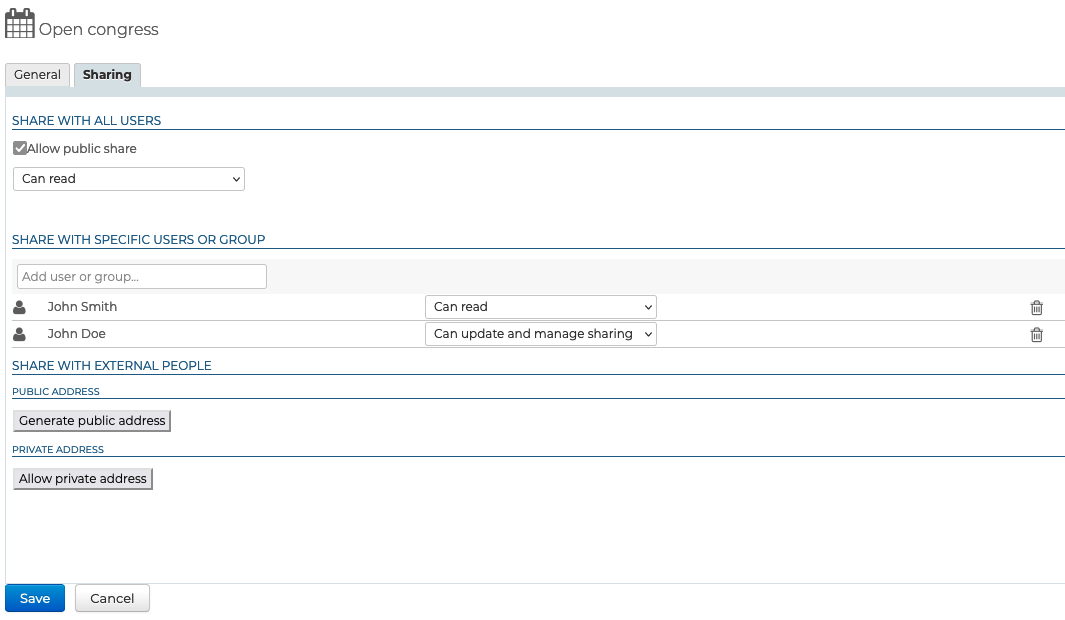
Sharing rights can be assigned to:
- all domain users for shared public calendars, e.g. for company events
- specific users, e.g. for a management calendar
- a group, e.g. for a project calendar
The following rights can be assigned:
- Can Read: can view appointments
- Can update: can set and edit appointments
- Can update and manage sharing: can, in addition to writing, administer the calendar's sharing options
Share with all users
By checking this box, the selected sharing option is enabled for all domain users.
Share with specific users or group
This section allows you to select the users or groups you want to assign rights to.
Start typing the name of the user or group in the input field and confirm with the enter key or by clicking on the name suggested by autocomplete.
For a company diary, for example, all users will be able to consult the diary, and the company secretary will have the right to set appointments, so that he can include company events, as well as compulsory vacations.
External Calendars
Domain calendars can be a synchronized external calendar. It is created and administered in the same way as a simple domain calendar.
Creating
When you create a calendar (see above):
- Select "external ICS" in the dropdown list and paste the external calendar's url in the box that opens:
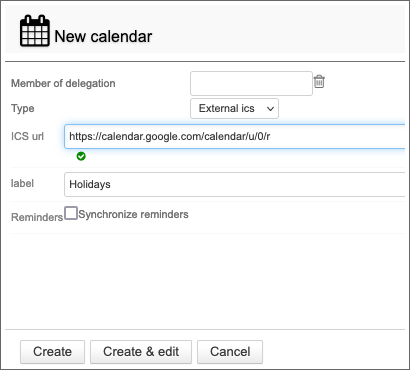
- When you leave the box (with the shift key or by clicking outside the box) BlueMind validates the url. As long as the url is considered invalid, the calendar cannot be created.
- Fill in the name if it is not automatically found or if you wish to personalize it
- Click "Create" to quickly create the calendar with default options (not shared) or "Create and edit" to access calendar options, including sharing.
Sharing
Sharing rules are the same for external and BlueMind domain calendars, with one exception: like external user calendars, domain calendars are available for viewing only: changes are not applied or saved on the original calendar.