Configuring Outlook
You can now use all Outlook features while using BlueMind mail.
As with all BlueMind versions, the use of Outlook is made possible by subscription. Please contact your administrator if the guide below does not allow you to synchronize your BlueMind account.
Client workstation prerequisites
- OS : Windows 10 or 11 up to date
- Software: Outlook must be installed and up to date
To take full advantage of the new features, be sure to install a version supported by BlueMind.
To find out which versions are supported, see the dedicated page: Compatibility.
Configuring User Account
To date, the online configuration of all or part of Outlook is not supported, as on-the-fly data transformation from BlueMind formats to the formats expected by Outlook has too much impact on the Outlook client and BlueMind server side.
In fact, requires Outlook to be configured in "full cached mode" (step 6 below).
- Open Outlook
- Create a new Outlook profile : the account must not be added to an existing profile, including the default profile when the software is launched.
Note: creating a new profile is also necessary when the user's default login or e-mail address is changed.
To create a profile :-
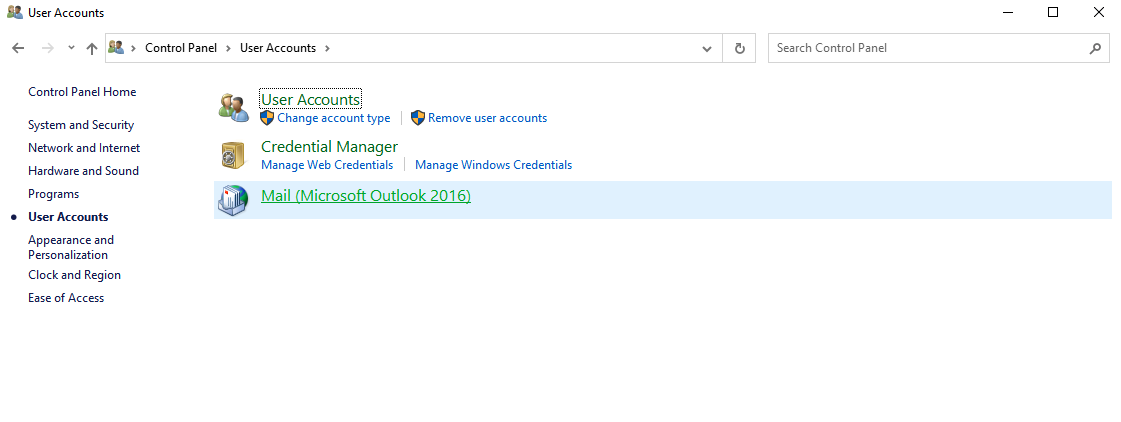
go to the Control Panel > User Accounts > Microsoft Outlook Mail (depending on your display configuration, this menu may be shown in the control panel's root menu):
-
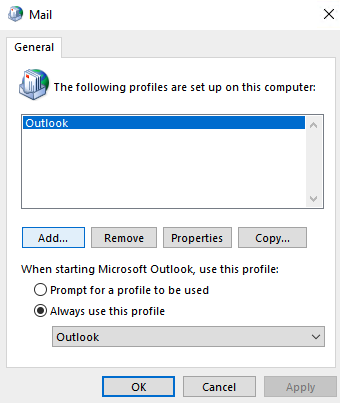
In the Mail window that opens, click on "Add" to create a new blank profile:
-
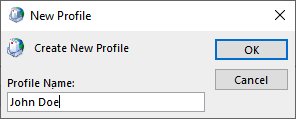
Give a name to this profile:
Multi-accounts
At the current stage of MAPI protocol implementation in BlueMind, the created Outlook profile cannot be used to connect to another Exchange account.
-
The interface then takes you to the next step in creating an e-mail account:
-
Choose "Add a new mail account"
Do not choose manual configuration
-
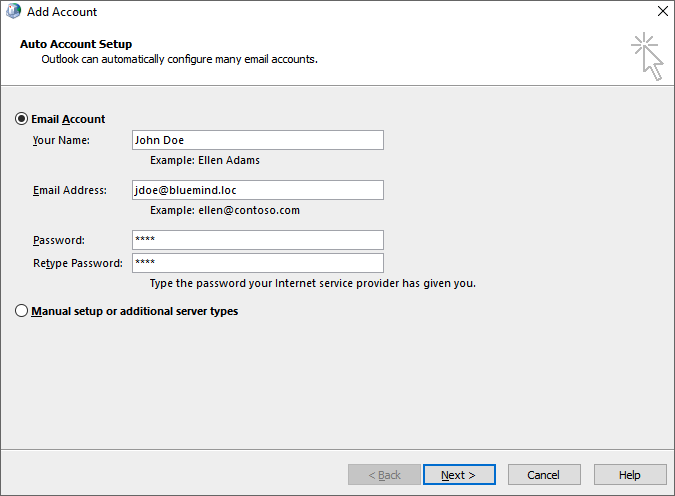
Enter your email address and password:
E-mail Address
It's important to use the user's default address: aliases are not correctly taken into account.
-
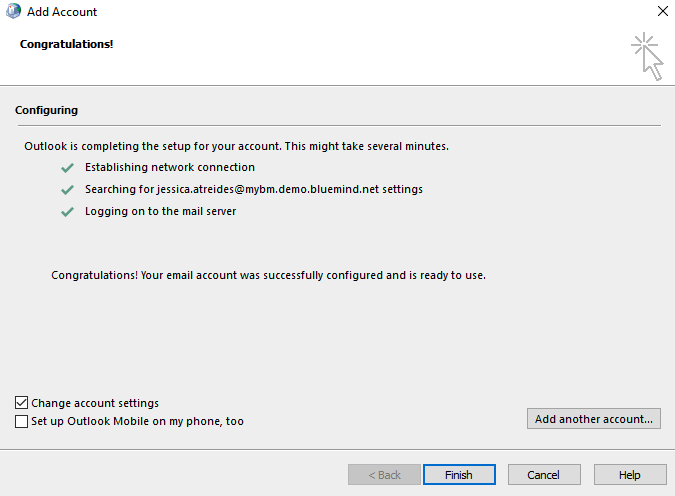
After a few moments, Outlook announces that the account has been successfully configured:
-
Check "Modify account settings" and click "Finish".
-
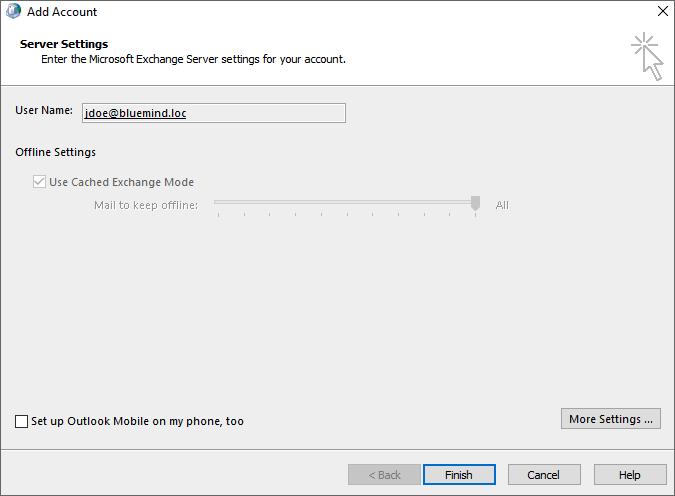
Check "Use Cached Exchange Mode" and slide the cursor all the way to the right to "All" :
-
Click on "Finish
You're all set! Your Outlook now communicates with BlueMind!
The BlueMind add-on
The add-in (or plugin) bringing BlueMind functions into Outlook does not require installation, neither from the user nor from the administrators: its installation is automatically pushed by connecting to the BlueMind server.
The BlueMind add-in provides the following functions :
Note: this list is not exhaustive and may evolve as the add-in is enriched