Organizing Meetings
The BlueMind Calendar lets you organize meetings - one-off or recurring - book rooms and equipment, and add videoconferences.
Adding users and resources to a meeting
Once you have created an event, in the right-hand side of the event details page, start typing the names of the users or groups you want to invite - autocomplete displays available users.

Invitations can only be sent to users' default calendar.
When a user has several personals calendars, you cannot specify which calendar the invitation should be sent to. In addition, calendars cannot be invited. Only entities (users, groups, etc.) can be invited.
The resource reservation, i.e. a resource (meeting room, vehicle, overhead projector, etc.) made available to users, is done in the same way as for participants: go to the right-hand side of the page and type the first few letters of the resource - autocompletion will propose all the resources shared by the administrator.
To indicate whether an attendee's presence is required (default setting) or optional, click the icon before their name.
Checking availability
When a user or a resource you want to invite isn't available at the time selected, a warning message appears at the top of the page.
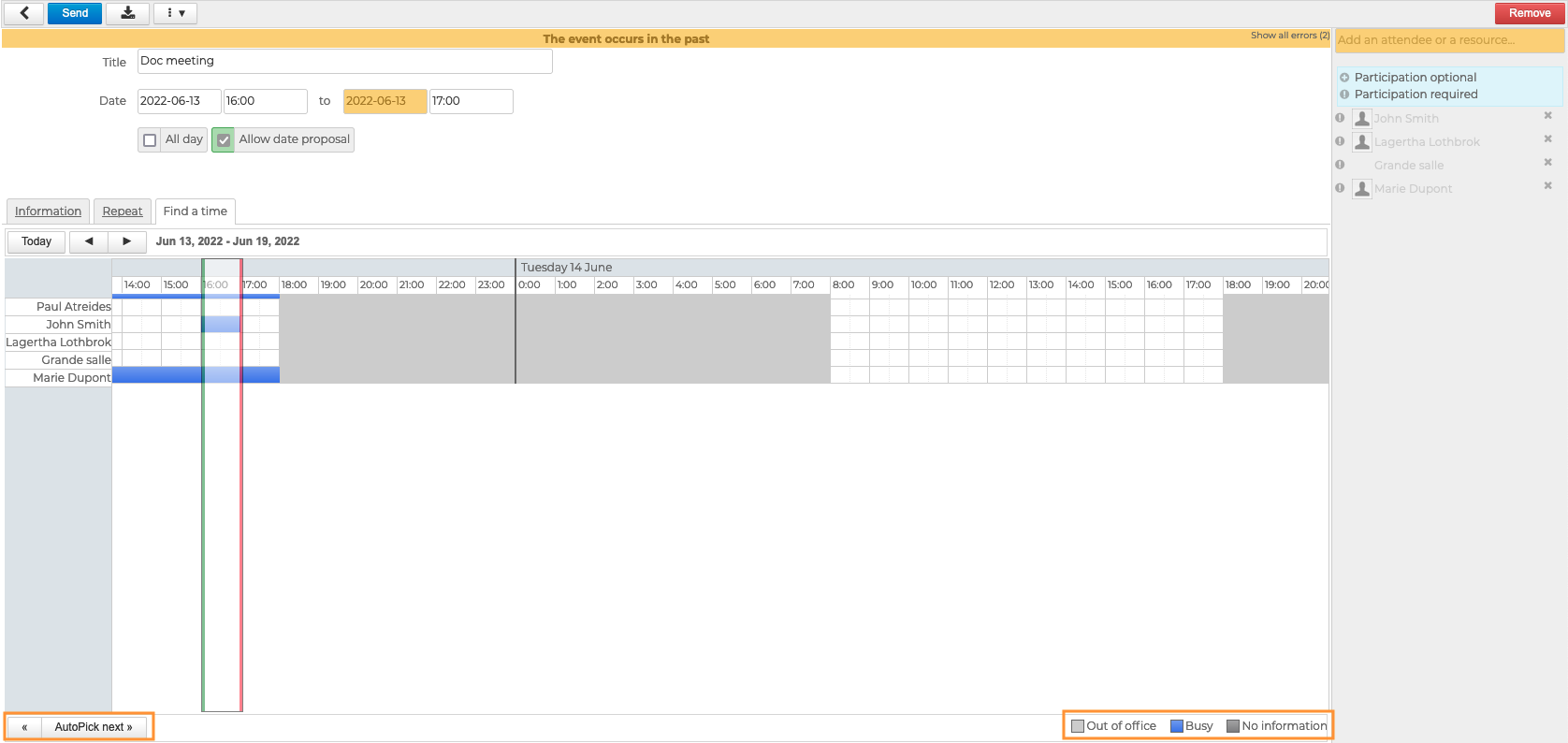
To find a time when all attendees and resources are available, go to the "Find a time" tab.
BlueMind automatically suggests the first available time slot - between a green and a red line - based on the date entered in the event details page. To go to the next time slot automatically, click "Autopick next" in the bottom-left corner of the page.
You can also use your mouse to move the whole slot using drag-and-drop and/or extend or reduce it by clicking either line and sliding it.
As indicated in the legend, light gray areas correspond to time slots outside working hours as defined by the user in their calendar settings. Blue areas correspond to events where the user is marked as "busy"
Adding videoconferences
BlueMind offers several solutions for linking videoconferences to events:
- via the integrated solution BlueMind Video (based on Jitsi Meet)
- via a connection to one of the external solutions supported :
This feature must first be installed by administrators who make it available to users.
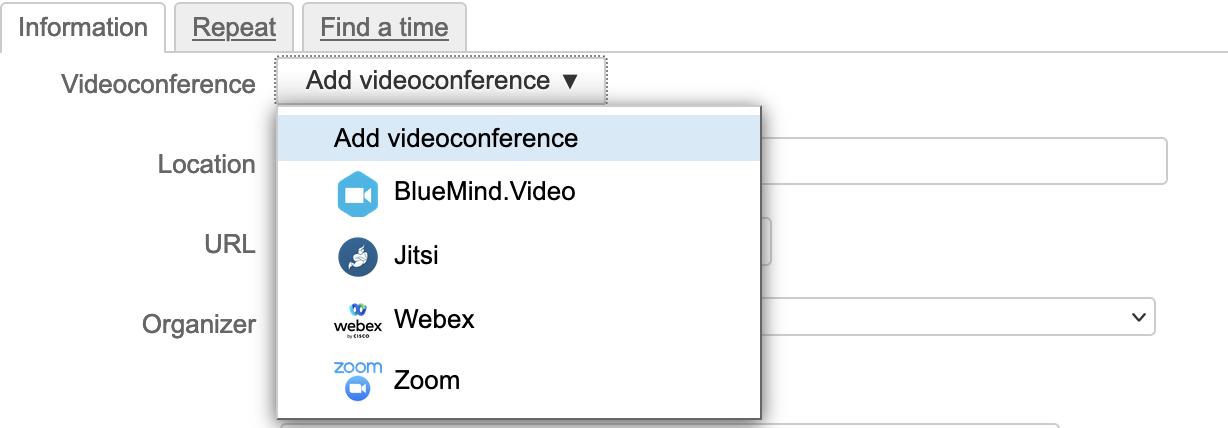
To link a videoconference to a meeting, go to "Add a videoconference". If an external service is installed by the administrator in addition to the BlueMind Visio service, the button offers a drop-down list to choose the service to be used:
A link is added automatically to the event, with accompanying text if set by administrators:
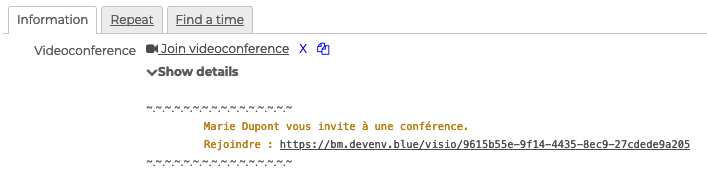
The two icons next to the event are used to:
 delete the videoconference
 copy the address to your computer's clipboard
When adding a Webex videoconference, a popup appears, asking you to connect with an e-mail address :
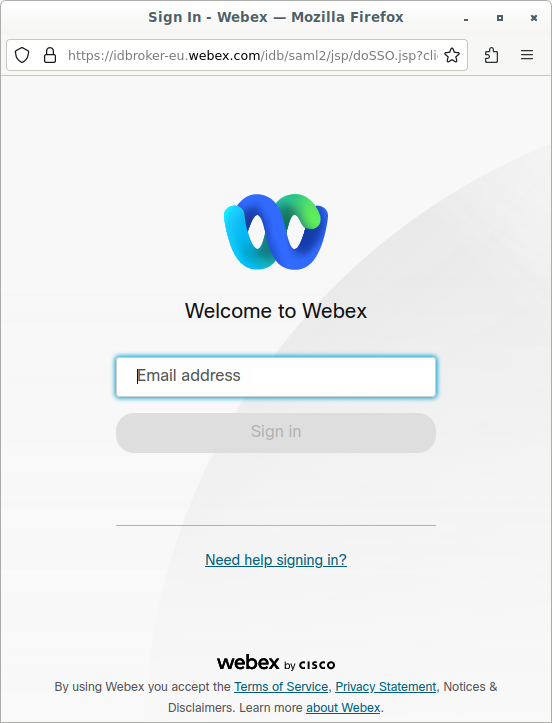
This is the e-mail address of your Webex user account. If you don't have a Webex account, please contact your administrators.
⚠️ If no popup appears, check that your browser and/or an extension are not blocking it or that it hasn't been opened in the background.
Creating a recurring meeting
Like any event, the BlueMind agenda lets you repeat a meeting at regular intervals.
To set the recurrence of a meeting, see Configure the recurrence of an event
Sending invitations
Once your meeting details are complete, click  to save and send the invitations.
For each user, the meeting is added to their calendar and they receive an email notification. They can then confirm their participation via the Calendar or the Mail app.
For resources, there are two possibilities depending on your system's booking policy:
- automatic booking is enabled: depending on its availability, the booking is confirmed or declined. The organizer receives an email notification from the resource
- automatic booking isn't enabled: the resource's manager receives a booking request. Once they confirm or decline it, the organizer receives an email notification from the resource's manager.
Managing attendees
The organizer, or his delegate (see Managing delegations), receives replies to invitations by e-mail.
He can also consult the answers directly in the Agenda by clicking on the event:
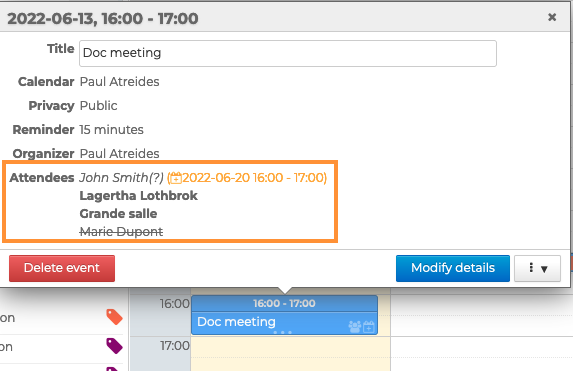
- Users who have accepted the invitation are shown in black
- Users whose response is pending (or have replied tentatively) are grayed out
- Users who have declined the invitation are shown in gray and struck out
- users who have proposed a new schedule appear in italics with the proposed new schedule
Participants invited through an invitation forwarding are automatically added to the list, with the status of their response.
It should also be noted that in this case, unlike editing a meeting, the option to send the new list of participants to all guests is not possible. In this way, new guests only appear in the organizer's calendar and their own.
Managing new schedule proposals
When a user sends a proposal for a new schedule, the organizer, or his delegate (see Managing delegations), can accept or refuse the proposal via notification received by e-mail or in the action bar of his Agenda:

- If the organizer accepts the new proposed time:
- the meeting is changed
- all attendees receive an email with the changes.
- If the organizer rejects the proposed new time:
- the meeting isn't changed
- the attendee who made the proposal receives an email notifying them of the organizer's refusal
- the proposal disappears from the pop-up in the calendars where it was shown
- other attendees do not receive anything
Editing a meeting
The organizer can modify, duplicate or delete a meeting at any time. For further details, see Editing a meeting as the organizer
Guests can also modify their own view of a meeting. However, the organizer's modifications take precedence. For further details, see Editing events as a guest.
Find out more
Related BlueMind documentation pages
- Creating Events
- Editing an event
- Managing notifications related to invitations
- Managing resource reservations
- Responding to event invitations
- Creating Videoconferences
- Installing a videoconference service