Responding to event invitations
Accepting invitations
When someone organizes a meeting, the BlueMind Calendar automatically sends an email notification to each invitee and adds the meeting to their calendar.
The invited user can indicate his participation to the organizer by accepting, putting on hold or declining the invitation.
When the organizer has appointed a delegate, the invitation can be sent by the delegate.
When the invitee has appointed a delegate, the delegate can respond to the invitation from their mailbox.
See Delegate invitation management for more information.
You can do this:
-
directly from the email notification received,
-
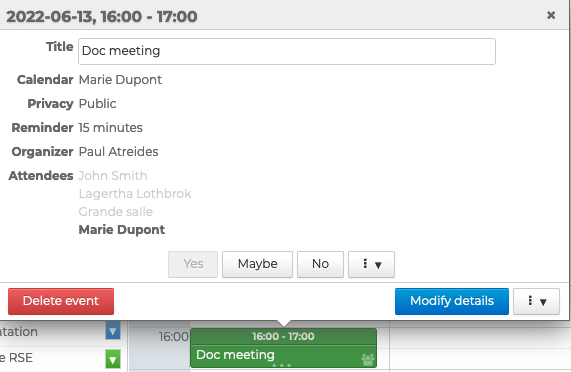
by clicking on the meeting in the agenda,
-
on the invitation notification that appears in the agenda's action bar

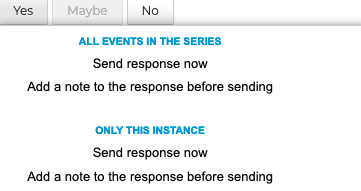
Click on the appropriate response then choose to send the response directly to the organizer or by adding a note. The organizer receives response notifications by email.

For recurring events, you can choose to respond for all events in the series or for the selected instance only.
Viewing a meeting
All meetings to which the user is invited appear in his personal calendar. Themeeting display differs according to participation:
- Appointment accepted : full color
- Participation in "maybe" and "new date proposal": solid color surrounded by dotted lines
- Appointment declined by the participant or cancelled by the organizer: transparency, struck-through content

The user can choose to display or hide declined or cancelled events in the calendar settings.
This option isn't enabled by default but can be useful if you want to change your response to an event whose invitation you've declined.
To view meeting details (times, location, guest list, etc.), click on the event:
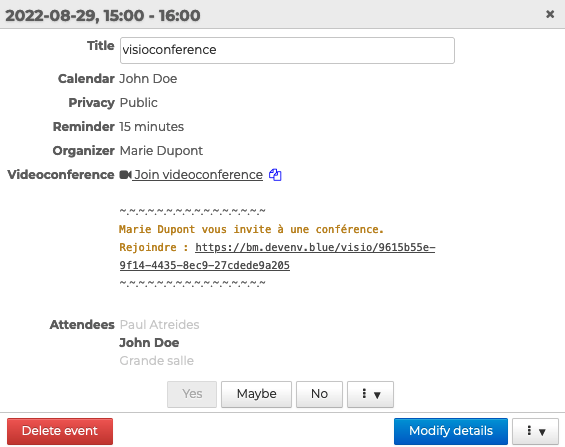
Only the organizer - or a user with read rights on his/her calendar - sees the participation status of all invitees automatically updated in the list of participants, as soon as a reply has been sent.
Each guest's own entry is automatically displayed in the list of participants. The status of other guests is only updated in case the organizer sends a notification following a modification.
Proposing a new time
If the organizer chooses to when they create a meeting, attendees can also propose a new time.
To do this, click the kebab menu and "Propose a date". For recurring events, you can propose a new time for all the events in the series.

An availability search page opens.
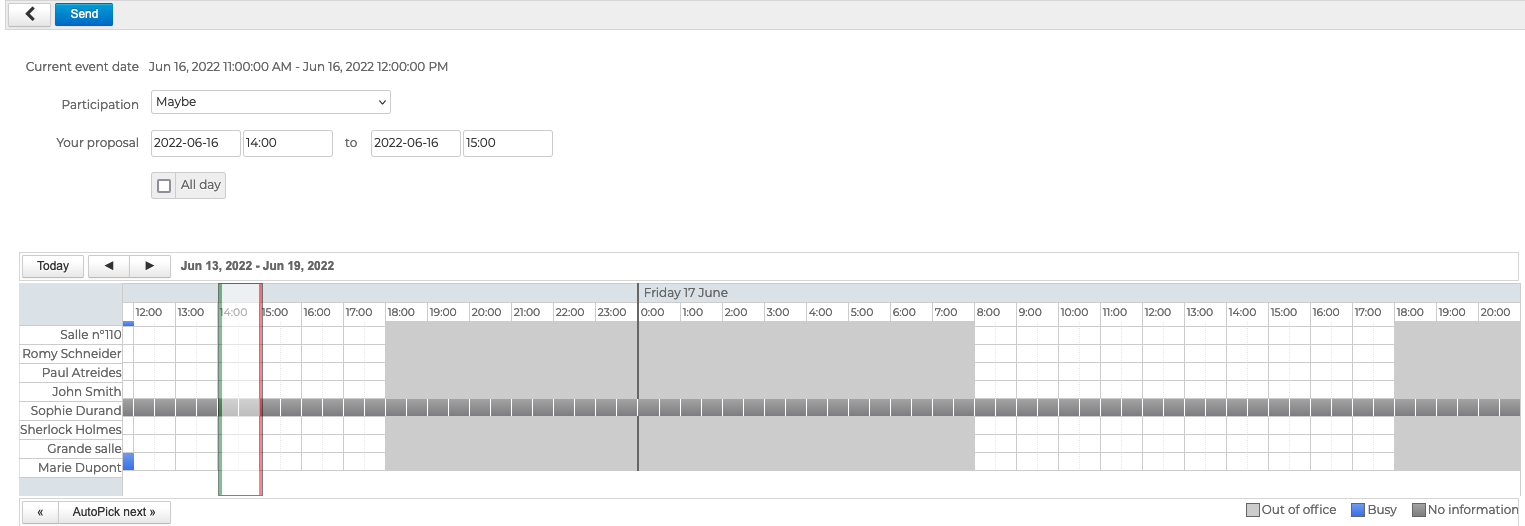
Select the chosen time and click "Send". The organizer receives an email notification for them to accept or decline the proposal.
If the organizer declines, you will receive an email with the organizer's response.
If the organizer refuses, only participant who made a proposal receives a message indicating the organizer's refusal
Forwarding invitation
It is possible for a participant to forward the invitation to add another guest. This can be done :
-
from the received invitation message thanks to the transfer button
-
from the calendar, using the dedicated button in the meeting details window:
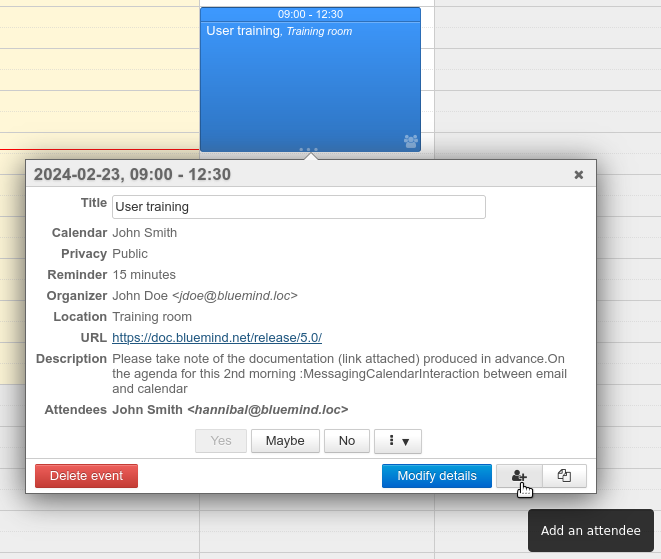
A window opens:
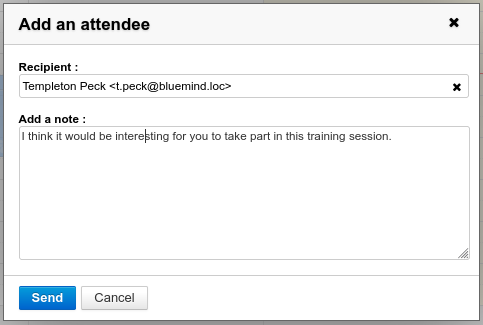
- Use autocomplete to search contacts or enter an e-mail address directly.
- Add a note for their attention (optional)
- Click on "Send"
The meeting organizer is informed of the invitation transfer and can accept or refuse the participation of the new guest. See the Manage invitation notifications page for more information.
Editing a meeting
Each participant can edit his or her own view of a meeting. For more details, see Edit a meeting as a guest
Downloading attachments
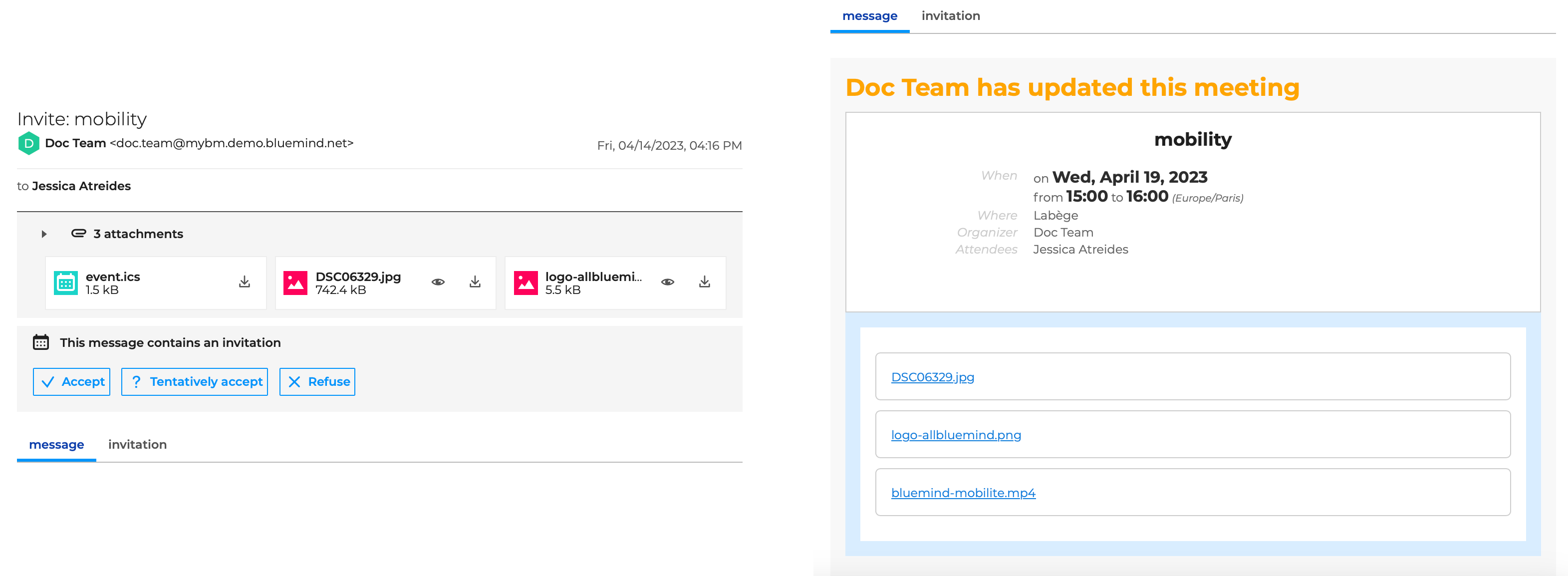
When an event includes attachments, these are available at all times:
- from the invitation e-mail, in the attachments insert or as links when one of the attachments is large:
- from the event in the Agenda:
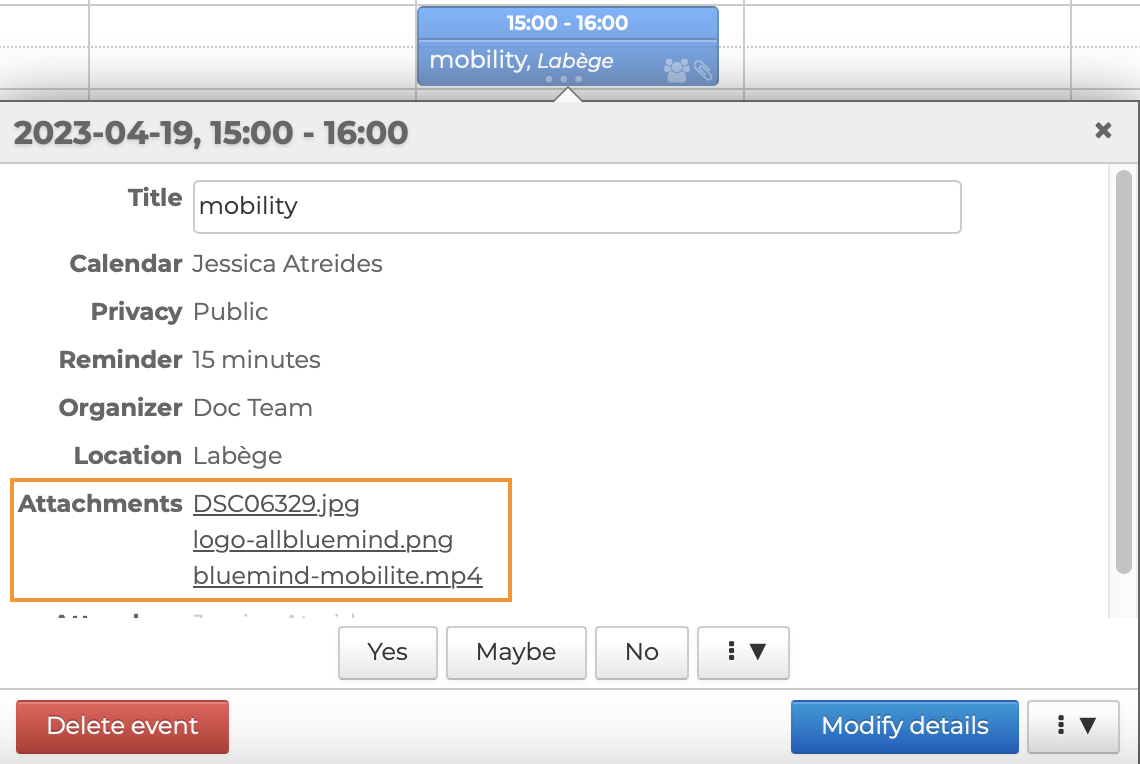
A guest can add attachments to the event, but like any modification, these will only be taken into account in his calendar. The organizer and other attendees will not have access to the changes.
Accessing the videoconference
To access a videoconference, click the link available in the invitation email or in the event's pop-up window :
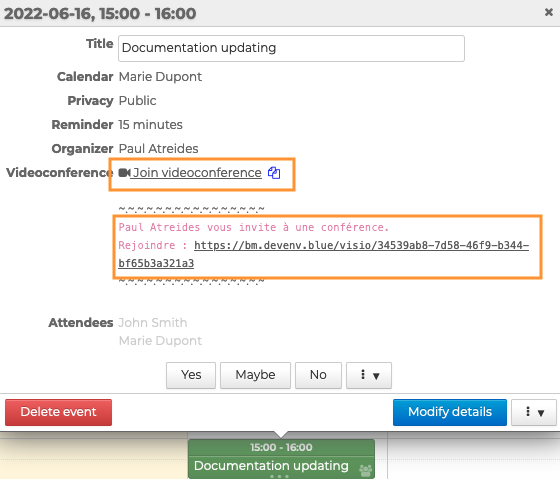
 allows you to copy the link to share it. Anyone with the link will be able to join the videoconference.