Editing Contacts
Contacts can be added or modified in your personal folders as well as in shared address books you have permission to edit.
Contact cards in the Directory are not editable.
Creating new contacts
To create a new contact, select the address book you want to add the new contact to and click "New contact" at the top of the left-hand column.
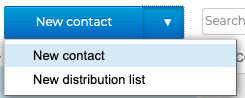
Fill in the fields in the new contact card.
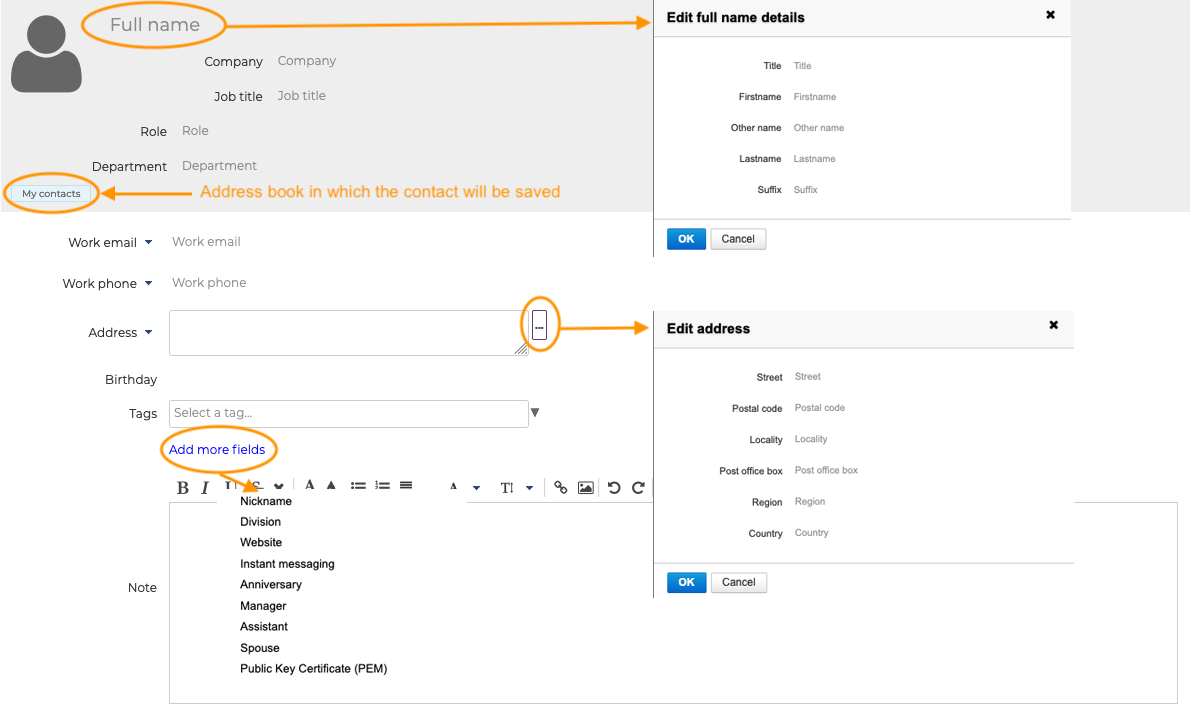
- Full name: opens a pop-up window where you can enter a title, first name, last name, another name (first name or alias, for example) and a suffix
- Work email. You can also add a home email.
- Work phone: contact telephone numbers. You can also add a home phone, mobile phone, work fax or home fax number
- Add more fields: can be used to add extra information such as website, nickname, etc.
- Note: free text box where you can add hypertext links and images
You can replace the  icon with an image.
Adding tags to a contact
To help you find contacts, you can add one or several tags to your contacts.
To do this, select one or several tag(s) in the list by typing the first few letters of the tag - autocomplete displays matching tags.

If the tag you want doesn't exist, you can type a name for a new tag and click Create. Once the contact card modifications are saved, the new tag will be added to the list of personal tags.
To remove a tag, click the "x"
You can assign as many tags as you like. Tags appear in the contacts list as color icons (2 maximum). On mouse-over, the complete list of tag assigned to the contact is displayed.

Editing contact details
To edit a contact, open the contact card by first selecting the address box it belongs to or using the search box at the top of the page.
If you don't have permission to edit this contact, its details are displayed but action buttons are missing. If you have permission to edit it, then the fields are editable and the action buttons are enabled.
In addition, existing contact cards can be copied or moved to other address books (personal or shared) or deleted.
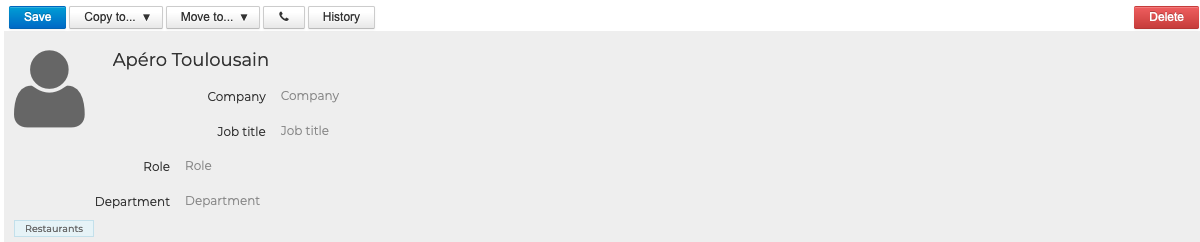
Deletions are only effective on the current contact card. If the card has been copied to another address book, the contact will still be present there.
Using contact details
BlueMind lets yousend an e-mail andcall a contact directly from the Contacts application, on the contact card or in the contact list:
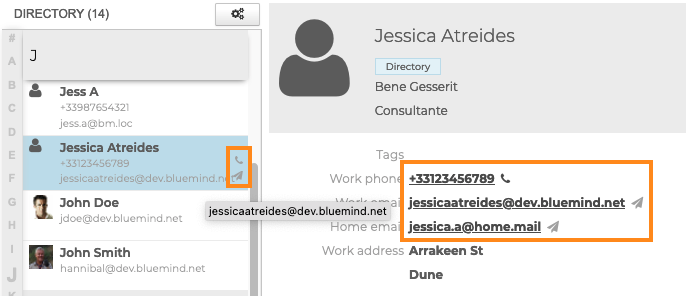
- click on the
 icon or address to open Creating and Sending a message in a new window
 - click on the
 icon or the telephone number to call the contact via Wazo or Xivo, if one of these 2 solutions is installed by the administrator, or via the appropriate operating system application
This feature is also available from the contact card in the Mail application