Configuring an OpenID client for BlueMind with a third-party Keycloak
Introduction
OpenID Connect (OIDC) is an identity layer built on the OAuth 2.0 protocol, enabling a user to authenticate to an authorization server, such as Keycloak, via a secure, standard process.
Where OIDC simplifies the identity management process, Keycloak is an authentication solution.
In Keycloak, a "client" is an application that interacts with Keycloak to authenticate or access securely protected resources, and to manage user sessions.
As of version 5, BlueMind includes OpenID Connect, making it easy to integrate secure authentication services via OpenID clients. As such, its use in Keycloak is essential for implementing a standardized, secure and interoperable authentication solution in enterprise environments.
This operation must be carried out for each BlueMind domain that requires authentication with the third-party Keycloak.
Prerequisites
An external URL must be defined for the supervised domain.
Configuration procedure
In this guide, we will use the following names as examples:
- the domain name:
domain.tld - the BlueMind server URL:
mail.domain.tld
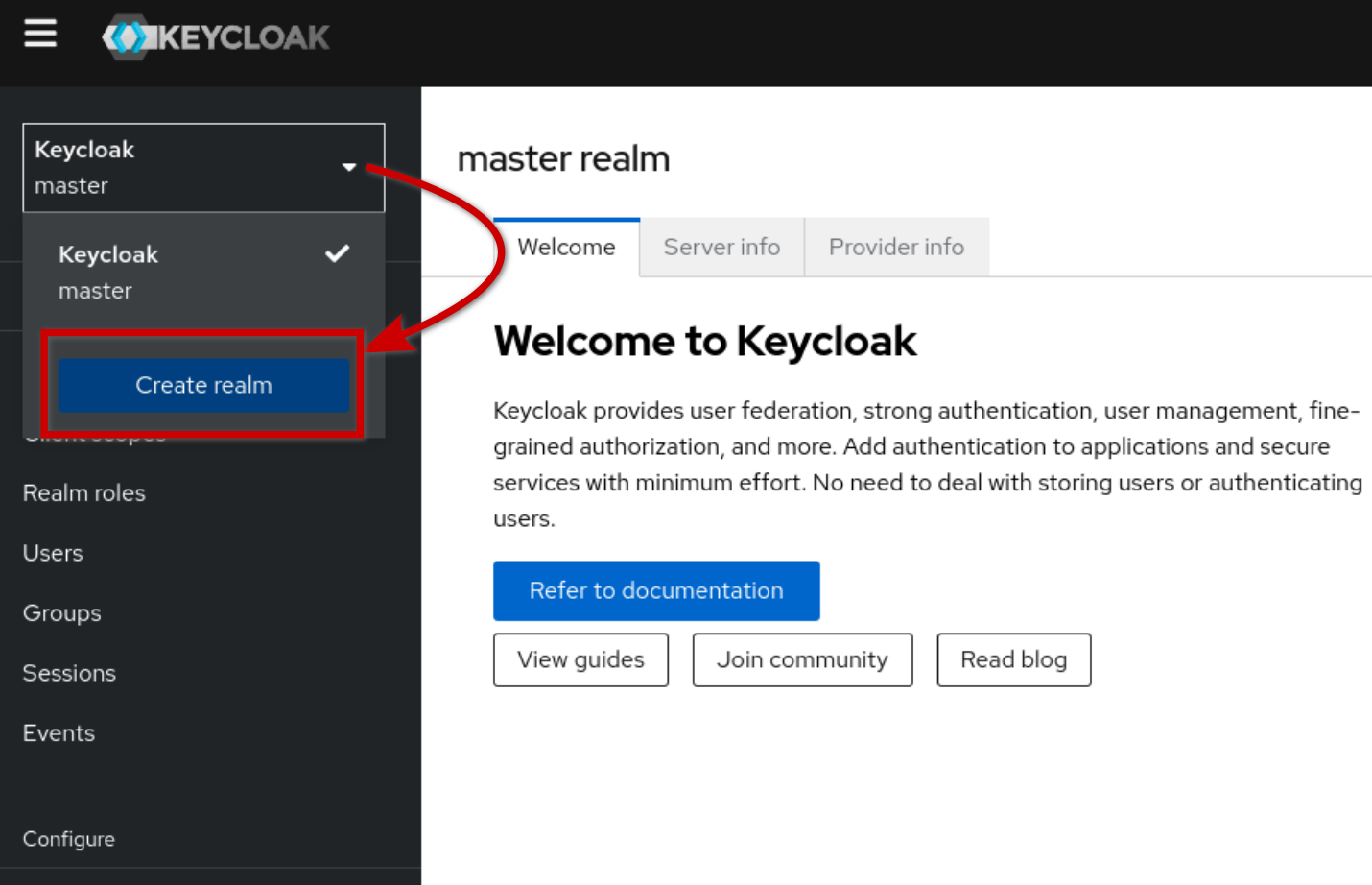
- Create a new realm (realm) in Keycloak: open the top-left drop-down list and click on "Create realm":
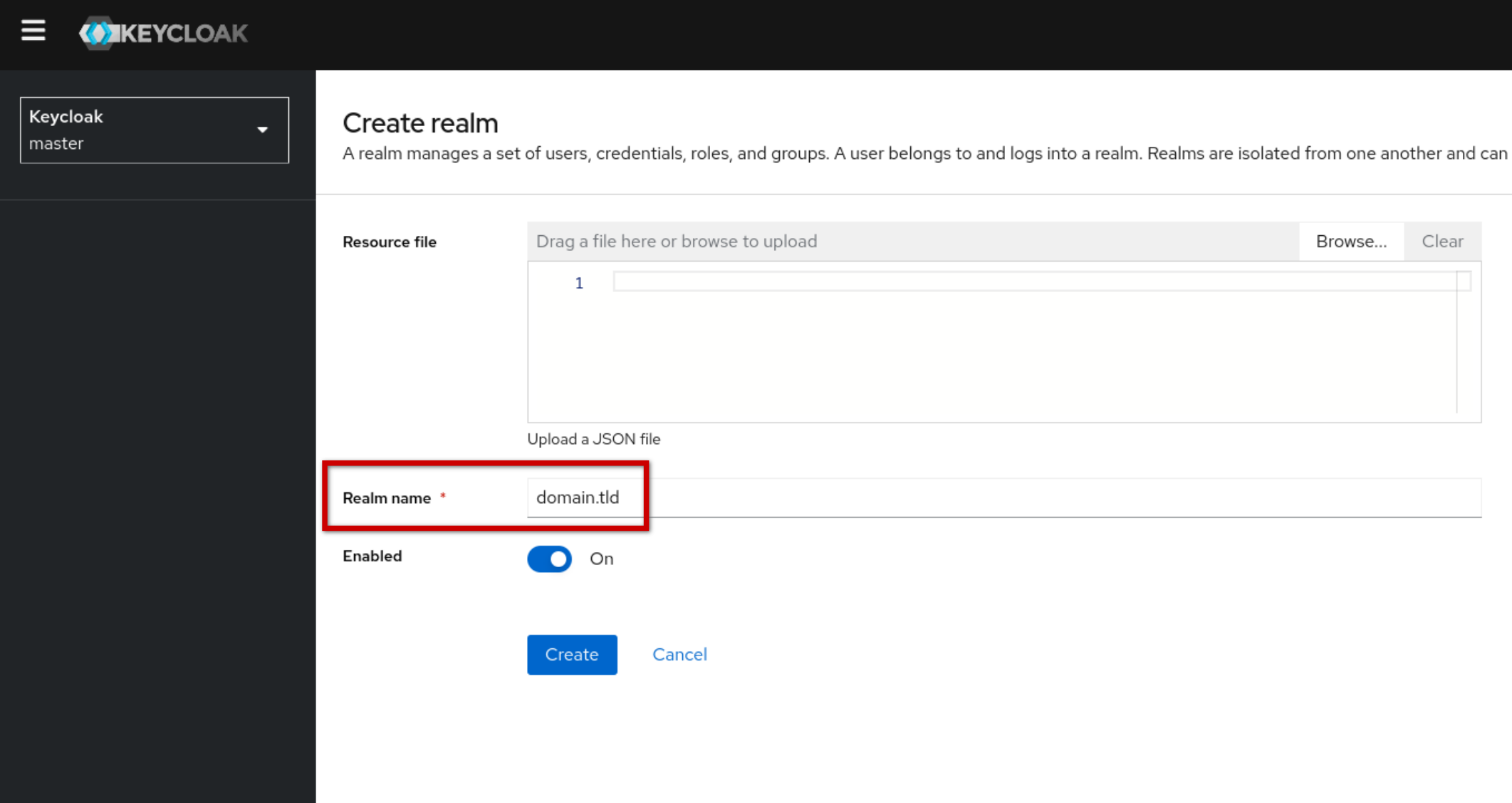
💡 For greater clarity in Keycloak, it is best to name the realm after the BlueMind domain name:
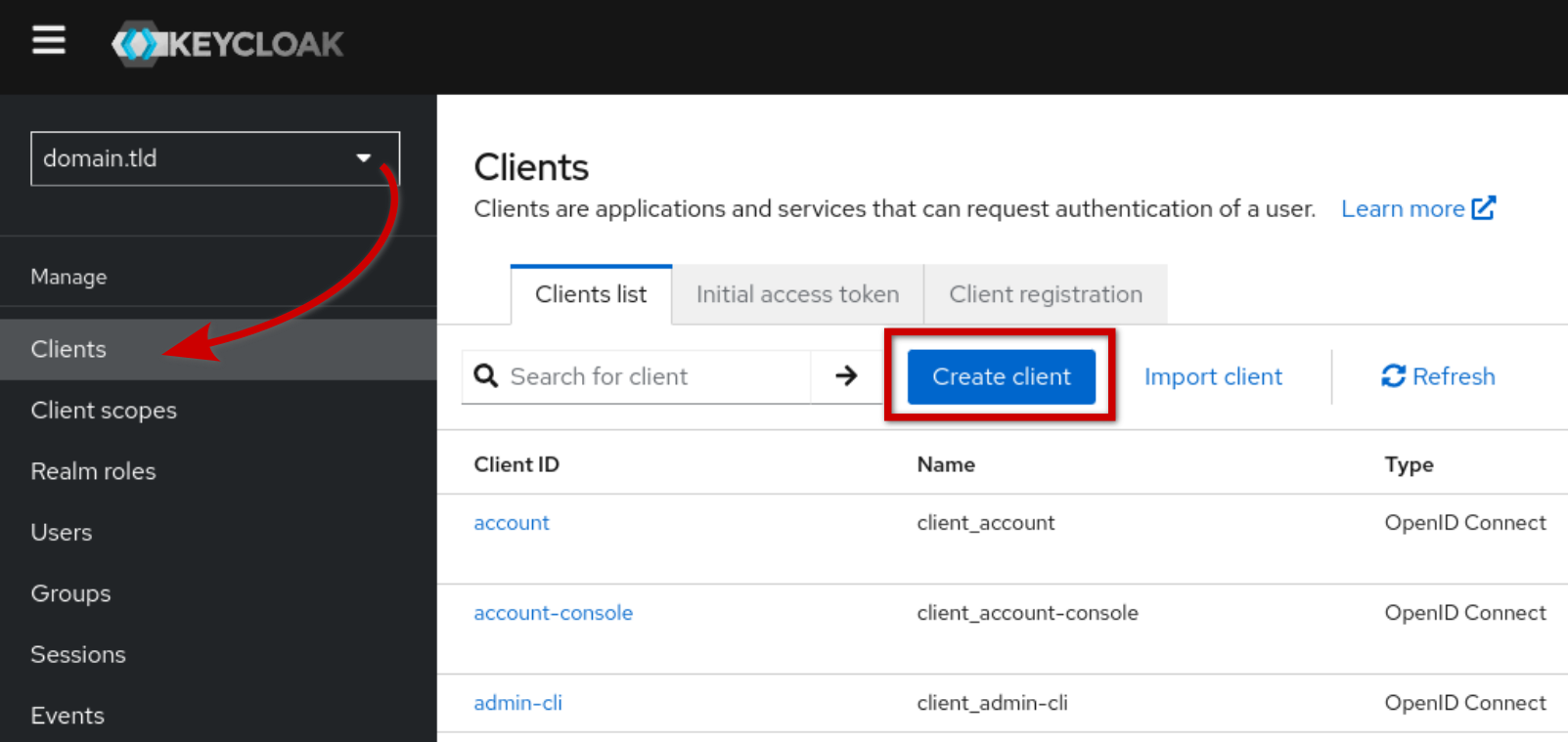
- Create openID client: select the kingdom you've created and click on "Create" at the top of the "Clients list" tab:
- Configure the Keycloak openID client then click on "Next" to continue:
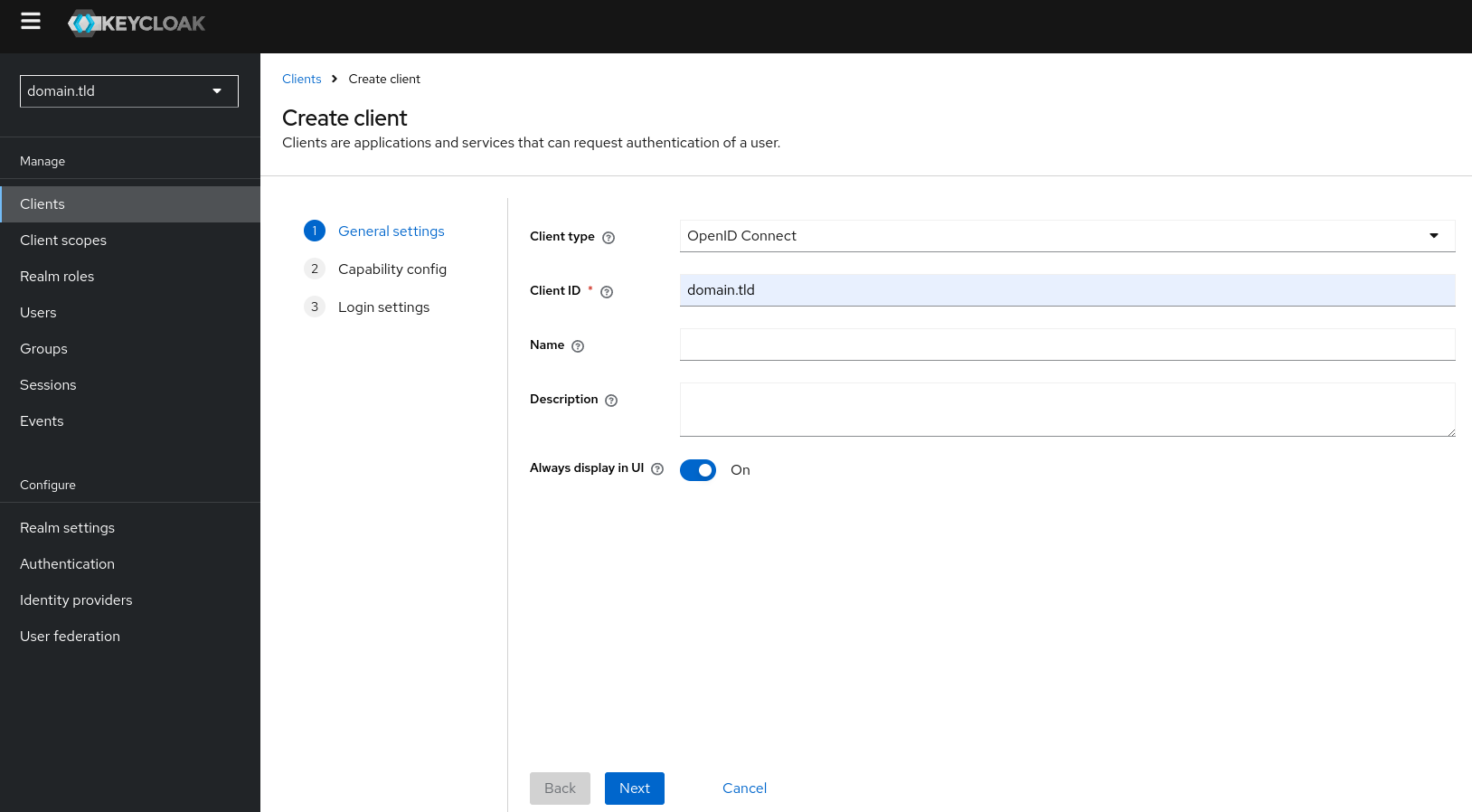
- Client type: select "OpenID Connect" type
- Client ID: As above, for better visibility, we recommend that you choose the BlueMind domain name as your identifier
- Name:
- Description:
- Always display in UI: activate the selector to display the client in the Keycloak authentication test pattern
- Set the capabilities ("Capability config") then click on "Next" to continue:
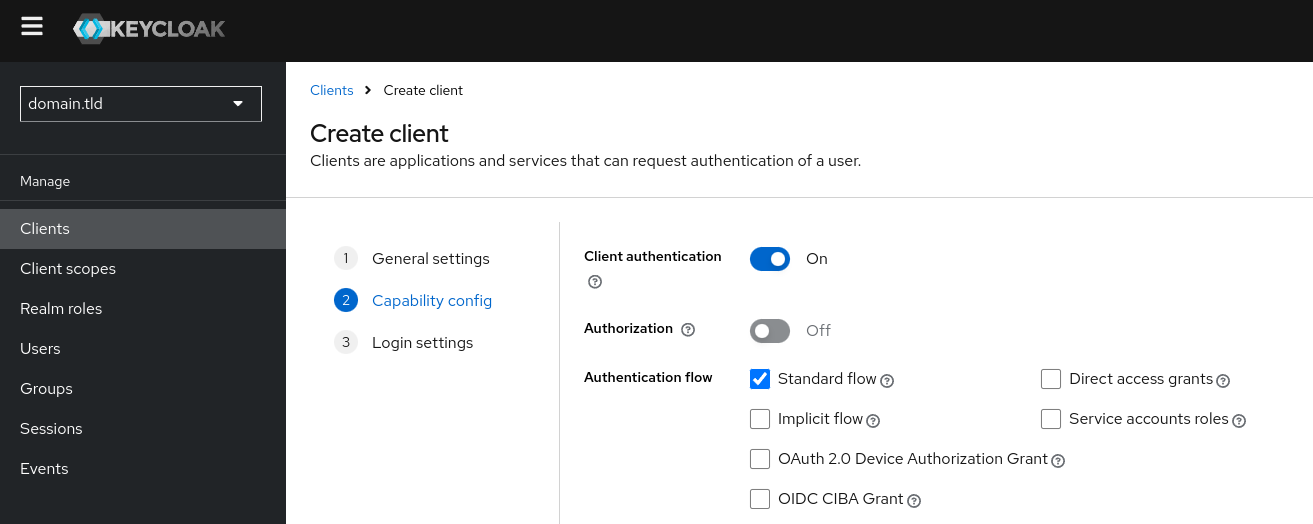
- Client Authentication: activate the selector to enable authentication - the client (in this case the BlueMind server) will need to provide a secret key to prove its identity during communication.
- Direct access grant: uncheck this box to prohibit direct access
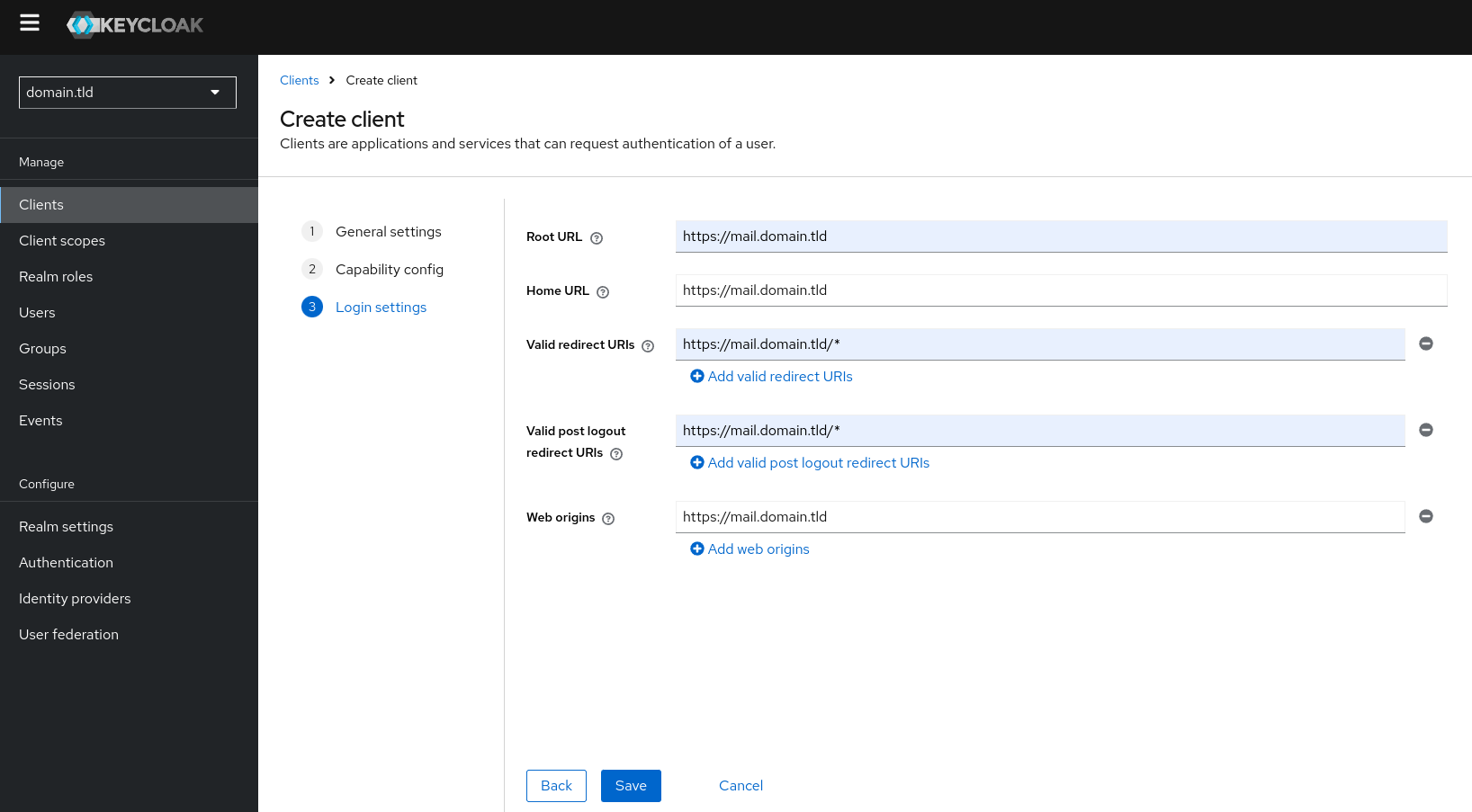
- Configuring the login settings ("Login settings"): enter the external URL of the BlueMind domain (see the domain’s General configuration ) in all URL fields, then click “Next” to continue:
Retrieving information from the keycloak adapter
Setting up SSO with an external OpenID authentication server requires 3 client configuration items to be noted.
- Third-party OpenID server URL: go to "Realm settings" and click "OpenID Endpoint Configuration":
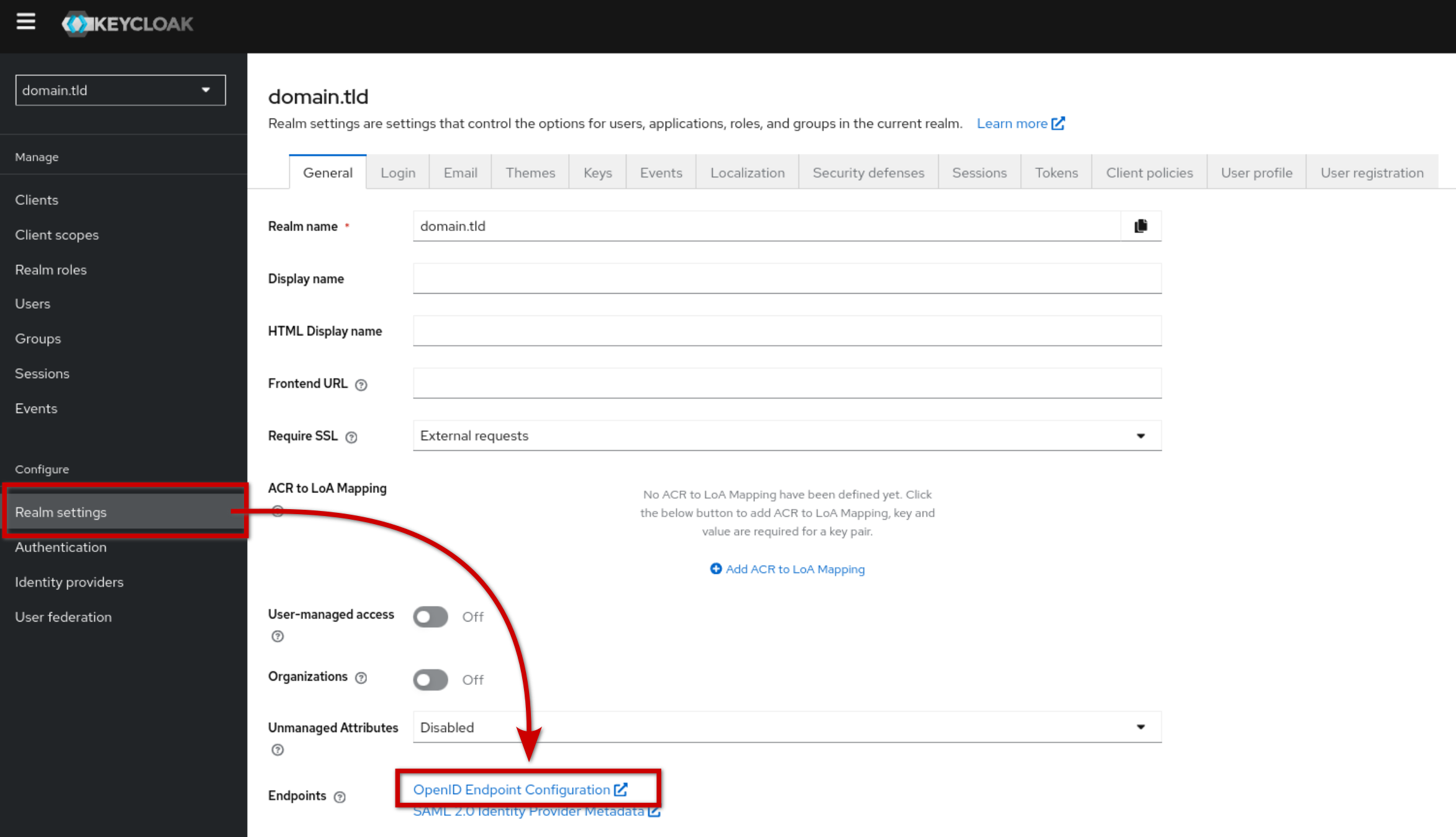
The URL is formatted as follows:
- OpenId client identifier and OpenId client secret: go to Manage > Clients > domain.tld , go to the Action menu at the top right of the page and click on "Download adpater config". A popup window opens containing the configuration in which the desired elements can be found:
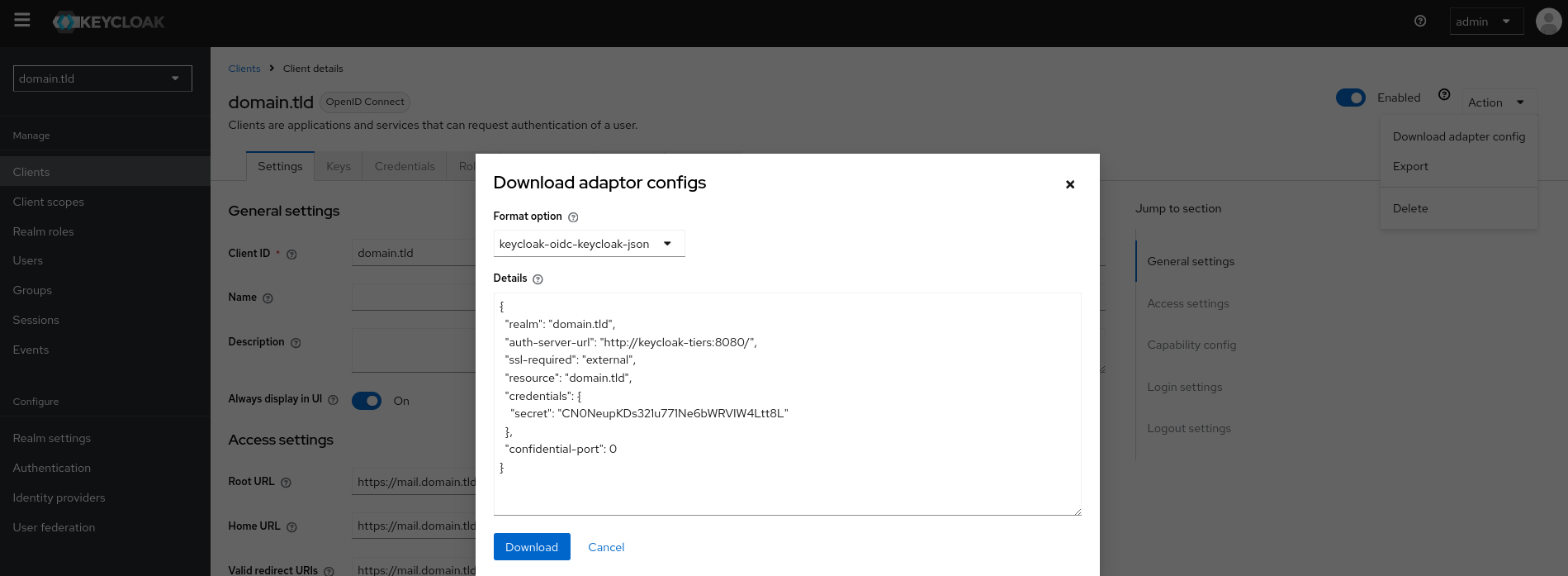
- resource: OpenID client identifier
- secret: OpenID client secret
Connecting an external user management source
The "User Federation" section lets you connect and integrate external user management sources, such as an LDAP server or a database, with Keycloak. This allows Keycloak to federate users from existing systems, without having to recreate them in Keycloak :
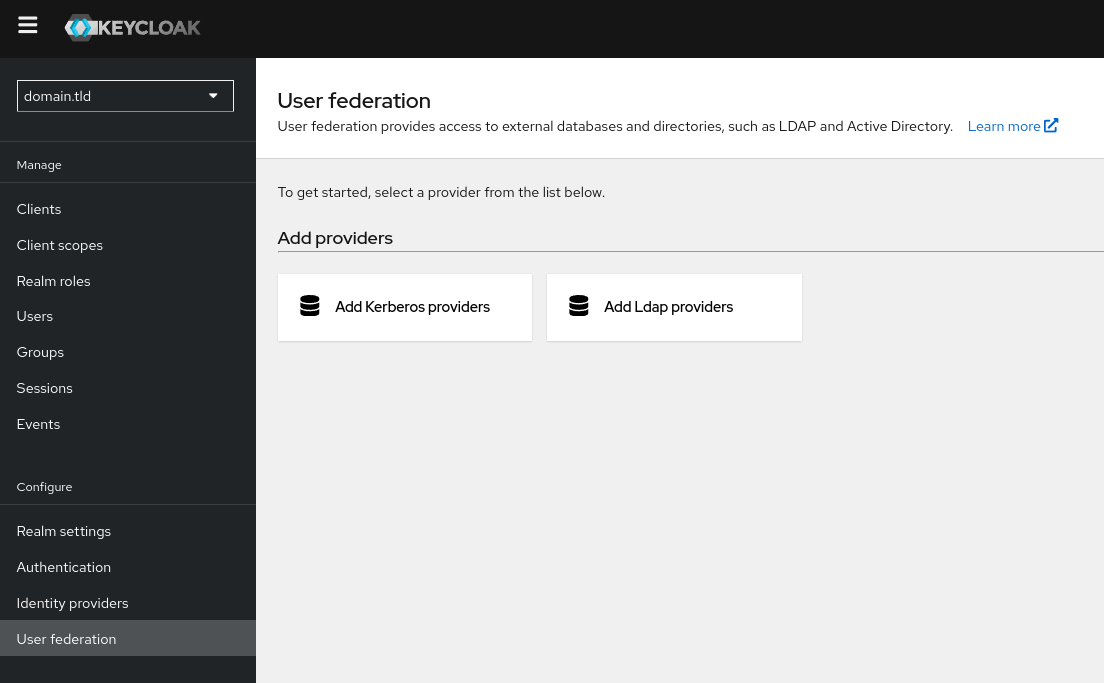
In the BlueMind context, the third-party keycloak can use LDAP as the main source for managing user information.
Find out more
To configure BlueMind, please consult the dedicated documentation: Setting up SSO with an external OpenID authentication server