Discover the BlueMind solution
BlueMind is a comprehensive Open Source collaborative messaging solution, with all the features needed for day-to-day business operations built-in: mail app, contacts, calendars, tasks, video conferencing, drive, etc.
The BlueMind solution is also 100% web-based. The mail app and all the applications are accessible online.
BlueMind’s webmail is based on the latest technologies, enabling it to adapt to all major browsers and any screen size, from mobile devices to widescreen displays.
The interface is simple, user-friendly and intuitive. Navigation is quick and smooth, regardless of the device used.
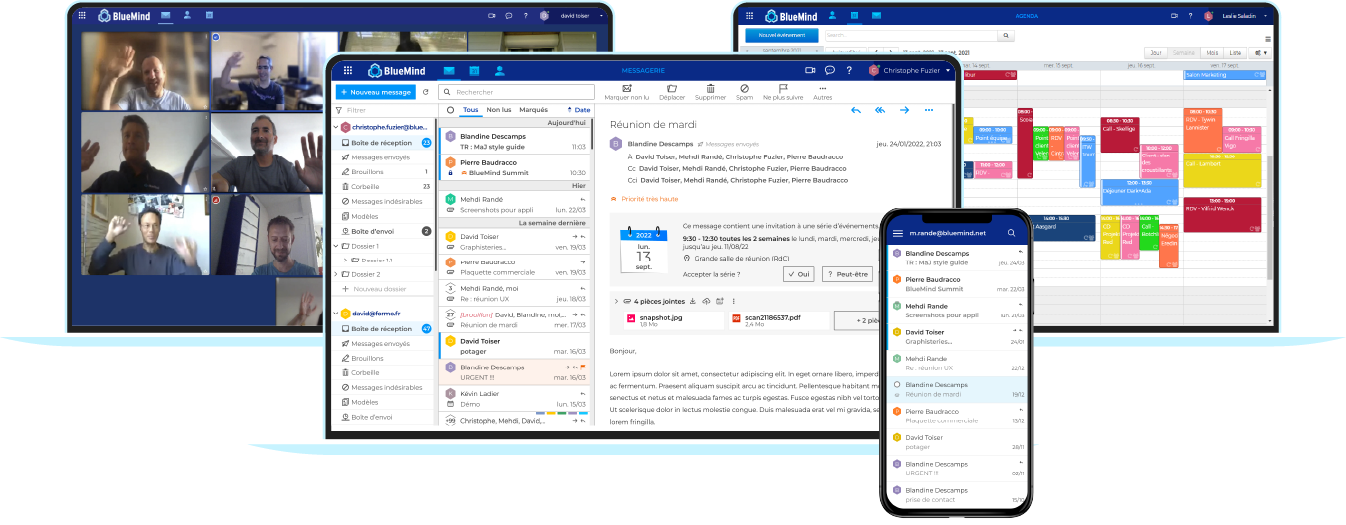
BlueMind SAS has developed a professional offer, called BlueMind Subscription, based on this Open Source software. Its aim is to enable you to use the BlueMind collaborative mail system with complete peace of mind, over the long term.
For more information on content, subscription types and how to subscribe, visit BlueMind Subscription.
Log in to BlueMind
You can access BlueMind using a compatible browser: once on the page at the address provided by the administrators, enter your account login credentials:
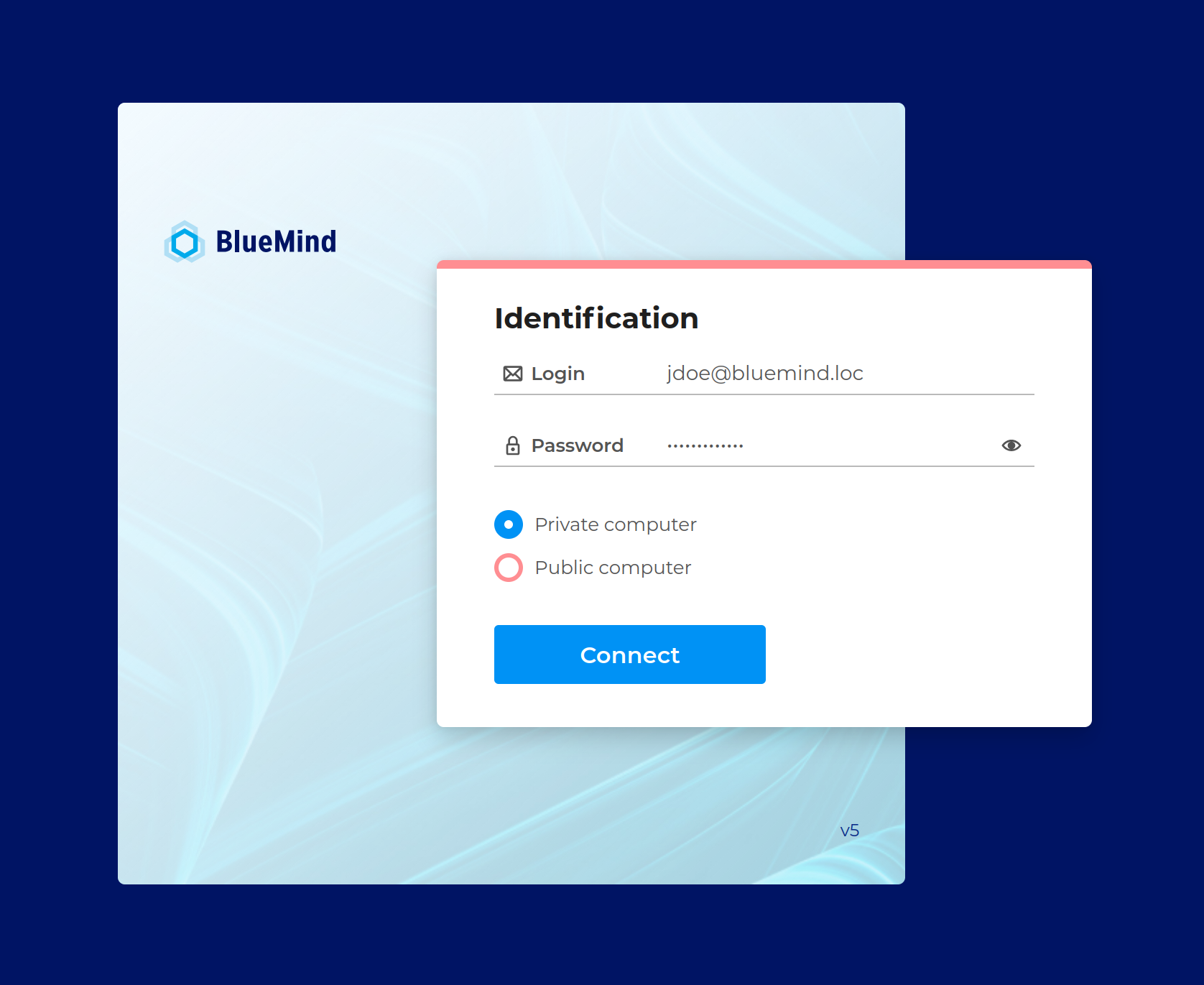
Choose the type of connection:
- Personal computer: user settings and application data are cached to reduce loading times on subsequent logins.
- Public computer: user settings and application data are not saved. This option is intended for use on public or shared workstations. Loading times may be longer when logging in, as the application must be downloaded in full.
↳ Visit Secure your connection with OTP for further information if two-factor authentication is in place.
↳ Visit Setting up Thick Clients to find out how to connect client software to your account in the software of your choice.
↳ See ‘Configuring mobile devices’ to find out how to connect a mobile application to your account.
Accessing applications and settings
You can navigate using the main menu bar at the top of the interface.

The bento menu icon in the top right corner gives you access to the Mail, Contacts, Calendar and Tasks apps.
Access to Video Conferencing and online help is to the right of the banner.
To configure your account, open the menu under your username and then click on Preferences.
By default, the interface opens to the mail app, but it can also open to the calendar. To do this, go to your account settings: Preferences – General – Default application
To find out which BlueMind version is installed, go to ‘About’ to open the information panel

Using the search box
The BlueMind solution features a powerful search mode, enabling full-text searches within emails, contacts or events.
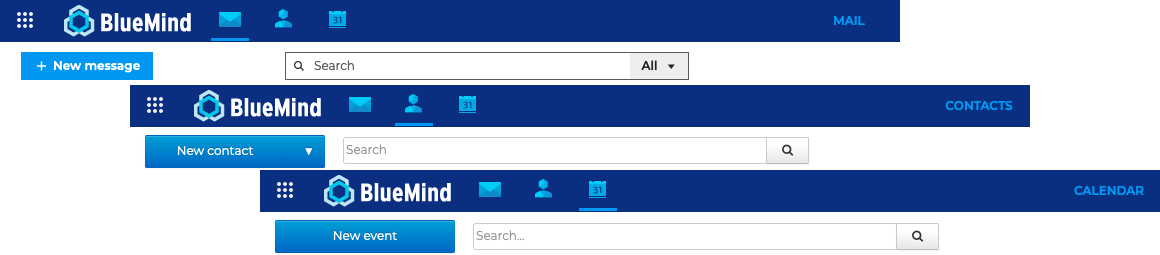
For contacts and the calendar, searches are carried out on the content of contact records and events, including tags. You can use truncation ( * ) to replace part of a word in a search. For example:
-
invit*: will search for words beginning withinvitand will find, for example,invitéorinvitation -
inv*ion: will search for words beginning withinand ending withion, such asinvitationorinvention.⚠️ Response times for searches using the
*character are significantly longer than for a simple search.
For emails, in addition to full-text search of content and attachments, you can refine your results using multi-criteria search. Visit Searching in messages for further details.
To improve efficiency, the number of results displayed is limited à 500 pour les e-mails, à 75 pour les contacts et à 100 pour les évènements.
If there are more results, we recommend refining your search.
Update the solution
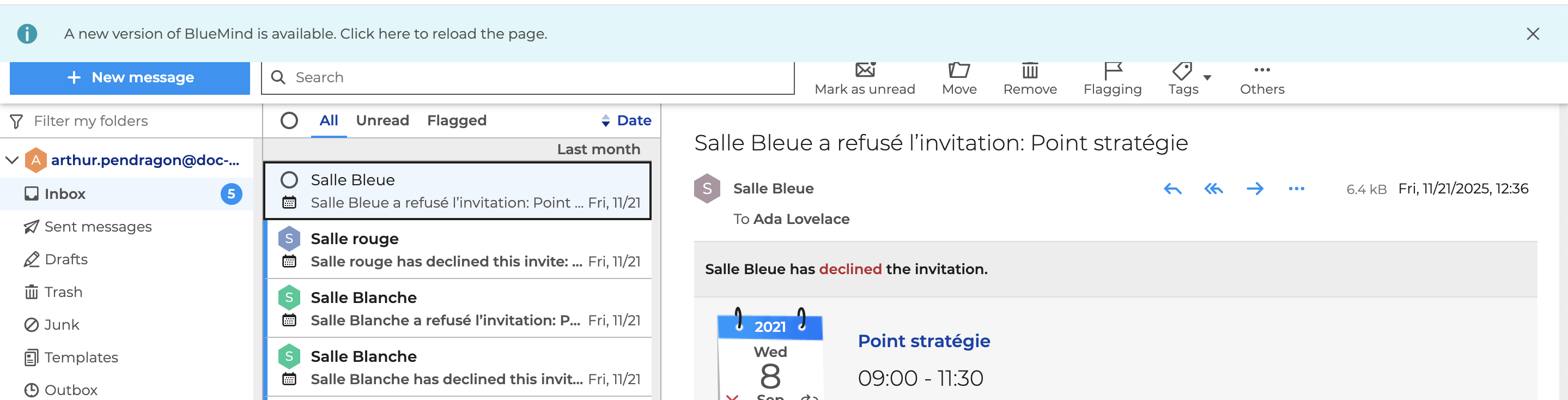
When administrators update the server, an alert appears at the top of the user interface, indicating that a new version of BlueMind is available. Simply click the "Click here to reload the page" link, or reload the page from your browser, to ensure that the latest changes are taken into account :
It's important to keep your BlueMind solution up to date. This improves application performance in the event of a slow or unstable network, and provides an optimal application experience.