Setting up SSO CAS
This document describes how BlueMind recognizes CAS (Central Authentication Service) authentication.
How CAS authentication works
For initial authentication :
- The user tries to connect to BlueMind, which he opens in his browser.
- As it has not yet been authenticated, the BlueMind server redirects it to the CAS server for authentication.
- Once authenticated, a CAS cookie is placed in the user's browser, and the user is redirected to BlueMind with a ticket to validate.
- The BlueMind server :
- sees this ticket,
- asks the CAS server if it is valid,
- If this is indeed the case, authorise the connection and set a BlueMind cookie in the browser.
On next authentication:
- The customer requests access to the BlueMind server again.
- As it has the BlueMind cookie, it is automatically authenticated as long as this cookie is valid.
For more information
- http://aldian.developpez.com/tutoriels/javaee/authentification-centralisee-sso-cas/images/09_diagramme_full.png
- http://www.jasig.org/cas/protocol
Installing
To implement CAS authentication, install the required package:
- Debian/Ubuntu
- Red Hat/CentOS
aptitude install bm-plugin-hps-cas
yum install bm-plugin-hps-cas
Then restart BlueMind:
bmctl restart
Configuration
-
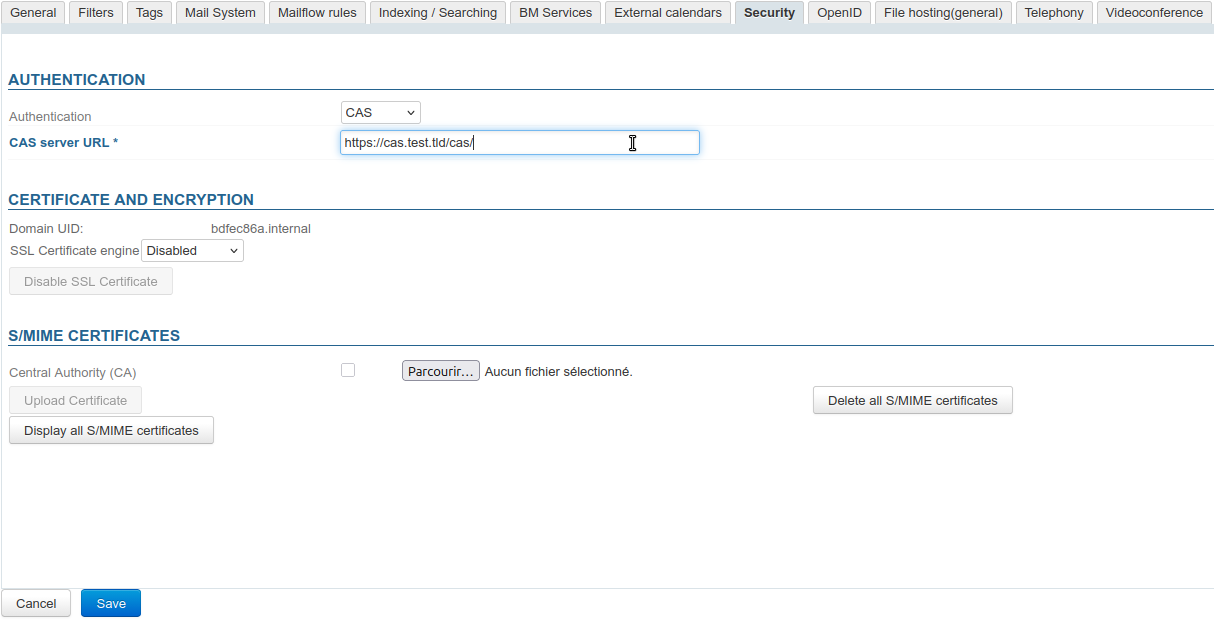
In the administration console, go to System management > Supervised domains > choose domain > Security tab.
ℹ️ Administrator account
As this procedure relates to domain configuration, it is possible and preferable to use a domain administrator account (see Organizational Units and Delegated Administration) rather than the superuser admin0. -
Select the CAS authentication mode from the drop-down menu and enterthe CAS server URL:
-
Click on "Save" to save your changes.
Users will then be automatically redirected to the CAS server when accessing the authentication page.
Known errors
Error 403: Your user account does not exist in this BlueMind.

Cause: This error message means that the login details used by the user to authenticate on the CAS do not exist for this domain. This can occur if the user has not yet been created in BlueMind, or deliberately because you do not wish that user to have access to it.
Solutions: There are two possible solutions:
- In BlueMind, create the user associated with the CAS login in the correct domain.
- Ignore the error if the access denial is intentional.
Error 500: Internal Server Error
There may be several reasons for this error message. To investigate the cause and find out how to solve it, consult the webserver logs.
Using a self-signed certificate or an unknown certification authority
Symptoms: If a self-signed certificate is used for the CAS server, or the CAS server's certification authority is not listed, a security error occurs when establishing the https connection to the CAS server.
Solution: To resolve this error, import the self-signed certificate or root CA into the jvm keystore used by BlueMind.
keytool -import -trustcacerts -alias cas -file cert_racine.crt -keystore /usr/lib/jvm/bm-jdk/lib/security/cacerts
Enter keystore password: changeit
For more information, see http://www.sslshopper.com/article-most-common-java-keytool-keystore-commands.html