LDAP Exports
The BlueMind LDAP export add-on lets you export users and groups defined in BlueMind to an LDAP directory.
How it works
BlueMind exports its data to an openLDAP directory. This service is installed when the LDAP export add-on and its dependencies are installed.
Generated directory structure
The root DN of the generated directory is dc=local.
Each BlueMind domain exports its data to a dedicated branch named with the domain UID. Under these domain branches, users and groups of the corresponding domain are placed in dedicated branches.
For example, for a BlueMind composed of 2 distinct domains with UID domain1.internal and domain2.internal, the LDAP directory structure is:
dc=local
 |- dc=domain1.internal,dc=local
 | \- ou=users,dc=domain1.internal,dc=local
 | | \- # Utilisateurs du domaine d'UID domain1.internal
 | | |- ...
 | |
 | \- ou=groups,dc=domain1.internal,dc=local
 |   \- # Groupes du domaine d'UID domain1.internal
 |   |- ...
 |
 |- dc=domain2.internal,dc=local
   \- ou=users,dc=domain2.internal,dc=local
   | \- # Utilisateurs du domaine d'UID domain2.internal
   | |- ...
   |
   \- ou=groups,dc=domain2.internal,dc=local
     \- # Groupes du domaine d'UID domain2.internal
     |- ...
Authentication
BlueMind user accounts can be authenticated to the LDAP directory using the user's DN and BlueMind password.
Passwords are not exported to the LDAP directory.
To validate a password, the LDAP directory is configured to query the BlueMind bm-core service via the bm-ysnp service.
Root administrator passwords (rootdn):
| Root | DN administrator | Password | Description |
|---|---|---|---|
| dc=local | uid=admin,dc=local | The one from admin0@global.virt | Used by BlueMind to manage directory content |
| cn=config | uid=admin,cn=config | The one from admin0@global.virt | Used by BlueMind to manage directory configuration |
Installation procedure
The BlueMind LDAP export add-on does not work when AppArmor, a Linux security module (LSM), is enabled. The "invalid credentials" error appears.
It is recommended that you disable this application before starting the installation process for the ldap-export add-on.
-
Install the necessary packages on the server hosting BlueMind and restart it:
- Debian/Ubuntu
- RedHat/CentOS
aptitude update aptitude install bm-plugin-admin-console-ldap-export bm-plugin-core-ldap-export bmctl restart
yum update yum install bm-plugin-admin-console-ldap-export bm-plugin-core-ldap-export bmctl restart
-
Install the bm-ldap-role package on the server on which you wish to run the LDAP directory (this may be the BlueMind server itself or a separate server) and restart it:
- Debian/Ubuntu
- RedHat/CentOS
aptitude update
aptitude install bm-ldap-role
bmctl restart
yum update
yum install bm-ldap-role
bmctl restart
⚠️ If you are prompted with questions during package installation, select the default answer: BlueMind will reset the LDAP directory configuration in the following steps, so any customizations will be lost.
-
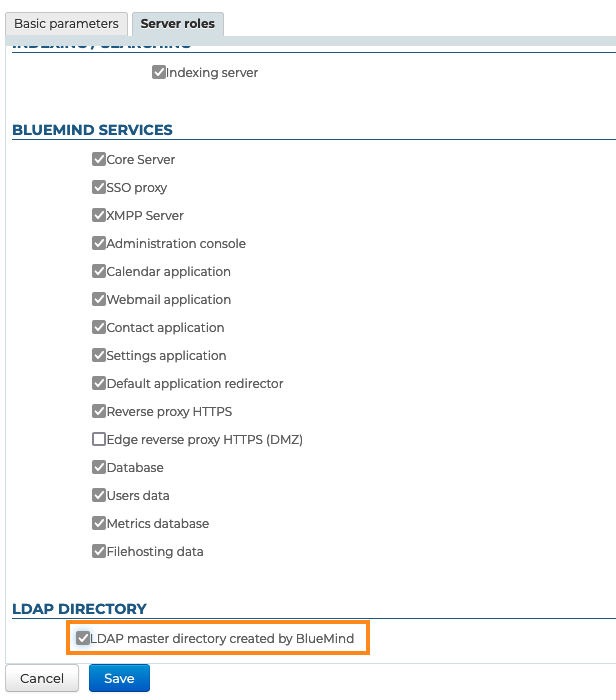
Assign the dedicated role to the server.
To do this:- log into the administration console as superadministrator
admin0and go to "Application servers".
💡 if it's a separate server and doesn't yet exist, add it here using the New > Server button
- select the server and go to the "Server roles " tab
- in the "LDAP Directory" section, check "LDAP master directory created by BlueMind":
- log into the administration console as superadministrator
-
Confirm by clicking "Save"
-
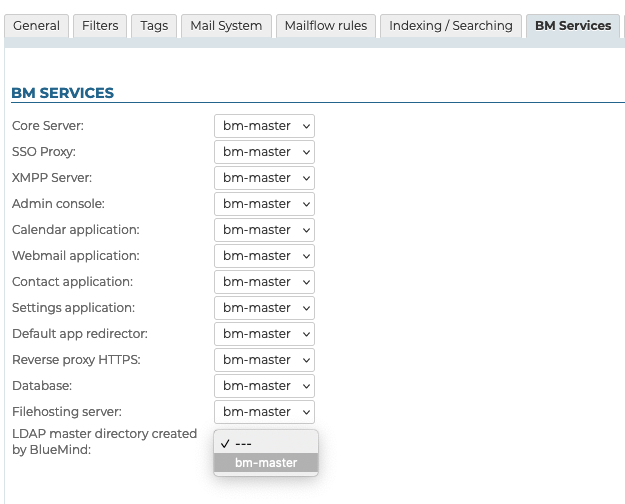
Associate the server with the desired domain(s).
To do this, go to Domain management > Supervised domains and:- select the domain to be exported in LDAP format
- go to the "BM Services " tab
- Select the server for the service with the same name "Master LDAP directory generated by BlueMind":
- Confirm by clicking "Save"
💡 Repeat for each desired domain.