Managing Video Conferences with BlueMind Video
BlueMind Video is a SAAS videoconferencing service based on Jitsi and integrated with BlueMind.
Installing and Configuring BlueMind Video
Verifying the subscription
This feature is integrated into BlueMind, and does not require the installation of additional packages.
However, access to this service requires a subscription. For more information on this service, visit BlueMind Subscription or contact BlueMind sales team for rates.
To verify whether a site's subscription entitles it to the service, go to the administration console > System Management > Manage Subscription:
- the "Maximum number of advanced video accounts" row must have a value greater than 0
- the "BlueMind.Video" must show a date that has not yet expired
For more information on managing subscriptions, visit Managing subscription.
Configuring the BlueMind Video Server
Activation and content template
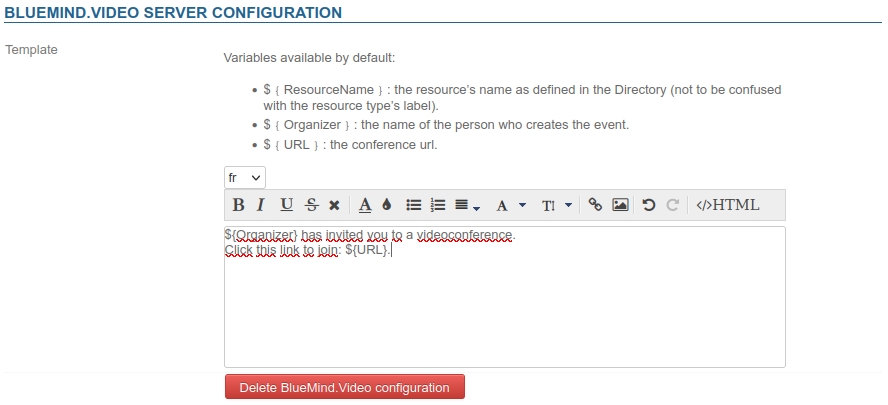
To enable videoconferencing for users in a domain, configure the invitation template for the associated resource.
To do this, go to the administration console > System Management > Managed Domains > select the desired domain > Videoconferencing tab:
-
Fill in the invitation pattern to add a message accompanying the link to the videoconference
-
Select the desired language from the drop-down list
ℹ️ Multilingual
Language settings are saved, so you can switch between them without having to save after each change.
To remove a language, clear the content field (select the text and delete it).When creating an event, the content will be added to the invitation based on the organizer's language.
-
Fill in the content:
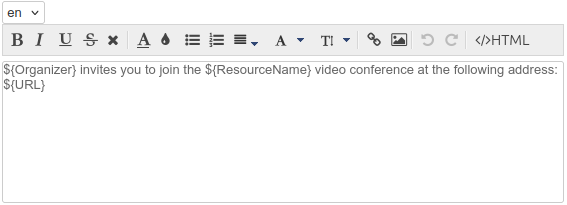
The template may contain variables, which are automatically replaced in the text by the system:${NomRessource}: the name of the resource as defined in the directory${Organisateur}: the name of the person creating the event in the Calendar${URL}: the conference access URL${siteURL}: Application-specific URL
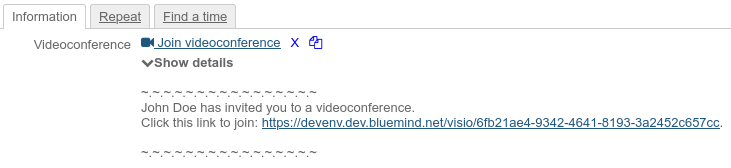
When a user adds a video conference to their event, the text defined by the template is automatically added to the event and to the invitation email sent to participants:
-
-
Click Save
⇒ A resource named "BlueMind.Video" is automatically created and added to the directory.
Users can now use it to create and add video conferences to their events.
Configuring user profiles
Video conferencing usage limitations depend on the type of user account:
- A videoconference initiated by a "Collaborative" user (the usual type of account) is limited to 45 minutes and two participants.
- A videoconference involving a "Collaborative + Visio" user is not time-limited and allows up to 100 participants: as soon as such a user creates or connects to the videoconference, the parameters are applied.
Domain settings
As the subscription allows a certain number of users with the "Full account + video conferencing" profile, the maximum number of users authorized with this profile must be set for each domain in its General configuration.
To do this, go to the administration console > System management > Supervised domains > select the desired domain > General tab and enter the desired limit in the "Maximum number of advanced video accounts:" field.
If the field is empty, then no "Collaborative + Visio" profile user is authorized for the domain. It is therefore necessary to enter a value in this field to be able to assign the profile to users.
Profile assignment
The "Collaborative + Visio" profile can be assigned to domain users if the domain settings allow this (see above), either when they are created or by accessing their management file in the administration console > General tab > section "Account information":
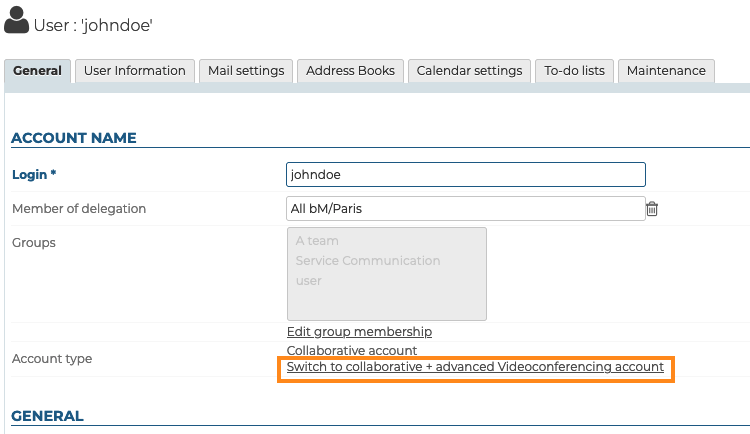
The Manage BlueMind Subscription role is required to have the right to make such a change.
Accessing the videoconference
Giving users rights
Access to the new feature is via the “BlueMind.Video” resource created during server configuration:
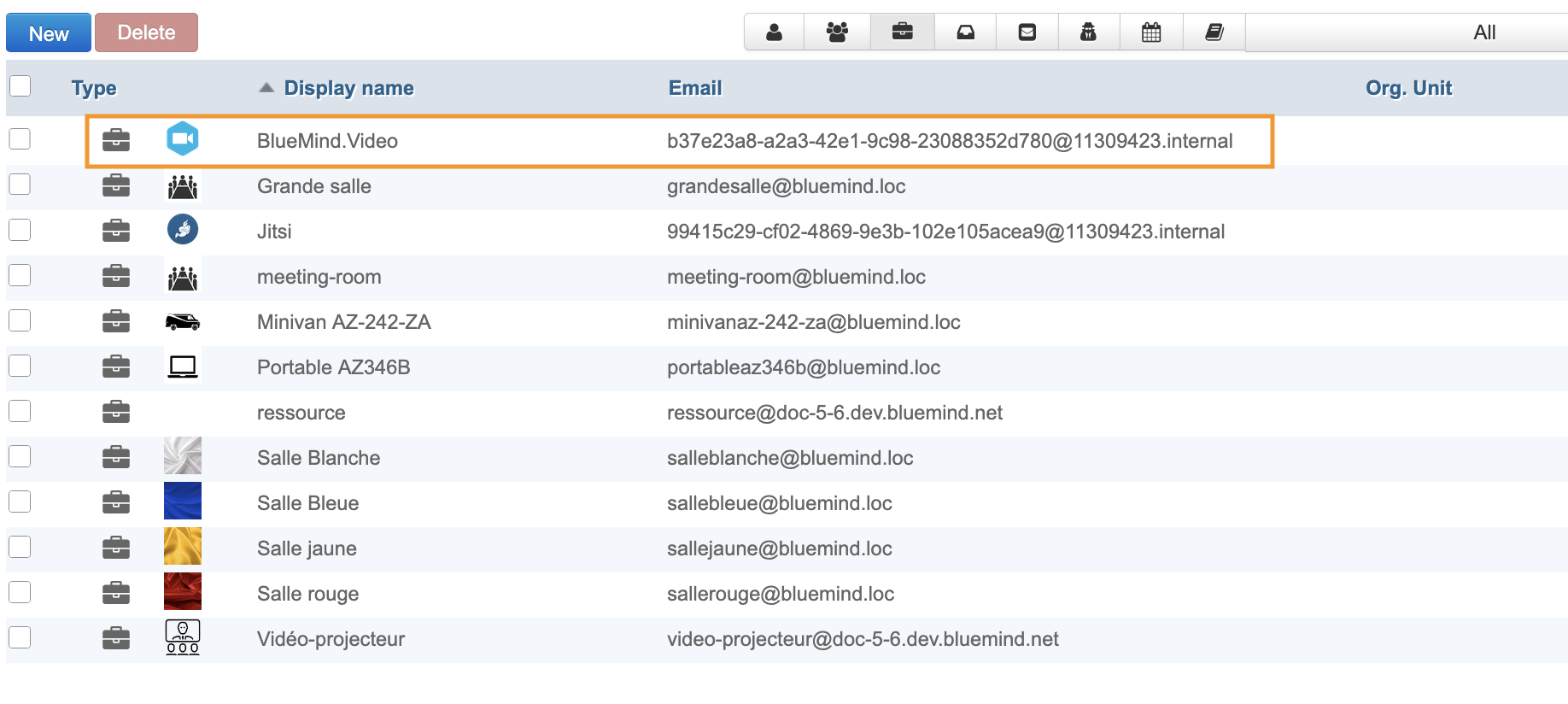
This resource is managed just like any other; it is through the sharing settings that you can grant booking permissions and, consequently, generate videoconference links. Therefore, you must grant a reservation right (a "can book this resource" sharing right or higher) to the desired users or groups so that they can create video conferences for their events.
By default, la ressource est partagée avec un droit de réservation simple, tous les utilisateurs peuvent lier une visioconférence.
As a resource, it can be assigned working hours or a reservation policy. However, as the link generated is unique, this will not affect the availability of the videoconference itself: the link will still be active and available outside these times.
Using the resource
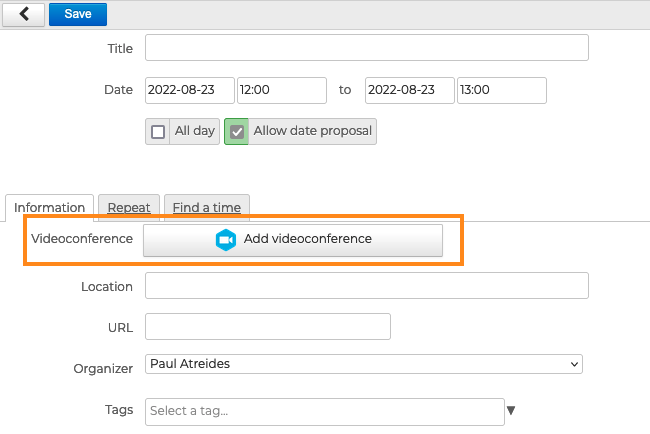
The resource must not (and cannot) be invited to an event via BlueMind: once configuration is complete, a button will appear in the BlueMind navigation bar as well as in the event creation interface for authorised users:
theme.common.Pourinfo :
- Videoconferencing
- Organise a meeting > Adding videoconferences
- Working with Outlook > Videoconferencing
Technical configuration
The following accesses must be open:
-
Between the BlueMind server hosting the installation and the BlueMind Video server :
Requirement Address Port Protocol Description Required video.bluemind.net443 TCP API + WebSocket Required video-turn.bluemind.net443 TCP TURN -
Between each client workstation and the BlueMind Video server :
Requirement Address Port Protocol Description Required video.bluemind.net 443 TCP API + WebSocket Optional
Highly recommendedvideo.bluemind.net10000 UDP VIDEO BRIDGE Optional
Highly recommendedvideo.bluemind.net11000 UDP VIDEO BRIDGE Optional video.bluemind.net3478, 5349 TCP STUN
Although ports 10000 and 11000 are optional, they are highly recommended to ensure good audio/video quality. Passing through a STUN port 443 tunnel is functional, but quality will be poor.
To guarantee a quality connection, we recommend that you do not use a VPN to access BlueMind Video.