Integrating Video Conferencing with Teams
Teams conferences can be easily created and linked to a BlueMind meeting.
Installation prerequisites
A Teams subscription is required https://www.microsoft.com/fr-fr/microsoft-teams/compare-microsoft-teams-options
Configuring Teams
Declare the application in the Azure portal
- Connect to the Azure portal https://portal.azure.com/#home
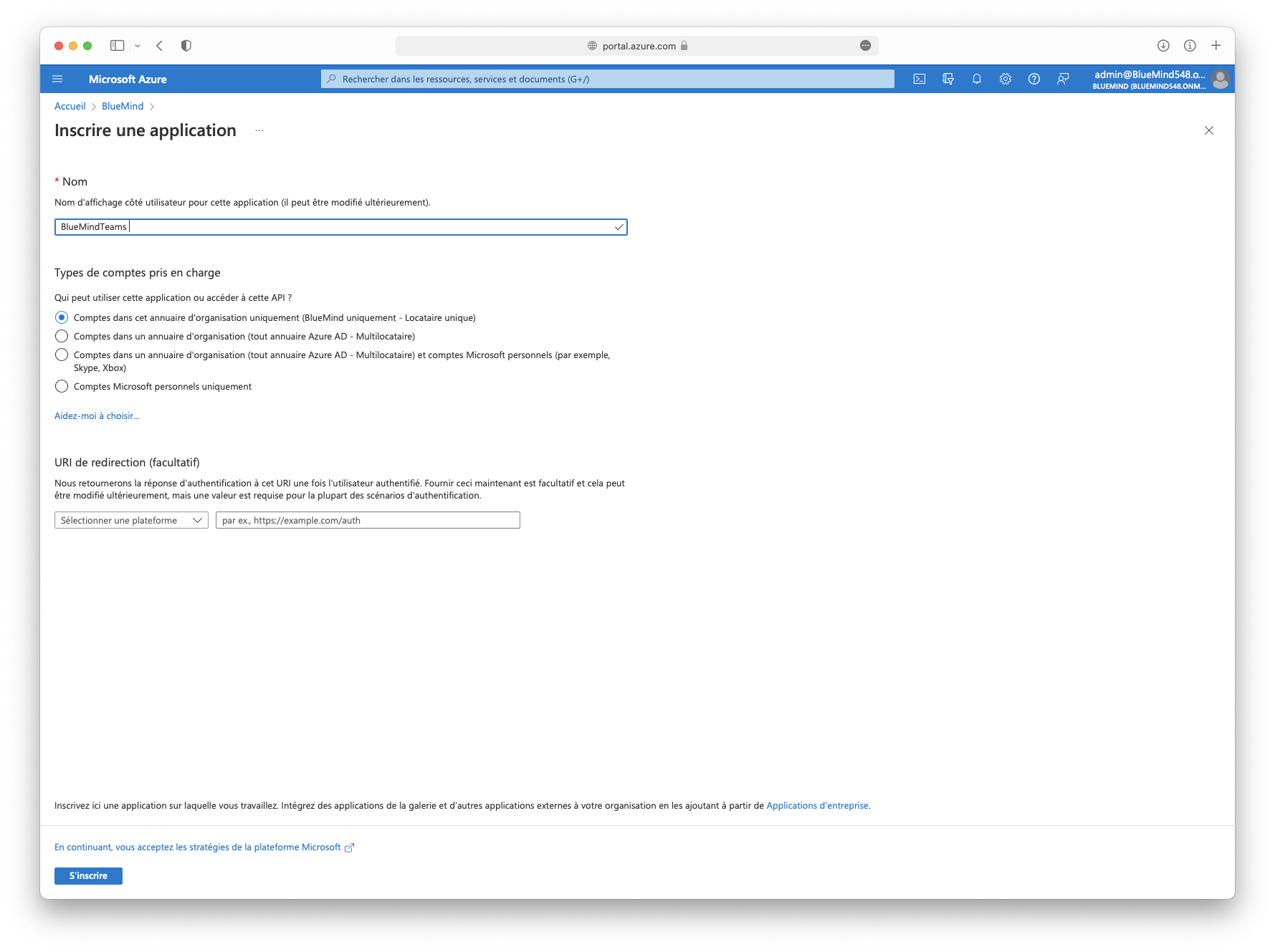
- Register a new application in Azure Active Directory > Application registration > New registration
- Enter the application name (e.g. BlueMindTeams):
Generate a secret
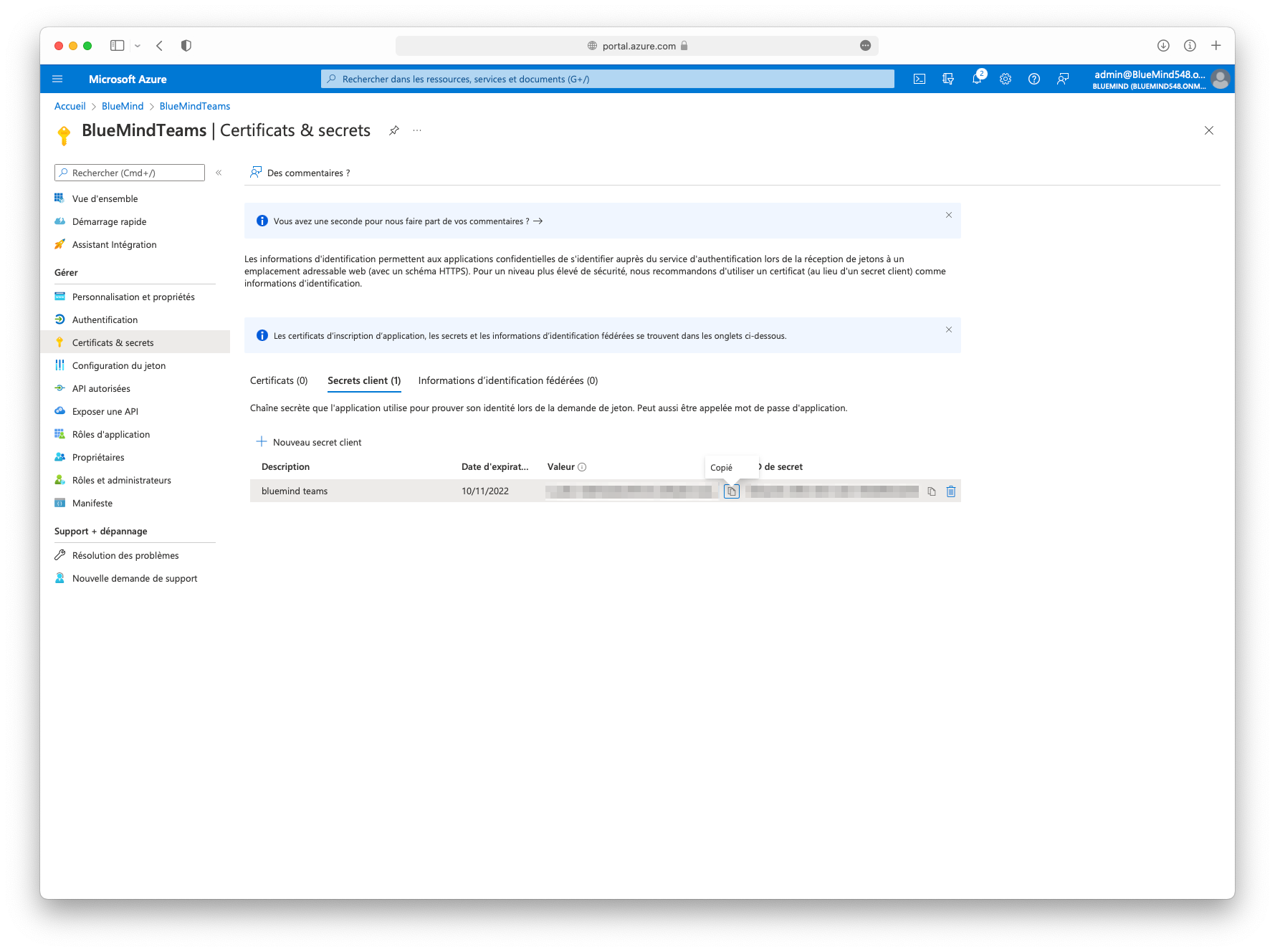
- In the application overview > Add certificate or secret > New customer secret
- Enter a description and expiration date:
Recover Teams credentials
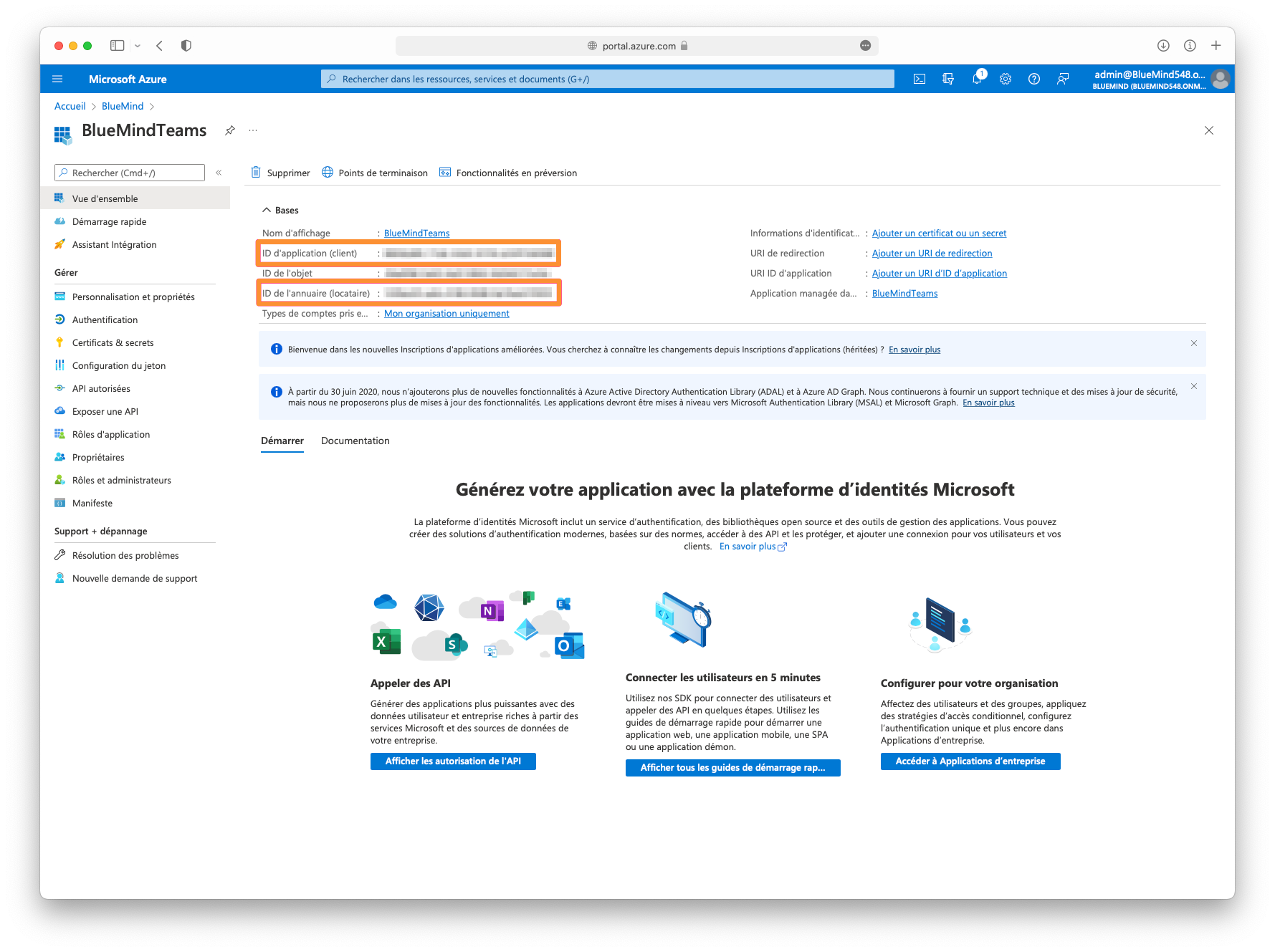
- In the overview, retrieve the following items:
- Application ID (APPLICATION_ID)
- Directory ID (TENANT)
Allow the application to access Teams meeting creation APIs
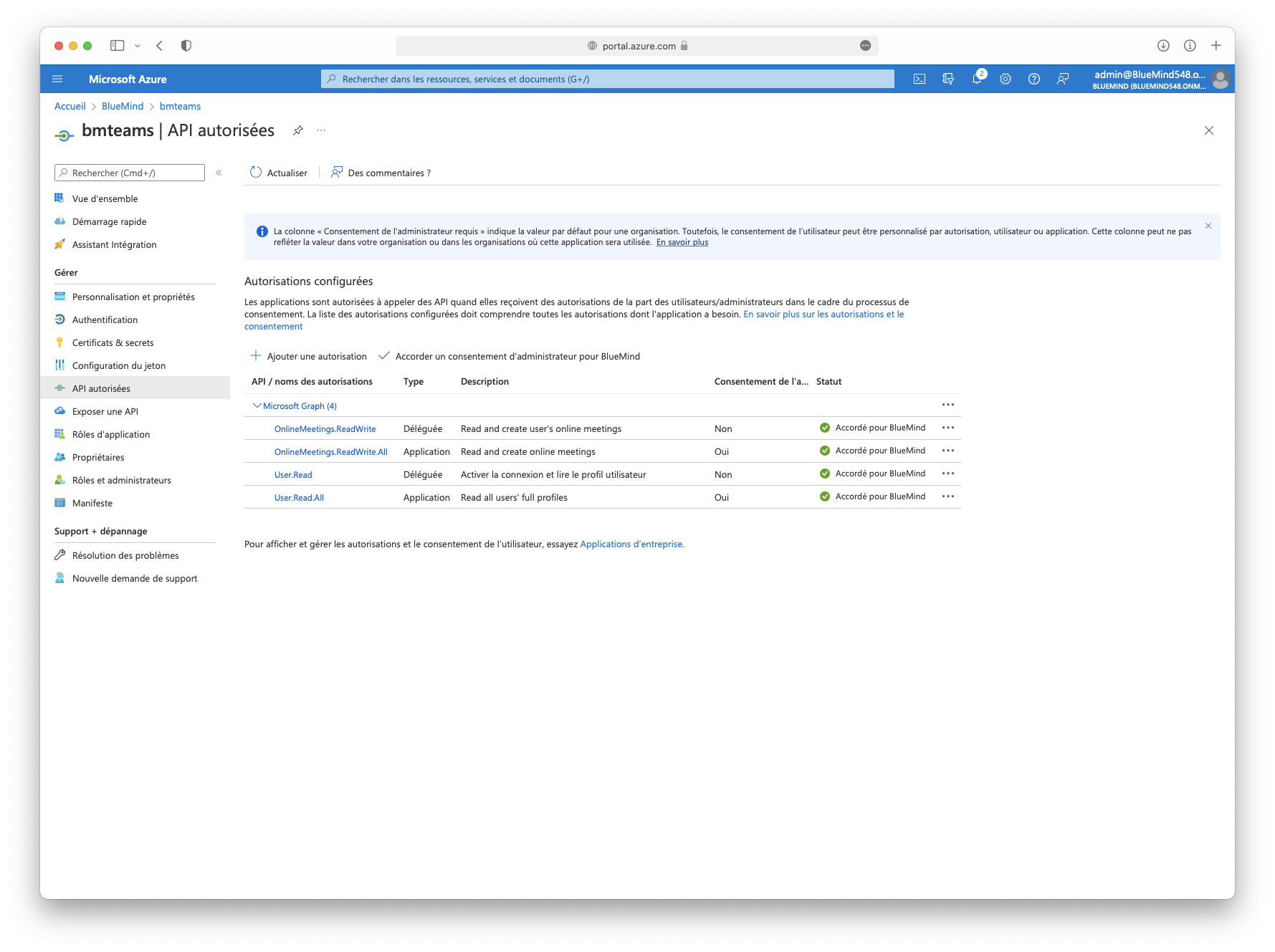
- In the Authorized API screen > Add authorization > Microsoft Graph
- Add APIs:
- Delegated authorizations
- None
- Application authorizations
- OnlineMeetings.ReadWrite.All
- User.Read.All
- Delegated authorizations
- Grant administrator consent:
Adding an access policy
In Powershell:
-
Install the Microsoft Teams PowerShell module if necessary:
Install-Module -Name PowerShellGet -Force -AllowClobberInstall-Module -Name MicrosoftTeams -Force -AllowClobber -
Connect to Teams:
Import-Module MicrosoftTeams$userCredential = Get-CredentialConnect-MicrosoftTeams -Credential $userCredential -
Create access policy Grant-CsApplicationAccessPolicy :
New-CsApplicationAccessPolicy -Identity BlueMindTeams-policy -AppIds "APPLICATION_ID" -Description “bluemind teams” -
Assign this access policy to:
-
all directory users:
PS C:\> Grant-CsApplicationAccessPolicy -PolicyName "BlueMindTeams-policy" -Global -
a user:
PS C:\> Grant-CsApplicationAccessPolicy -Identity "USER_ID" -PolicyName "BlueMindTeams-policy"
-
Configuring BlueMind
Installing the Teams packages
To make the new features available to users, you must install the plugin by installing the following packages on the server and restarting BlueMind:
- Debian/Ubuntu
- Red Hat/CentOS
aptitude install bm-plugin-admin-console-videoconferencing-teams bm-plugin-core-videoconferencing-teams
bmctl restart
yum install bm-plugin-admin-console-videoconferencing-teams bm-plugin-core-videoconferencing-teams
bmctl restart
Configuring the Teams server
- Go to the administration console in System management > Supervised domains > choose the desired domain > Videoconferencing tab
- Enter the information retrieved from the Azure portal:
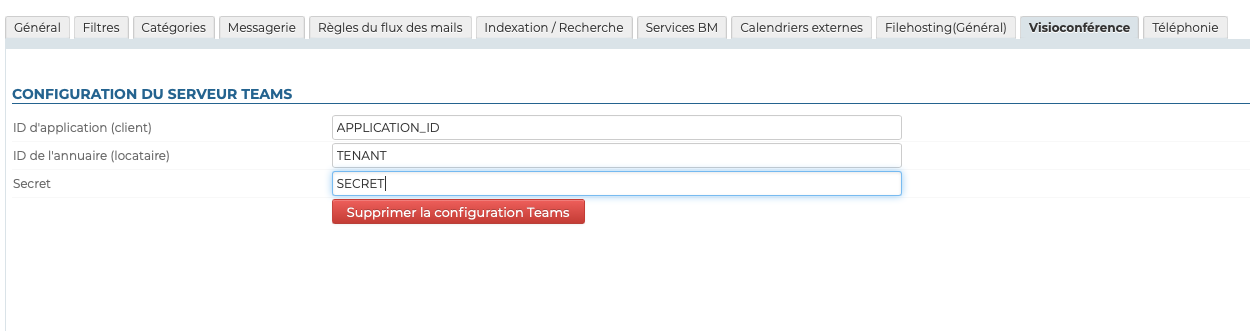
- Click on "Save"
⇒ A resource named "Teams" is automatically created and added to the directory.
In order for users to be able to use it, they must be granted sharing rights for the resource.
Disconnecting the Teams server
To disassociate a server Teams from the domain:
- go to System management > Supervised domains > choose the desired domain > Videoconferencing tab
- click the "Delete the Teams configuration" button
- validate the confirmation request
There's no need to click on the "Save" button at the bottom of the page, as your request is effective as soon as you've confirmed it.
⇒ The associated resource is automatically deleted and the shares are cleared; it no longer appears in the entity management interface, and users can no longer reserve it.
Accessing the videoconference
Giving users rights
Access to the new functionality is via the resource created in the "Teams" section during the Server configuration:

This resource is managed just like any other; it is through the sharing settings that you can grant booking permissions and, consequently, generate videoconference links. Therefore, you must grant a reservation right (a "can book this resource" sharing right or higher) to the desired users or groups so that they can create video conferences for their events.
By default, la ressource n'est pas partagée, les utilisateurs ne peuvent pas lier de visioconférence.
As a resource, it can be assigned working hours or a reservation policy. However, as the link generated is unique, this will not affect the availability of the videoconference itself: the link will still be active and available outside these times.
Connect user account to Teams account
From user preferences
It is necessary to link the BlueMind user account to the Teams account using an external account.
theme.common.Pourinfo Managing external accounts.
Provisioning from bm-cli
An administrator can provision external accounts by importing a CSV file from a bm-cli command:
bm-cli user externalaccountimport --domain=DOMAINE --file=FICHIER_CSV
The CSV file must be structured as follows:
videoconferencing-teams;emailBlueMind;emailTeams
To associate accounts, the first field of the CSV file must contain videoconferencing-teams.
For example:
videoconferencing-teams;david@bluemind.lan;david@teams.com
Using the resource
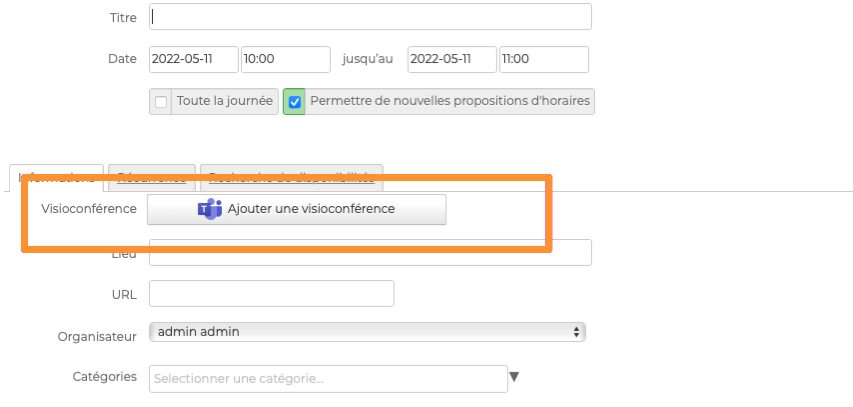
Once users have booking rights for the resource (see above), a button becomes available in the event creation interface:
theme.common.Pourinfo :