Using Apple applications
Using the Mail application
Once the Mail account has been added, open the Mail application. All emails and folders in the user’s mailbox will be displayed automatically, provided the “Synchronisation” option (see Subscribing to a shared mailbox) in the BlueMind preferences is enabled.
Shared mailboxes
To view the folders in shared mailboxes:
- Right-click in the folder list, then click ‘Get Account Data’.
- In the “Account Information” window, go to the “Subscription List” tab
- Tick the desired mailboxes and folders
💡 The list shows all the shared mailboxes to which the user is subscribed and for which synchronisation is enabled (see Subscribing to a shared mailbox) in the BlueMind mail app preferences
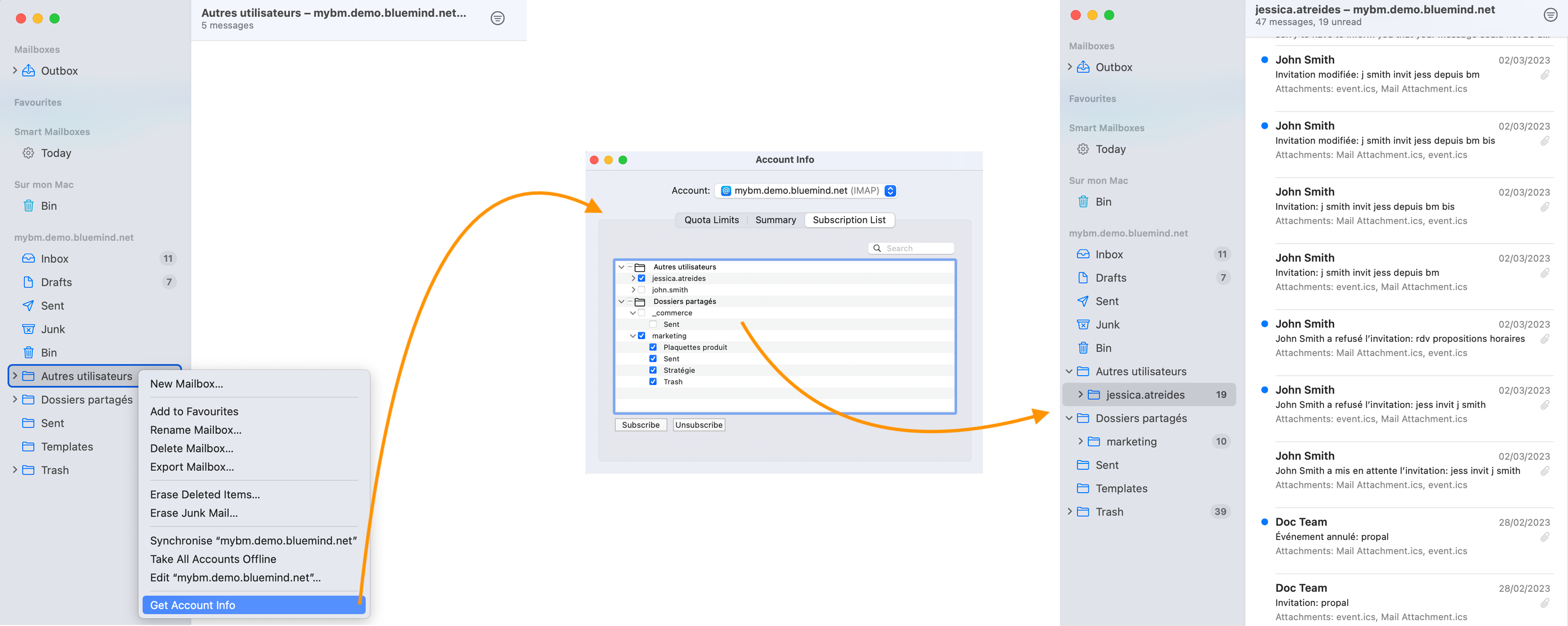
Synchronisation in the folder list is immediate.
Shared mailboxes are available:
- in the ‘Other Users’ folder for individual mailboxes shared by users
- in the “Shared Folders” folder for group mailboxes, created and shared by the administrator
To send an email on behalf of a shared mailbox:
- Open the account preferences and go to the ‘Account Details’ tab
- In the ‘E-mail address’ field, click ‘Edit e-mail addresses’ and add the address of the shared mailbox
- When sending an email, select the desired alias
Mail does not support read or write permissions for mailboxes. It is possible to send emails on behalf of any email address by adding it to your aliases, whether it is a shared mailbox with write or read-only access, or a non-shared email account.
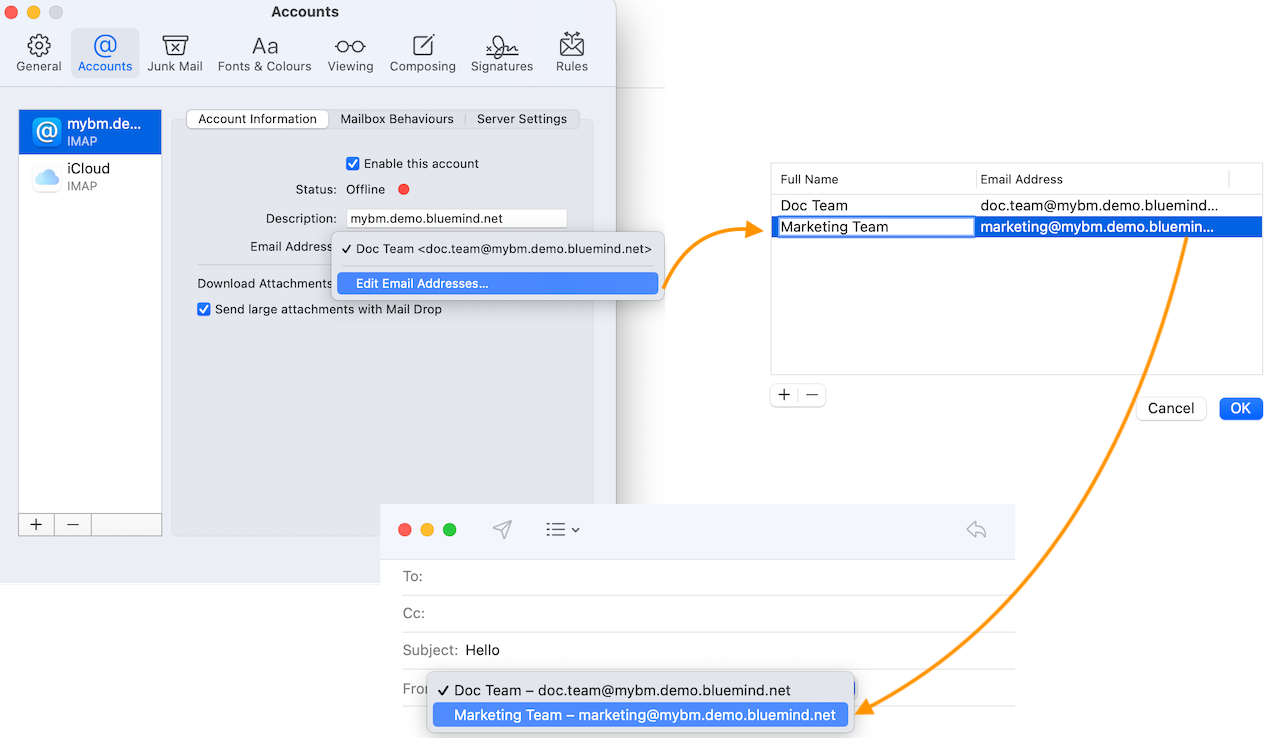
All emails sent from an account – regardless of the alias used – are filed in its ‘Sent’ folder and not in the ‘Sent’ folders of shared mailboxes.
Corporate signatures
When a corporate signature is enabled by the administrator, it appears on all emails sent from the Mail application in text format. The HTML version and images are not included.

Please note that whilst composing an email, the signature is not visible and cannot be moved, even if the administrator has ticked the option to allow this.
For more information on the Mail application, see Apple Support
Using the Contacts application
Once the CardDav account has been added, the contacts in My contacts, if the option "Synchronization" is activated in the BlueMind preferences, appear in the Contactsapplication:
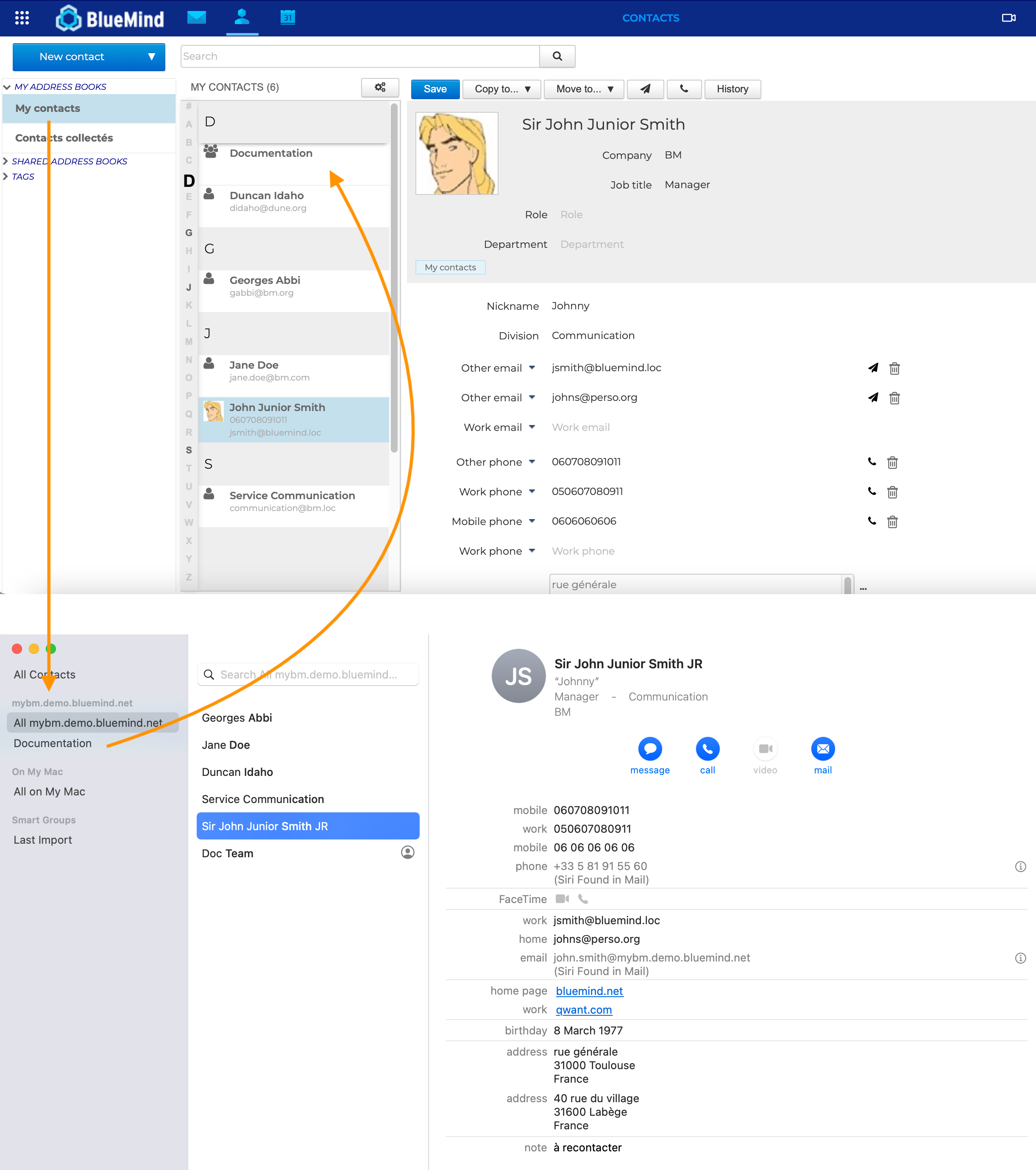
Distribution lists created in BlueMind are not recognised in the Contacts app. Conversely, groups (the equivalent of BlueMind distribution lists) created in Contacts are automatically synchronised with the ‘My Contacts’ address book in BlueMind.
In contact records, the main contact fields such as name, telephone numbers, email addresses, websites, postal addresses, etc. are automatically synchronised between the Apple and BlueMind Contacts applications. Some fields are specific to each application, for example ‘Tag’ in BlueMind or ‘Lunar Birthday’ in Apple. These fields cannot therefore be synchronised.
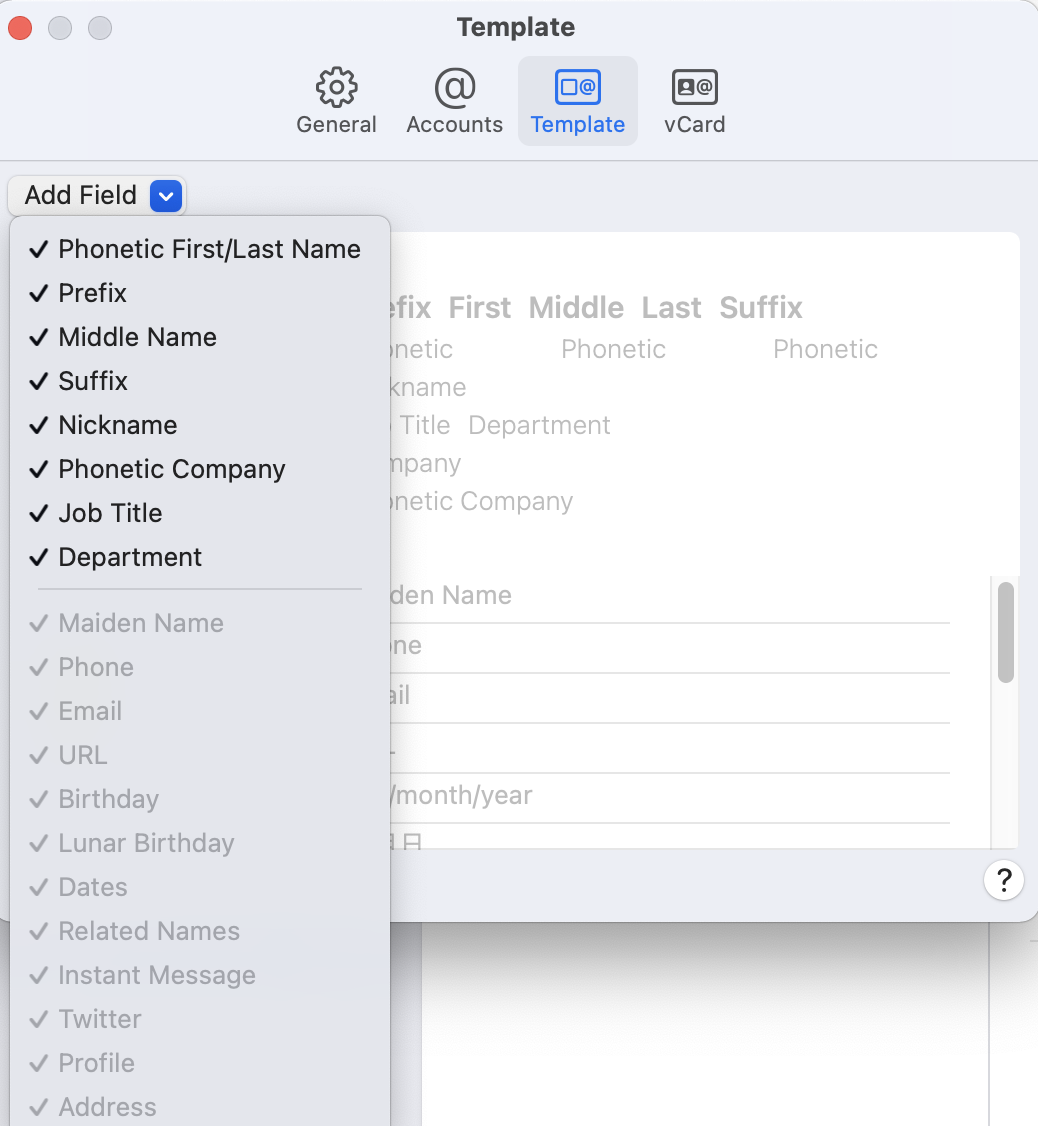
To display identity fields provided by BlueMind, go to the ‘Template’ tab in Contacts preferences and add the required fields:
Shared address books
The CardDav protocol only synchronizes the My contacts address book. To use contacts from other personal or shared BlueMind address books, you can import them into the Mac (see procedure below).
Sharing address books is not possible with the Contacts application. Only individual contact entries can be shared.
Importing BlueMind contacts
-
Navigate to the address book into which the contacts are to be imported
💡 To avoid duplicates caused by synchronisation in BlueMind’s ‘My Contacts’ address book, import contacts into a group called ‘On my Mac’
-
Click on “Add”:
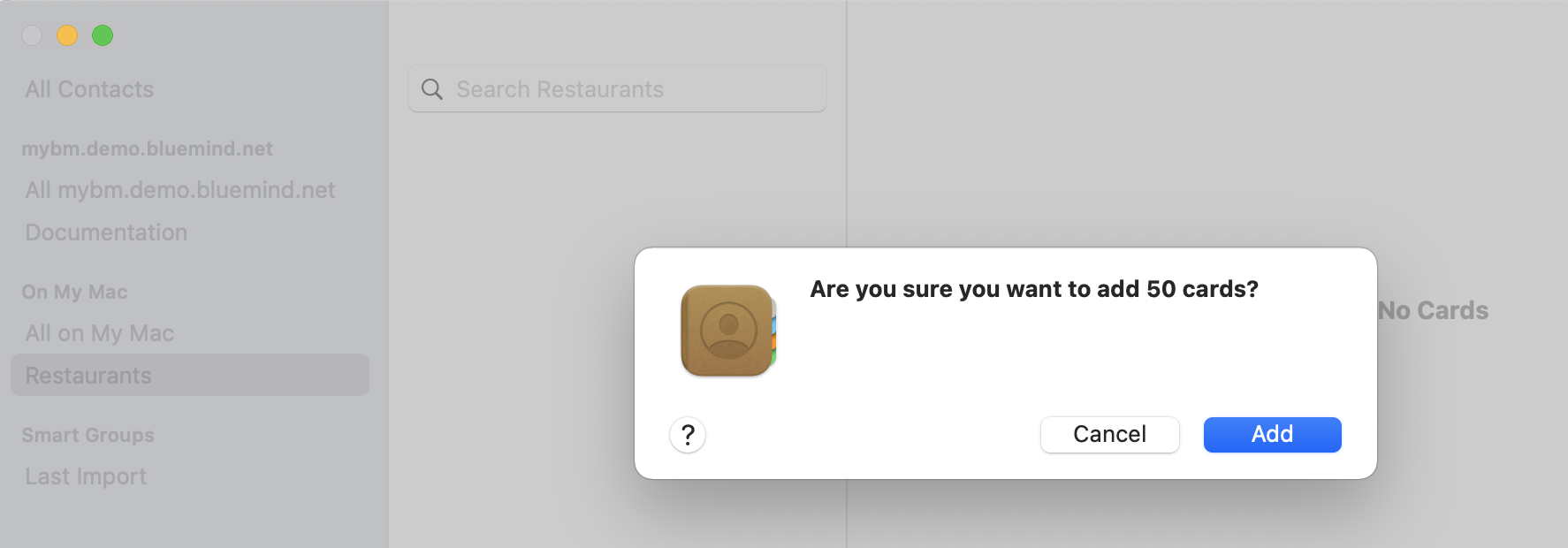
Imported contacts will not be synchronised with BlueMind address books. Any changes made to or deletion of a contact on the Mac will not be reflected in the BlueMind address book, and vice versa.
Using contacts
The contact search is carried out within the selected address book and offers suggestions for contacts found in other Apple applications. Click ‘Add to Contacts’ to add a suggestion to the selected address book.
Just as in the BlueMind Contacts application, you can call or send an email directly from a contact’s details page. You can also send an email to members of a group by right-clicking on the group and selecting ‘Send an email to…’.
For more information on the Contacts application, see Apple Support
Using the Calendar application
Once the Caldav account has been added, appointments from the user's personal calendars, whose option "Synchronization" is activated in the BlueMind preferences, appear in the Calendar application.
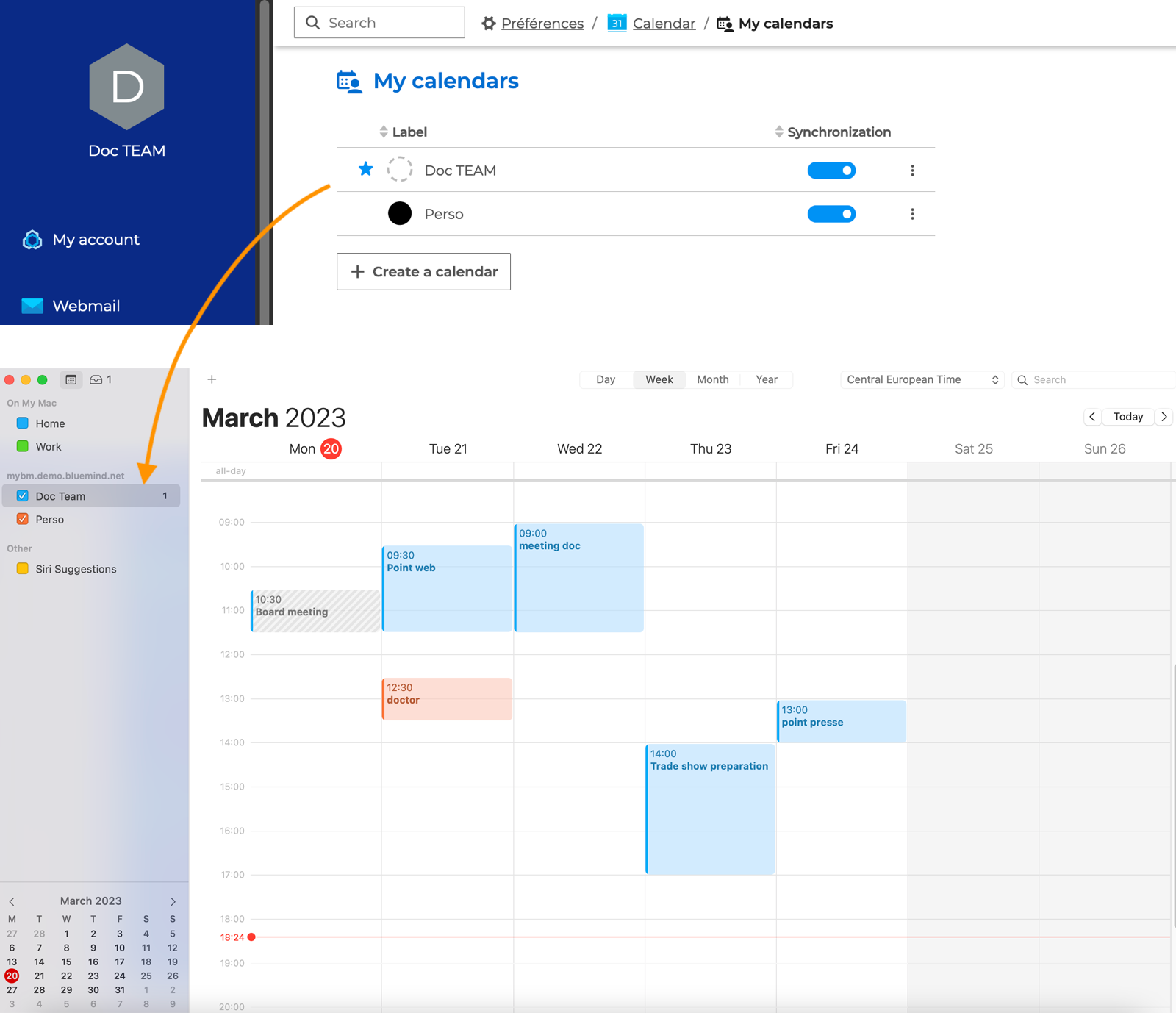
The calendar view can be enabled or disabled by ticking or unticking the relevant calendars in the left-hand pane.
Sharing calendars
To add a shared calendar, open the Calendar application’s preferences. Go to Accounts -> Delegation and tick the calendars you wish to add:
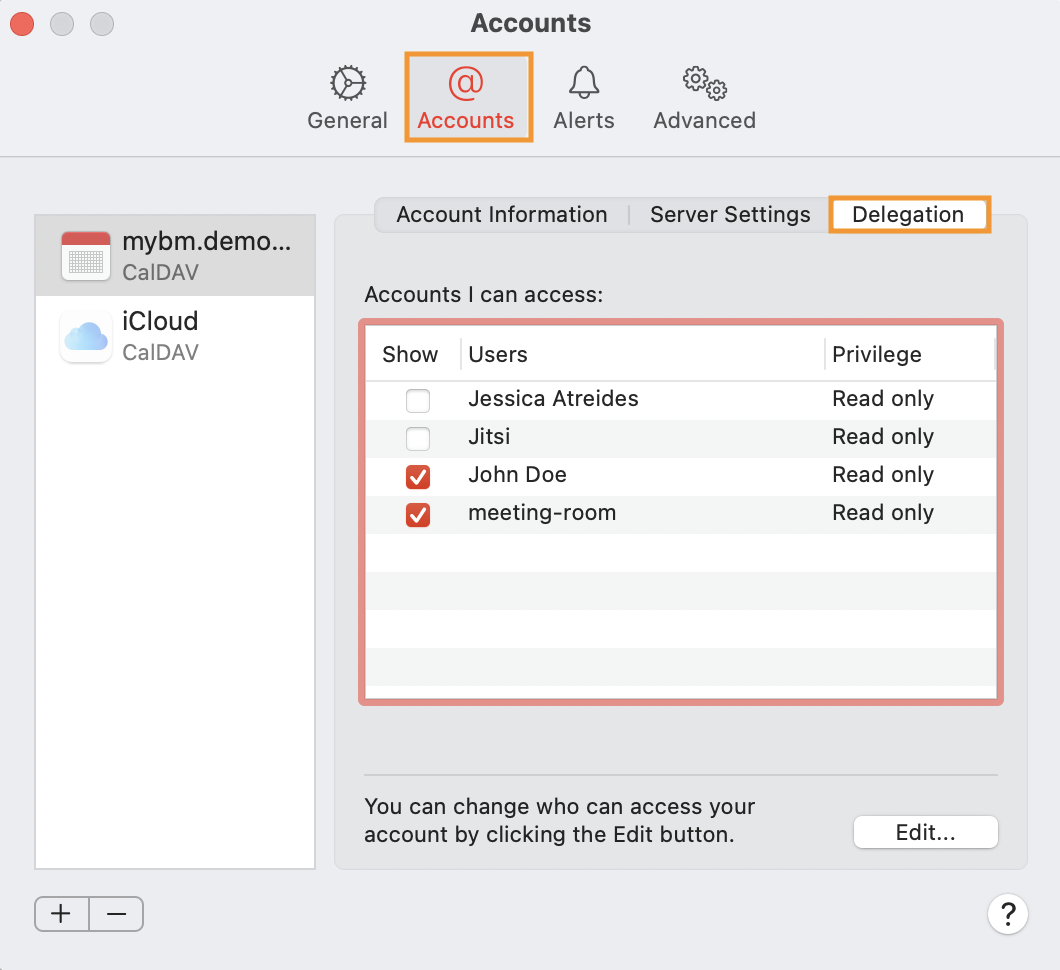
The list shows all user or domain calendars to which the user is subscribed and for which synchronisation is enabled in the BlueMind Calendar preferences.
To subscribe to a shared calendar from Calendar, go to the File menu -> Subscribe to Calendar and enter the public address
To share a calendar, select the desired calendar and click  , select the desired address from the autocomplete list, then choose either 'View' or 'Edit' permissions:
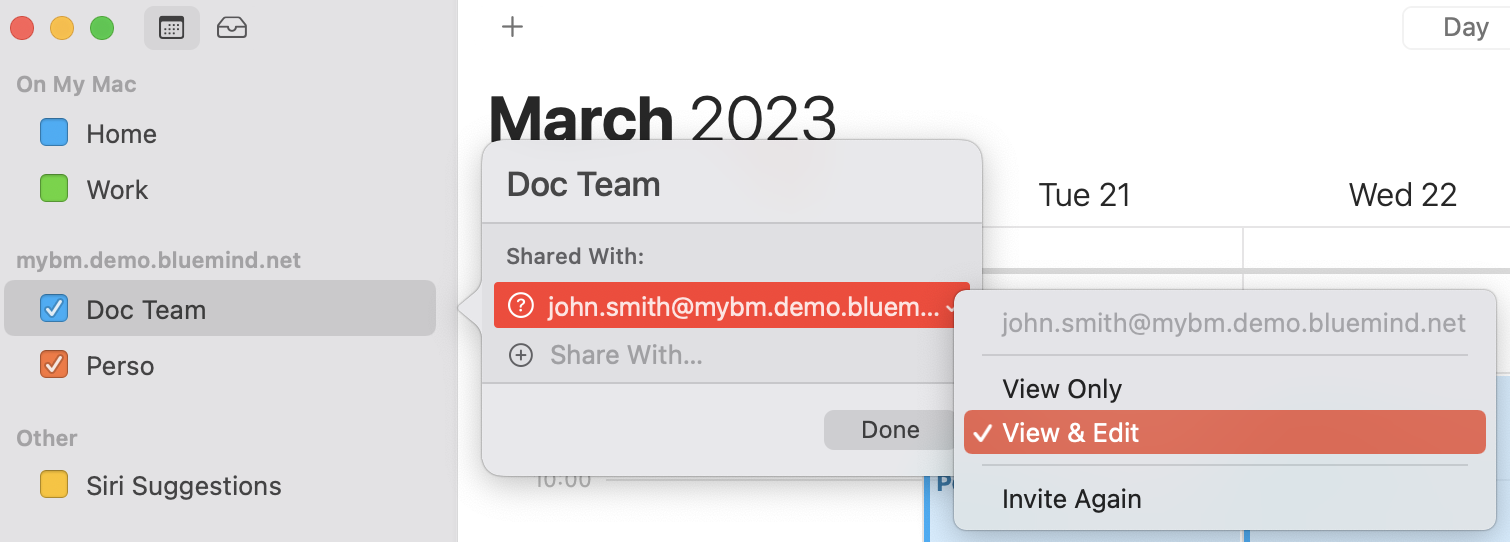
As soon as the user activates the subscription in their BlueMind preferences, the calendar appears in their Calendar app. Please note that the Calendar app does not send email notifications.
Differences in features
Some features of the BlueMind calendar are not available or behave differently in Apple Calendar:
- Private meetings: unlike in the BlueMind calendar, in Calendar’s private mode you cannot send invitations to contacts. A private meeting in Calendar appears publicly in the BlueMind calendar
- Duplicating a meeting: after duplicating a meeting in Calendar, you must assign it to the desired calendar to change the organiser. The original organiser is not automatically invited, unlike in the BlueMind calendar
- Duplicating a series of events: you cannot duplicate a series directly in Calendar; you must duplicate the first event and then add the subsequent occurrences.
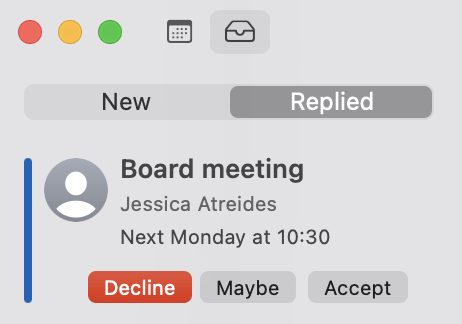
- Accepting or declining an invitation: you cannot accept or decline an invitation from the email notification; you must accept it from the Calendar application. To change your reply, view declined events (tick the option in the ‘Overview’ menu) or go to the first column under ‘Replied’ and amend your reply:
- Managing a resource: the resource manager cannot accept or decline an invitation for the resource via email. You must add the resource’s calendar and then manage the resource from the calendar
- Schedule proposals:
- Unlike the BlueMind calendar, you cannot change the duration of an event, only the start date and time.
- All participants can suggest a new time; this option cannot be disabled in Calendar.
- Notifications of proposed new schedules do not work with a CalDav account, you need an Exchange account. Notifications are therefore not received on a Mac, only on Apple mobile devices
- To accept a new meeting proposal, you must re-invite the contact from the updated meeting. There is no option to decline the proposal
- Attachments: to add attachments from Calendar you need an iCloud account. You can't add attachments with a Caldav account, only open attachments sent by the organizer.
For more information on the Calendar application, see Apple Support
Using the Reminders application
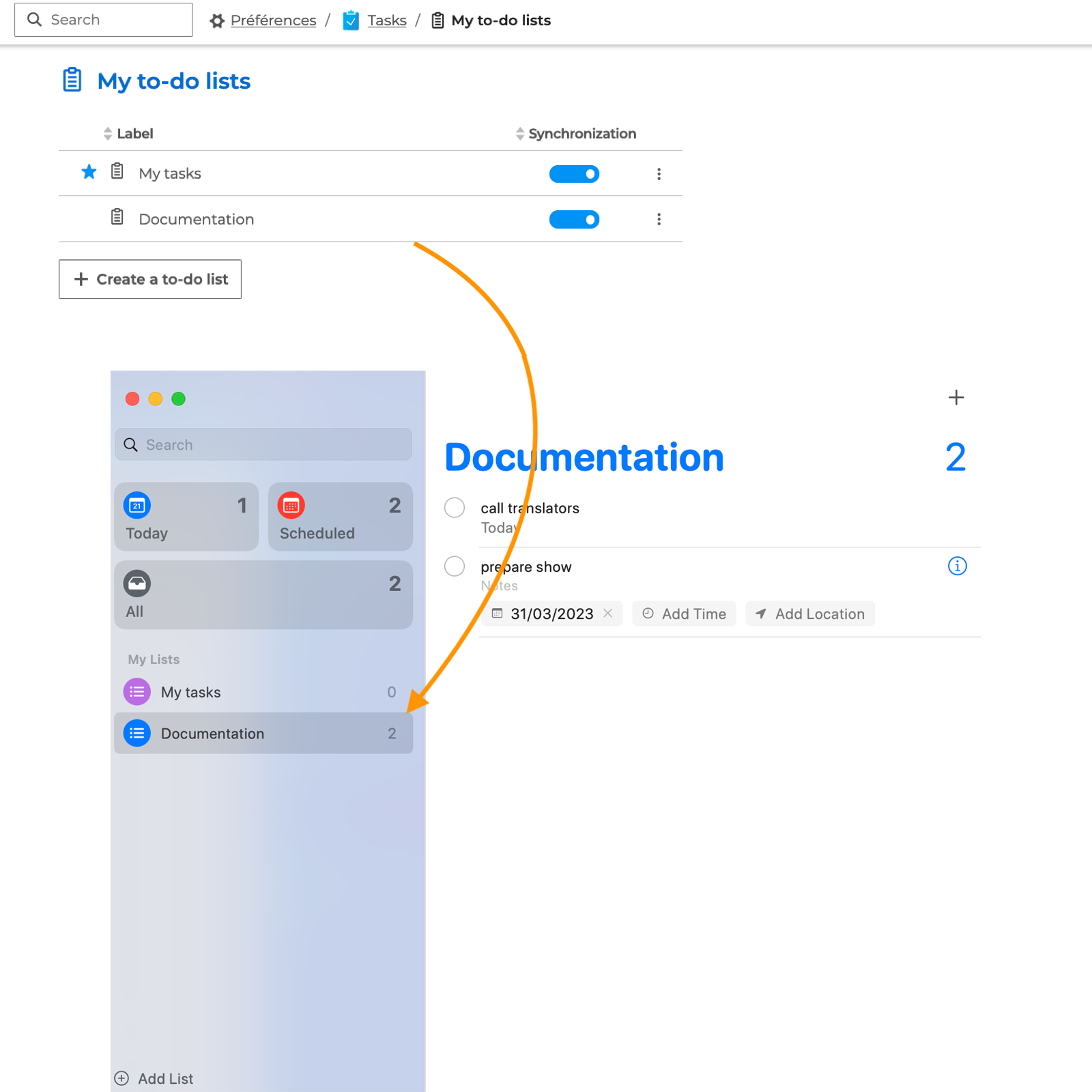
Once the CalDav account has been added, if the Reminders option is checked, tasks from personal to-do lists whose "Synchronization" option is activated in the BlueMind preferences, appear in the Reminders application:
Synchronising information
The Reminders application allows you to specify a date, time, location and description for a reminder. Unlike BlueMind tasks, the description of reminders can only contain text and links, not images. Images added to BlueMind task descriptions will therefore not appear in reminder descriptions. Similarly, the ‘Status’, ‘Progress’ and ‘Tag’ fields do not exist in the Reminders application. Please note that the “Location” field does not synchronise between BlueMind tasks and Apple reminders.
Sharing lists
To share a to-do list from Reminders, select the list and click or go to the File menu -> 'Share List', then select the desired address from the autocomplete list.
As soon as the user enables the subscription in their BlueMind preferences (see Using a to-do list), the list appears in their Tasks application.
The reverse is not possible; a to-do list shared from BlueMind cannot be displayed in the Reminders application. Only iCloud accounts have access to this feature.
For more information on the Reminders application, see Apple Support