Synchronizing with Android
ActiveSync synchronization is the preferred method because it allows you to synchronize emails, contacts, and calendars with a single setup, whereas the web IMAP Synchronization on Android s only provides access to your emails.
This guide was created using a Google Pixel phone running Android 13
For other Android devices, the steps are the same, although the screens may differ significantly.
For more information on compatible templates and applications, as well as any known limitations, visit the Compatibility page
Setting up your ActiveSync account
Being able to connect a smartphone to the BlueMind server depends on your administrator's authorizations policy. Make sure you check with them whether you are indeed authorized to connect with a smartphone. Some configurations require an administrator's manual authorization.
Please refer to the following page: Configuring the EAS server.
- 1. Settings
- 2. Add Account
- 3. Type
- 4. Information
- 5. Manual configuration
- 6. Confirmation
- 7. Finish
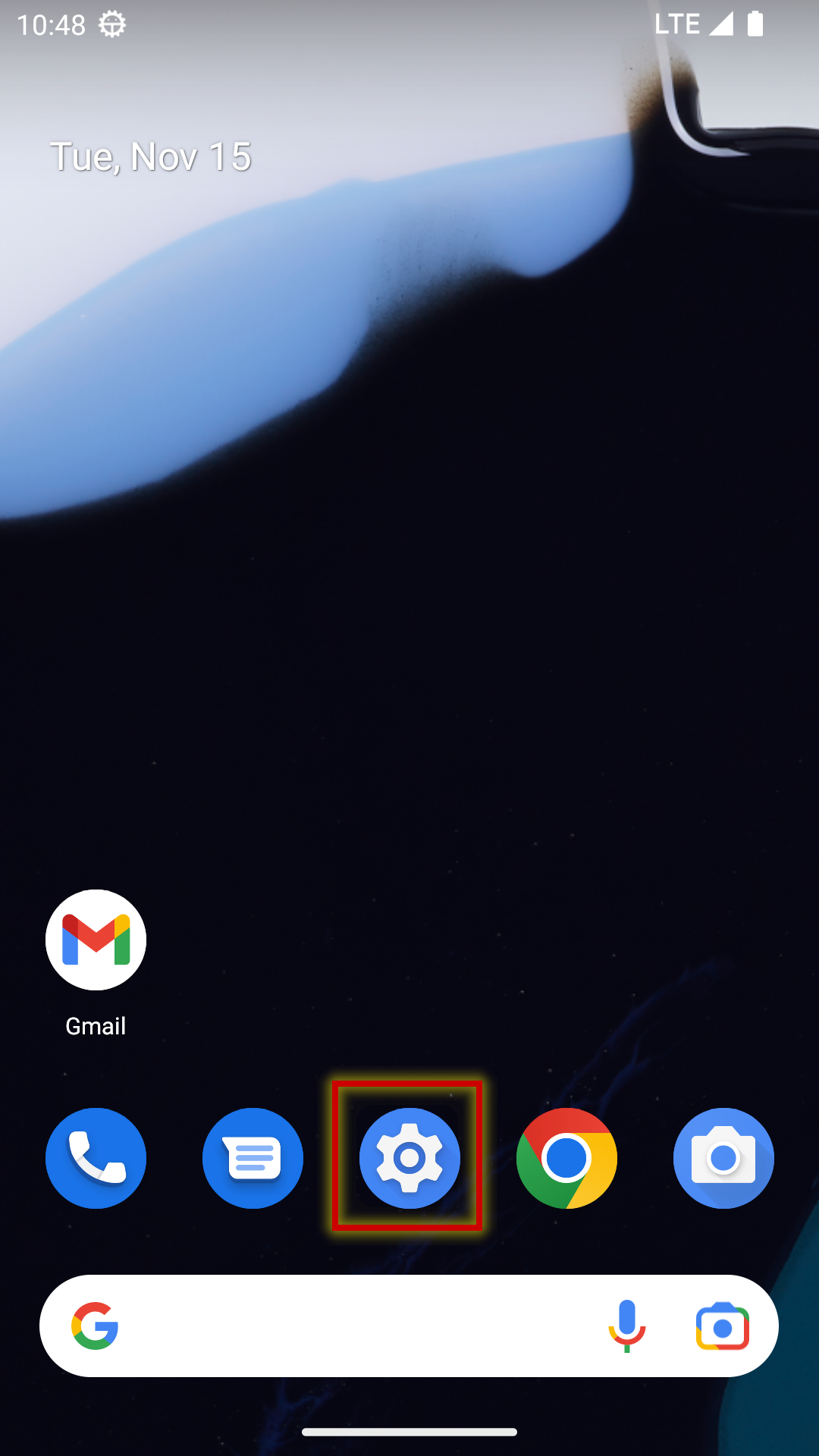
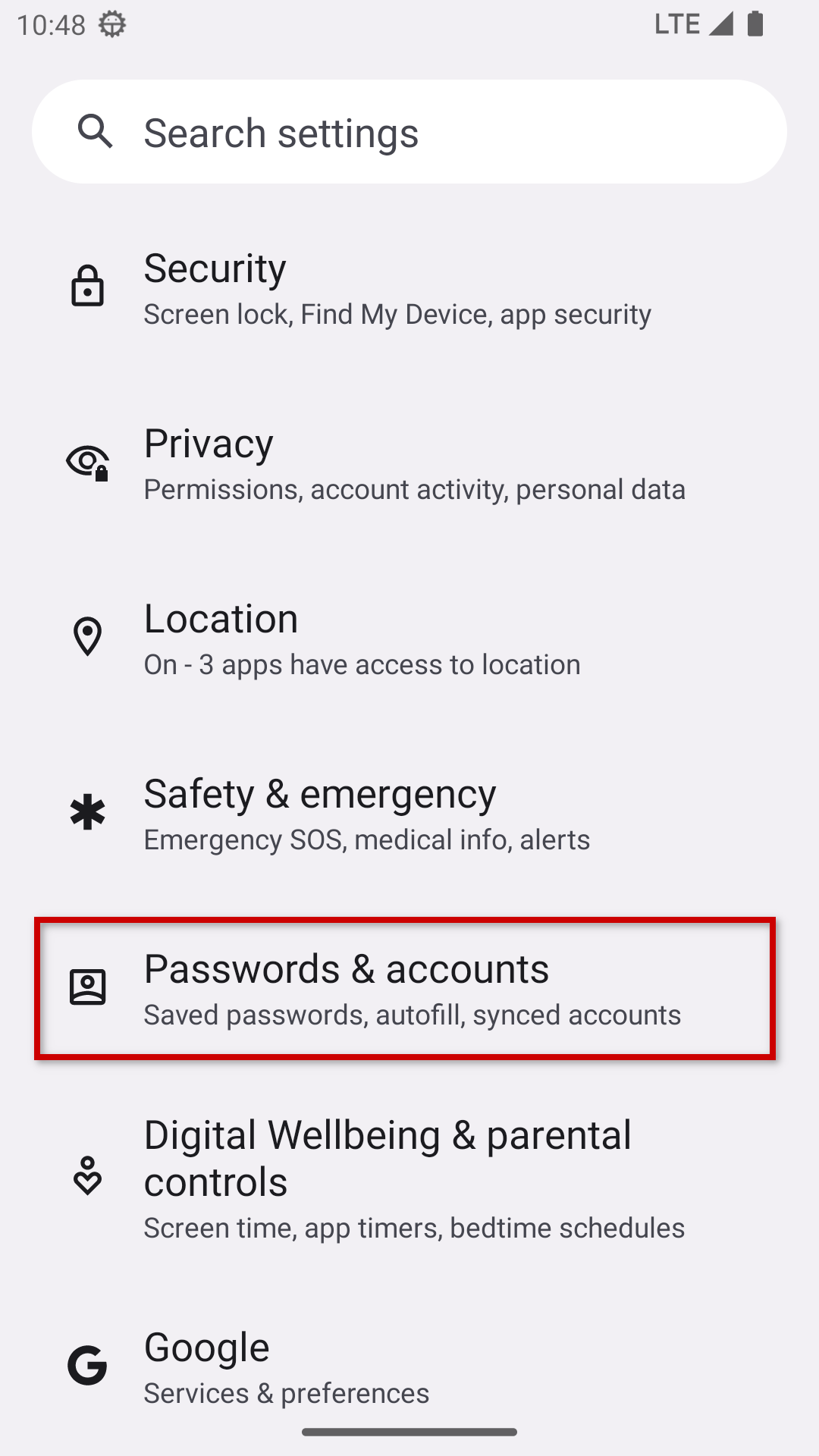
Go to the device's "Settings", either from the home screen or from the app list, and then to the account management section (the label may vary depending on the device manufacturer and Android version):
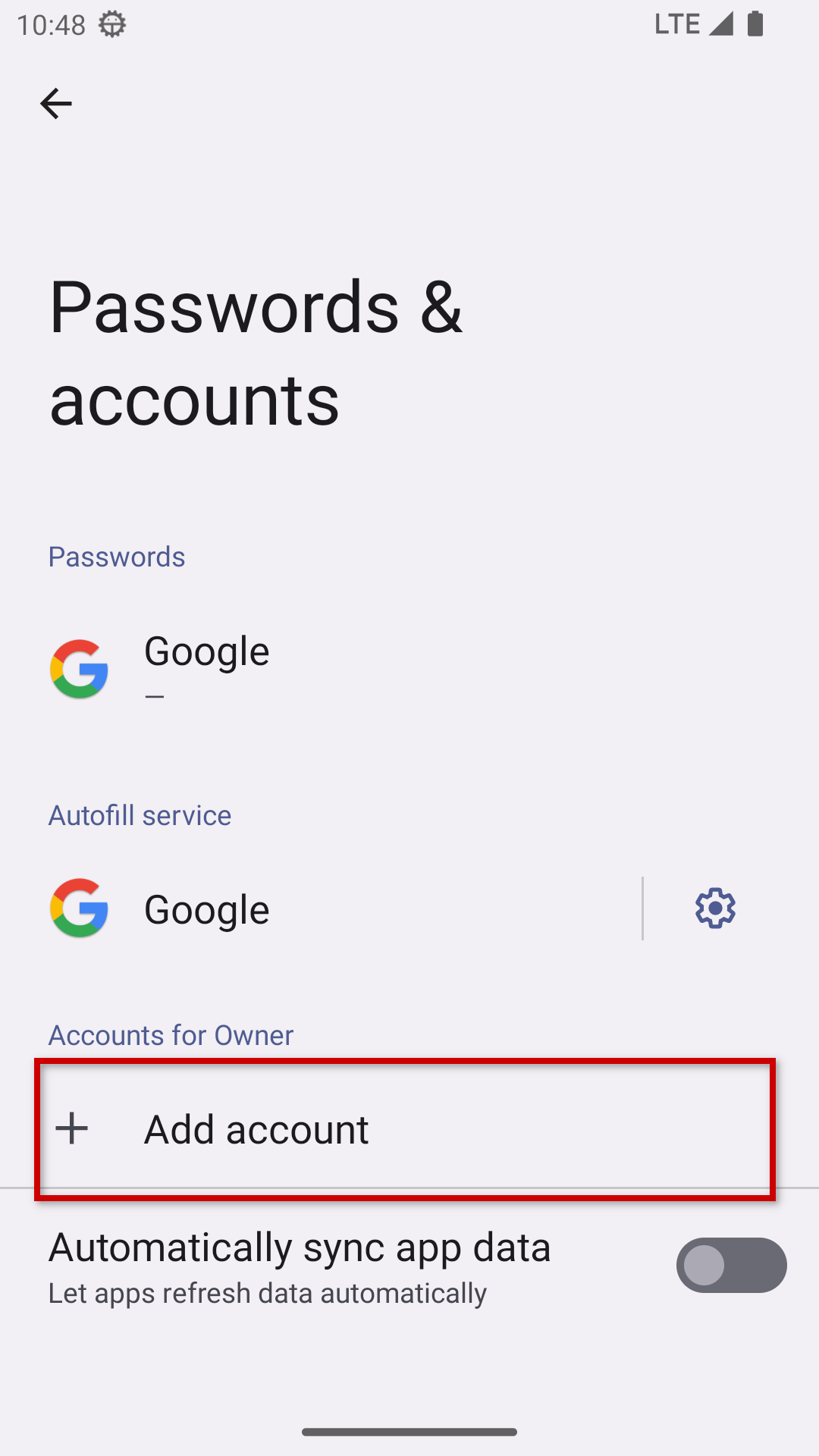
Tap "Add account":
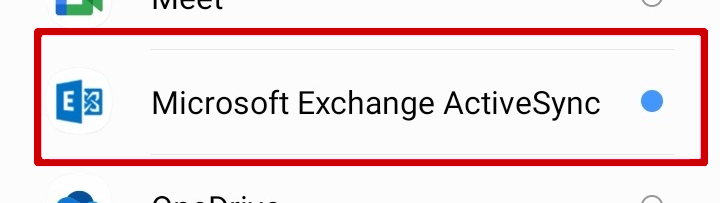
Choose to create an "Exchange" account:
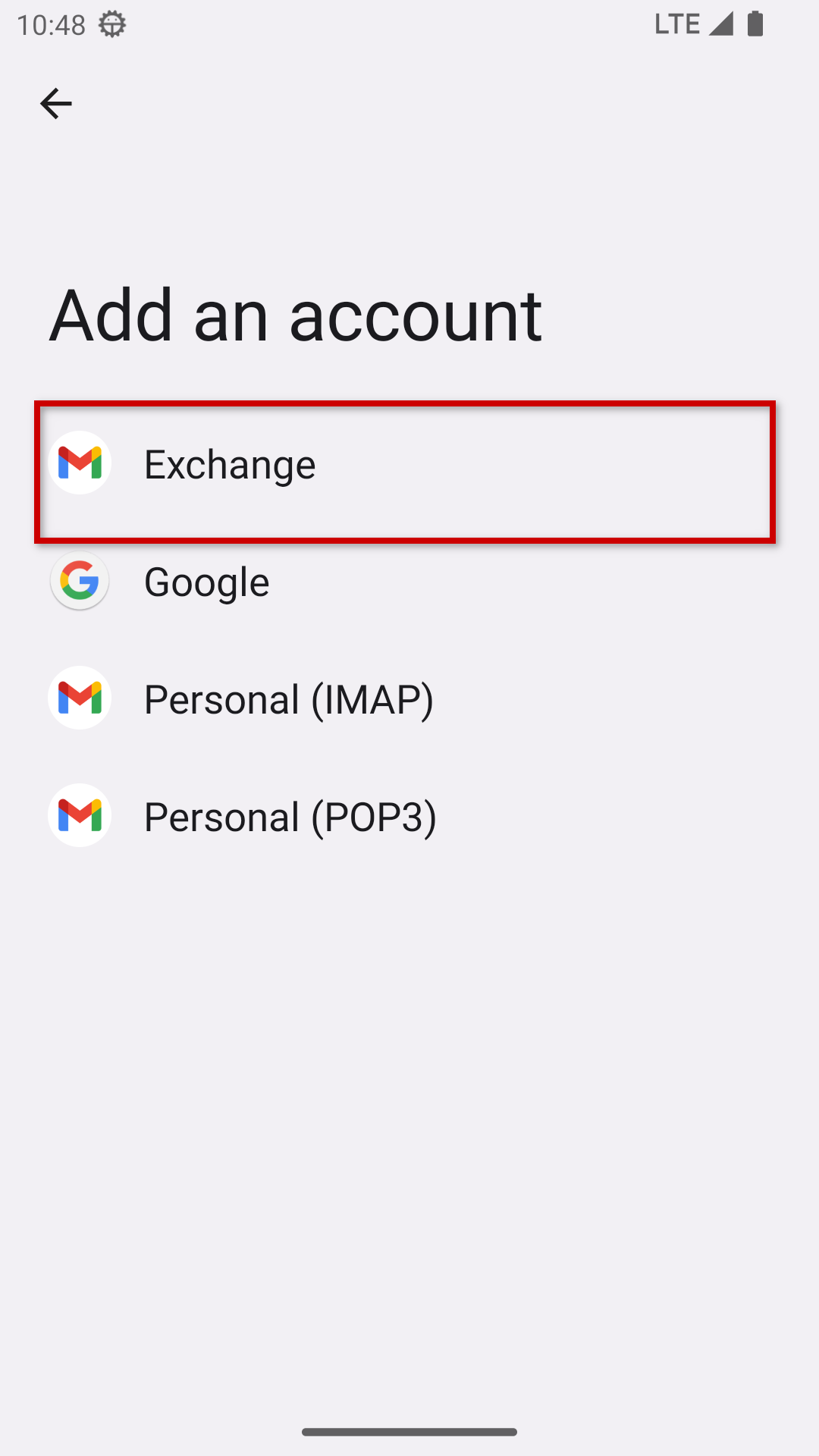
In the event of loss or theft, administrators have access to remote device wiping functions acting differently depending on the type of account selected here:
- Exchange : only the EAS account will be deleted
- Microsoft Exchange ActiveSync : all data on the device (SMS, photos, accounts, etc. ) will be deleted:
Enter the email address, click Next, enter the password and click Next:
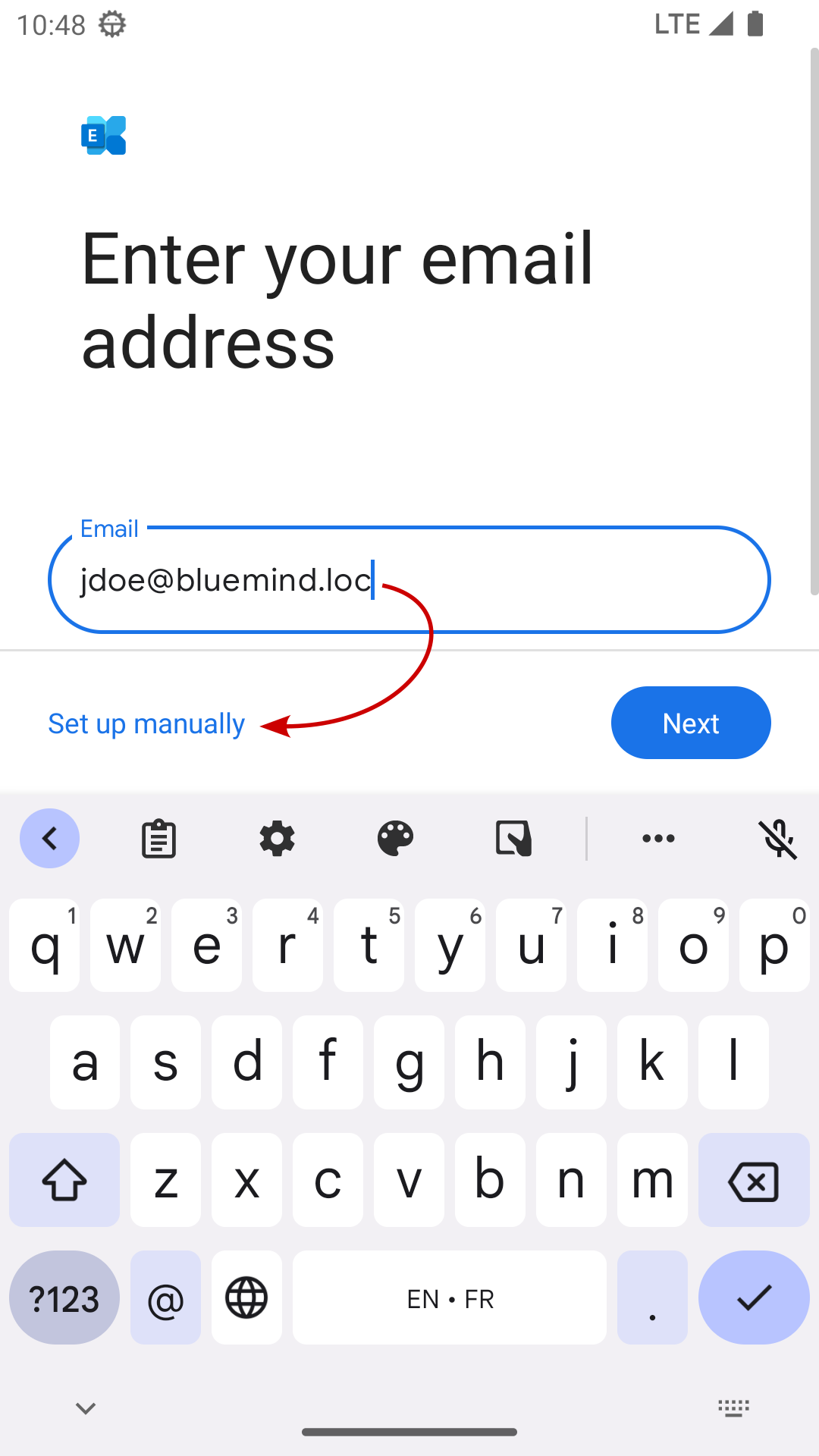
If the email address is also used as a Microsoft account address, the user is redirected to the Microsoft sign-in page, and the attempt to create the account on the mobile device fails.
To work around this, instead of clicking Next after entering the address, click "Manually configure the address" and follow the manual configuration instructions.
The device then searches for connection information through automatic discovery (autodiscover).
If the login information is not found automatically, or if you click "Configure address manually," the configuration screen will appear with the information pre-filled based on the email address.
Double-check them as you may need to correct the server address :
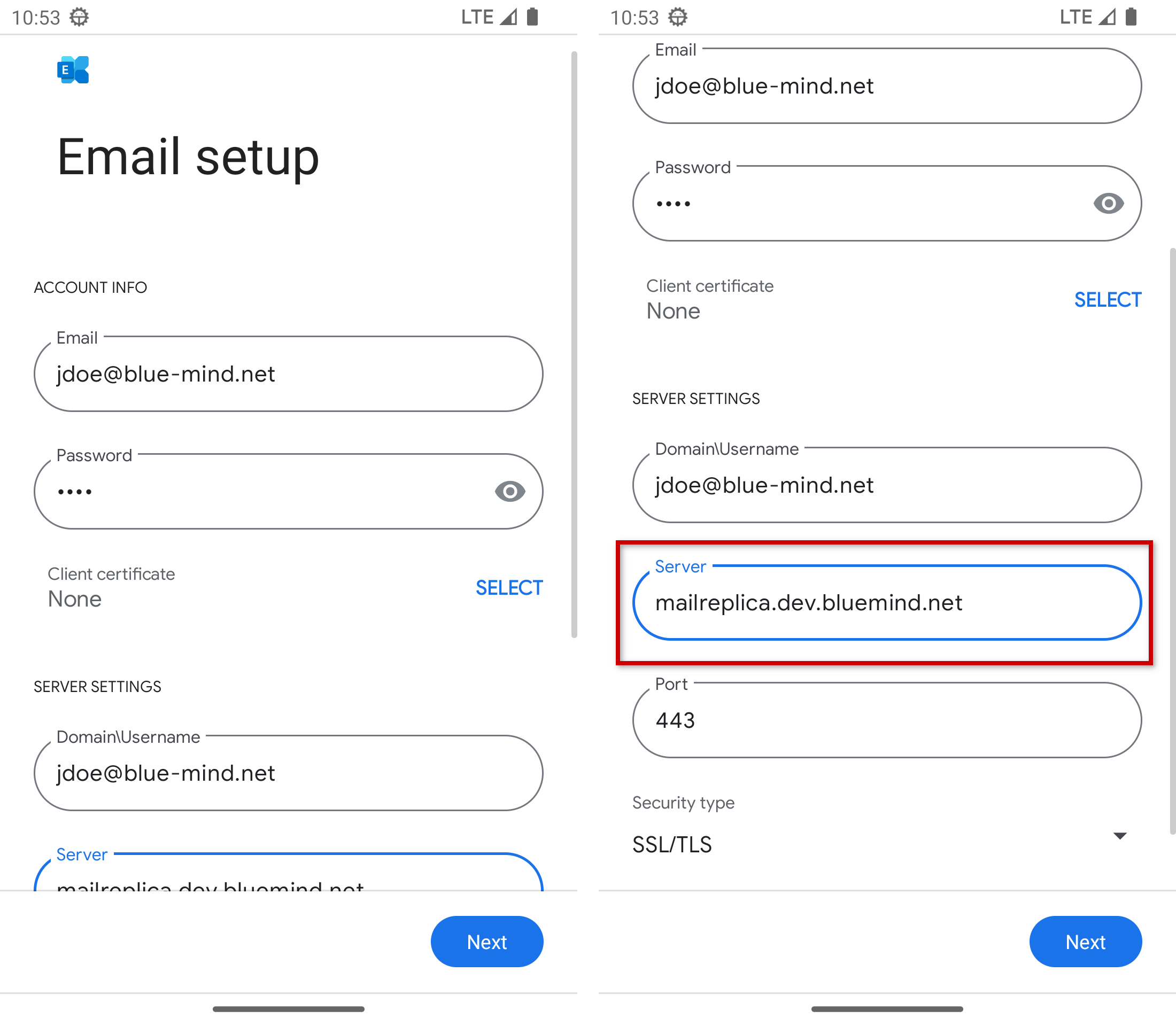
- Domain\User name: this field represents the login and is identical to the full e-mail address.
However, some devices expect the domain followed by the identifier for the value. In this example:bm.bluemind.loc\jdoe - Server: The server address (here,
bm.bluemind.loc) is the same as the URL used to access BlueMind (withouthttps://). For example, if the URL for accessing BlueMind from a browser ishttps://webmail.domaine.com, then you should enterwebmail.domaine.com - Port: 443
- Security type: SSL/TLS
For security reasons, never use the "accept all certificates" option in the "Security type" field, as this option is too permissive and therefore less secure.
Once the form is filled out, click Next.
This link takes you to the automatic search procedure.
If prompted, click "OK" to confirm that you authorize access:
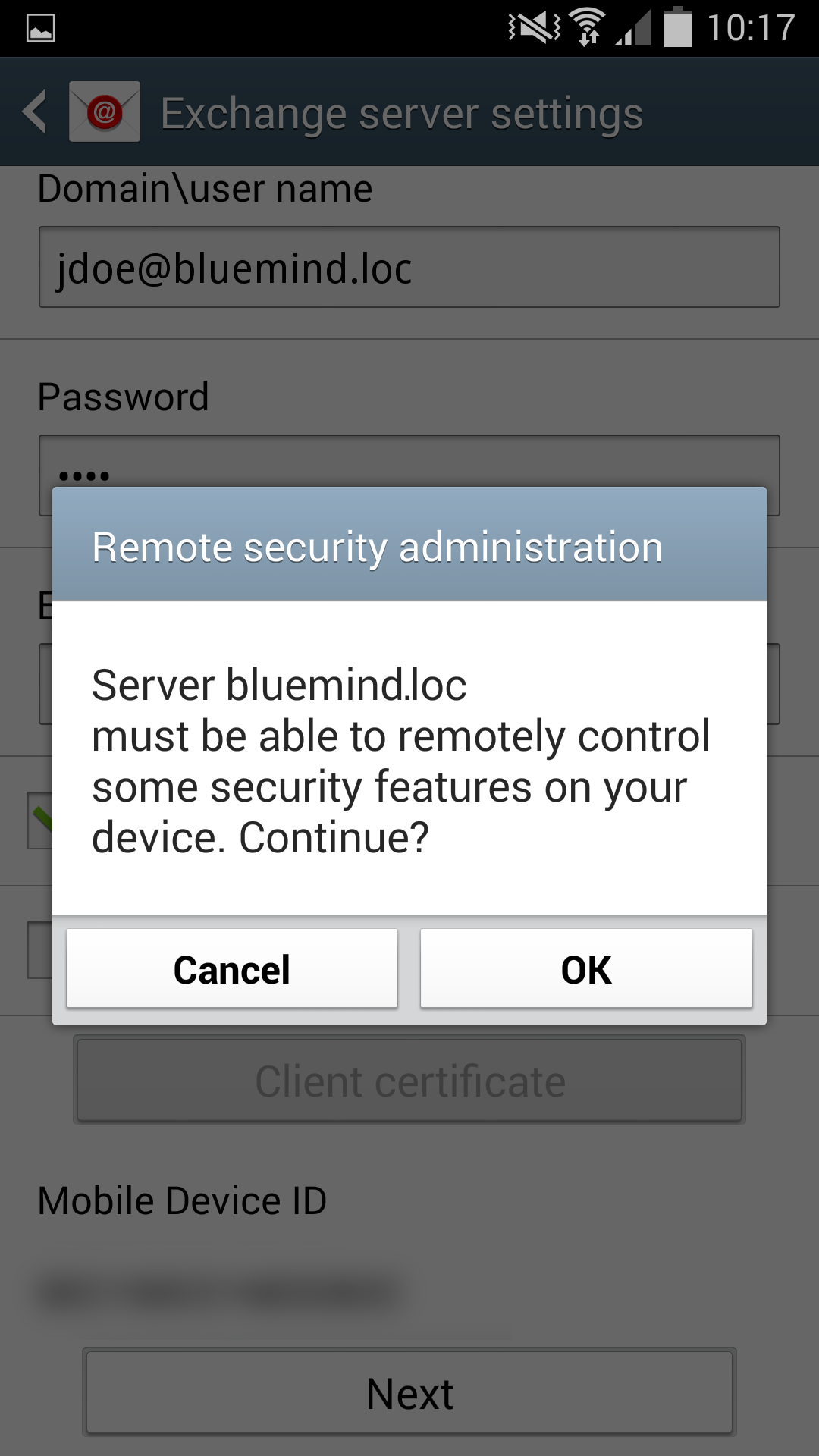
This authorization is required for ActiveSync synchronization, and also to prevent the use of your data in the event of loss or theft of the device, by enabling the administrator to perform a remote wipe (see insert above).
The device sets up your account and confirms that setup was successful:
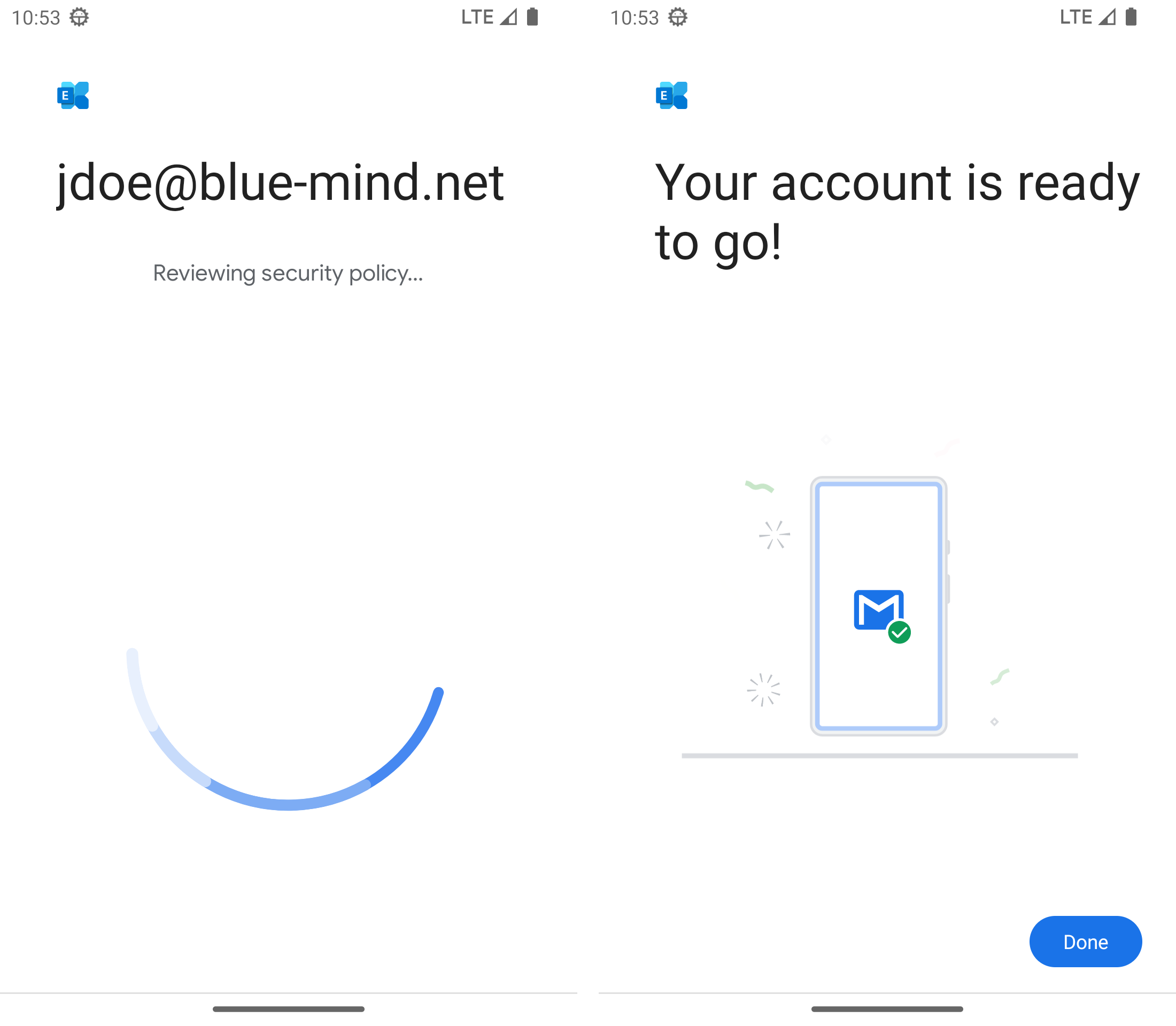
Click "OK" to close.
theme.common.Pourinfo : Editing users > Password.
Choosing what items to synchronize
You can view and edit your synchronization settings in your account settings:
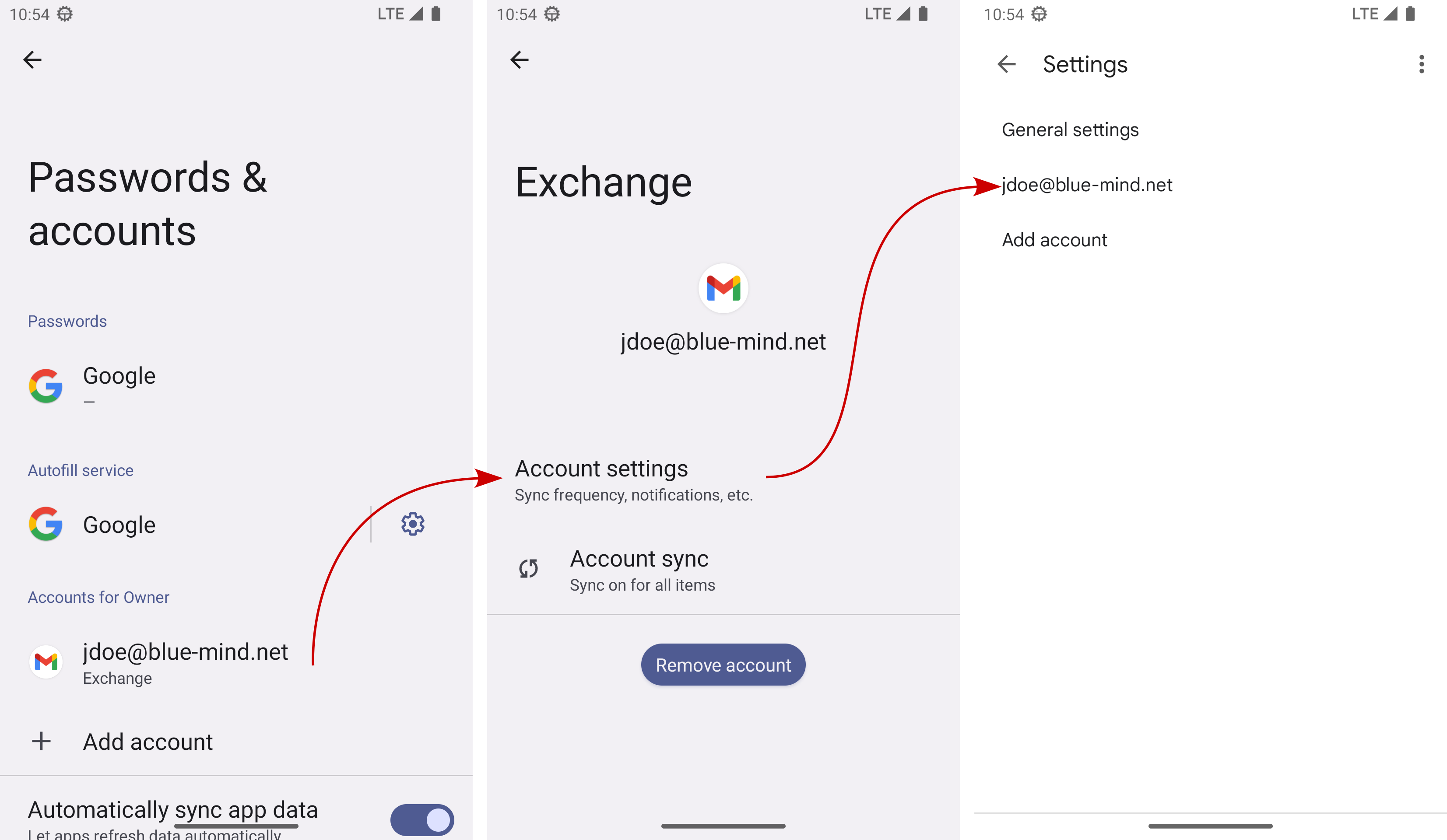
The "Folder synchronization settings" section lets you choose which application to synchronize: Mail (e-mail), Contacts (My Contacts address book) and Calendar (your calendar only, see insert above):
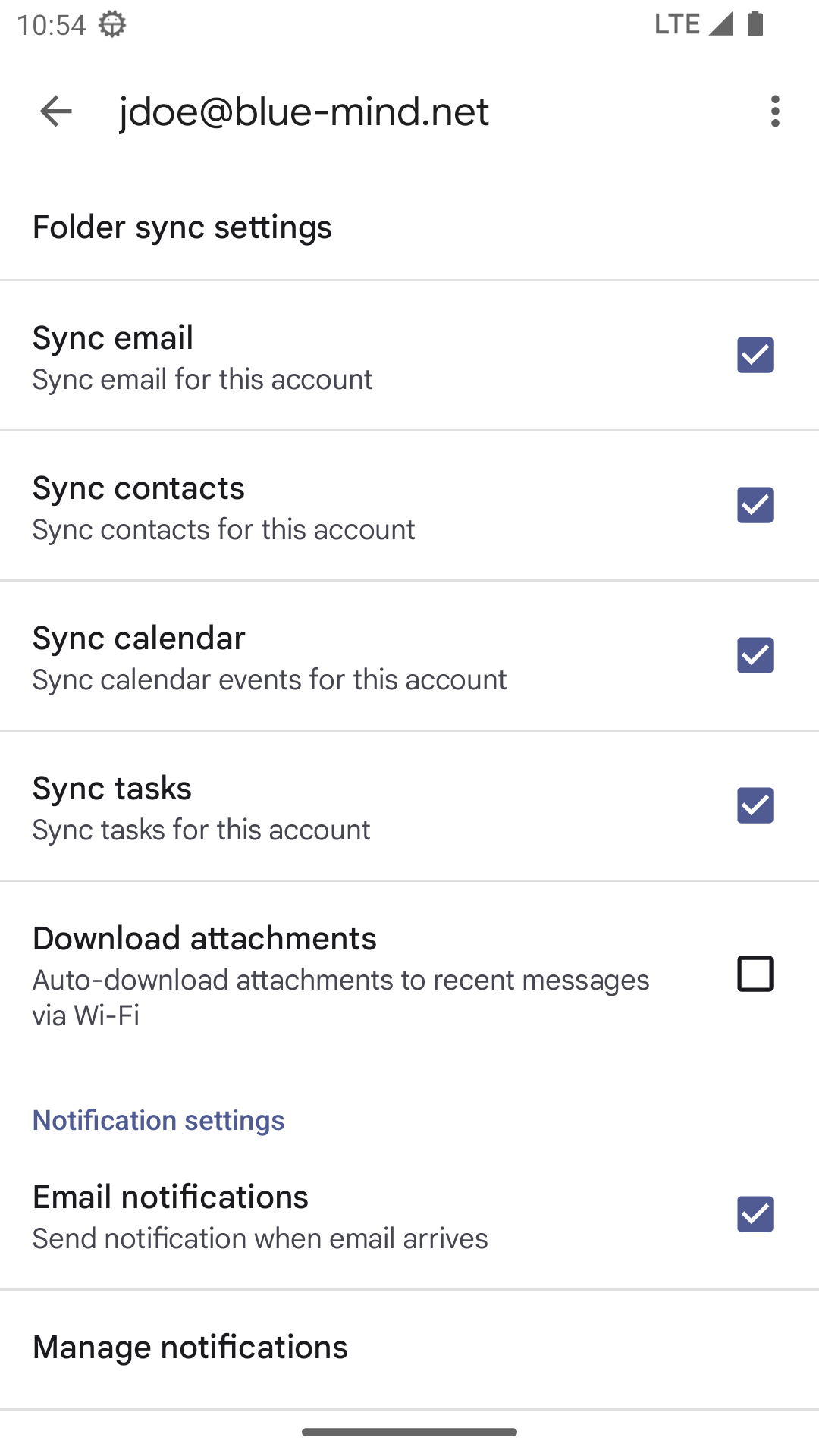
Although the "Tasks" option is displayed, very few Android mobile devices actually allow tasks to be synchronized.
Setting Mail preferences
Duration and frequency
Tap " Synchronize emails from " and choose an option (the default setting can vary depending on the device, it may be one month or one week only):
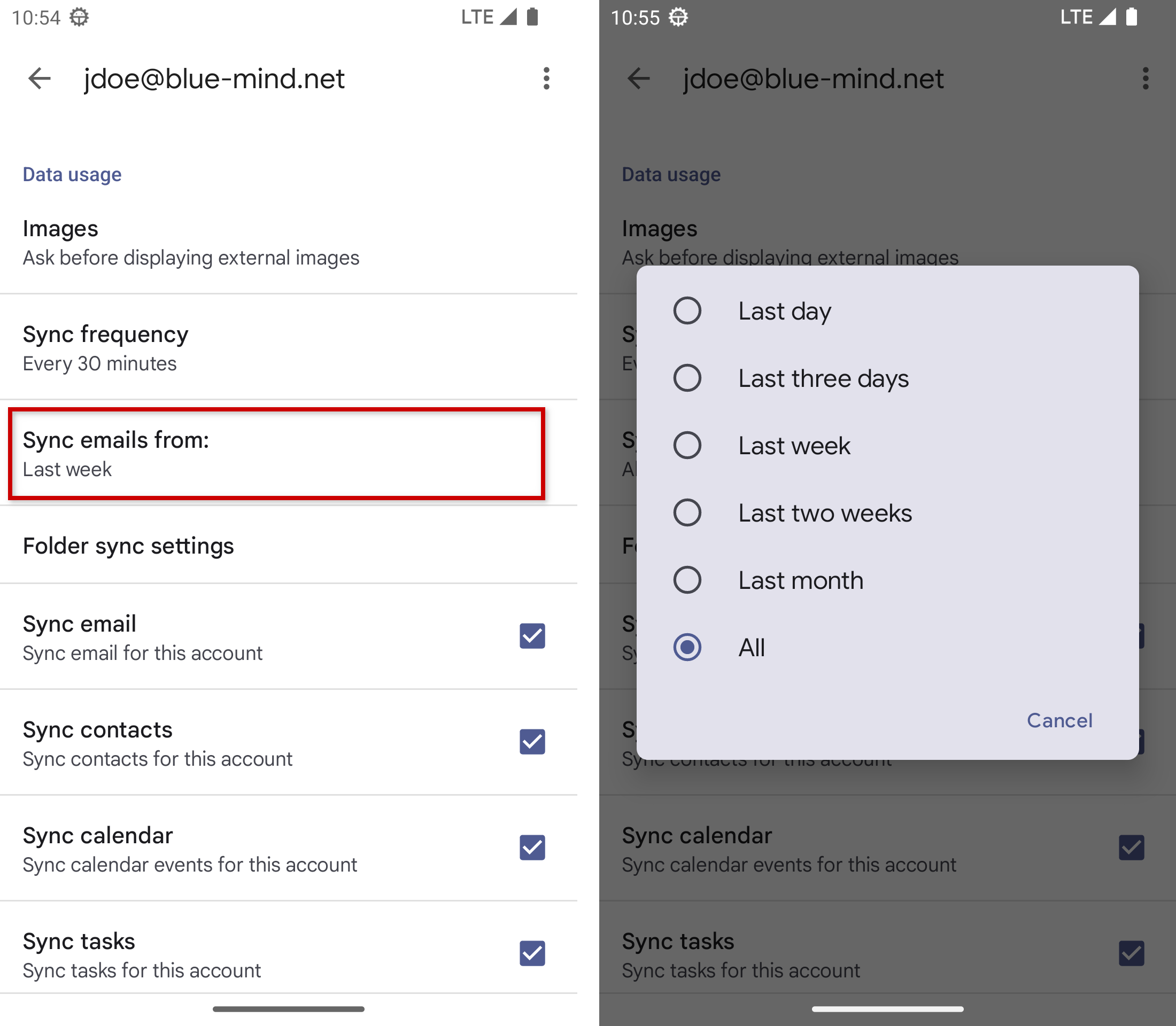
By default, Push email mode is selected, which means that the server will send new emails to your device as soon as they arrive. In other options, your device will contact the server periodically to check for new messages.
Shared folders and mailboxes
For a shared box to appear, the user must first subscribe to it and activate synchronization (see Subscribing to a shared mailbox).
Depending on the device, it may then be necessary to activate its synchronization:
- go to the mobile device's account settings
- click on Folder synchronization settings
- click on the desired mailbox folder
- activate the "Synchronize this folder" checkbox and select the number of days to synchronize
--> the change is automatically taken into account, simply go back to validate
Once this procedure has been completed, the shared mailboxes appear in the messaging application in the "Public folders" folder.
Follow the same procedure to access a folder shared by a user.
theme.common.Pourinfo Sharing a folder
Configuring contacts
Only your personal address book "My Contacts" is synchronized with your device, however the addresses of other address books to which the user is subscribed (Directory, Collected Contacts, address book shared by a user...) are accessible via the smartphone's search functions (contacts application, email writing, phone calls...)
Depending on the device and the configuration already in place, contacts may not appear directly in the dedicated application.
Depending on the device and its version:
- Switch accounts at the top of the screen by clicking on the avatar (profile picture) to the right of the search box
- Go to the app's settings and select the account(s) you want to display
Configuring calendars
Android does not support multiple color-coded calendar display. As a result, shared calendars cannot be displayed by default. Only your calendar is shown and enabled.
You may however enable this feature to couple it with a third-party application: Multi-calendars on smartphones