Introducing BlueMind Mail
Accessing the Mail application
To access the Mail application, use the bento menu in the main navigation ribbon.
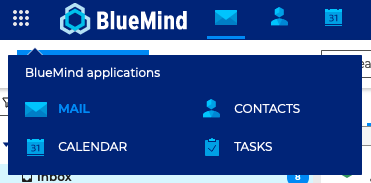
Default App
By default, the interface opens on the mailbox, but it can also open on the calendar.
To do this, Set up your user account: Preferences - General - Default application
Navigating through Mail
The main Mail view has 3 columns:
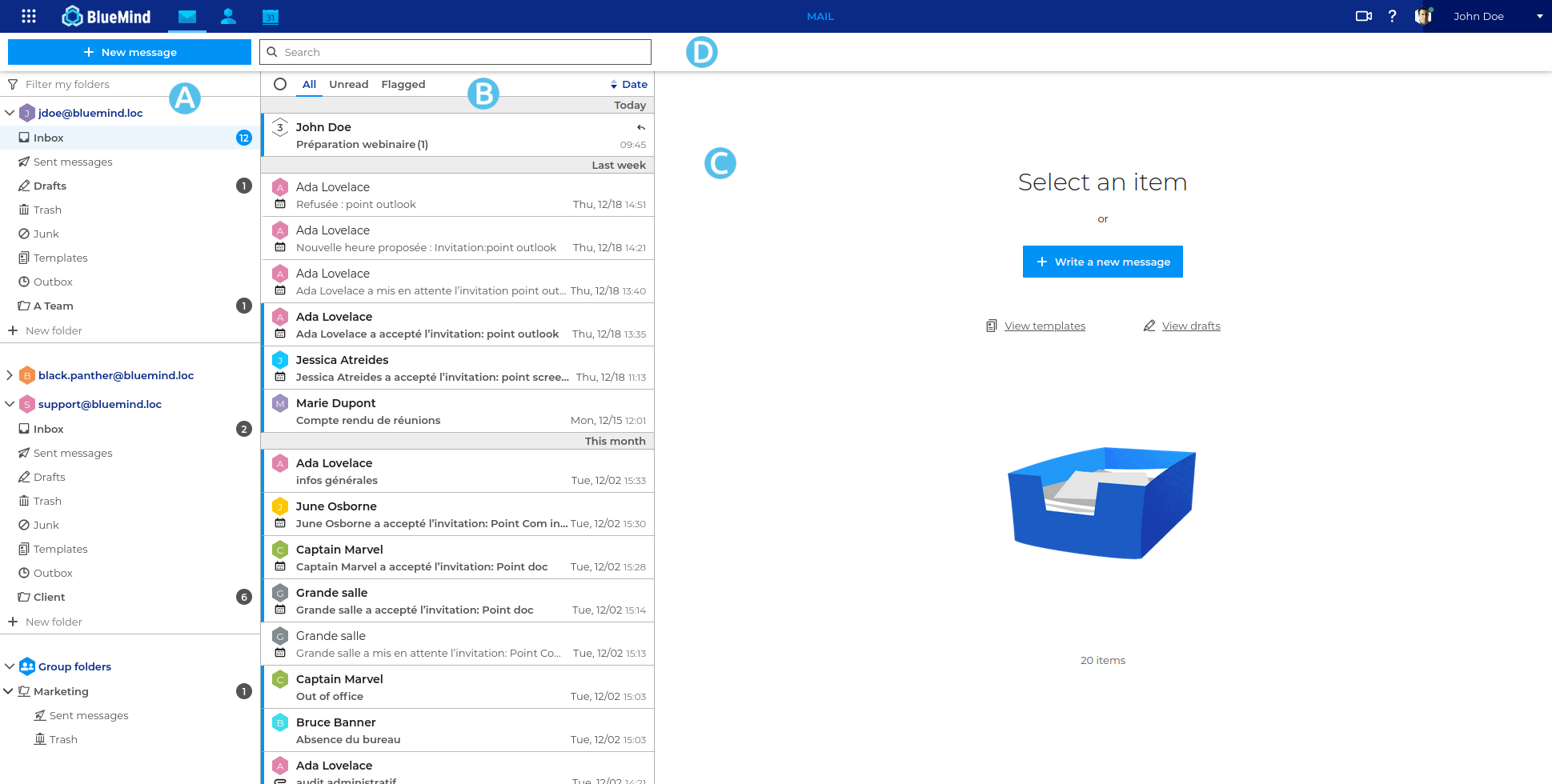
 : the folder tree. It displays folders in separate, collapsible trees, allowing the user’s folders to be grouped on one side and shared folders on the other
theme.common.Pourinfo Using the folder list and Subscribing to and using shared mailboxes. : the list of messages contained in the folder selected in column A. Filters at the top of the list allow you to display only certain types of messages, and hovering the mouse over a message reveals information and available actions. The column width can be adjusted to fit the message previews or the screen being used.
theme.common.Pourinfo Managing the Message List. : main display area. The homepage shows possible actions or a message is one is selected.
 : it includes the new message creation button, the search box and the buttons for possible actions depending on the current display (actions on a message when it is displayed or possible grouped actions when multiple messages are selected)