Introducing Contacts
BlueMind uses address books to manage contacts.
These address books, which can be synchronised with email programmes (Outlook, Thunderbird) and smartphones (iPhone, Android, etc., depending on the device’s capabilities), are organised into two categories:
It is also possible to send a message or call a contact directly from their profile, organise contacts into categories, create distribution lists, share contacts between groups or users, and access a company address book.
Accessing the Contacts application
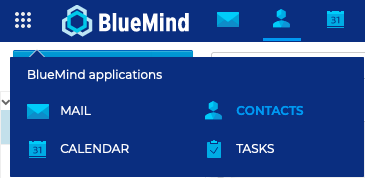
The Contacts app can be accessed via the main BlueMind navigation bar.
Navigating the Tasks application
-
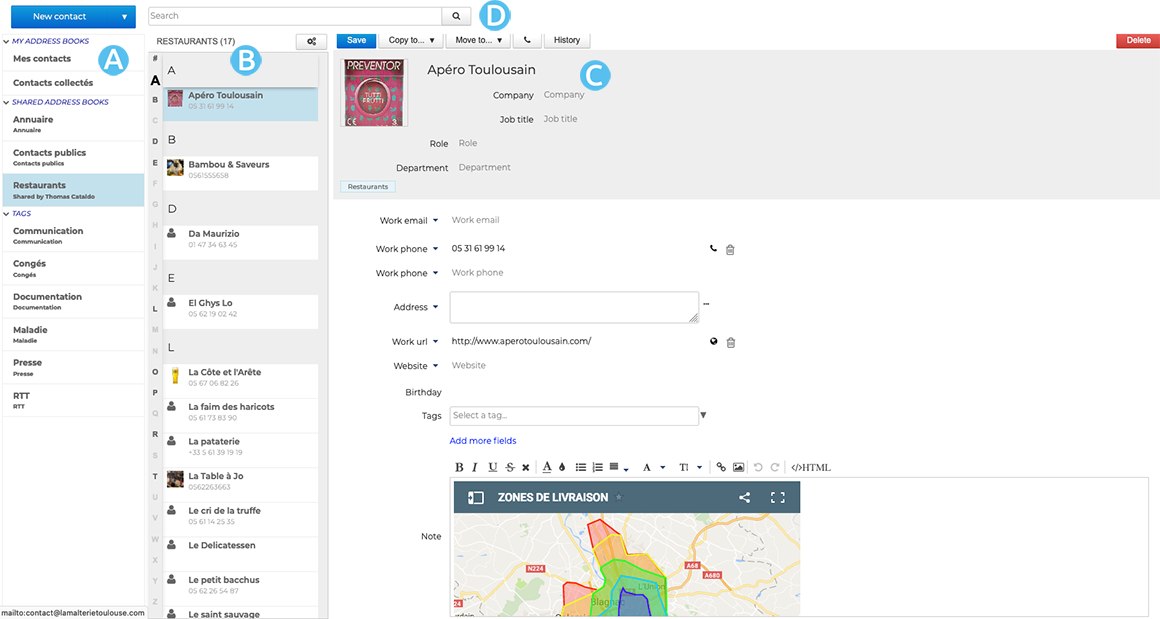
 : in the first column, beneath the ‘New contact’ button, you’ll find the list of address books accessible to the user (their personal address books and those to which they subscribe), as well as the list of categories, enabling you to quickly find indexed contacts (see below)
 -
 : The second column shows the contacts from the address book selected in the first column
💡 The vertical alphabet on the left-hand side of the area makes it easier to navigate through contacts, and letters with contacts are highlighted in bold black for greater visibility.
-
 : the third column, the main display area, shows the details of the user selected in the second column.
 :
: Identifying contact types
BlueMind has different types of contacts: personal or group, personal or shared. Their functionalities and address book membership vary according to their nature.
| Contact Type | Usage |
|---|---|
| INTERNAL USERS These are members of the organisation. 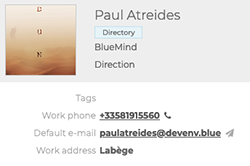 | Address book: Internal users are created by the administrator and are part ofthe Directory You can: - Contact Creating and Sending a message - see Email receipt alerts - Organise a meeting with or without video conferencing and send an invitation to the contact - Add the contact to a distribution list You cannot: - Edit a contact’s profile. The profile is created and managed by the administrator |
| EXTERNAL USERS These are users who are not members of the organisation, such as a service provider. 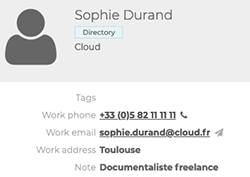 | Address book: - External users created by the administrator are included inthe Directory - External users created by the user are included in personal address books You can: - Contact Creating and Sending a message - Organise a meeting with or without video conferencing and send an invitation to the contact - create and edit contact details in your personal address books - Add the contact to a distribution list You cannot: - Edit a contact’s details in the directory. The contact details are created and managed by the administrator |
| DISTRIBUTION LISTS A list brings together several users with common needs or objectives. 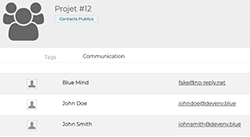 | Address book: Distribution lists are created by the user and form part of personal address books You can: - Creating and Sending a message to all members of the list - Organise a meeting with or without video conferencing and send an invitation to everyone on the list - create and edit a distribution list You cannot: - view the calendar of the people on the list |
| USER GROUPS A group brings together several users with common needs or objectives. 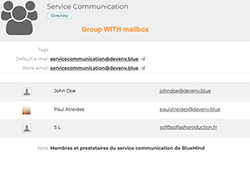 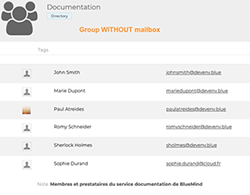 | Address books: Groups are created by the administrator and form part ofthe Directory You can: - Organise a meeting with or without video conferencing and send an invitation to all members of the group - view the calendar for all members of the group - Creating and Sending a message to all members of a group with an email address - Members of a group with an email address can receive messages sent to the group at their personal email address (see Using a group mailbox) You cannot: - send emails to group members without an email address |
| SHARED MAILBOXES These are mailboxes shared by several users or groups of users, which also have their own address books and calendars. 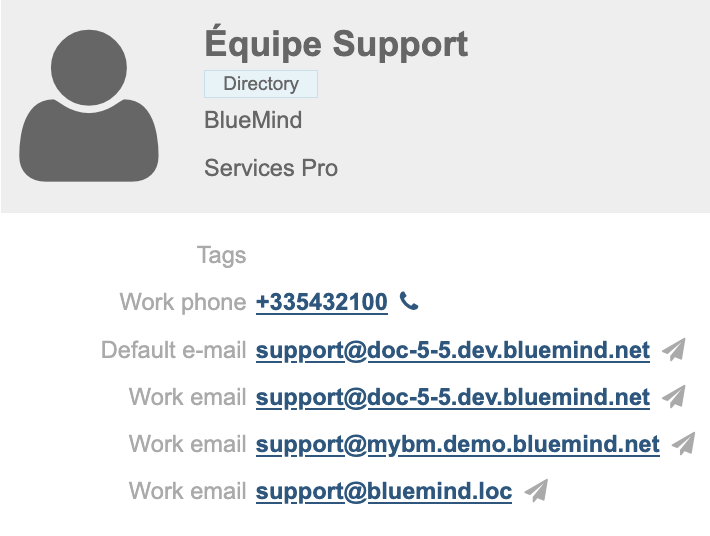 | Address book: Shared mailboxes are created by the administrator and form part ofthe Directory You can: - Creating and Sending a message to all authorised users of the mailbox - Authorised users can receive, view (and even manage) emails and folders in the mailbox - authorised users (with extended rights) can write on behalf of the shared mailbox (see Using a shared mailbox) - Organise a meeting with or without video conferencing and send an invitation - view the calendar of the shared mailbox You cannot: - Edit a contact’s details in the directory; this is managed by the administrator |
| SHARED FOLDERS (old version) These are shared mailboxes for several users or groups of users. 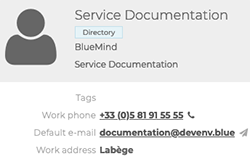 | Address book: Shared mailboxes are created by the administrator and form part ofthe Directory You can: - Creating and Sending a message to all authorised users of the mailbox - Authorised users can receive, view (and even manage) emails and folders in the mailbox - authorised users (with extended rights) can write on behalf of the mailbox (see Using a shared mailbox) You cannot: - Send an invitation or view the calendar for the shared mailbox: the mailbox does not have a calendar |
| RESOURCES These are company resources made available to users, such as a meeting room. 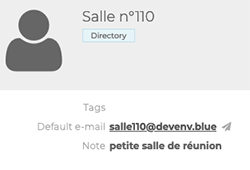 | Address book: Resources are created by the administrator and form part ofthe Directory You can: - reserve the resource (see Organise a meeting) - The administrator and/or manager can Manage resource bookings You cannot: - Edit the contact record for the resource. The record is created and managed by the administrator |
Searching or filtering contacts
The search engine
The search engine allows you to search for contacts by keyword: enter a word and press Enter or click the magnifying glass icon  :
:
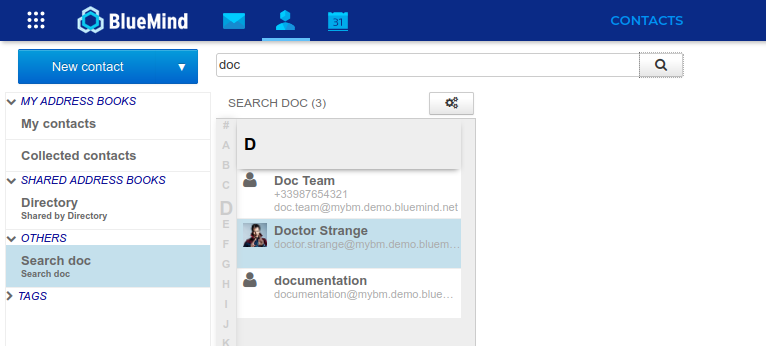
To exit the search, click on a contact book to return to it.
Search engine:
- across all currently displayed address books, and only those address books
- across all fields in the contact profiles
To improve efficiency, the number of results displayed is limited à 75 contacts.
If there are more results, we recommend refining your search.
Filtering by tag
It is possible to associate keywords with contacts: tags.
To search for entries associated with a category, click on that category in the left-hand column (see above):
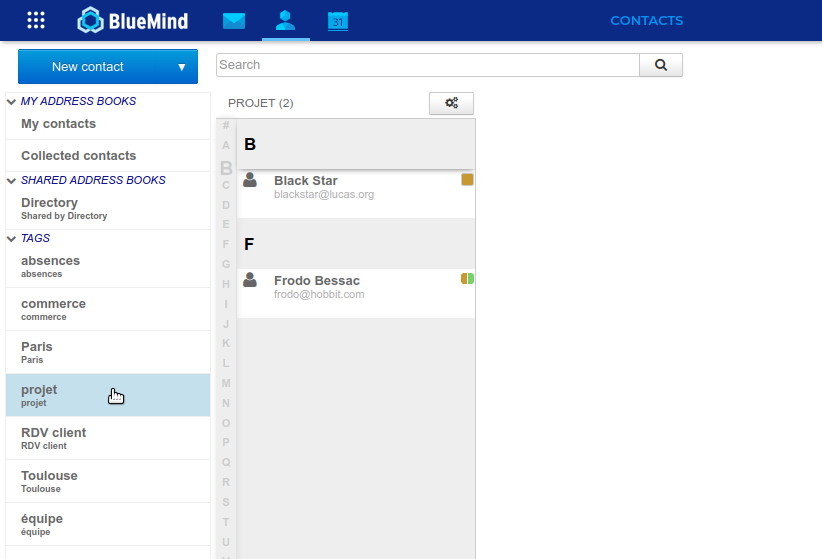
↳ The corresponding records are then searched in all the notebooks currently displayed in the application.
To exit the search, click on an address book or another category.