Getting Started with Mail
Finding your way around the Webmail app
The main Mail view has 3 columns:
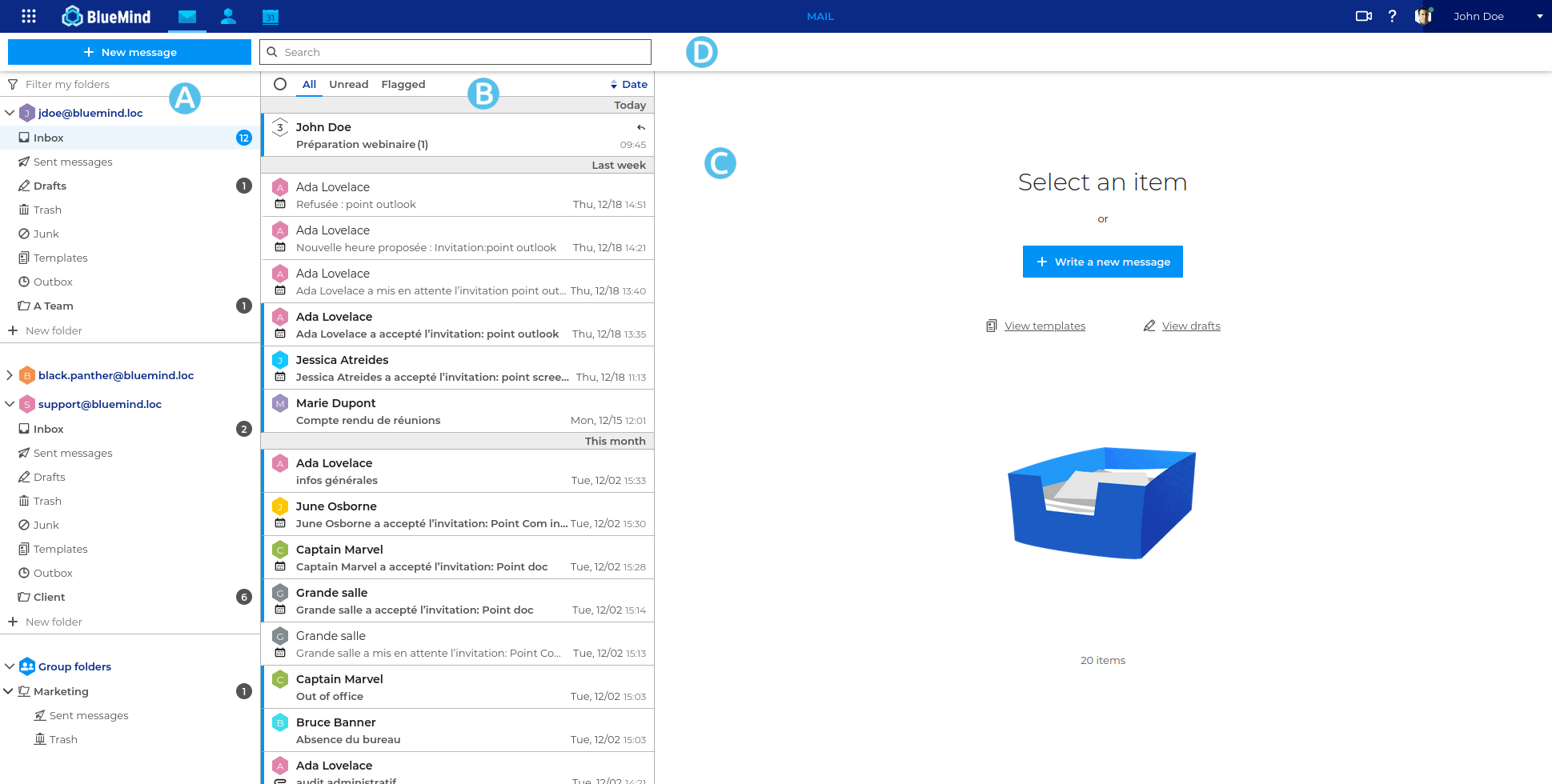
 : the folder tree. It displays folders in separate, collapsible trees, allowing the user’s folders to be grouped on one side and shared folders on the other
theme.common.Pourinfo Using the folder list and Subscribing to and using shared mailboxes. : the list of messages contained in the folder selected in column A. Filters at the top of the list allow you to display only certain types of messages, and hovering the mouse over a message reveals information and available actions. The column width can be adjusted to fit the message previews or the screen being used.
theme.common.Pourinfo Managing the Message List. : main display area. The homepage shows possible actions or a message is one is selected.
 : it includes the new message creation button, the search box and the buttons for possible actions depending on the current display (actions on a message when it is displayed or possible grouped actions when multiple messages are selected)
Viewing messages
Messages arrive in the Inbox folder. All emails in the inbox are displayed in the message list column (theme.common.Pourinfo Managing the Message List).
The message is marked as unread (in bold) until it is opened. The ‘inbox’ folder shows the number of unread messages.
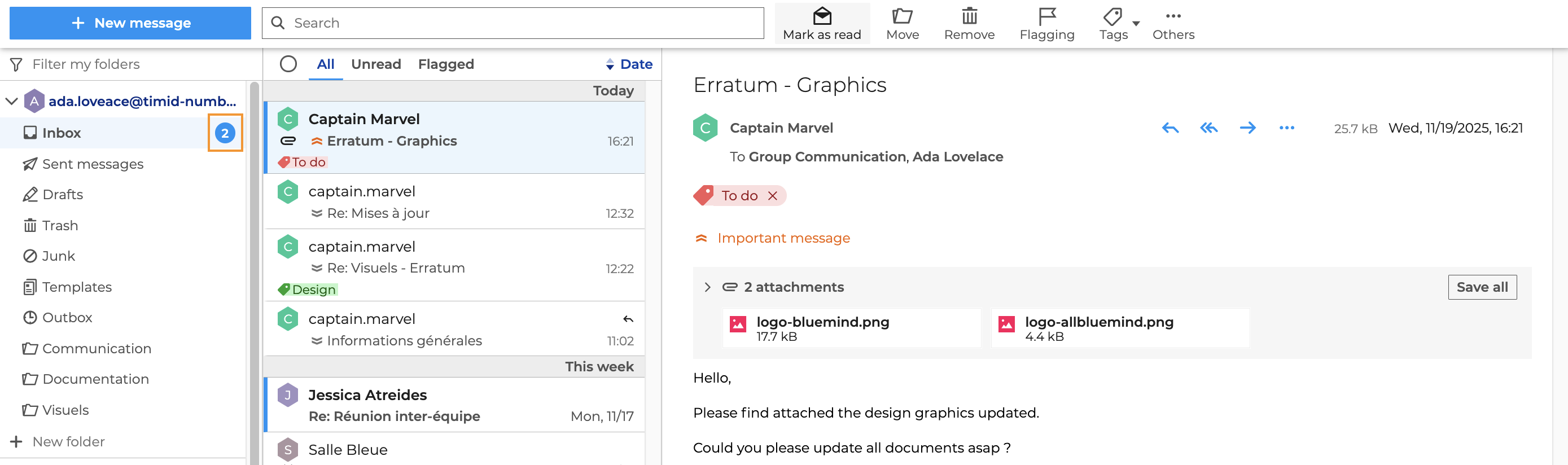
The content of the selected message appears in the main display area.
Attachments are shown in a collapsible box under the message header.
Click  for a preview of images and click
  to download attachments.
Accessing folders
-
The user’s folders and shared folders are listed in the sidebar.
-
There are six folders by default: ‘Inbox’, ‘Drafts’, ‘Sent Items’, ‘Junk’, ‘Trash’ and ‘Outbox’.
-
Users can create folders and subfolders in their mailbox.
Creating and composing new messages
Click on  to open the email composition window:
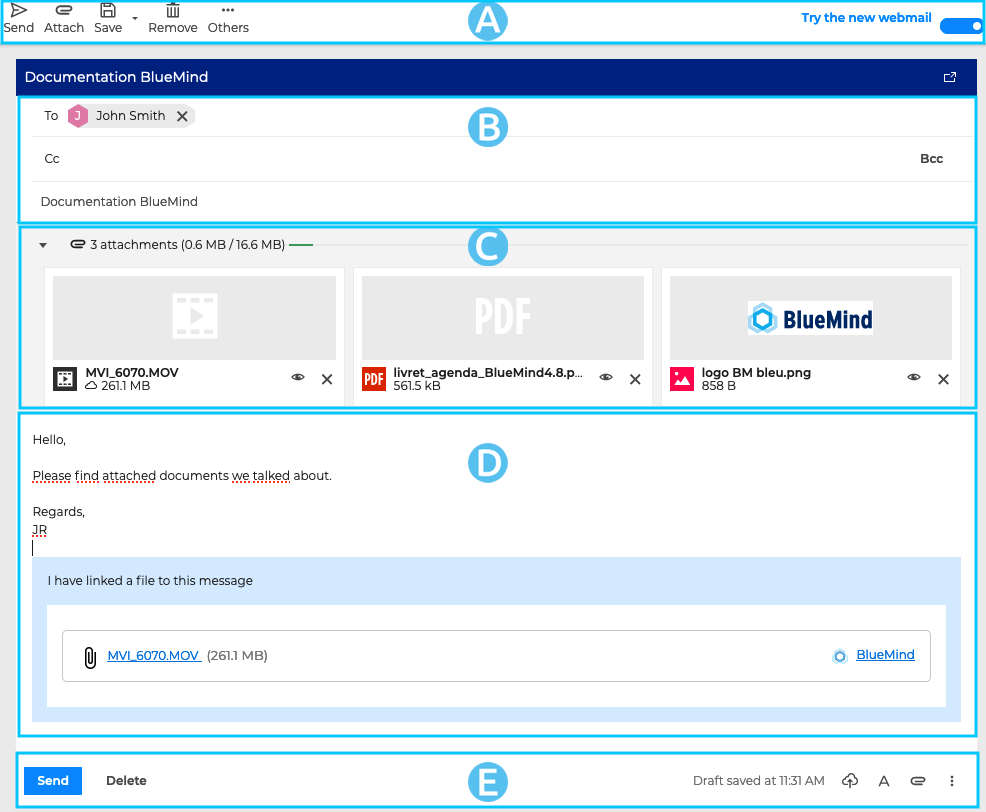
The message composer makes it easy to write messages thanks to:
 : the main toolbar displays the actions available for the message you are currently composing: send, attach a file, save as a draft, delete the message, view the ‘From’ field
 : this area displays the fields for the sender’s and recipients’ addresses, as well as the subject line of the message.
 : this area displays the attachments to messages. This area can be expanded or collapsed to show more or less information about the files
 : the message composition area
 : in addition to the login details, this area features a summary of the main action buttons for intuitive and easy access: on the left are the buttons for sending and deleting messages; on the right, you’ll find options for formatting, adding attachments, inserting a signature, using a template and viewing the ‘From’ field
Find out more
For further details and help, visit Mail.