Edit shared mailboxes (old version)
Shared mailboxes, also known simply as "shared mailboxes" or "service mailboxes", are non-nominative mailboxes: users are attached to them and share the emails they contain. Users access and use the box according to the rights assigned to them (see Editing shared mailboxes > Sharing and delegation): it is not possible to connect to BlueMind with a shared mailbox.
The read status of a message is specific to the mailbox. Therefore, users share the read status of messages in a shared mailbox: when one of the users reads a message, it is marked as "read" for all other users.
For example, if an email is still marked "unread", this means that no one has read it yet, or that a user has read it and then deliberately set it back to "unread".
For further information, see Subscribing and using shared mailboxes.
Creating
Starting with BlueMind 5.5, it is no longer possible to create shared mailboxes as they existed previously, as simple mailboxes. Shared mailboxes are now full-featured mailboxes: they include address books, calendars, and to-do lists, offering more functionality and better compatibility with Outlook.MIGRATIONOlder versions of shared mailboxes still exist and can still be managed (see below). A tool for converting to the new type of shared mailboxes will be available shortly.
MIGRATION
Older shared mailboxes still exist and can still be managed (see below). A tool for converting to the new type of shared mailboxes will be available shortly.
Administration
General
This tab shows the shared mailbox's main parameters.
Mailbox
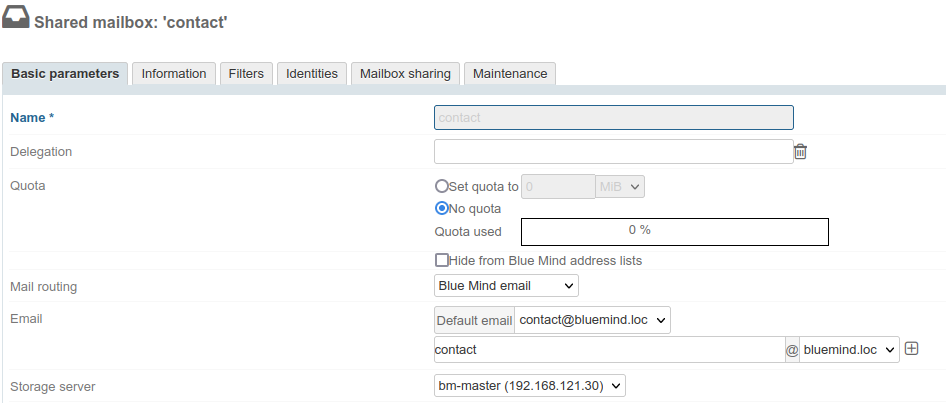
- Name : The name you enter cannot be modified later
- Delegation: the organizational unit to which the mailbox belongs
- Quota: maximum mailbox size
-
Hide BlueMind address lists: the mailbox exists but is not visible in autocompletion (webmail dialer or calendar) or in the directory. Its address can still be used by administrators or those who know it.
- Mail routing: type of mailbox or absence thereof
- Email: the shared mailbox can have as many email aliases as desired on one or all available domain name aliases.
- Storage server : server from which the box is managed
Automatic reply
This section allows you to enable or disable the automatic responder for the shared mailbox.
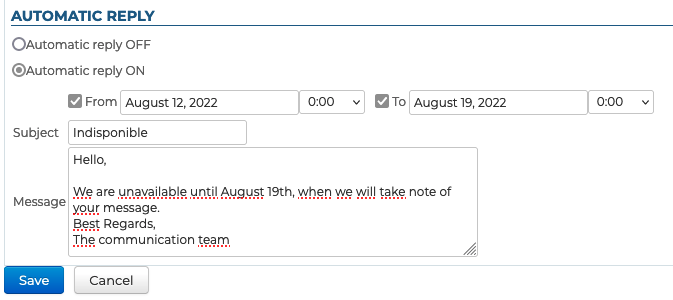
Complete the fields:
- Subject (mandatory): subject of the sent email
- Message (optional): message body
- Start and end dates (optional)
- if no start date is specified, auto-reply is enabled as soon as you save the new settings
- If no end date is specified, the voicemail system remains active until the out-of-office email is turned off
Then click on "Save".
When the automatic reply is turned off, the most recent settings are saved and will be restored when it is turned back on.
Once the auto-reply is enabled, when an email arrives in the mail app, an email is automatically sent to the sender, based on the time period and settings configured.
Just one away message is sent in reply to a single sender (email address) for every 3-day period.
If the user disables and then enables auto-reply again during that time without editing the subject or the message content, the senders who have already received an automatic reply will not receive a new one – the countdown for the period starts again where it was left off.
For example:
- you enable auto-reply
- you get an email from user B on day D. An auto-reply is sent to user B and the 3-day countdown starts
- you disable auto-reply on day D+1
- you receive a new email from user B. No auto-reply is sent
- you enable auto-reply with the same settings on day D+2
- you receive another email from user B: auto-reply considers this to be D+2, therefore no automatic message is sent.
Information
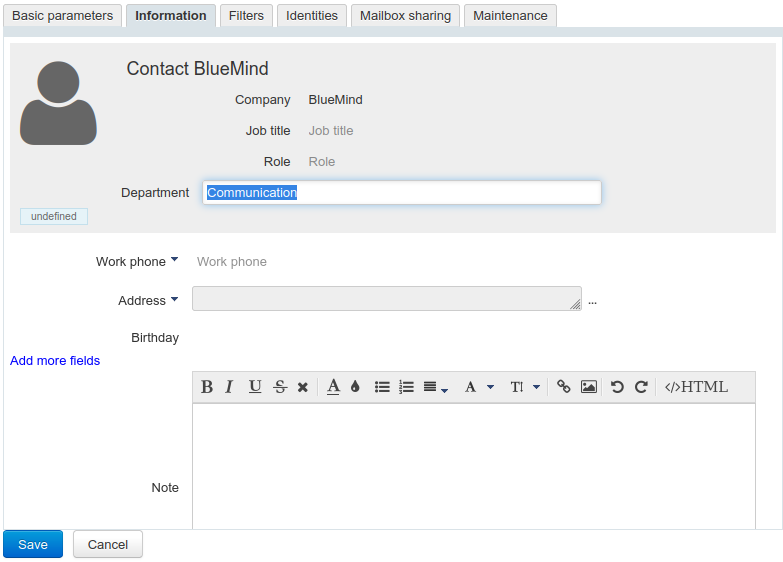
This tab shows the information that will be displayed on the directory entry for the shared mailbox.
These data can also be used to implement Corporate Signatures.
Here, the administrator can enter information such as telephone numbers and postal addresses, or assign a photo to be used throughout BlueMind (contact sheet, event invitation, etc.).
Contact details belong to the BlueMind internal directory and can be accessed by all users of the solution. For this reason, only an administrator with the appropriate role can modify this information: users, even with full sharing right on the box, cannot modify it.
Filters
This tab is used to create and organize rules for incoming mail.
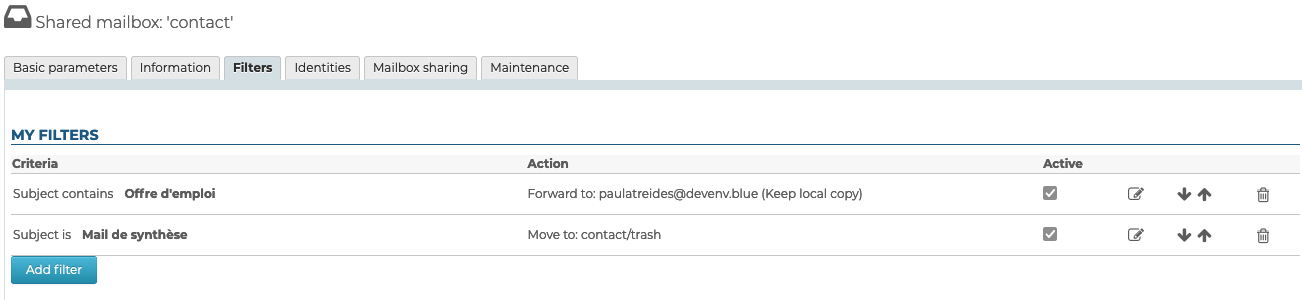
Mailbox filters work the same way as user filters. See the dedicated page for more details on their management: Applying sorting and action filters.
Identities
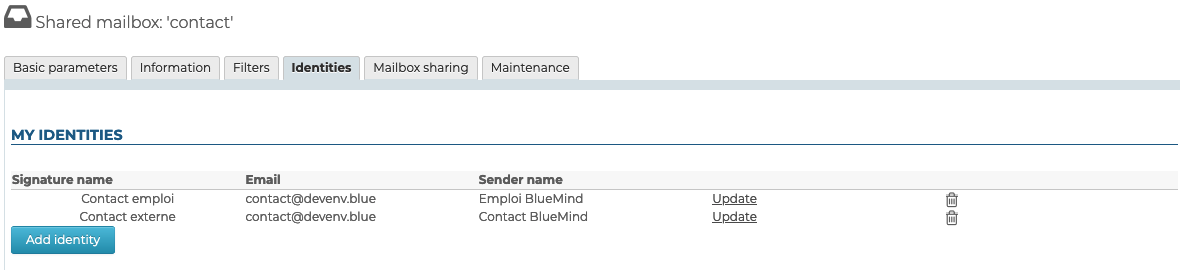
Here, the administrator can define identities that can be retrieved by users with write access to the mailbox: when the user chooses one of these identities, the name, label and signature are retrieved. That way users don't have to enter the information again, which prevents errors and enables users to share a signature for one mailbox, and makes it consistent and transparent for recipients.
For further details, see the User Guide page: Managing Account Identities.
Sharing mailboxes
Enter the desired user or group, then use the 2 drop-down lists to define :
-
The sharing right on the mailbox :
-
Can see the shared mailbox (inactive in Outlook) : The designated user or group can view emails, events, contacts, and tasks.
-
Can update the shared mailbox (inactive in Outlook) : The designated user or group can add, delete, or move emails, events, contacts, and tasks.
-
Can update the shared mailbox and manage sharing: In addition to modification rights, the designated user or group can manage sharing rights shared mailbox applications.
-
All rights on the shared mailbox: full sharing with complete delegation; the designated user or group has full rights to edit and share apps of the shared mailbox and can send emails using the "Send as" option.
ℹ️ When the sharing level "All rights on the shared mailbox" is selected, the "Full delegation rights applied" level is automatically enabled and cannot be changed.
-
-
The right to delegate :
- No Delegation: The designated user or group cannot send emails using the shared mailbox's email address.
- Write as me (total impersonation): This is the highest level of delegation.
- Write from me: This is the default option for delegations.
Delegations and Receipt of InvitationsOnce access is granted to one or more users, only those users receive invitations sent to the shared mailbox's calendar; the mailbox itself and users without access do not receive them.This is equivalent to a management permission without the delegator receiving a copy for a user account.
This is equivalent to a management permission without the delegator receiving a copy for a user account.
Maintenance
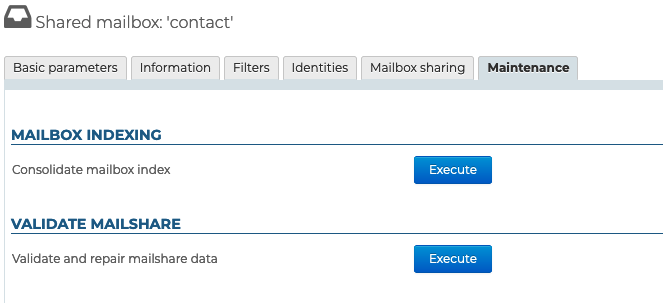
- Consolidate mailbox index: completes currently indexed data by indexing missing items only
- Validate and repair mailshare data: set of verification and correction operations that repair the integrity of the mailbox and its data in the BlueMind system: verifies the mailbox in Cyrus, IMAP folder hierarchy, mail filters, etc.