Directory Browser
The Directory gathers all the entities of the domain. In order to facilitate the search, the application allows sorting and/or filtering the entities in the list.
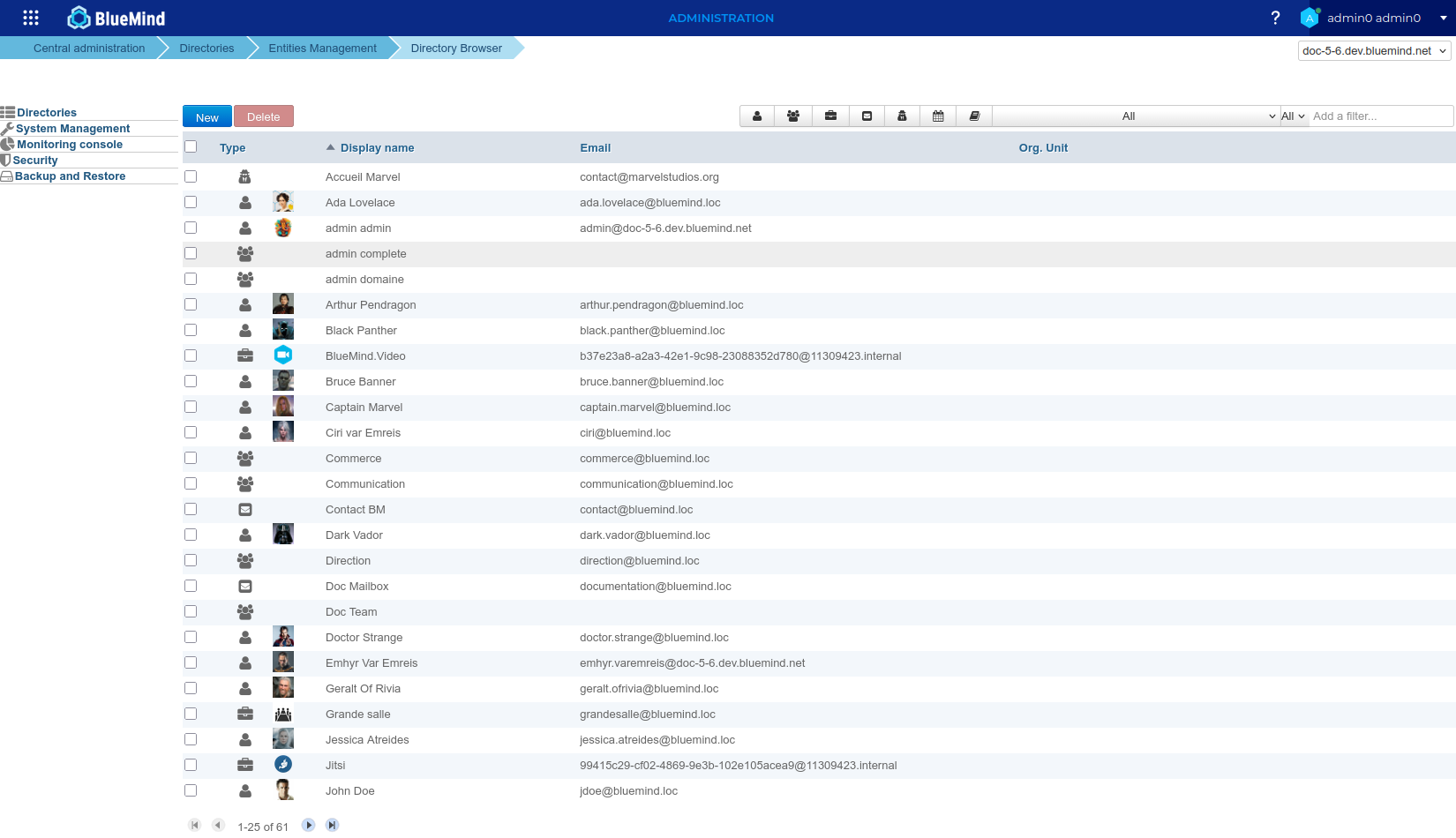
Sorting entries
By default, entries are presented sorted alphabetically by name.
An arrow shows the current sorting column and order. To change the sorting order, click the header of the corresponding column.
Filtering entries
Shown entries can be filtered using the form at the top right of the entry list:

BlueMind offers several types of filters:
- Type of entries: The first 7 buttons display or hide a type of entry: users, groups, resources, shared boxes, external users, calendars, address books.
When a button is enabled, it is grayed out and matching entries are displayed. In this way, one or more types of input can be displayed by activating one or more buttons, e.g. to view resources and shared boxes:
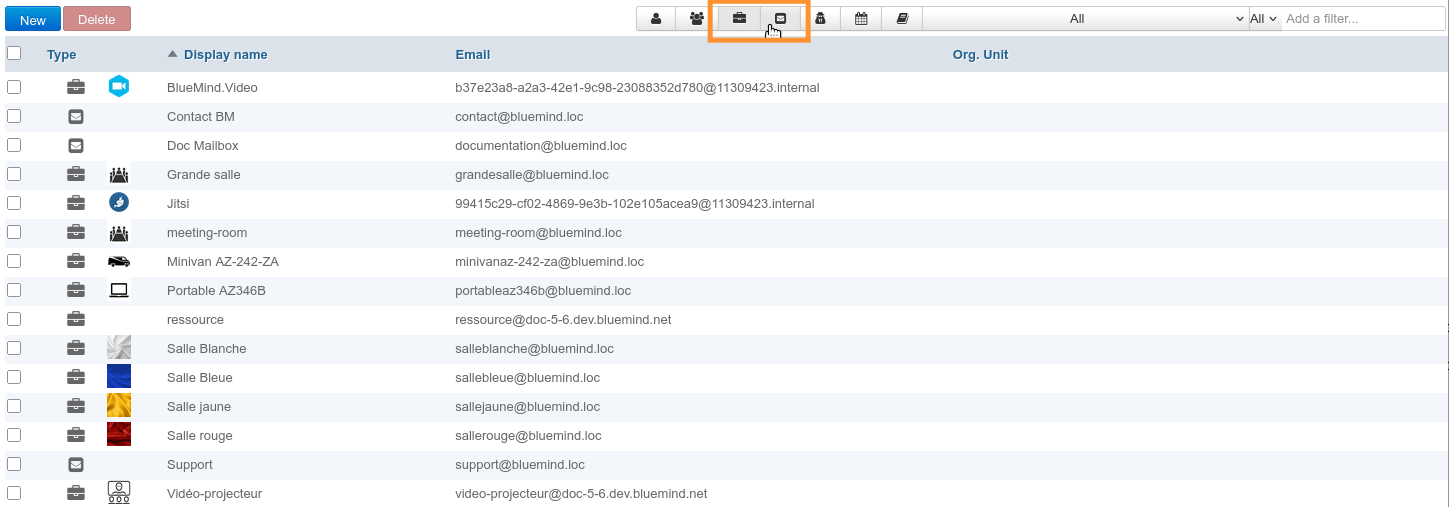
💡 To reset the filter, return each button to its initial un-grayed state. - Status : Use the following drop-down list to filter entries by status:

💡 To reset the filter, select the "All" option. - Server: Select the desired server from the list:

💡 To reset the filter, select the "All" option. - Add a filter...: The final input field allows you to filter entries based on a string of characters.
Type the word (partial or complete) and confirm with the <Entrée> key: all entries containing these characters in their name or username are displayed.
💡 To reset the filter, empty the field and confirm by pressing <Enter>.
Note: the search is not case-sensitive, it doesn't distinguish between uppercase or lowercase.
Filters are cumulative, so for example you can display groups and shared boxes with "doc" in their name or ID:
