Scheduled Jobs
Scheduled jobs allow you to plan specific administrative tasks to be performed automatically. You can manage them in the System Management > Scheduled Jobs > Scheduling section.
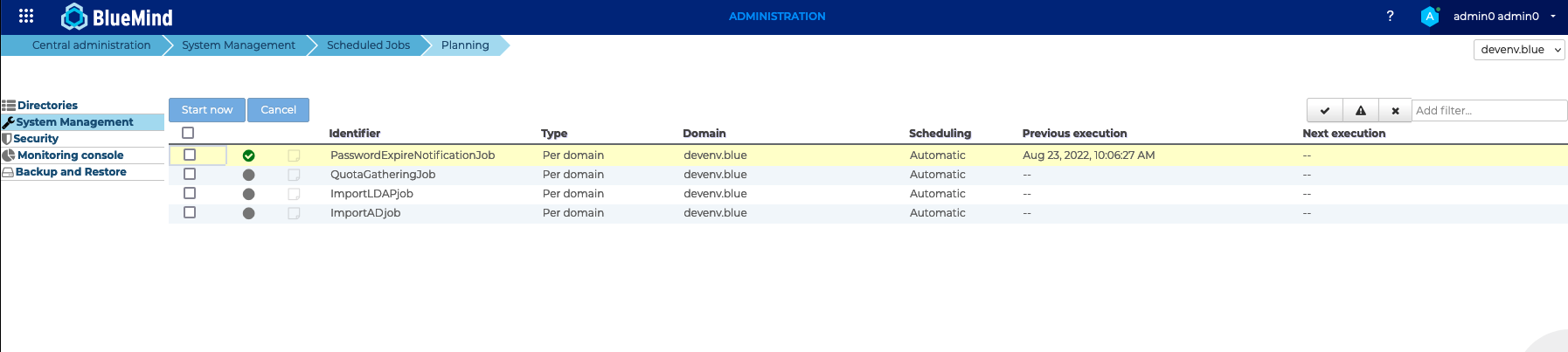
The main page shows the list of scheduled jobs and key status information for each:
-
Checkbox: Allows you to select one or more tasks to which you can apply actions using the buttons above the list.
For further information see the Force execution or shutdown section. -
Status icon for the last run:
- ⚪ a gray circle that flashes when the task is running and remains steady when the task has never been run.
- ✅ a green checkmark when the task is complete.
- ⚠️ a "Caution" sign when the task succeeds but generates warning messages.
- ❌ a cross when the task failed.
For further information on past runs see , see Check runs or view the log from the last run. -
Log status icon: It is black when there are unread logs, either during or after a run.
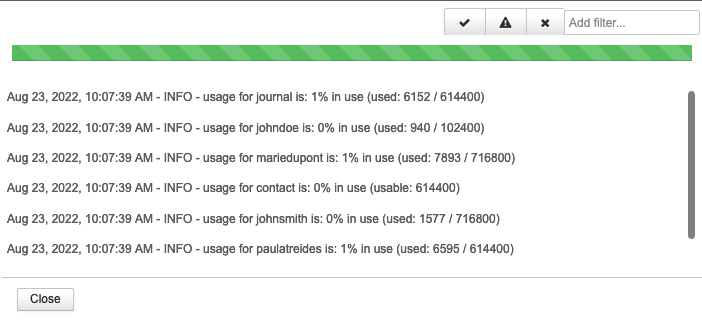
Clicking the icon opens the viewing popup, where messages are displayed in real time while the job is running:
-
Username: Task name.
For further information on existing tasks see , see List of tasks. -
Type: Indicates whether the task is performed on a domain or applies to the entire installation.
-
Domain: Indicates the domain concerned. The "global.virt" domain indicates an execution that affects the entire installation.
-
Scheduling: Indicates whether the task runs automatically, on a schedule, or manually.
For further information see the Scheduling section. -
Last run: Date and time of the task's last run, regardless of its status
For further information on past runs see , see Check runs. -
Next run: the date and time of the next run for a scheduled task.
Filter tools are available in the upper-right corner of the list to view tasks by status. Click the status icons to show or hide them:
- ✔️ The execution was successful
- ⚠️ The execution encountered problems
- ❌ The execution failed
- Filter by a word or part of a word using the free-text field.
When the "global.virt" domain is selected in the upper-left corner of the interface, all tasks are displayed: installation tasks and tasks for the various domains.
All administrators do not have access to the same jobs: the system administrator is able to see all the jobs in the domains under his supervision while the domain administrator's access is restricted to his domain's jobs.
Managing a task
Click the job you want to manage in the list. This opens the job's administration window, which has three tabs:
Viewing the information
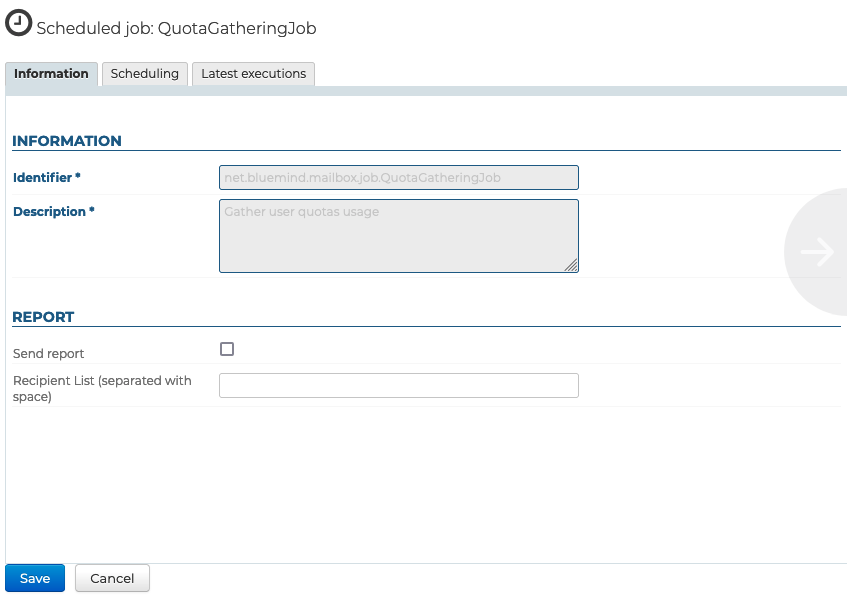
For safety reasons, the job identifier and description cannot be modified.
The administrator can choose to have the execution report automatically sent to one or more email addresses. To do this, check the "Send report" box and enter the email addresses of the intended recipients.
Scheduling
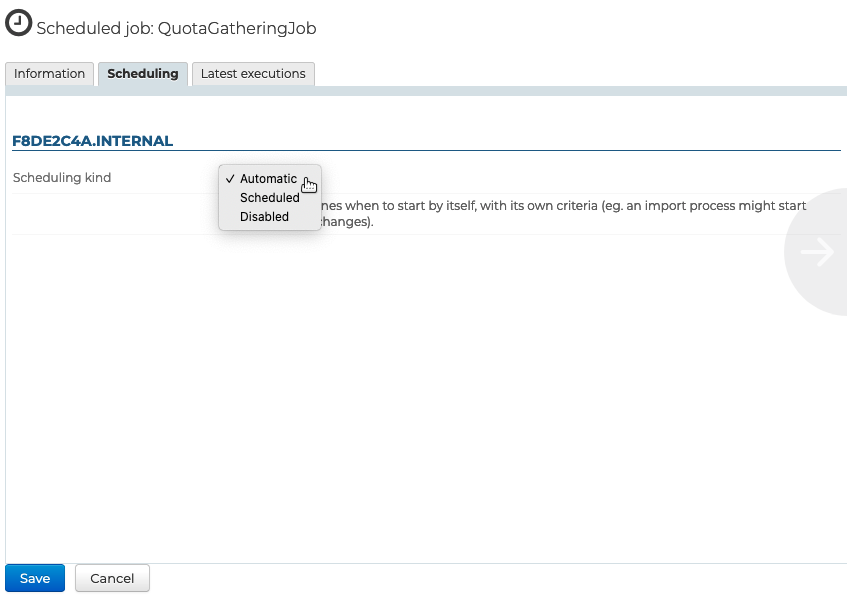
This tab allows you to specify how the task should be performed. Scheduling can be:
- Automatic: The task is triggered based on its own criteria, which were defined during development; this is the default behavior of a scheduled job.
- Scheduled: the administrator defines the frequency of execution.
By selecting the "Daily" option, the administrator can set the days and times of the week when the task will run:

In this case, the task will run every Friday at 8:30 p.m. - Disabled: There is no scheduling; the task does not start until it is launched manually.
Monitoring runs
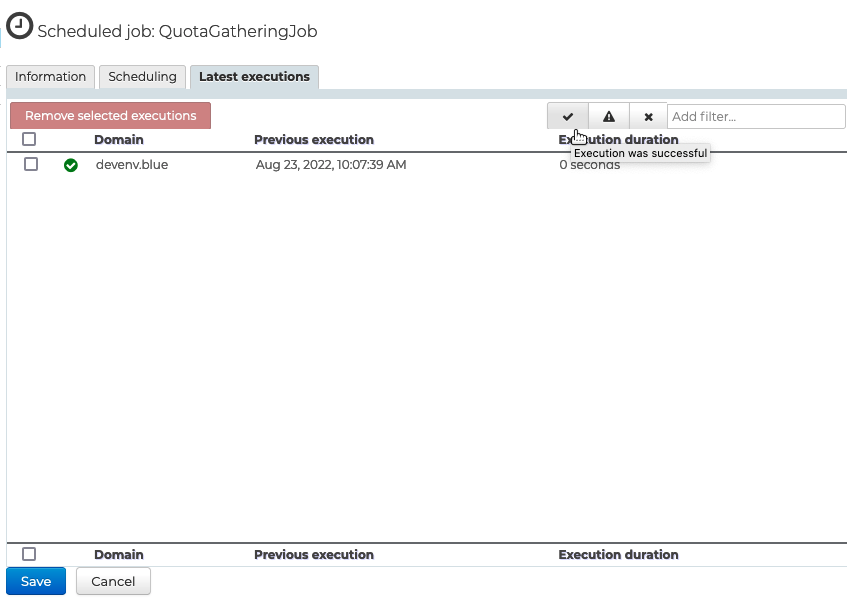
This tab allows you to view the most recent executions of the task. Click an execution from the list and the log popup opens.
Filtering tools are also available here, in order to view specific jobs only. For example, only successful executions are shown above.
Force execution or shutdown
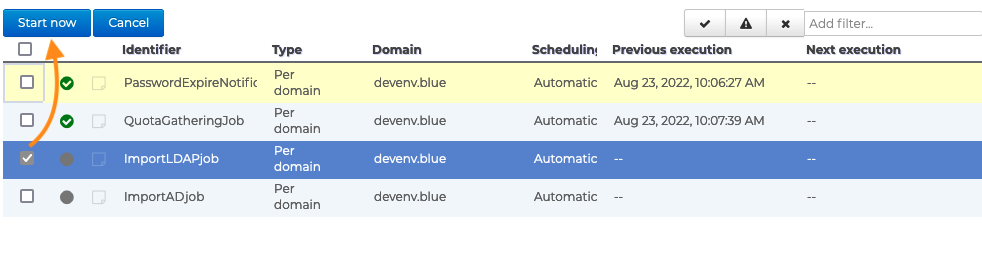
To launch a job manually and force it to run at a given time, from the job list:
- select the job you want to execute by ticking the box at the beginning of the row
- click the "Run now" button:
Task list
| Login | Description |
|---|---|
| DataProtect | Data backup task. |
| DeleteOldConversationReferencesJob | Removes emails older than one year from conversations (does not delete the emails). |
| EventHistoryCleanUpJob | Clears the calendar event history, retaining only the creation information and the 1,000 most recent entries. |
| ExecutionsCleanerJob | Clear the execution data for scheduled jobs, keeping only the last 100 executions for each one. |
| FileHostingCleanUpJob | Removes items from the Filehosting by BlueMind whose retention period has expired. |
| HotUpgrade | Runs any pending HotUpgrade tasks. |
| ImportDirectoryJob | Imports entities from an LDAP directory. |
| LdapAddressBookSyncJob | Synchronizes domain address books connected to an LDAP server. |
| Maintenance | Performs maintenance on the facility. |
| PasswordExpireNotificationJob | Expires user passwords in accordance with the policy defined in the domain' General configuration. |
| QuotaGatheringJob | Collects information on mailbox quota usage and sets up alerts as needed. |
| SmimeRevocationJob | Updates the S/MIME certificate revocation list. |