Integrating Video Conferencing with BigBlueButton
BlueMind can be connected to a BigBlueButton server to allow users to easily create conferences and link them to their calendar meetings.
Installing and Configuring BigBlueButton
Installing the BigBlueButton packages
To make the new features available to users, install the following packages on the server and then restart BlueMind:
- Debian/Ubuntu
- RedHat/CentOS
aptitude install bm-plugin-core-videoconferencing-bbb bm-plugin-admin-console-videoconferencing-bbb
bmctl restart
yum install bm-plugin-core-videoconferencing-bbb bm-plugin-admin-console-videoconferencing-bbb
bmctl restart
Configuring the BigBlueButton server
Enable videoconferencing
To enable videoconferencing for users in a domain, enter the required information and configure the invitation template for the associated resource.
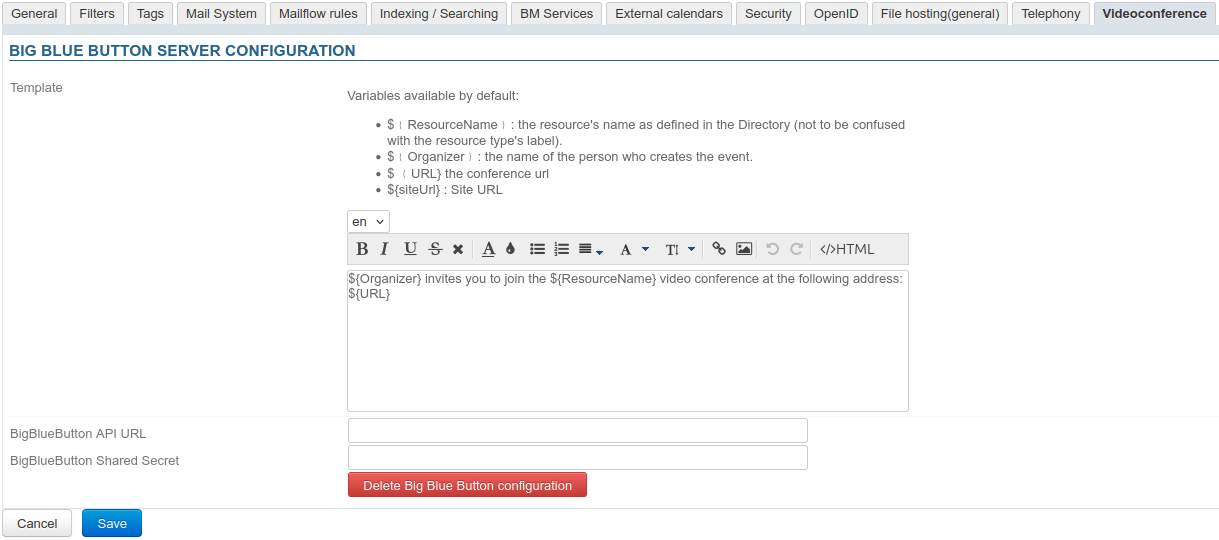
To do this, go to the administration console, navigate to System Management > Managed Domains > select the desired domain > Videoconferencing tab:
-
Enter the general server information here:
- BigBlueButton API URL: the URL for accessing the BigBlueButton API
- BigBlueButton Shared Secret: the URL of the secret phrase
-
Enter the invitation template to define the text of the link to access the videoconference
-
Select the desired language from the drop-down list
ℹ️ Multilingual
Language settings are saved, so you can switch between them without having to save after each change.
To remove a language, clear the content field (select the text and delete it).When creating an event, the content will be added to the invitation based on the organizer's language.
-
Fill in the content:
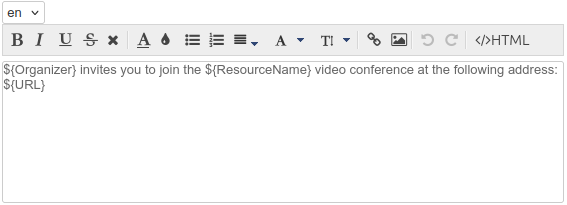
The template may contain variables, which are automatically replaced in the text by the system:${NomRessource}: the name of the resource as defined in the directory${Organisateur}: the name of the person creating the event in the Calendar${URL}: the conference access URL${siteURL}: Application-specific URL
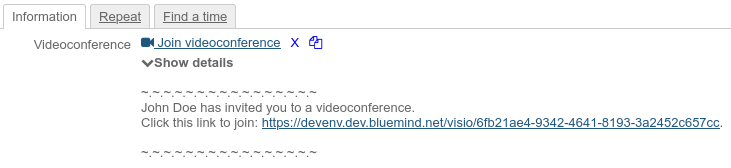
When a user adds a video conference to their event, the text defined by the template is automatically added to the event and to the invitation email sent to participants:
-
-
Click Save
⇒ A resource named "BigBlueButton" is automatically created and added to the directory.
Users can now use it to create and add video conferences to their events.
Create static videoconferences
The configuration of BigBlueButton allows you to create so-called "static" videoconferencing resources: their names and access URLs remain unchanged, and their booking and visibility permissions are managed independently of the main videoconferencing resource.
For static resources to work, the main videoconference must be enabled. See the previous paragraph Enable Videoconferencing.
To set up a videoconference like this:
- Click "Add a static video conference":

-
Enter the desired name and username for the videoconference
💡 You can retrieve the access URL for a meeting from BigBlueButton by entering the meeting's
meetingIdin the "Meeting ID" field.
If the meeting id entered does not exist in BigBlueButton, BlueMind generates a URL and adds the specified id to it.↳ A resource with this name, associated with the BigBlueButton videoconferencing system, is created and added to the directory:

Once created, static video conferences are managed in the same way as the main video conference.
Disconnecting the BigBlueButton server
To disassociate a server BigBlueButton from the domain:
- go to System management > Supervised domains > choose the desired domain > Videoconferencing tab
- click the "Delete the BigBlueButton configuration" button
- validate the confirmation request
There's no need to click on the "Save" button at the bottom of the page, as your request is effective as soon as you've confirmed it.
⇒ The associated resource is automatically deleted and the shares are cleared; it no longer appears in the entity management interface, and users can no longer reserve it.
Accessing the videoconference
Giving users rights
You can access the new feature via the BigBlueButton resource created during server setup:
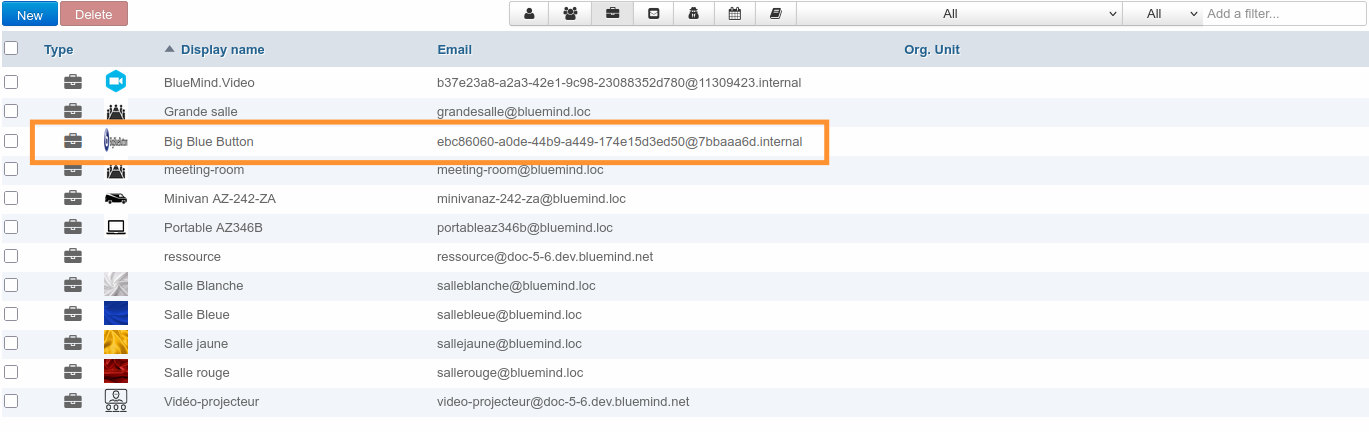
This resource is managed just like any other; it is through the sharing settings that you can grant booking permissions and, consequently, generate videoconference links. Therefore, you must grant a reservation right (a "can book this resource" sharing right or higher) to the desired users or groups so that they can create video conferences for their events.
By default, la ressource est partagée avec un droit de réservation simple, tous les utilisateurs peuvent lier une visioconférence.
As a resource, it can be assigned working hours or a reservation policy. However, as the link generated is unique, this will not affect the availability of the videoconference itself: the link will still be active and available outside these times.
Using the resource
The resource must not (and cannot) be invited to an event from BlueMind by adding it as a participant: once the configuration is complete, you must use the available buttons:
- in the BlueMind navigation bar:

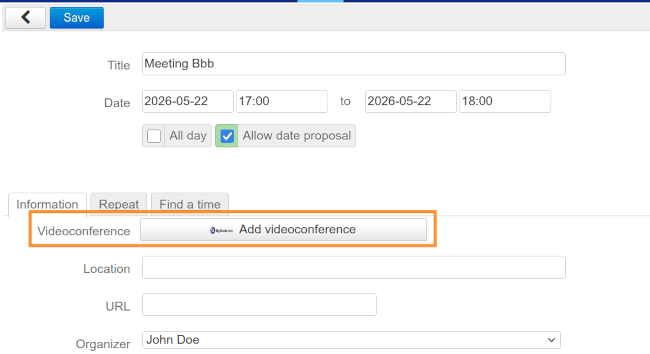
- In the interface for creating beneficiary events: