Editing Events
Once an event has been created, it can be deleted or modified at any time. Events can also be duplicated. That way you can use an event's details to create a new similar one.
To carry out any of these operations, Click the event in the Calendar's main display area and select the action you want to perform:
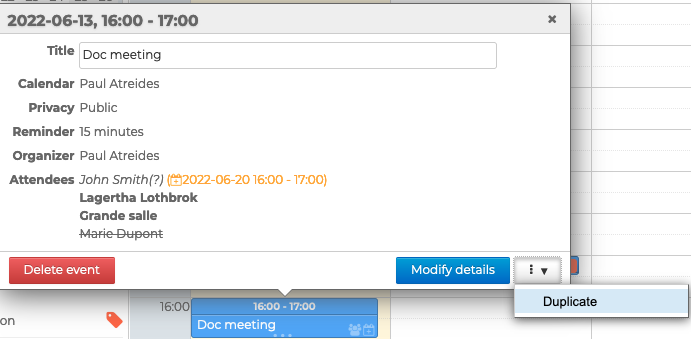
Editing single events
-
Delete event: removes the event from the calendar permanently
-
Edit details: opens the creation form for the event ⇒ Make the desired changes and save
-
Duplicate: opens a new event creation form containing the same information, organizer and properties as the selected event ⇒ Make the desired changes and save to create the new event
Editing events as the organizer
-
Delete: deletes the meeting from the organizer's calendar and marks it as canceled in the participants' calendars. They are notified by e-mail.
-
Modify details: opens the creation form for the meeting
⇒ Make the desired changes and click on "Send" to save. The attendees will receive an email notification and the meeting will be updated in their calendarInforming participants and upgrading their schedule
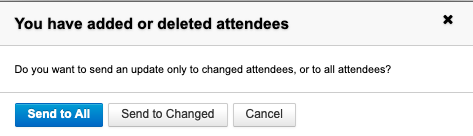
When the only change to the meeting is one or several attendees being added and/or deleted, a new pop-up window prompts you to:
- send the new guest list to all participants, with their participation status (as known to the organizer at the time of sending)
- to send a notification only to participants who have been added or removed:
-
Duplicate: opens a new event creation form containing the same information, organizer, properties and participants as the selected event
⇒ Make the desired changes and click "Send" to create the new meetingThe duplicate of the meeting is considered as a new independent meeting:
- Attendees receive a new invitation
- Attendee statuses from the original meeting are not kept: all attendee statuses are set to "pending response"
- Any changes made to either meeting (original or duplicate) will not be made to the other
Edit a meeting as a guest
Participants can edit, delete, or duplicate a meeting they've been invited to, but any changes will remain private. All modifications made by an attendee will be reflected only on their calendar. The organizer and other participants will not have access to the modifications.
It is the organizer's information that prevails; when the organizer sends modifications, participants' personalizations are likely to be lost.
When a guest deletes a meeting from his calendar, the organizer receives a cancellation notification of his participation in the meeting.
Editing recurring events
For recurring events, you may choose which instances you want to edit:
- This event only: only the event the user has clicked on will be edited; it will become an exception to the series, which remains unchanged
- All future events: the event the user has clicked on, as well as all subsequent events in the series, will be edited. All past events in the series remain unchanged.
- All events in the series: the entire series will be edited
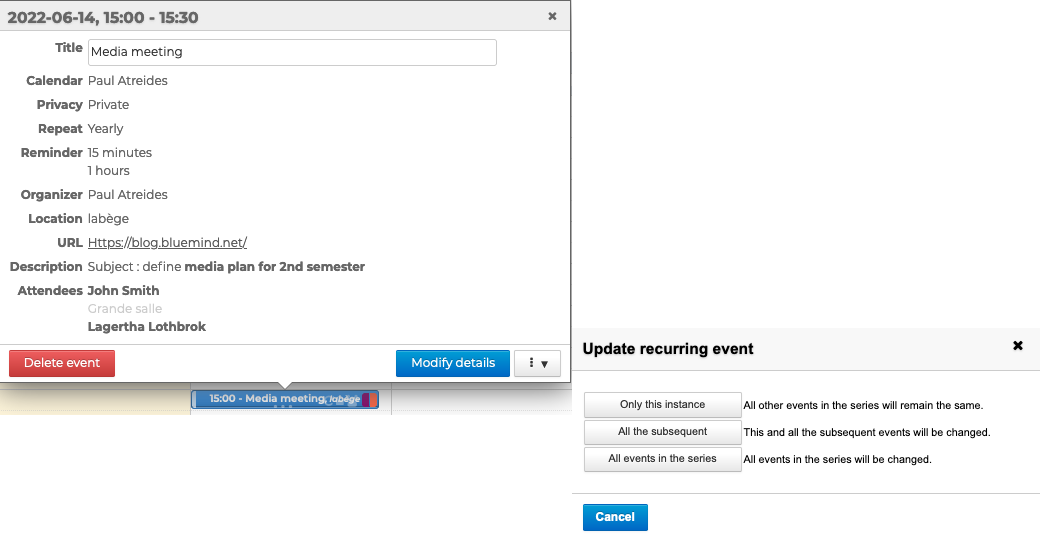
- Delete: deletes the series of events or the selected event from the user's calendar as well as from the participants' calendars when it is a meeting. They will be notified by email that the meeting has been cancelled
- Edit details: opens the creation form for the event ⇒ Make the desired changes to the selected event or series of events and save, or click on "Send" for a meeting
- Duplicate: opens a new event creation form containing the same information, organizer, properties and participants as the selected event
- Choose whether to duplicate all events or a single occurrence:
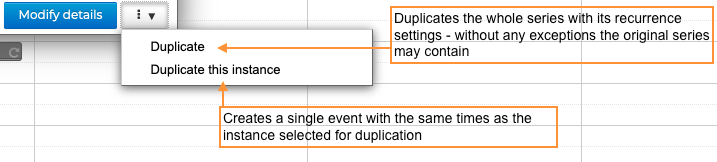
⇒ Make the desired changes and save to create a new event, or click ‘Send’ to create a new meeting
- Choose whether to duplicate all events or a single occurrence:
Viewing events edit history
You can view events' creation and change history in their details' page by clicking  then History
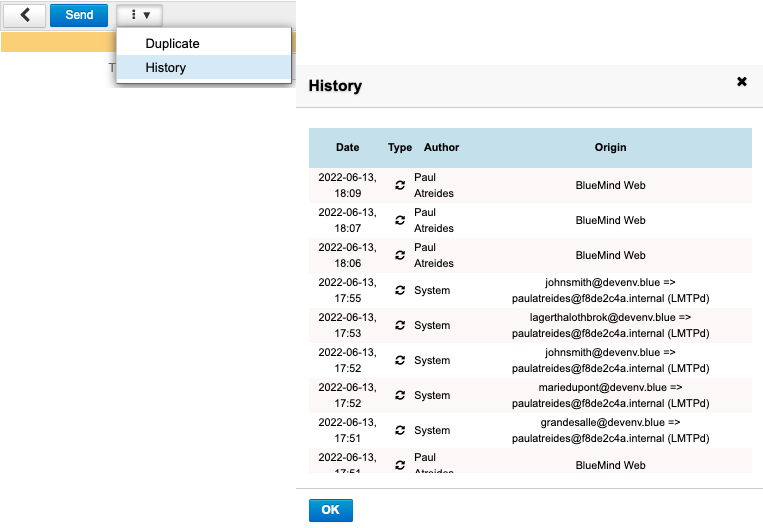
History tells you:
- the date of the action
- the type of action: "created" or "updated"
- who performed the action ("author")
- the origin of the action: BlueMind client, third-party client tiers (chick or mobile client), etc.