Backup problems with DataProtect
This page will help you to identify and resolve problems with your DataProtect backup, and to investigate them by analyzing the relevant logs.
Known issues
Problems with the backup file system
The causes of a malfunction in the /var/backups/bluemind folder can be :
The file system is read-only
Identify a read-only partition:
mount | grep '(ro' | grep bluemind
Identify the associated drive:
mount | grep '(ro' | grep bluemind | awk '{print $1}'
Attempt to repair the file system contained in the partition:
umount /var/backups/bluemind
e2fsck -f -y /dev/device
⇒ If this command has been successfully completed, the system is clean and can be mounted:
mount /var/backups/bluemind
⇒ If this action doesn't solve the problem, the problem is more serious and certainly linked to the physical disk: it needs to be replaced.
The score is not mounted
Try mounting the partition with the following command:
mount /var/backups/bluemind
⇒ If mounting is not done, this means that no mount point have been previously defined.
See the following page: Configuring an NFS mount point
The volume is full
This can be either the file system or its metadata (i-nodes).
Identify a full file system with the df command:
$ df -h
Filesystem                        Size    Used Avail  Use% Mounted on
/dev/sdb1                          1TB     1TB   0GB  100% /var/backups/bluemind
                                                        ↳[Poucentage d'utilisation de la partition]
To analyze disk space usage, you can also use the ncdu tool:
ncdu /var/backups/bluemind
Identify a file system whose metadata part (i-nodes) is full:
$ df -ih
Filesystem                        Inodes   IUsed  IFree  IUse% Mounted on
/dev/sdb1                           100M 1000000      O   100% /var/backups/bluemind
                                                            ↳[Poucentage d'utilisation de la partition]
To analyze disk space used in terms of i-nodes, you can use the following command:
find /var/backups/bluemind/dp_spool/rsync -mindepth 2 -maxdepth 4 -type d -exec du -sh --inodes {} \; | sort -g
⇒ In all cases (system or i-node), you must either free up space (in terms of volume or number of files (i-node)), or add to it.
⚠️ This operation should be performed only as a last resort, after considering other solutions, such as adding a new disk.
In some cases, the file system has a reserved space designated for this scenario. For EXT, for example, you can check the reserved space using the following command:
tune2fs -l /dev/device | grep 'Reserved block count'
If you want to use this space, you can run the following command (where 1 is equivalent to the new value to reserve, as a percentage):
tune2fs -m 1 /dev/device
Analyze DataProtect logs
Logs can be analyzed in two ways:
With the administration console
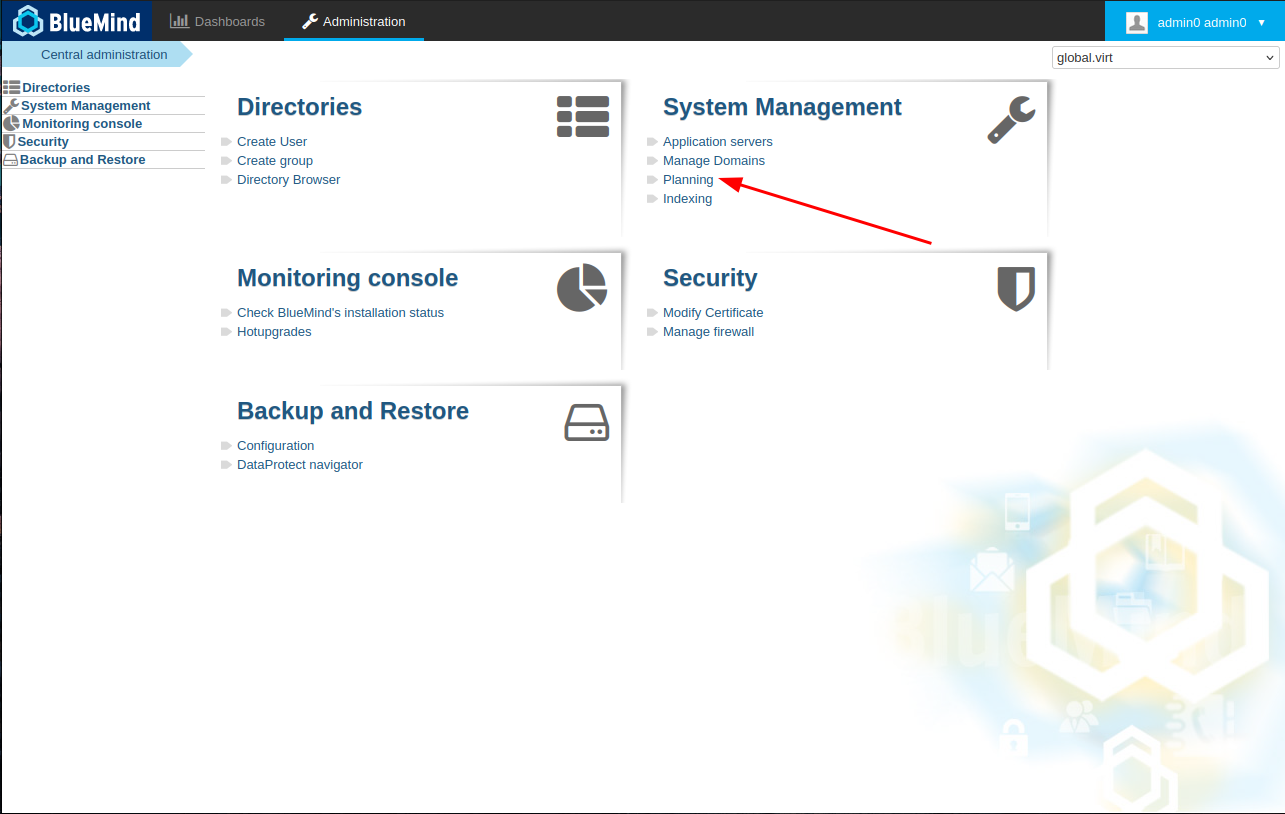
Go to System management > Planning :
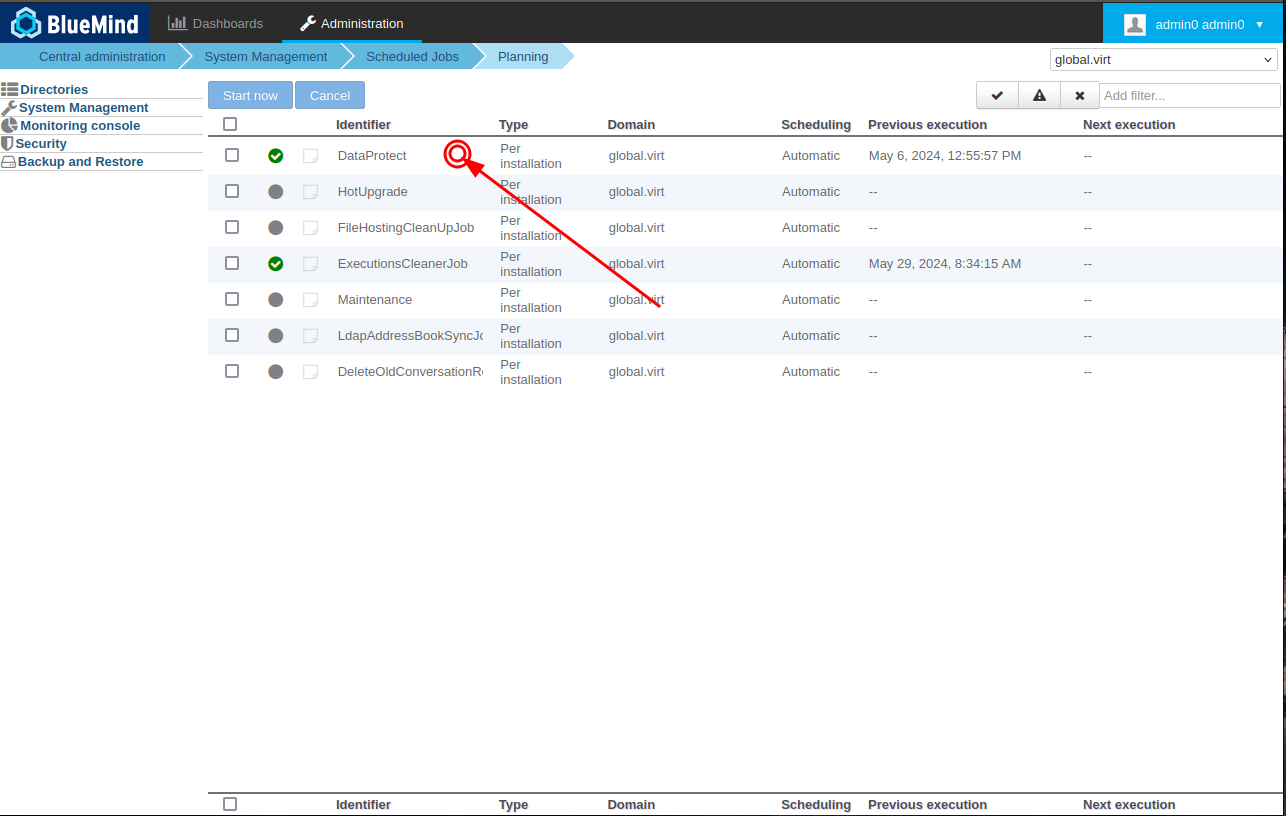
Select the DataProtect task:
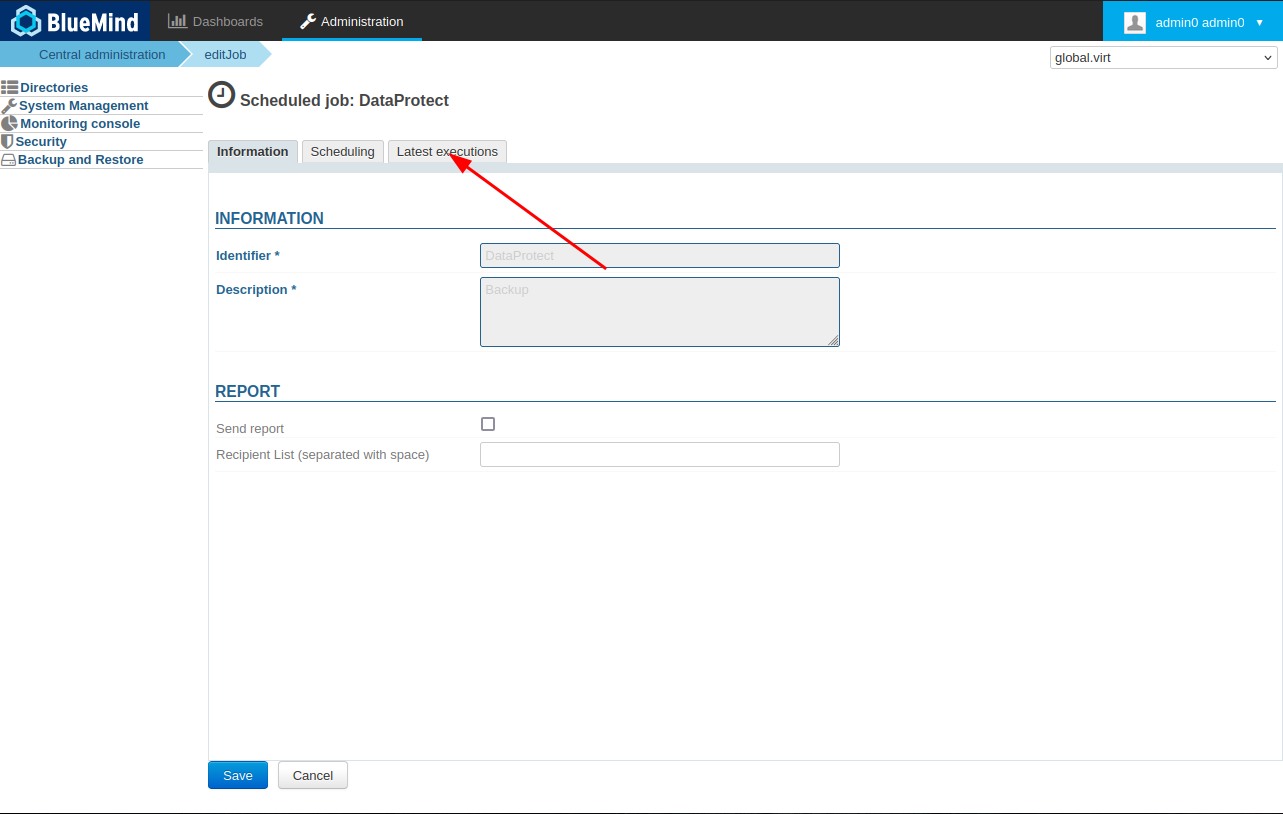
Go to the Latest executions tab:
Select an execution from the list:
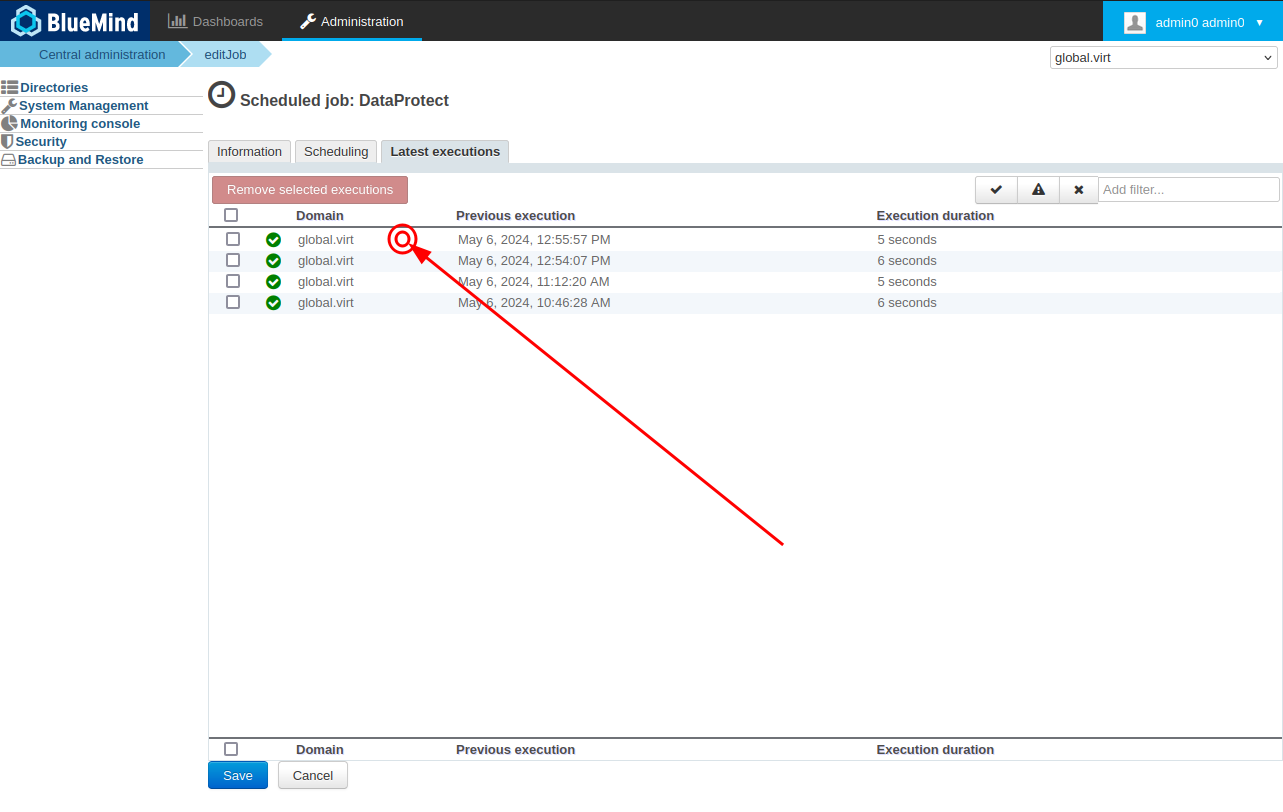
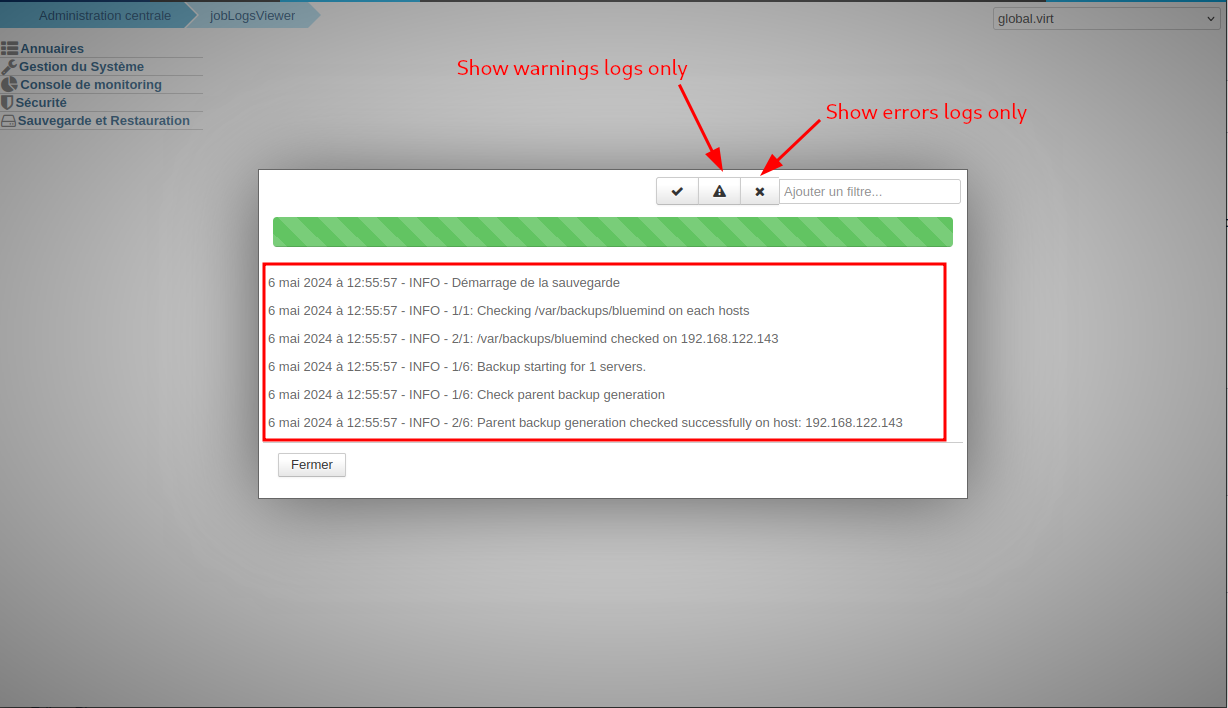
A popup window opens with the execution logs. The buttons can be used to filter entries to find a particular type more easily:
In the event of a problem requiring the intervention of our support team, please consult the Support page beforehand to gather as much information as possible.
Command line
Connected to the server via ssh, perform a grep on the BlueMind main log file /var/log/bm/core.log:
grep -Ei 'continu|backup*|dataprotect|SaveAllTask|DPContext|snapshot|ToolSession|AbstractPgWorker|rsync|DiskSpaceMonitor|/*' /var/log/bm/core.log |less