Moving, Flagging and Marking Conversations
Conversation mode lets you find all the e-mails in the same reply chain in one place.
Once the conversation mode is activated, it is then possible to Reading messages in a conversation, to act on the conversation as a whole or on each email separately.
Enabling conversation mode
The message list can be organized by message (default mode) or by conversation.
To enable conversation mode, go to the messaging settings: Preferences > Messaging > General > Display messages and choose the option "Group by conversation"
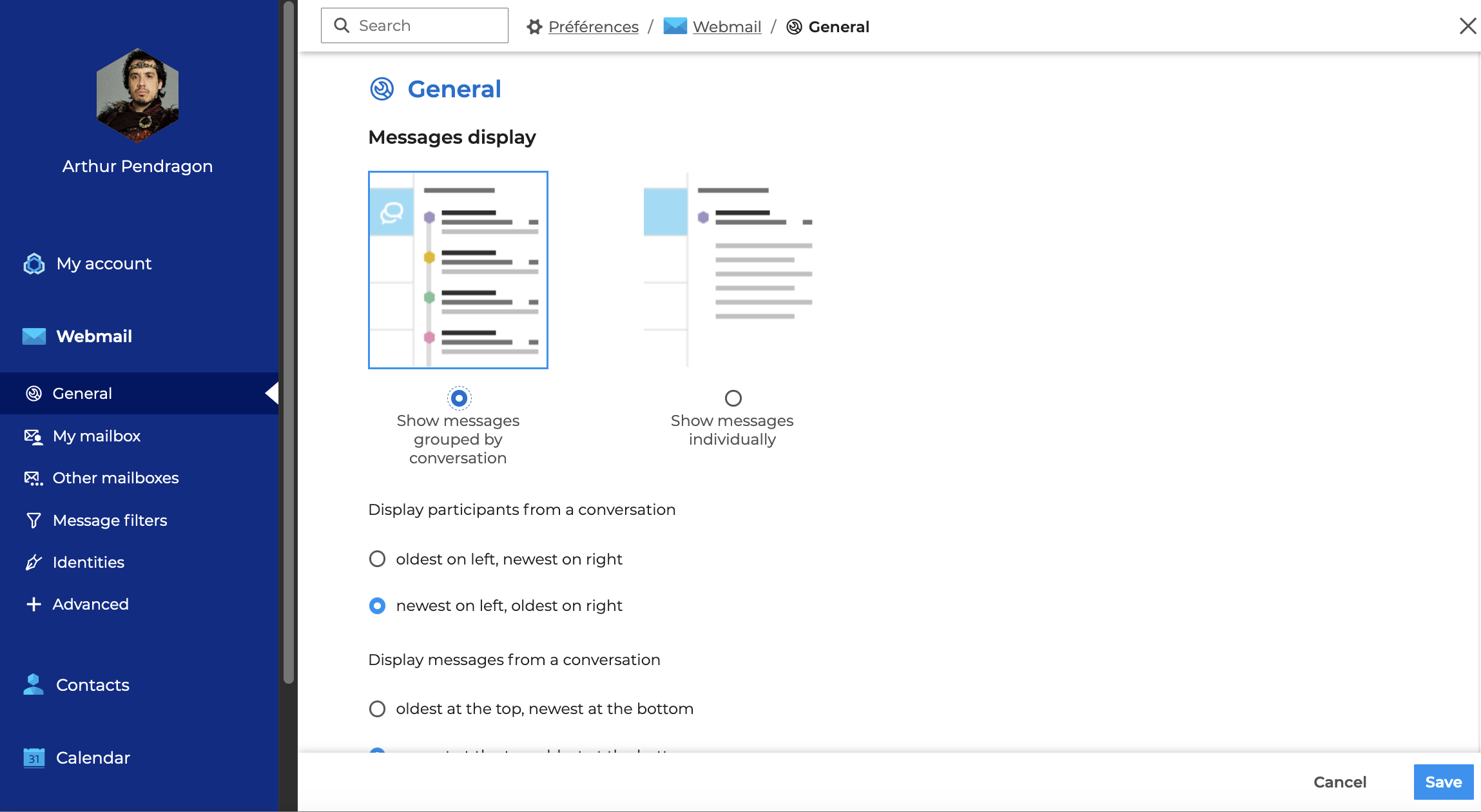
Then choose conversation display options:
-
Show conversation participants: allows displaying senders and recipients from oldest to newest, or vice versa, in the message list
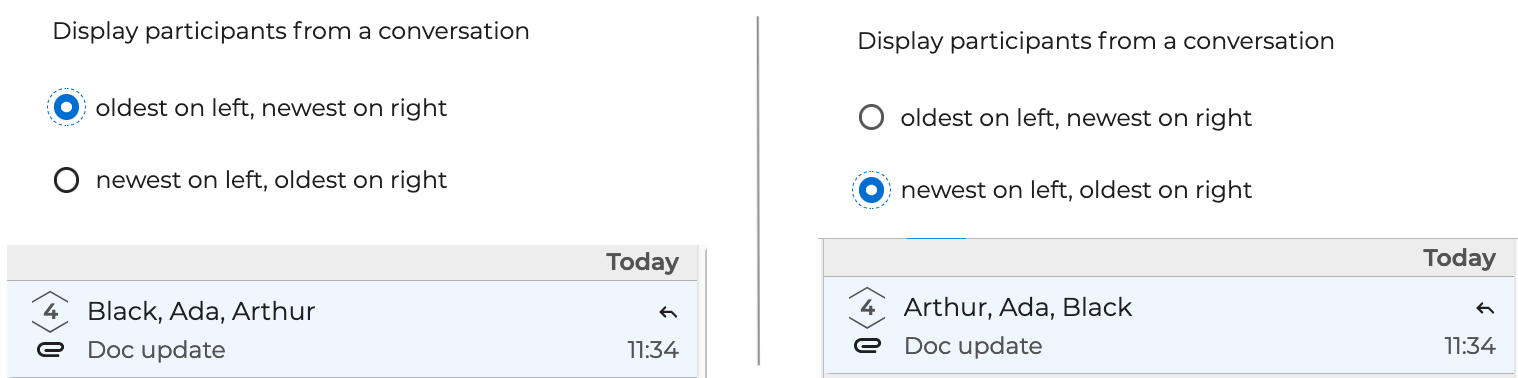
-
Show conversation messages: allows displaying messages from oldest to newest, or vice versa, in the conversation.
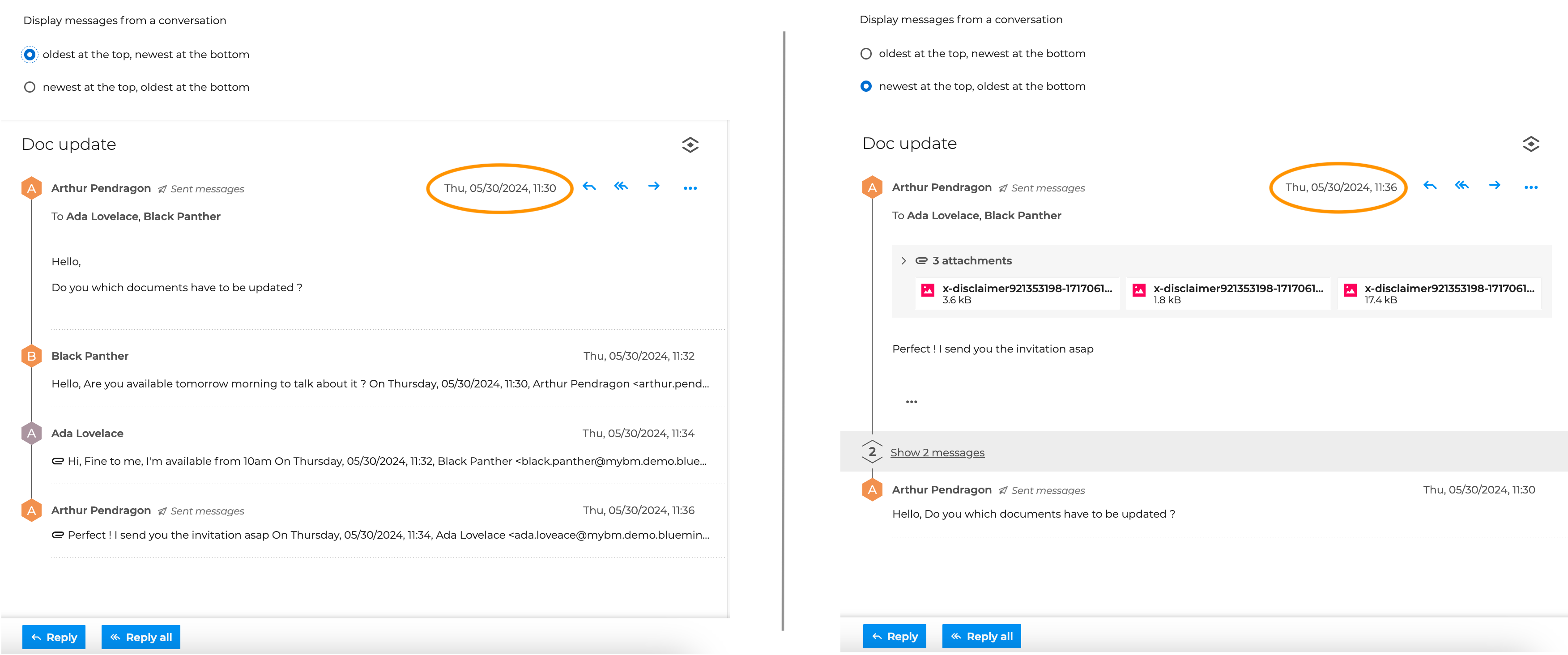
Both options are independent and combinable.
Performing actions on a message in a conversation
To act on an email in a conversation, click on the conversation to display the message queue in the main area.
Then click  to display the action buttons opposite each email.
It can then be answered or forwarded. All other actions, such as moving or adding categories, are accessible from the message menu.
Reply to or forward a message from a conversation
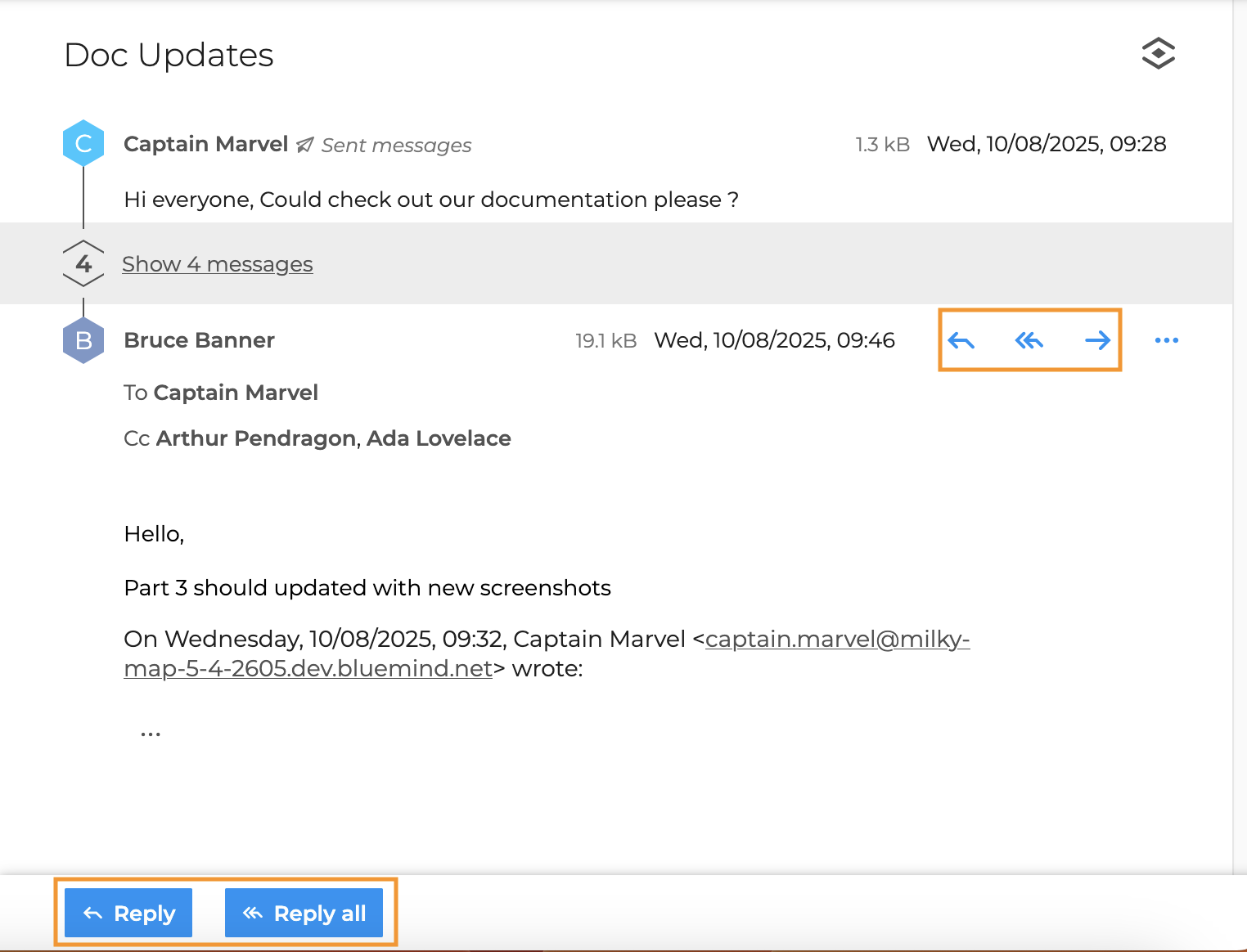
To reply to the last email in the conversation, click on the "Reply" or "Reply all" buttons at the bottom of the page.
To reply to or forward a specific email in the conversation, use the email controls.
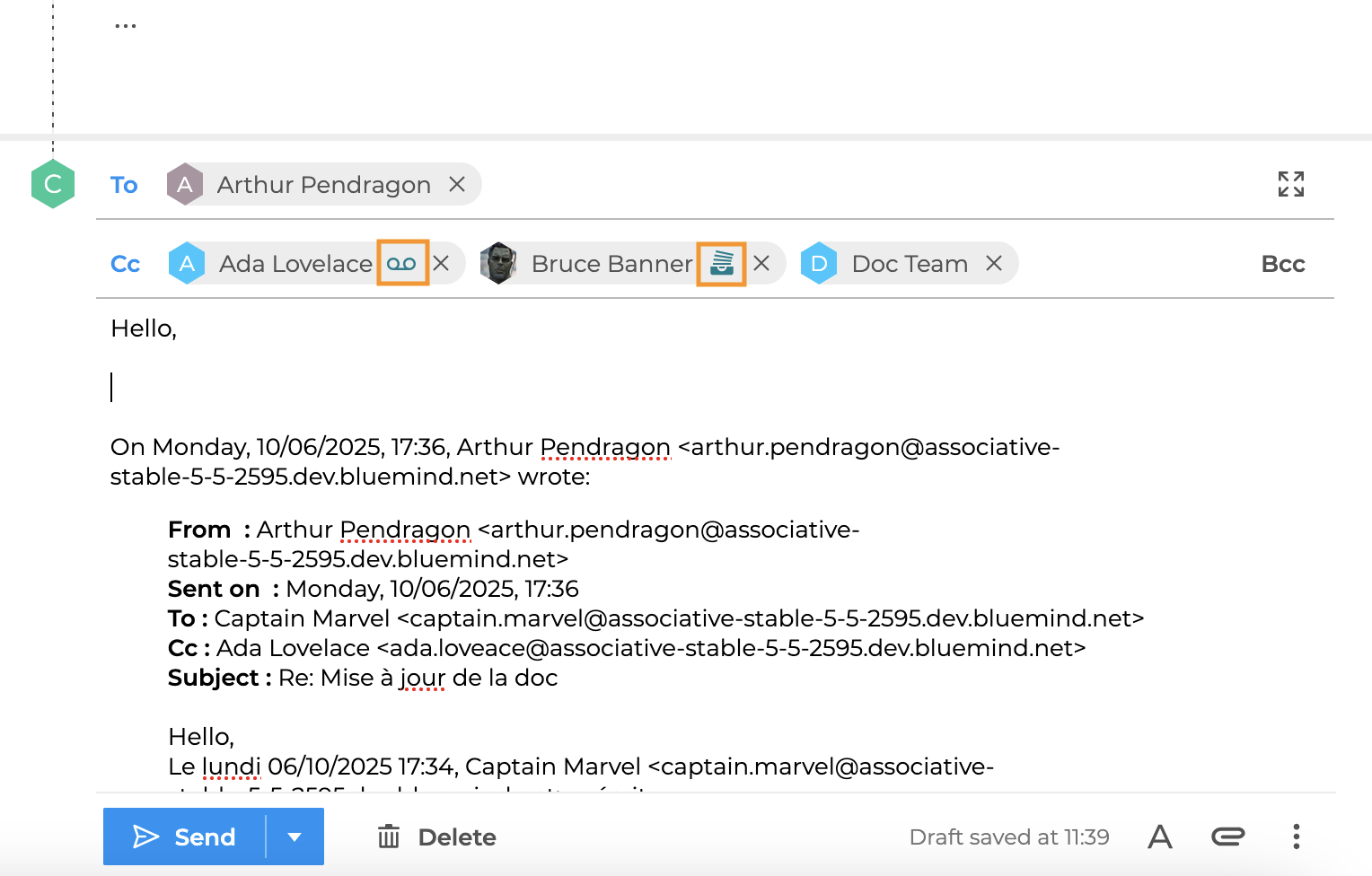
Email receipt alerts appear at the top of the conversation. For greater clarity, an icon next to the recipient's name indicates that his or her email is activated or that his or her mailbox is full.
Moving or copying an email from a conversation
Each email in a conversation can be filed in a different folder. To do this, click "Move" in the email menu.
Each email in a conversation can also be copied so that the copy can be saved in a different folder. To do this, click "Copy" in the email menu.
The message queue then shows the folder to which each moved email and each copy of the email belongs. When an email is copied, it appears multiple times: the original email and its copies in the various folders.
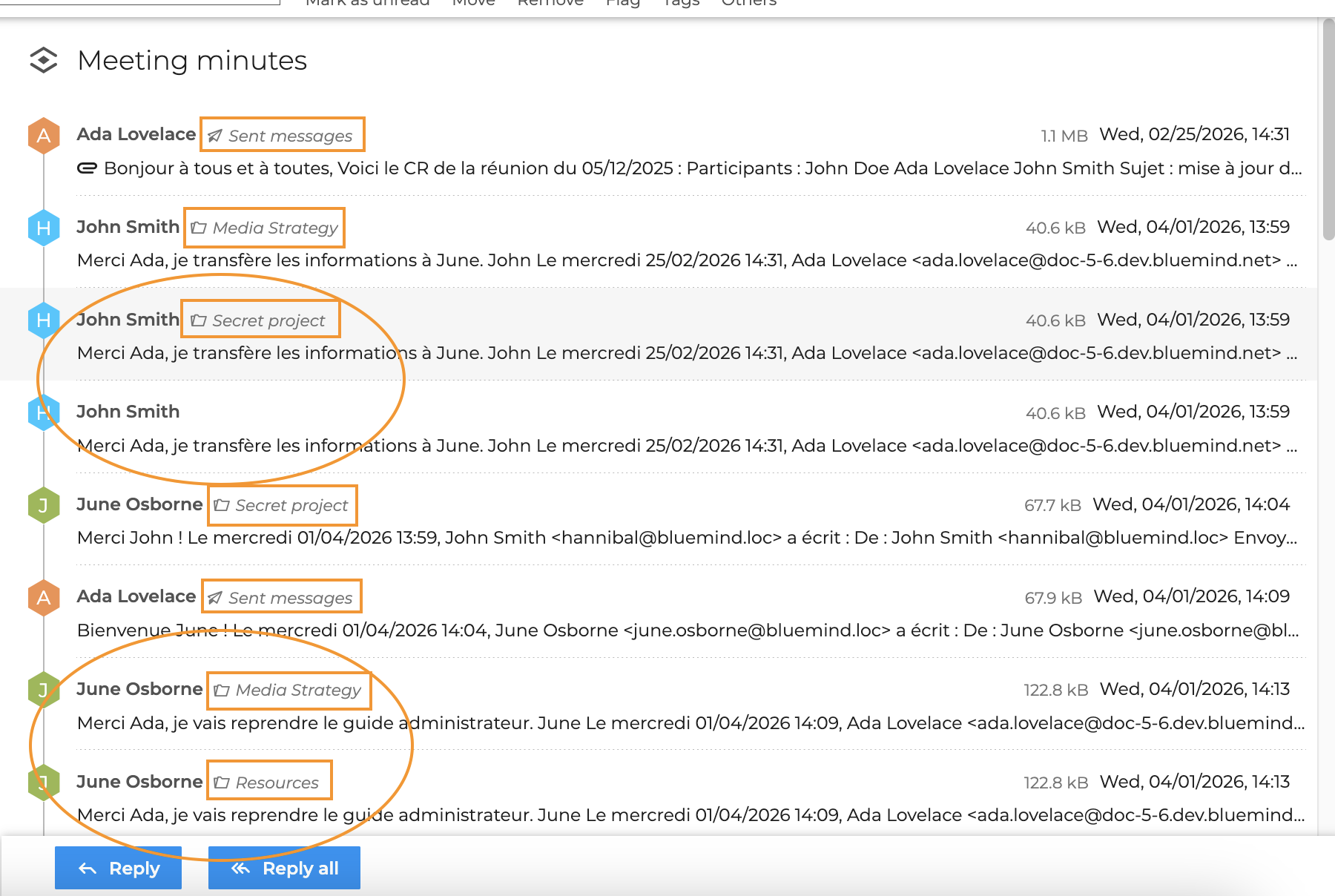
Note that if no folder is specified, this means the email is in the folder you are currently viewing.
Whenever an email is moved or copied to a folder, only the email or its copy is moved, but the entire conversation remains visible in the folder. A single conversation can therefore be accessed from the inbox and one or more folders. Similarly, actions performed on an email in a folder—such as marking it as read or adding a tag—are visible in all folders where the conversation is accessible.
When all the messages from a conversation are moved to other folders, the conversation disappears from the inbox until a new message is received. When this happens, the conversation reappears in the inbox and is updated in each folder.
When all emails in a conversation are moved to folders, the conversation remains in the Inbox. When a new email arrives, all folders are upgraded.
Marking a message in a conversation
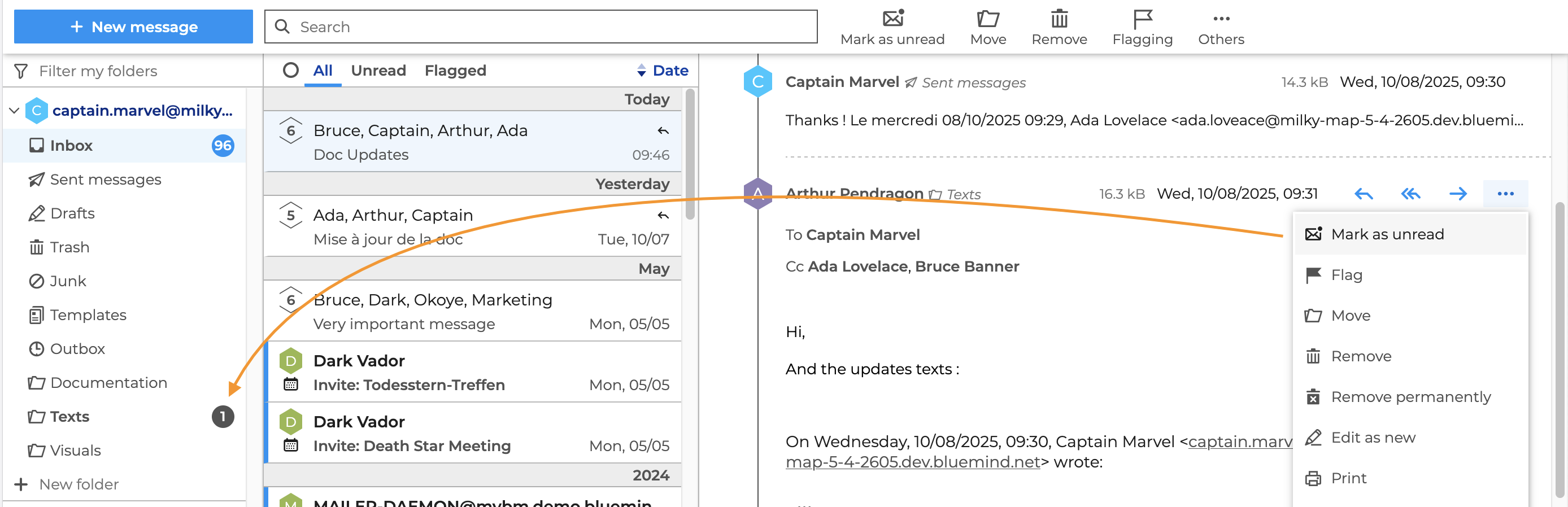
To mark an email in a conversation as read, unread or followed, go to the message menu and select the desired action:

The follow-up action offers several levels: flagged → completed → not flagged.
In the list of emails, the follow-up indication appears as soon as at least one email from the conversation is marked. What's more, if several emails are followed up, the highest level flag appears: if one email is marked "Followed up" and another "Processed", then the conversation is marked with the "Processed" flag.
The action on this email is taken into account in their conversation if they share the same folder, but will not be visible in conversations viewed from other folders.
For example, if an email is marked as unread in the conversation from the inbox, an unread message counter will appear on the message folder, but not in other folders where the conversation is visible.
Tag a message in a conversation
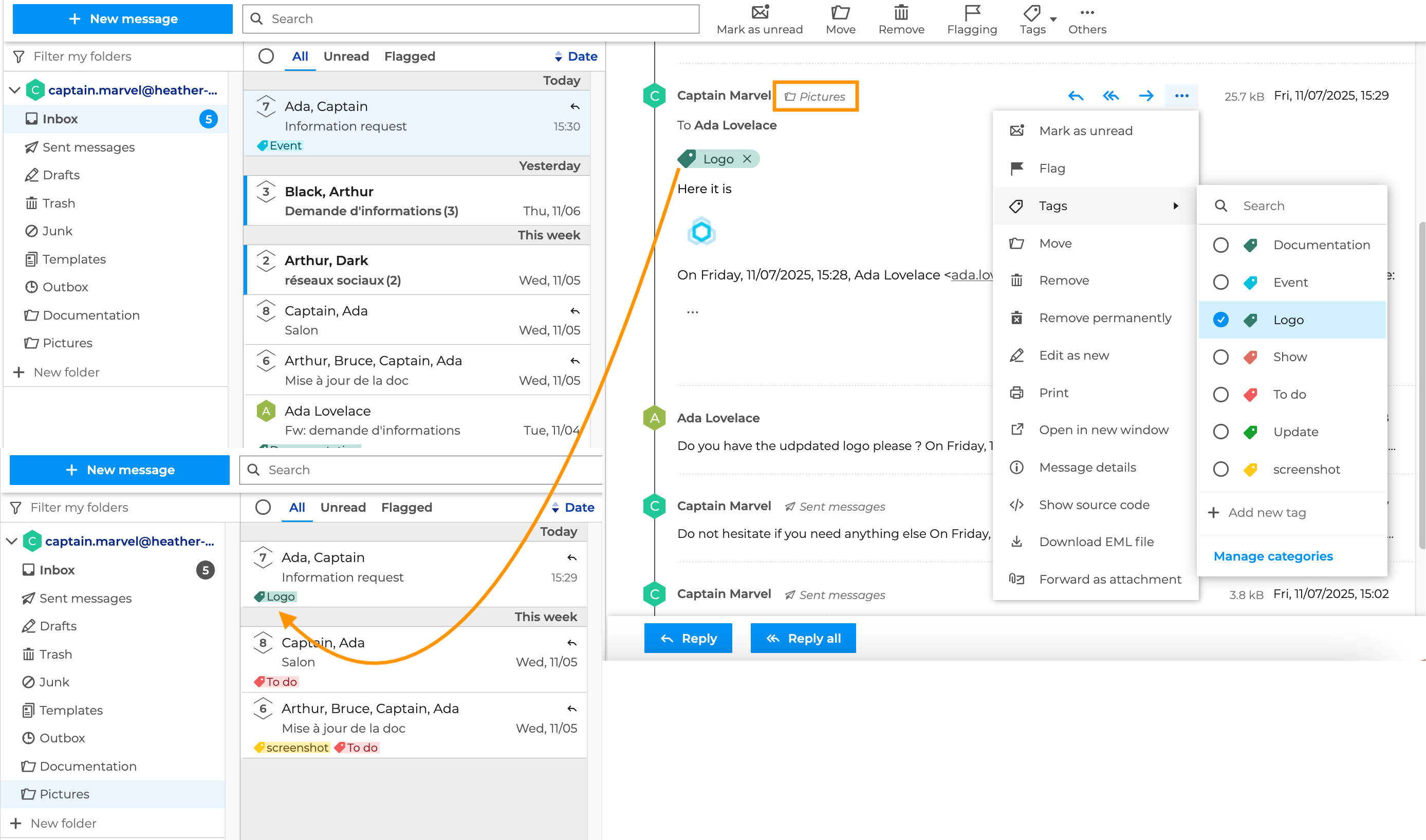
To Adding tags a message in a conversation, go to the message menu and click on "Tags".
In the same way as tracking an email, assigning a category to an email in a conversation is only taken into account in the folder where it is filed. If the conversation has emails in other folders, the category will not be visible there.
For example, by assigning the "Logo" category to an email in a conversation from the inbox, even though it is filed in the "Pictures" folder, the category is visible on the conversation in the "Pictures" folder, but not in the inbox.
Deleting a message in a conversation
To send a message to the Trash, go to the message menu and click "Remove". The message is then deleted from the conversation in all folders.
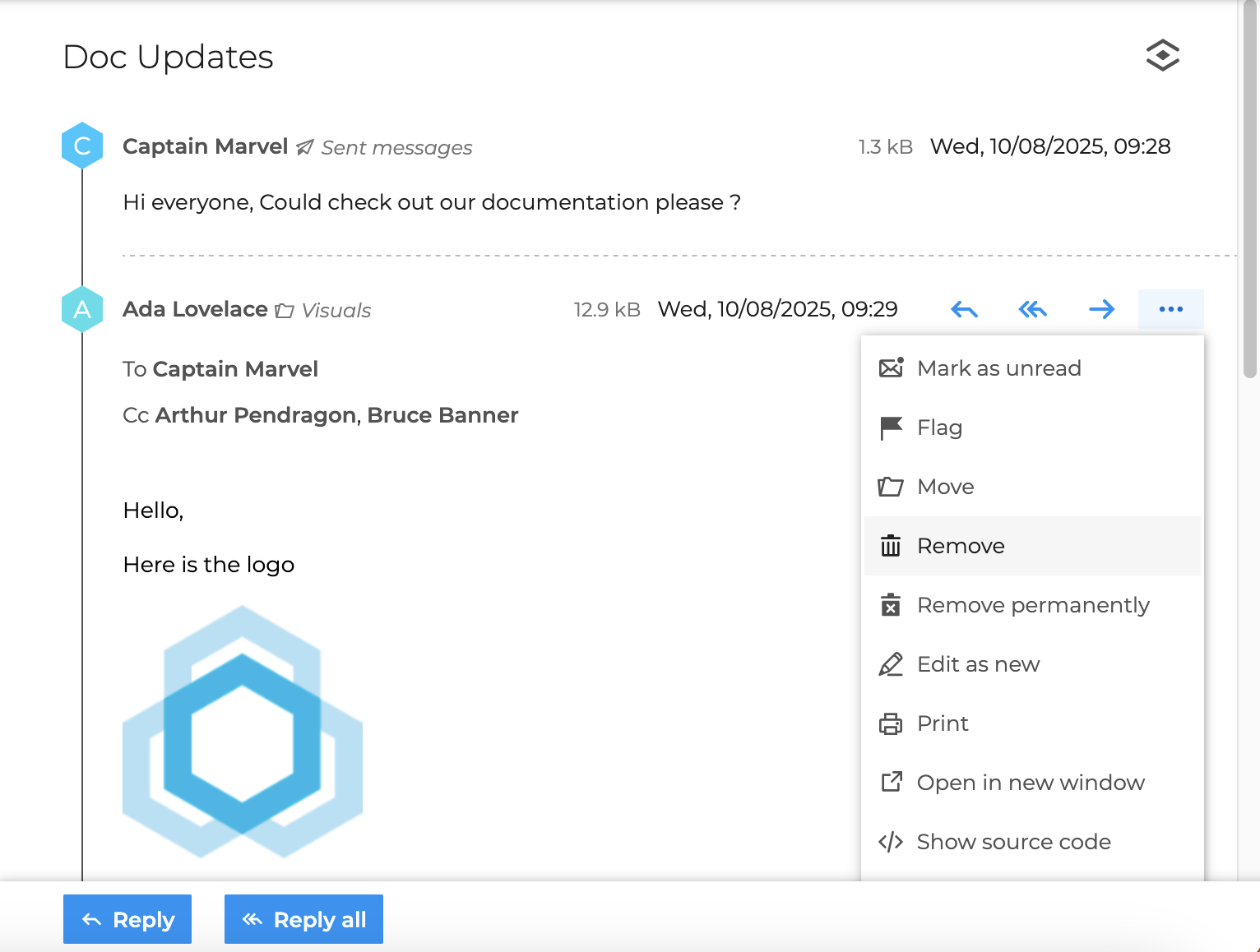
To delete a message permanently, go to the menu and click "Remove permanently". The message is then deleted from the conversation in all folders. Thanks to the double bottom trash can, the message can however be restored.
To restore the email, go to the email in the trash, then "Move" it to the original folder. The message then reappears in all the folders the conversation is duplicated in.
Performing actions on a whole conversation
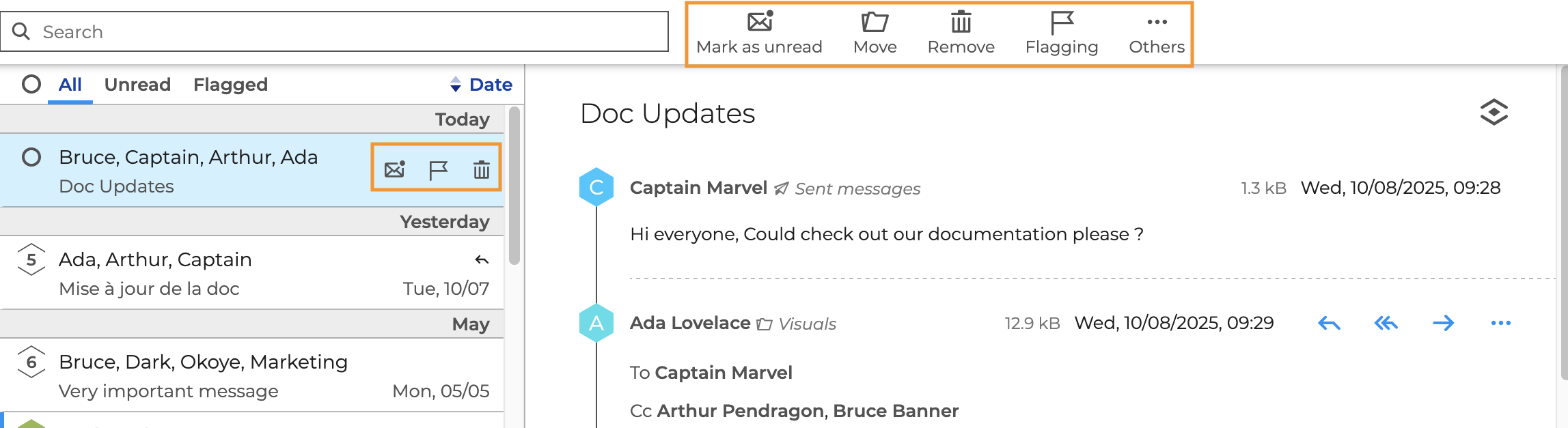
The menus and action buttons for a conversation as a whole are the same as for Organising and flagging emails when conversation mode is not activated. As with emails, you can act on one or more conversations simultaneously by selecting them from the list of messages.
Move or copy a conversation
To move a conversation to a folder, click "Move" in the action bar or drag and drop the conversation into the desired folder.
To duplicate a conversation and save a copy to a folder, click "Copy" in the More menu on the action bar, or drag and drop the conversation into the desired folder while holding down the Ctrl key.
The action is context-sensitive: moving or copying a conversation from one folder to another involves moving or copying the emails in that conversation from the original folder. Emails that are not filed in the original folder are neither moved nor copied.
When a conversation is moved, it is no longer visible in the original folder, since there will no longer be any emails associated with that conversation. The entire conversation is visible in the new folder, as well as in the folders where the other emails in the conversation are stored.
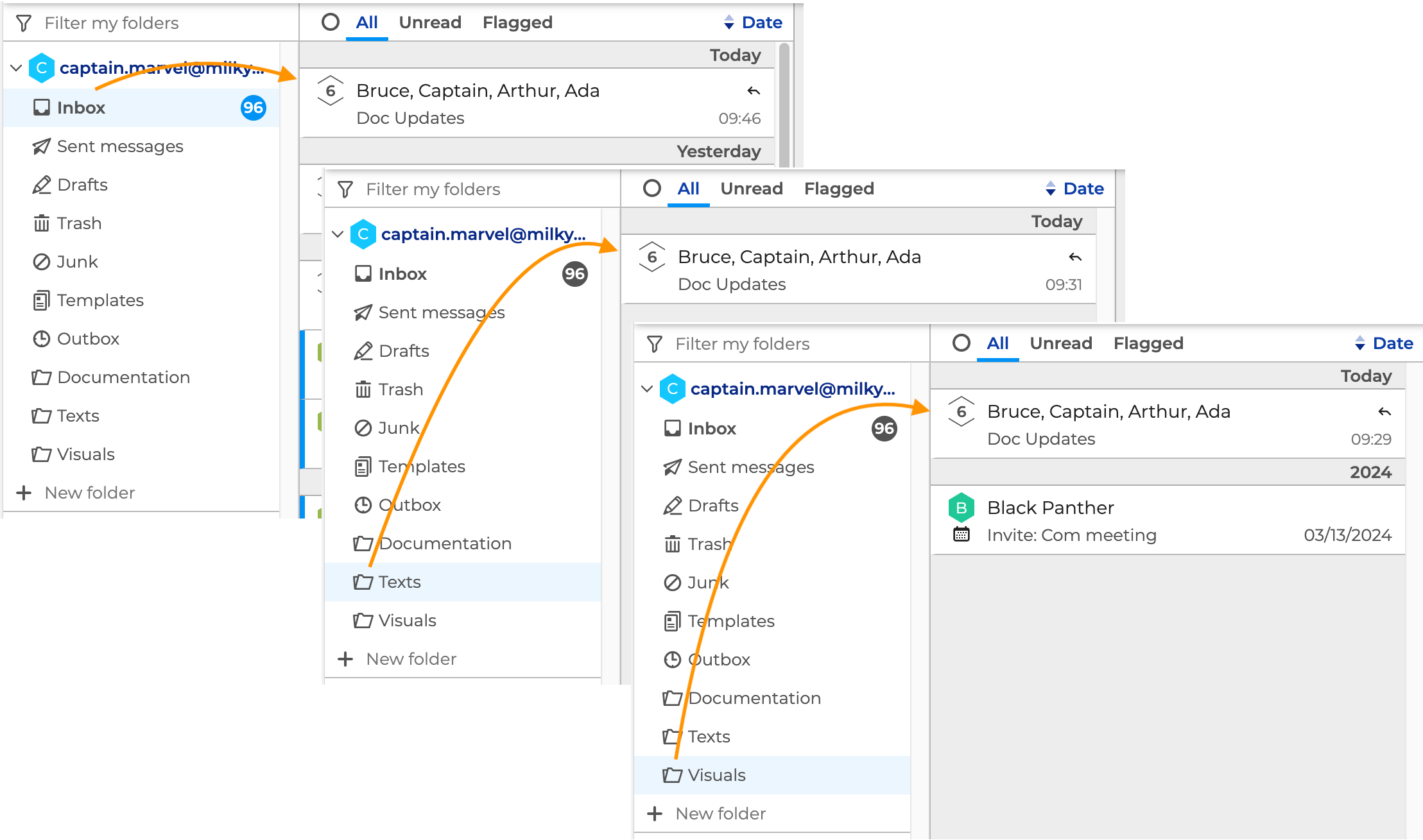
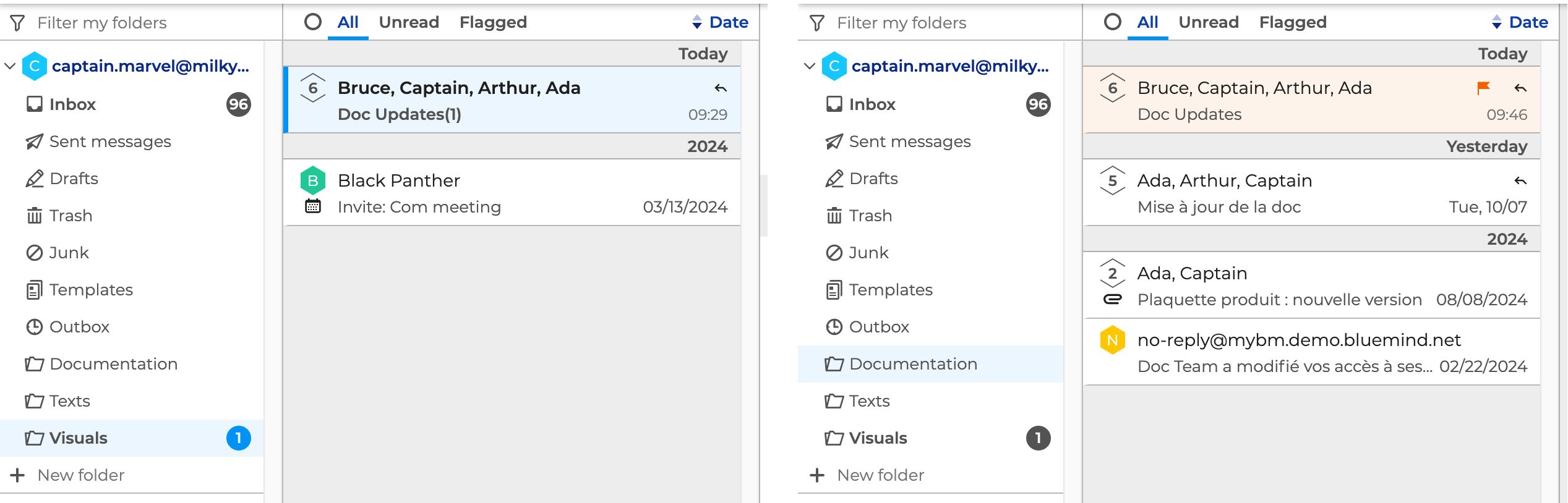
Here, for example, the conversation has been moved from the "Texts" folder to the "Documentation" folder. The conversation has now disappeared from the "Texts" folder and is visible in the "Documentation" folder. The conversation is always visible in the "Visuals" folder, as an email from the conversation is filed in this folder.
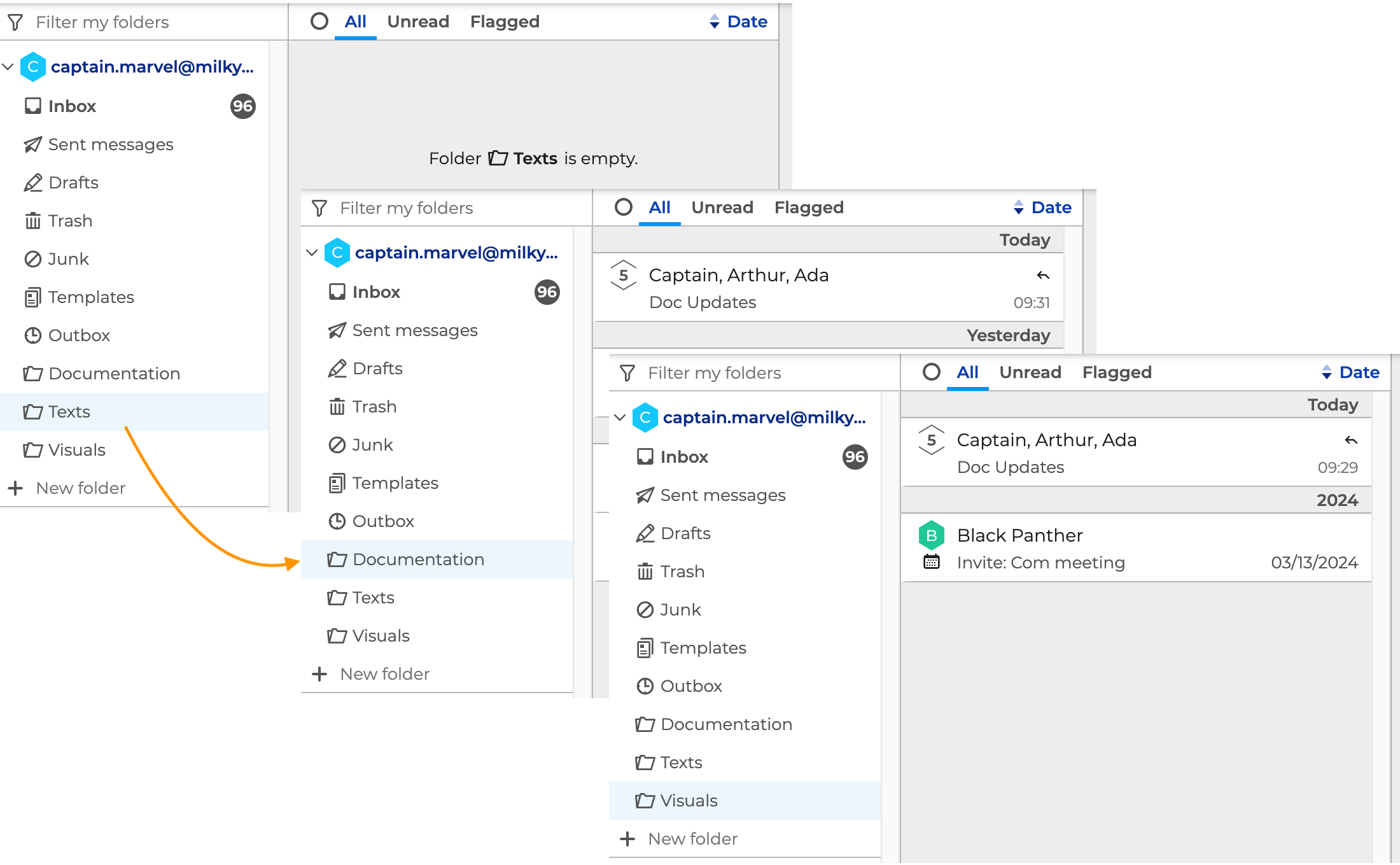
Unlike moving a conversation, when you copy a conversation, it remains visible in the original folder, even after all the emails have been copied to another folder.
Marking a conversation
A conversation can be marked as followed or as read/read in several ways:
- use email list shortcuts
- display or select the conversation and use the buttons on the action bar
The action is applied to all the emails in the conversation: for example, if a conversation contains 5 emails, clicking on "Follow" will mark all 5 emails as followed, and they will be visible as such when using a view filter, a search, or even when deactivating conversation mode.
Action is contextualized: when a conversation is marked as followed, the flag will be visible only in the folder where the action was activated, not in other folders. The same is valid for conversations marked as unread.
Here, for example, the conversation is marked as unread in the "Visuals" folder and as important in the "Documentation" folder:
Tagging a conversation
To Adding tags a conversation, click on "Tags" in the main menu.
The action is contextualized: the category will be visible only in the folder where the action has been activated, and will be assigned only to the emails in the folder.
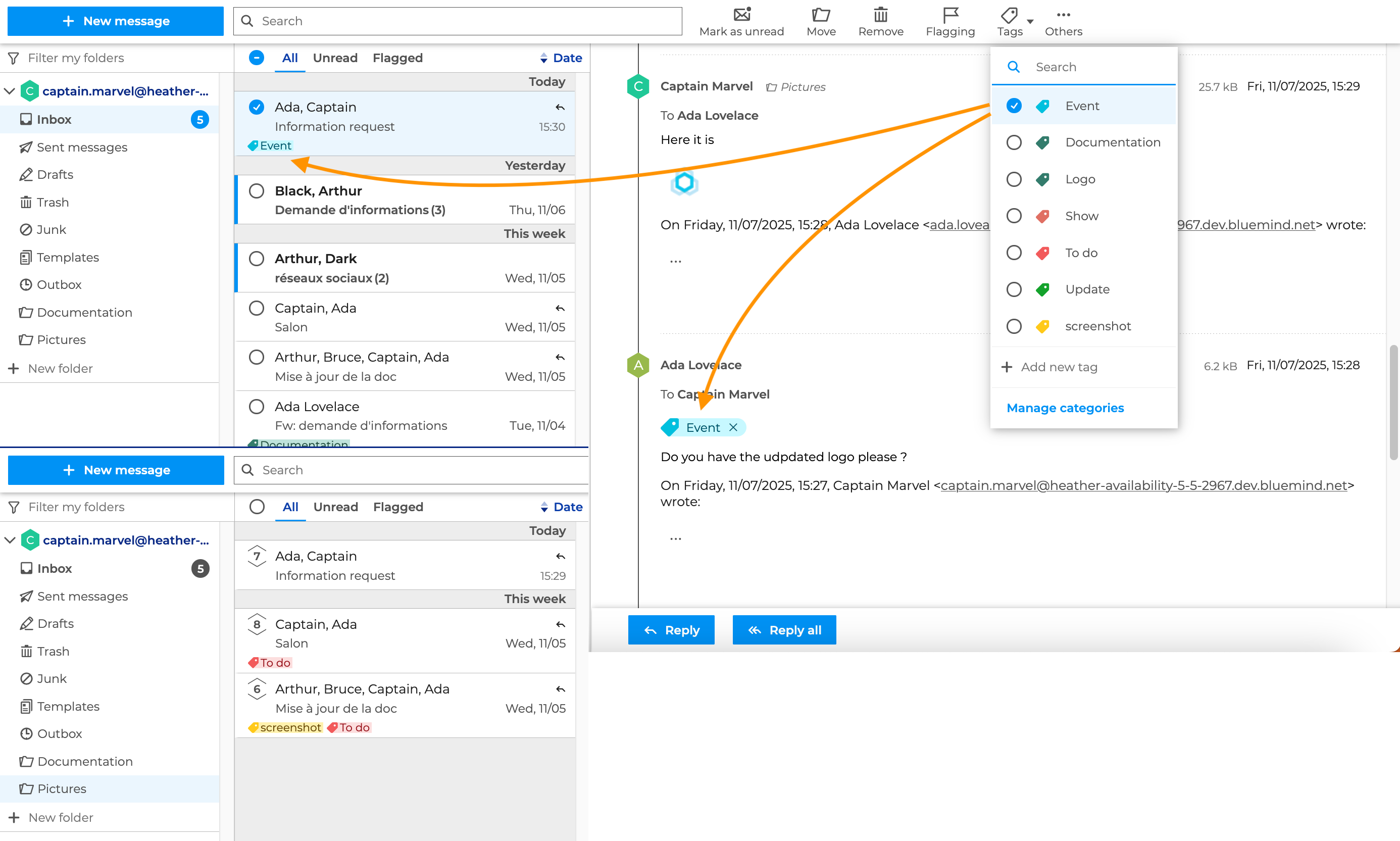
Here, for example, the "Event" category has been assigned to the conversation in the inbox. The "Event" category has been assigned to conversation emails in the Inbox, not to those in the "Pictures" or "Sent Messages" folders.
Deleting a conversation
To send a conversation to the Trash, click "Remove" in the main menu or on hover over the conversation in the message list.
The action is contextualized: deleting a conversation, i.e. moving a conservation from a folder to the trash, corresponds to deleting the emails in the conversation belonging to the original folder. Emails that are not filed in the original folder will not be deleted.
The conversation will no longer be visible in the original folder, as there will be no email remaining. The messages from this conversation that belonged to that folder are now in the Trash. The conversation, excluding the messages in the Trash folder, is visible in the folders that contain other messages from that conversation.
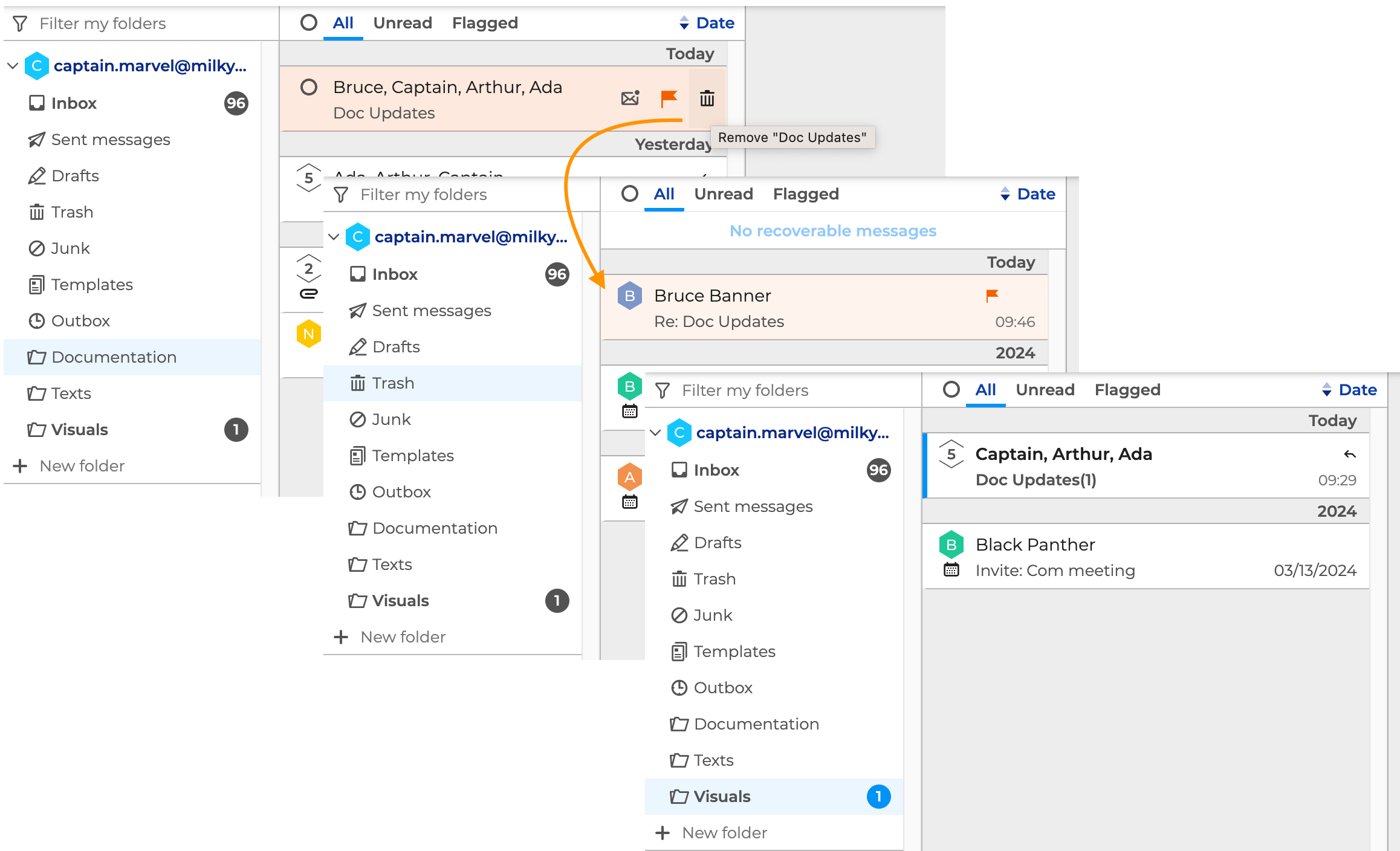
In the example below, the conversation from the folder "Documentation" is sent to the Trash. The message that belonged to the "Documentation" folder is now in the Trash. The conversation is still visible in the "Visuals" folder, but without the email in the trash.
Find out more
Related BlueMind documentation pages
- Managing the Message List
- Creating and editing folders
- Organising and flagging emails
- Deleting and recovering messages