Adding attachments
Attaching a file
Click on the  toolbar button or the
 paperclip icon at the bottom of the input field to open the computer's file selector.
For large files (e.g. video), see Adding a linked attachment.
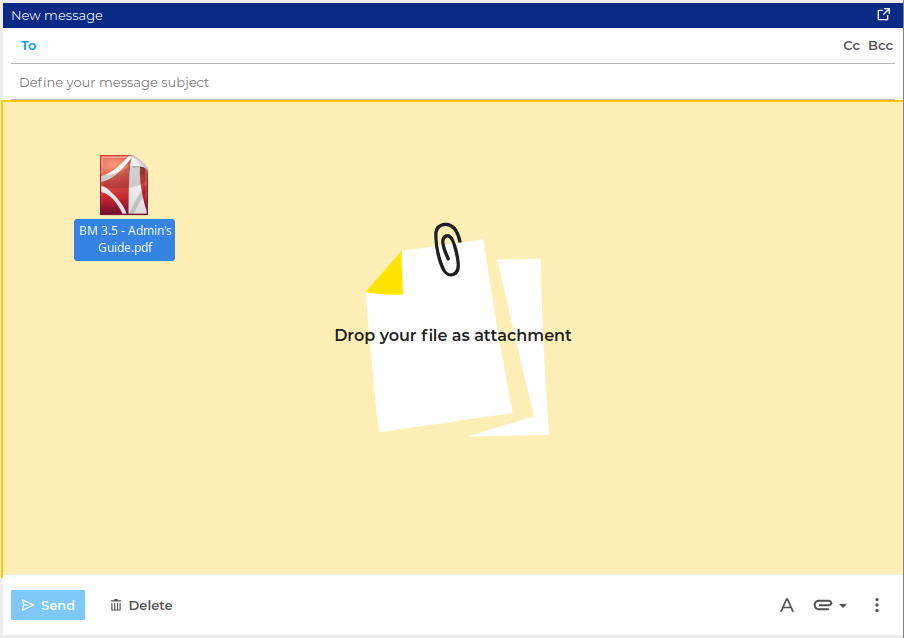
It is also possible to drag a file directly from the file browser:
If the composer detects an image, it proposes to integrate it into the message:
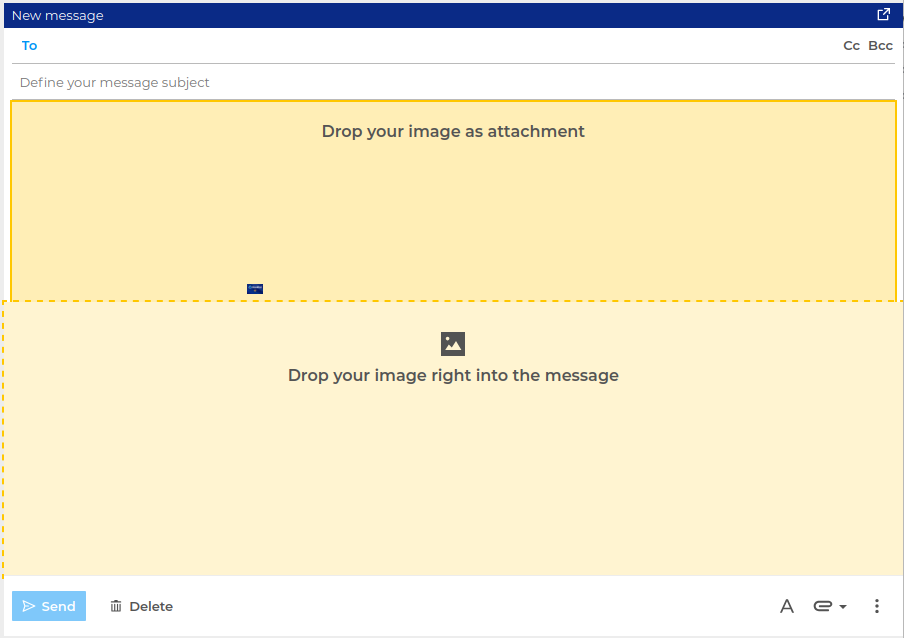
Drag it to the desired position in the message:
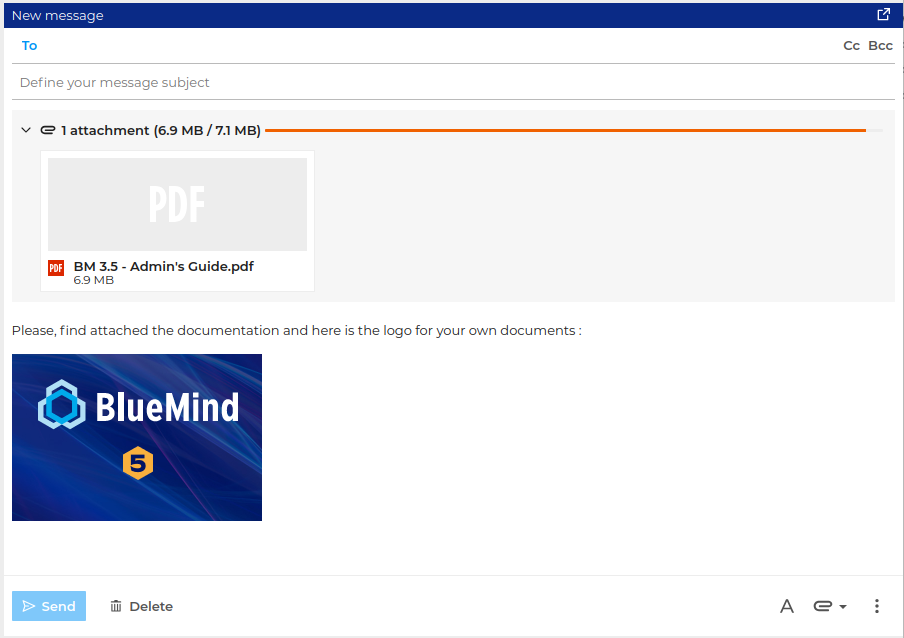
When you release the mouse button, the image is added. The image can then be moved and resized.
To delete an attachment, click on the cross in the title bar of the file concerned:
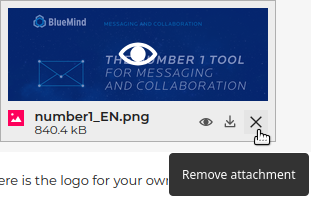
It is also possible to download or view an attachment before sending the message
Forwarding a message as an attachment
There are 2 ways of sending a message as an attachment to another message:
1. From the message to be forwarded
Open the menu in the top right-hand corner of the main display area and click on "Transfer as attachment":
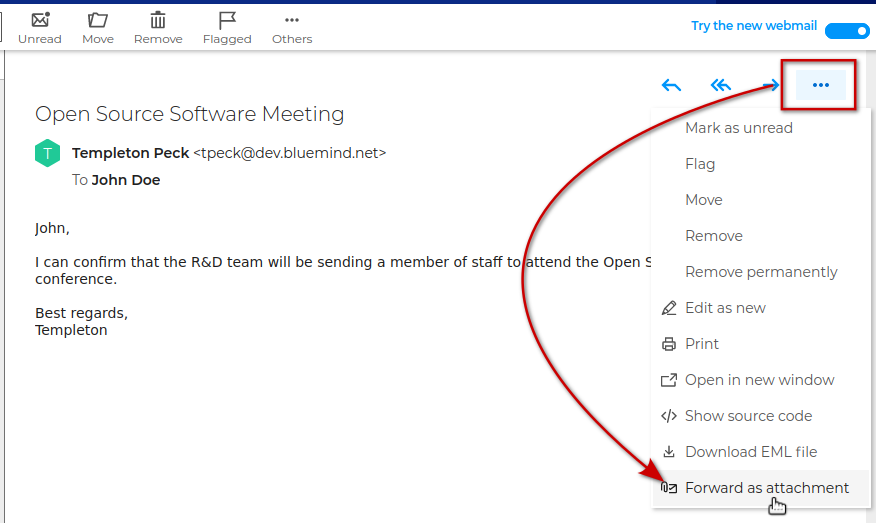
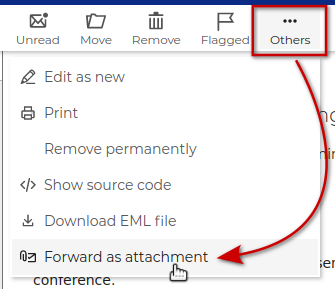
This option is also available in the Others menu of the main toolbar:
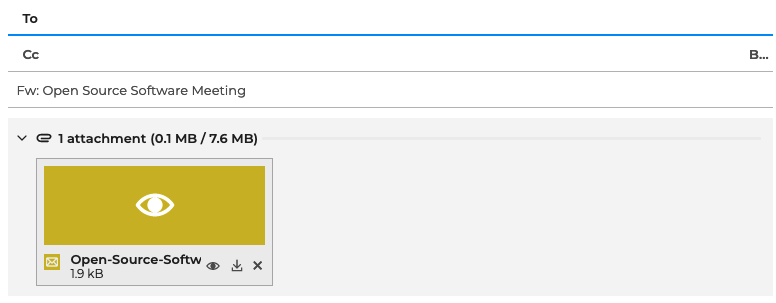
The new message composer appears with the eml file already attached:
2. From the message list
Drag and drop the message into the new message editing area to add it as an attachment:
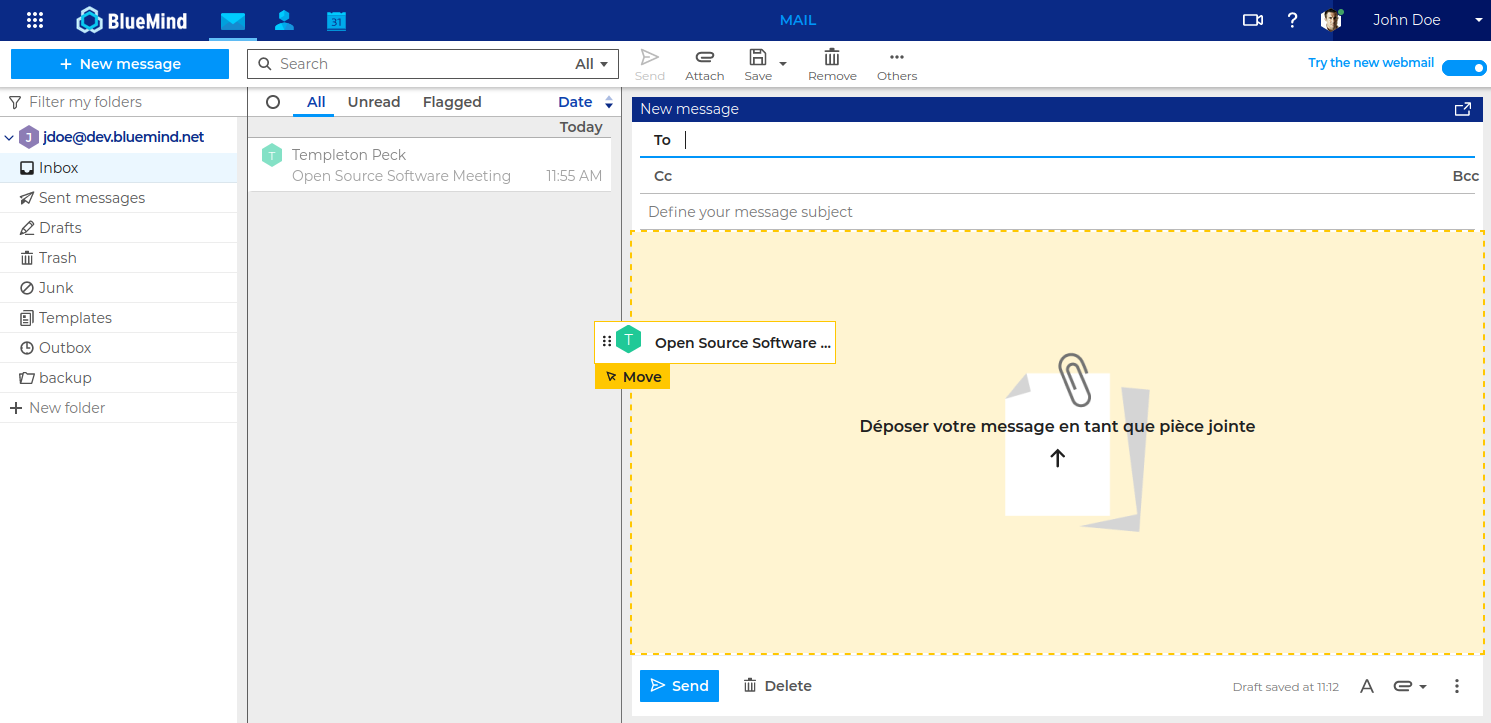
The email is then added as an eml attachment:
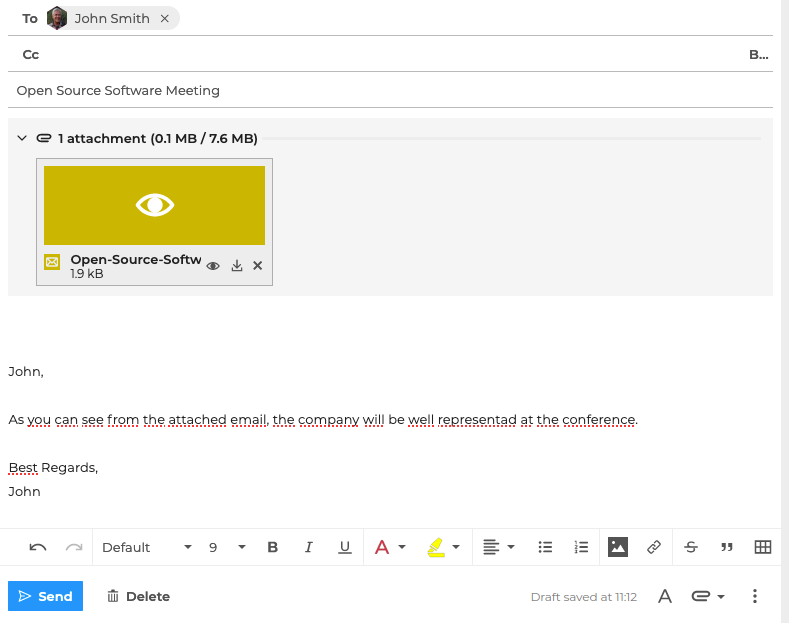
As with any attachment, the icons in the title block of the eml file can be used to delete, download or view before sending the message.
Adding a linked attachment
The linked attachment allows you to send a file as a download link. The attachment is then stored on the BlueMind server. This enables you, for example, to attach a document that is too large to be sent directly by e-mail.
This feature must be enabled by the administrator: the "Linked Attachments" role must be assigned to the user.
To send a file (of any size) as a linked attachment located on the computer:
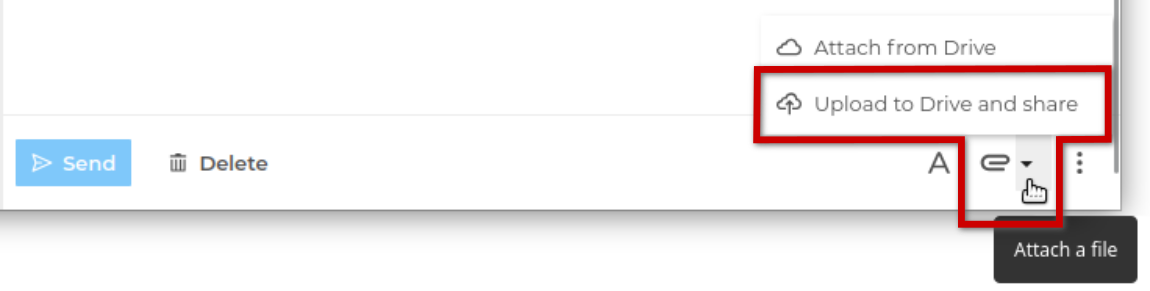
- open the attachments menu and click on "Upload to Drive and share":
- select document on computer
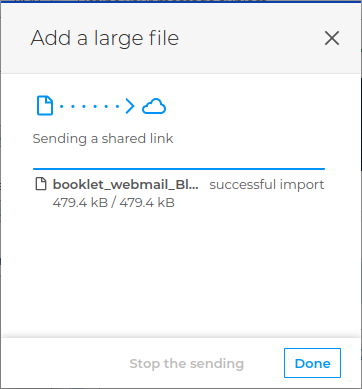
- click on "Done" in the pop-up window that opens automatically:
Attachment splitting is automatically suggested when a file exceeds the automatic splitting threshold set by the administrator:
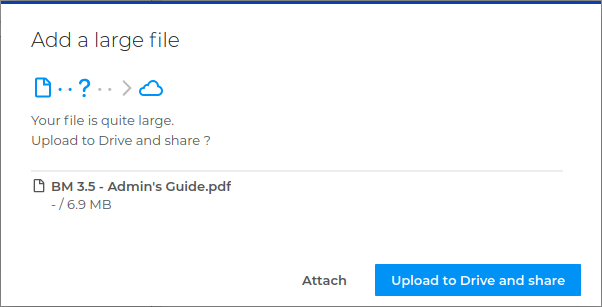
- If the file size does not exceed the maximum size allowed for emails, the user can choose to attach the file or upload it to Drive
- If the file size exceeds the allowed limit, the user can choose to upload the file to Drive or cancel the import.
💡 In any case, to cancel the import, click outside the modal window.
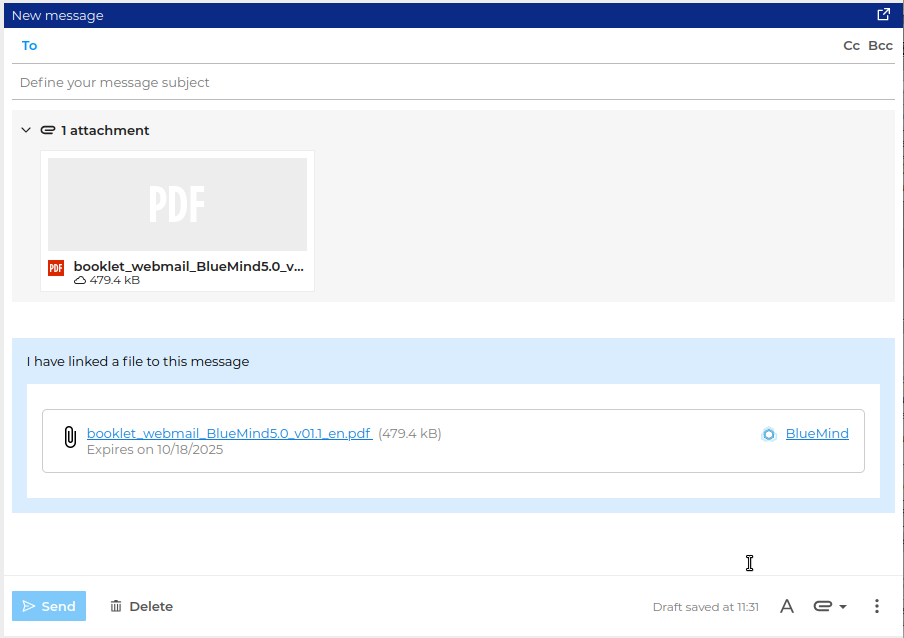
The link is then added automatically to the message :
Adding an attachment from Drive
In addition to sending large files, BlueMind allows users to store attachments on their "Drive", a space on the BlueMind server reserved for them individually. Files can thus be sent several times, as a download link, without overloading servers and communication networks.
This feature must be enabled by the administrator: the "Drive" role must be assigned to the user.
All files sent as standalone attachments are automatically stored on the user’s drive. The user can also add attachments linked to the email to their drive, whether these are files they have sent or received (see “Add an attachment to drive”).
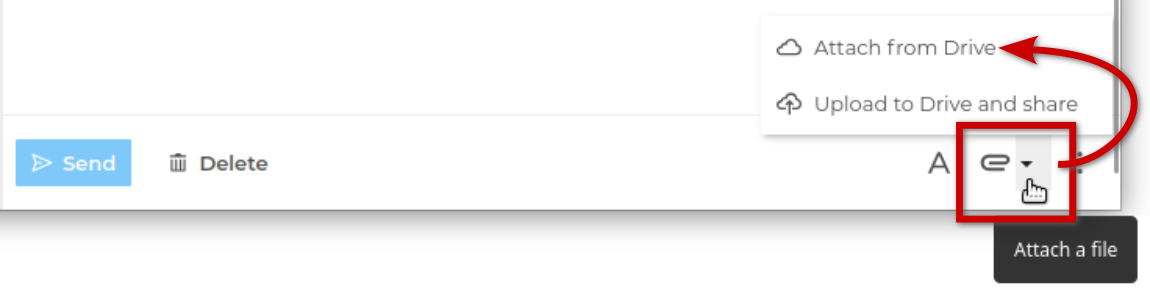
To send an attachment from the drive, open the attachments menu and click on "Join from Drive" to open the file selector:
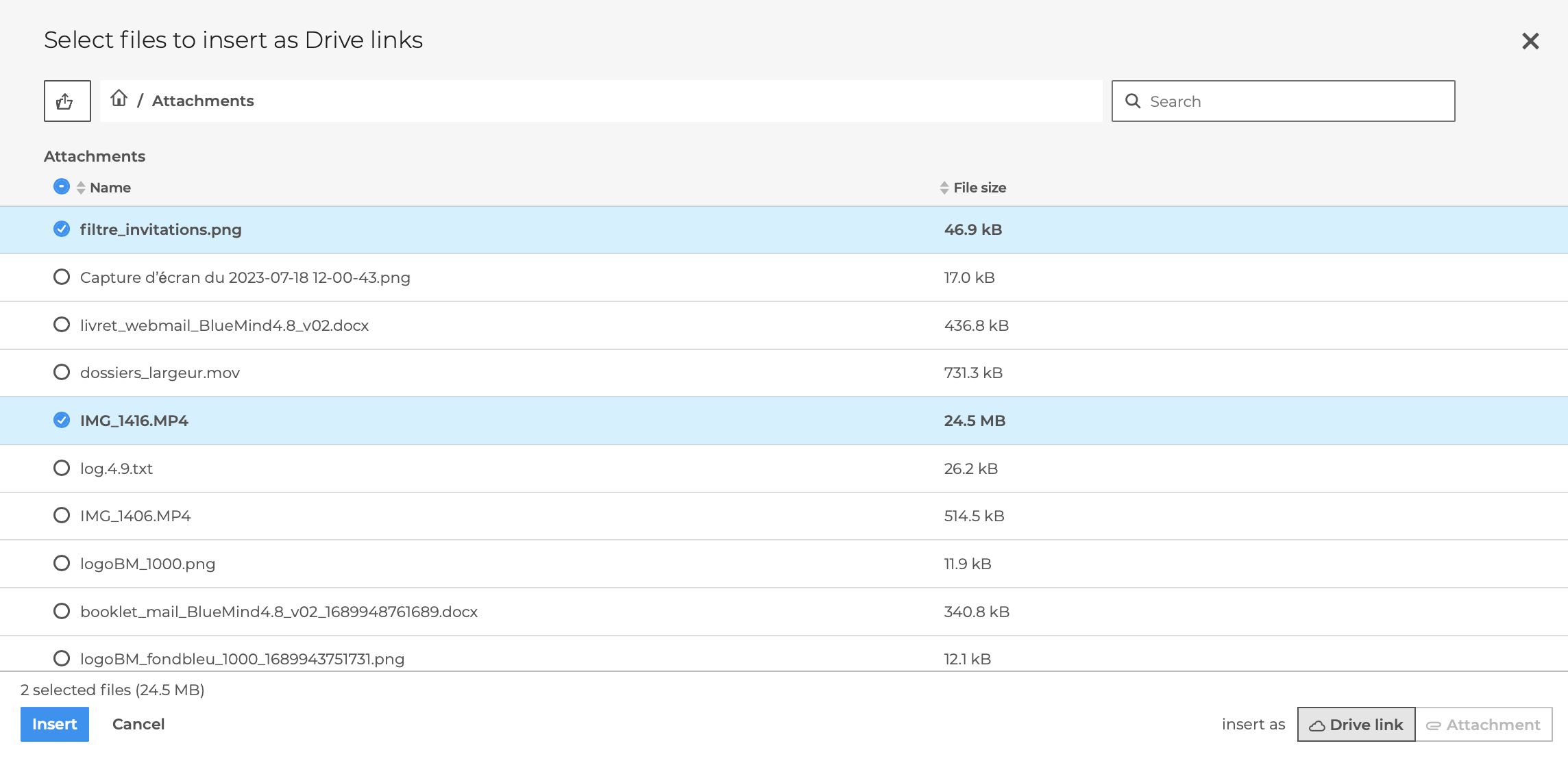
In the file selector :
-
Open the "Attachments" folder, then select the desired document(s)
Searching and filing files
Documents can be sorted by name or file size. The search tool also lets you quickly find a document by name.
-
Choose to send documents as "Filehosting link" (detached) or as "Attachment" (attached)
If any of the selected files exceeds the maximum size defined by the administrator for sending attachments, the option will not be available. All files will be sent as links.
-
Click on "Insert"
Attachments are then added to the message in the dedicated insert or as a link, depending on the option chosen.
Adding an attachment from an external solution
BlueMind also offers the option of attaching documents stored on Nextcloud, Interstis or Alfresco - as well as GoFast, a collaborative workspace using Alfresco for document management.
To do this, you need to connect the BlueMind account to the Nextcloud, Interstis or Alfresco account by setting up an external account. Then follow the procedure for sending linked attachments above.
Alfresco or Nextcloud connectors must be installed and configured by the administrator.