Managing out of the office
If you're away from the office or unable to use your email, you may set up an automatic reply or have all messages forwarded automatically.
If you use Outlook, please visit Compatibility to check which features are supported.
Enabling auto-reply
To set up automatic replies, go to the email settings: Preferences > Mail > General > Automatic reply and check the "Activate automatic reply" option
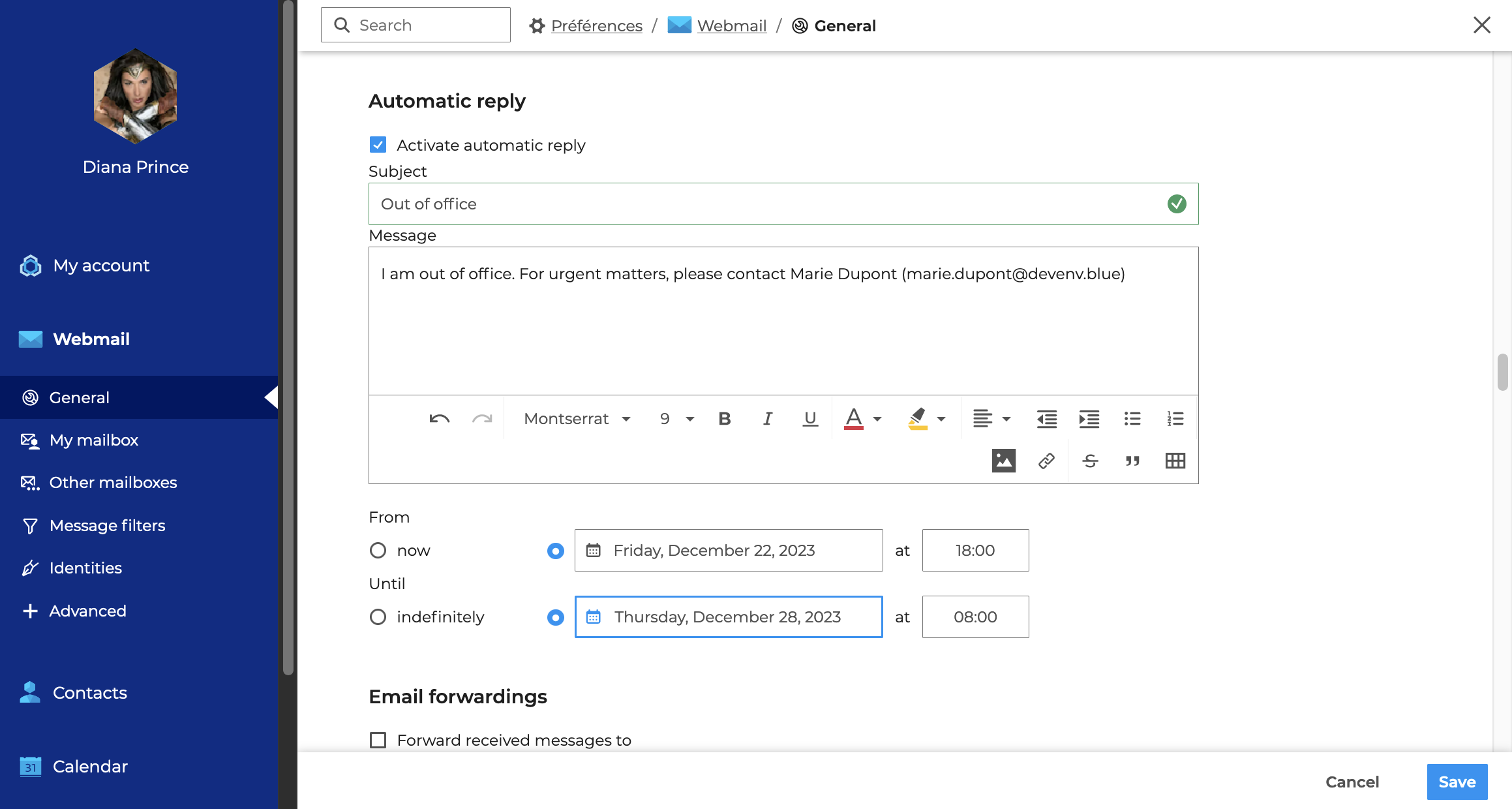
Complete the fields:
- Subject (mandatory): subject of the sent email
- Message (optional): message body
- Start and end dates (optional)
- if no start date is specified, auto-reply is enabled as soon as you save the new settings
- If no end date is specified, the voicemail system remains active until the out-of-office email is turned off
Then click on "Save".
When the automatic reply is turned off, the most recent settings are saved and will be restored when it is turned back on.
Once the auto-reply is enabled, when an email arrives in the mail app, an email is automatically sent to the sender, based on the time period and settings configured.
Just one away message is sent in reply to a single sender (email address) for every 3-day period.
If the user disables and then enables auto-reply again during that time without editing the subject or the message content, the senders who have already received an automatic reply will not receive a new one – the countdown for the period starts again where it was left off.
Example:
- User A activates their out-of-office reply
- They receive an email from User B on day D; an out-of-office email is sent, and the 3-day countdown begins
- The user deactivates their out-of-office reply on day D+1
- They receive a new email from B, no out-of-office email is sent
- the user reactivates their out-of-office reply with the same settings on day 2
- they then receive an email from B: the out-of-office reply system still considers it to be day 2, so no out-of-office email is sent.
Please note that the auto-reply is enabled only for the account's email address. If the user receives an email at a different email address—such as a shared mailbox or a group address—no automatic reply will be sent.
Forwarding incoming messages
This section lets you forward all incoming messages to one or several addresses - internal or external - while keeping a copy in your inbox.
To enable forwarding, go to the email settings: Preferences > Mail > General > Email forwardings and check the "Forward received messages to" option
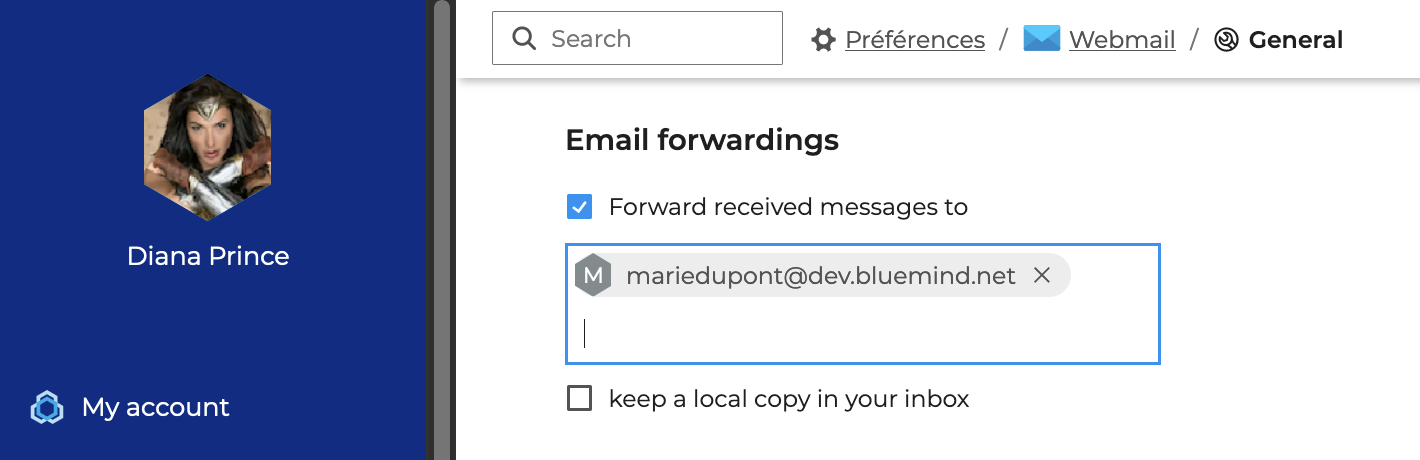
Enter the email(s) of the recipient(s) for the transfer, autocomplete suggests addresses in all the user's address books (directory, personal notebooks, etc.).
It is also possible to receive a copy of the received emails in your inbox by checking the "keep a copy in the inbox" box.
It is possible to besides out of the office, to transfer or respond to messages that meet certain conditions automatically.