Search for contacts
By default, the search is carried out in the address book currently being viewed. To extend the search to another address book or to all address books, expand the menu next to the text box:
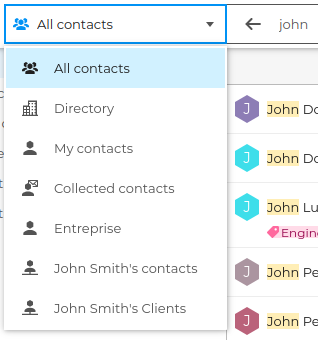
For efficiency, the number of results displayed is limited up to 75 contacts.
If there are more results, we recommend refining your search.
Quick search
The search engine allows you to search for contacts by keyword: enter a word and press Enter or click the  button. The search engine will then display the results, highlighting the search term:
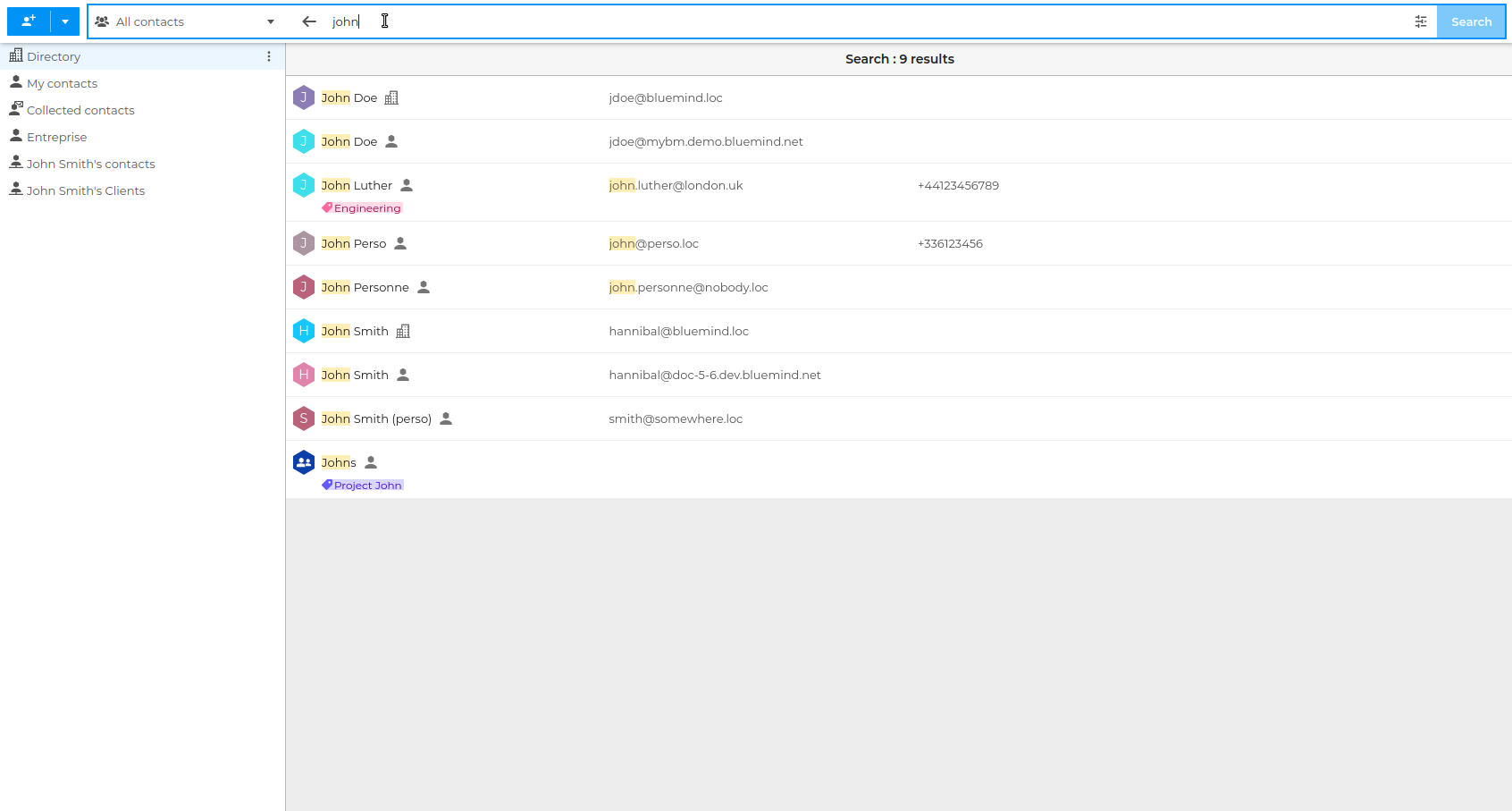
Search engine:
- in the address books currently displayed, and in those only
- across all fields in the contact profiles
Multi-criteria search
To carry out a more detailed search, click the  button at the end of the search box to open the full search form:
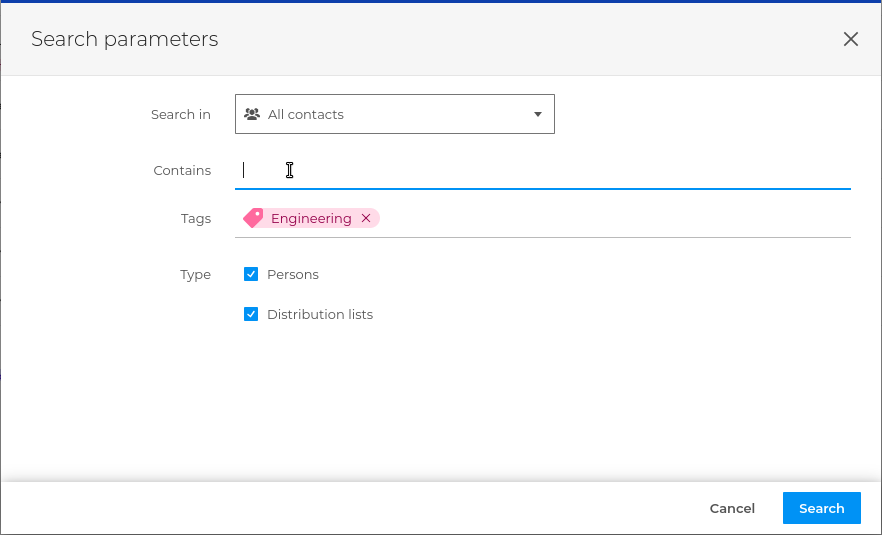
The form allows you to specify or add search criteria: address books to search, keywords (name, domain name, contact details, etc.), tags, and contact type.
Search by tags
You can assign keywords to contacts: tags (see Manage tags).
To search for records associated with a tag, use the multi-criteria search engine (see above) or click on the corresponding box in the record of a contact to whom the tag is assigned:
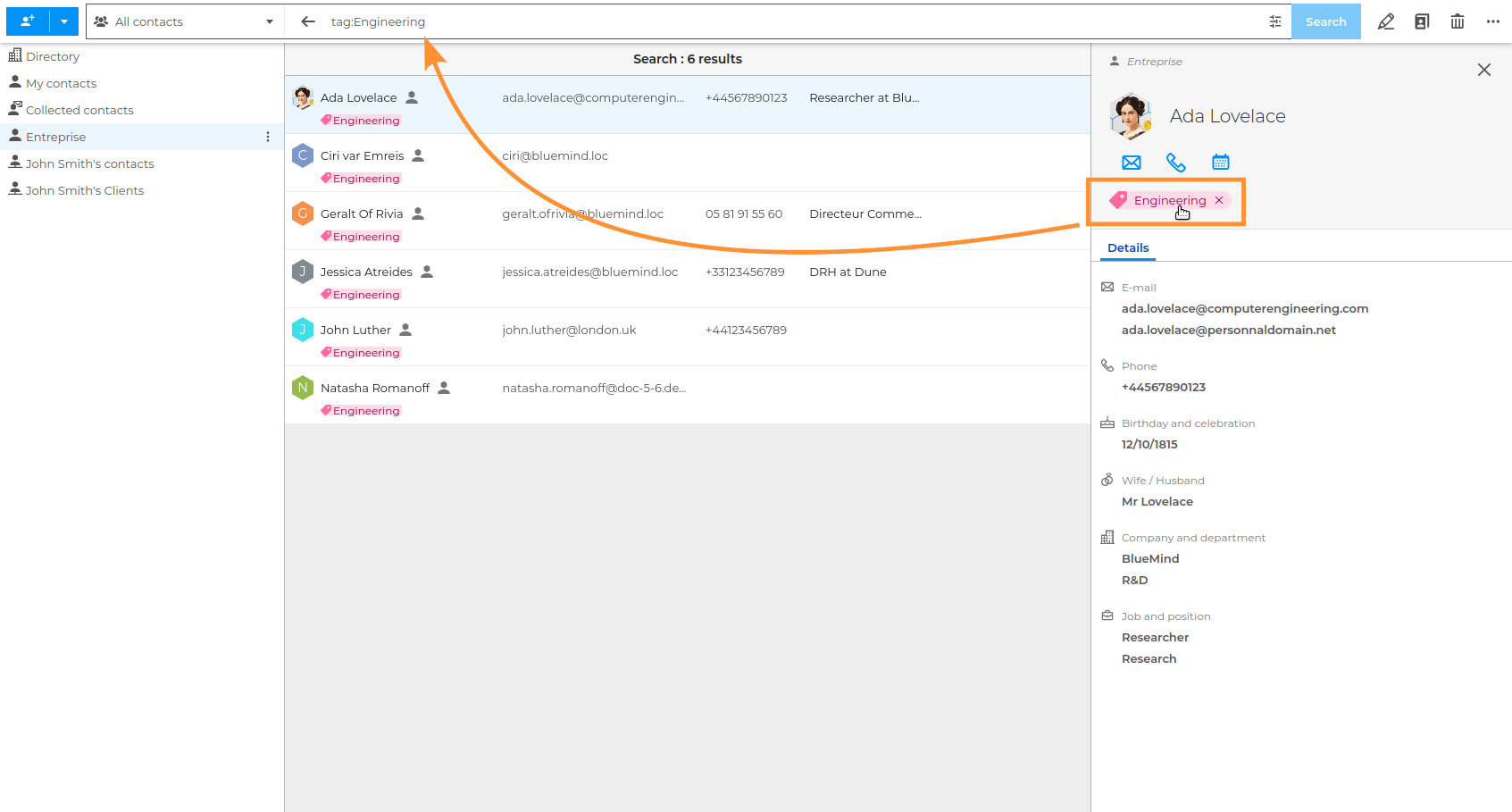
💡 The relevant entries are then searched for in the address book currently being viewed; to search across all address books, select ‘All address books’ from the dedicated drop-down list (see above).
Exit search
To exit the search, click on a different address book to the one currently selected or on the arrow at the start of the text box: 