Getting Started with Contacts
Finding your way around contacts
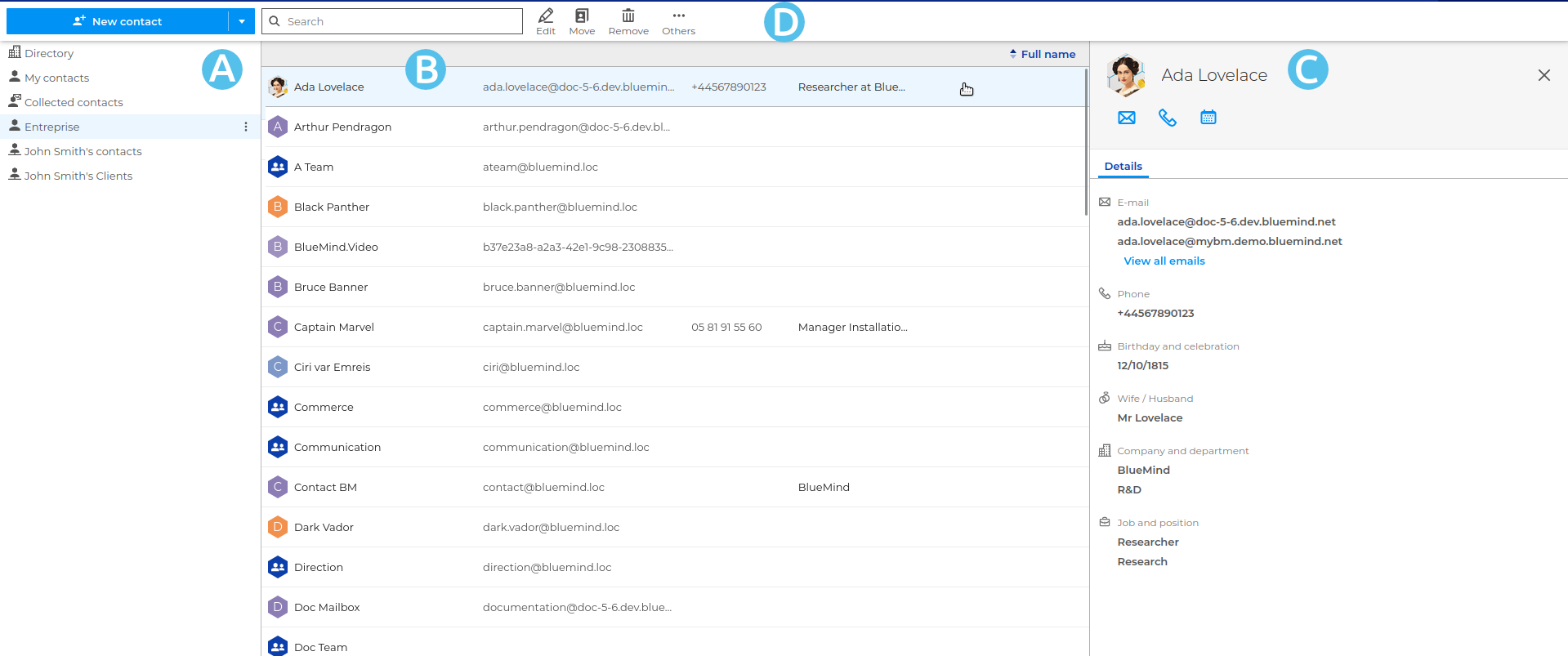
The Contacts application is laid out in three columns:
-
 : The first column contains a list of the address books accessible to the user: their personal address books and those to which they are subscribed (see Using Shared Address Books).
 -
 : The second column contains the list of contacts in the address book selected in the first column.
💡 You can tap the e-mail addresses and phone numbers in the list to send an e-mail or make a phone call directly.
-
 : the third column displays the details of the user selected in the second column.
↳For further information see Viewing and using a contact record.💡 Resizing
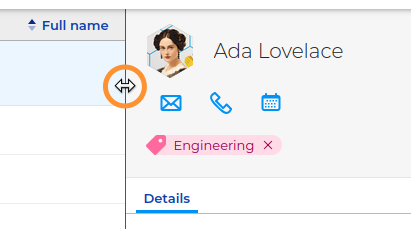
The third column is resizable; the content of the first and second columns is then automatically adjusted to fit the available width:
-
 : the toolbar at the top displays the actions available depending on the context: a button to create a contact and a search box at all times; action buttons when the selected contact can be edited; and a ‘More’ menu allowing you to copy a contact to another address book or download it in vCard format.
Address books
Contacts are sorted by address book, organized into 2 categories:
- personal address books:
- My contacts: an address book you can add your personal contacts to
- Collected contacts: personal address book that automatically gathers the recipients of the user's emails not present in the
directoryFor further information on personal address books, see the page Creating and Editing Address Books
- shared address books :
- Directory: company address book
- address books shared by other users that you need to subscribe to
For further information on shared address books, see the page Using Shared Address Books
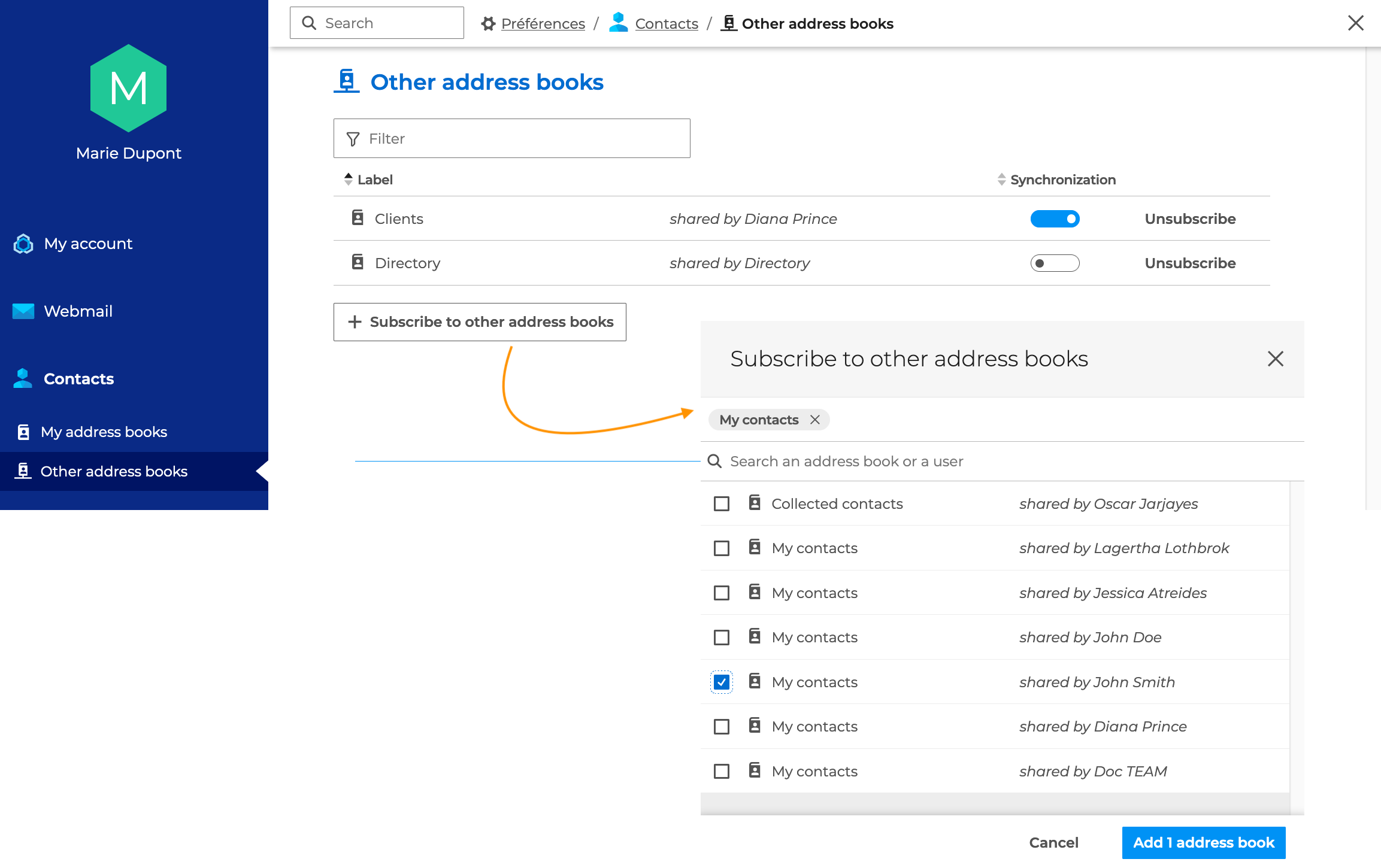
To subscribe to a shared address book :
- Go to Account settings > Contacts > Other address books
- Click on "Subscribe to other address books".
- Tick the address book(s) from those suggested
- Finally, click on "Add X address book(s)"
Contacts
To add a contact, click "New contact" in the top left corner of the page and a blank contact details page opens.
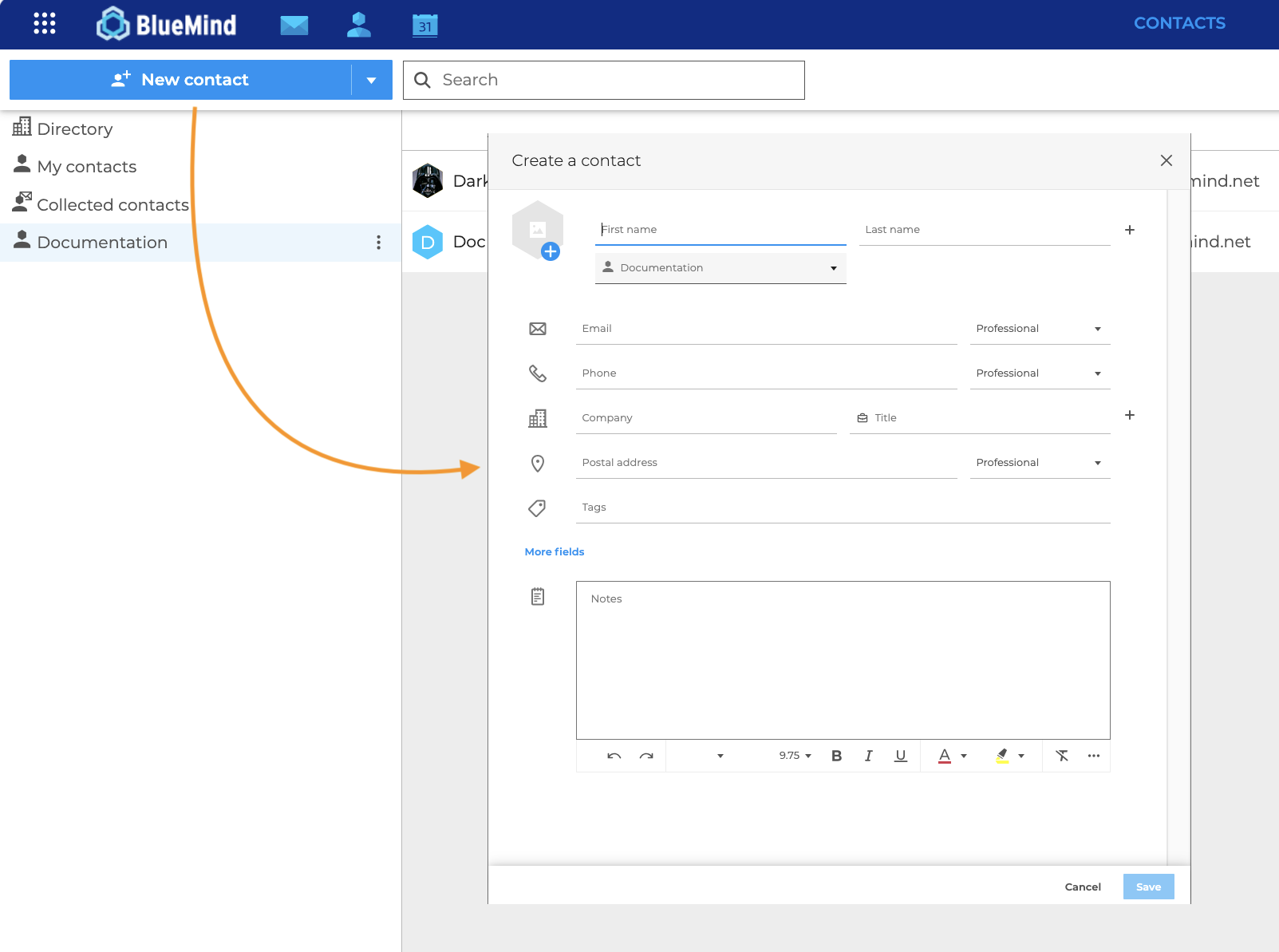
Fill in the desired fields and click "Save". The contact is created in the current address book.
To edit a contact, select the contact you want and click the relevant button on the action bar.

If you don't have permission to edit this contact, its details are displayed but action buttons are missing.