New-generation shared mailboxes
BlueMind 5.5 shared mailboxes, also known as functional mailboxes, are mailboxes that function in the same way as users: they have their own calendars, address books and to-do lists. Thus, shared mailbox calendars can organize meetings with guests, or be invited to meetings organized by third parties.
These boxes have no username, so it is not possible to log into BlueMind on their behalf or to create an account in a thick client: rights (read, write on their behalf, etc.) must be given to users who can then use them in BlueMind or in client software.
Compatible with Outlook, users can consult, use and manage all the elements of the mailbox: calendars, address books, categories, filters, etc.
The read status of a message is specific to the mailbox. Therefore, users share the read status of messages in a shared mailbox: when one of the users reads a message, it is marked as "read" for all other users.
For example, if an email is still marked "unread", this means that no one has read it yet, or that a user has read it and then deliberately set it back to "unread".
Creation
To create a new shared mailbox:
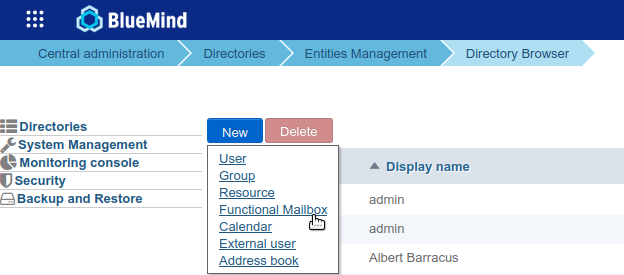
- From the Directories home page, click on "Create functional mailbox" or from the list of directory entries use the New > Functional mailbox button:
- Enter the mailbox name in the popup that opens:
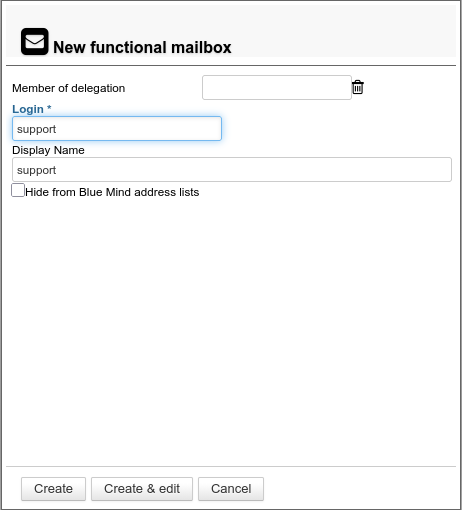
- Name: this is the mailbox's username, and must not contain capital letters or spaces.
Note: Once the mailbox has been created, the display name can be customized in the "Information" tab to include these characters. - Full name: this is generated automatically when you enter your first and last names, and cannot be modified.
-
Hide BlueMind address lists: the mailbox exists but is not visible in autocompletion (webmail dialer or calendar) or in the directory. Its address can still be used by administrators or those who know it.
- Name: this is the mailbox's username, and must not contain capital letters or spaces.
- Click on "Create" for a simple and direct creation or click on "Create & edit" to create the shared mailbox and access the configuration options.
Administration
General
This tab shows the mailbox's main parameters:
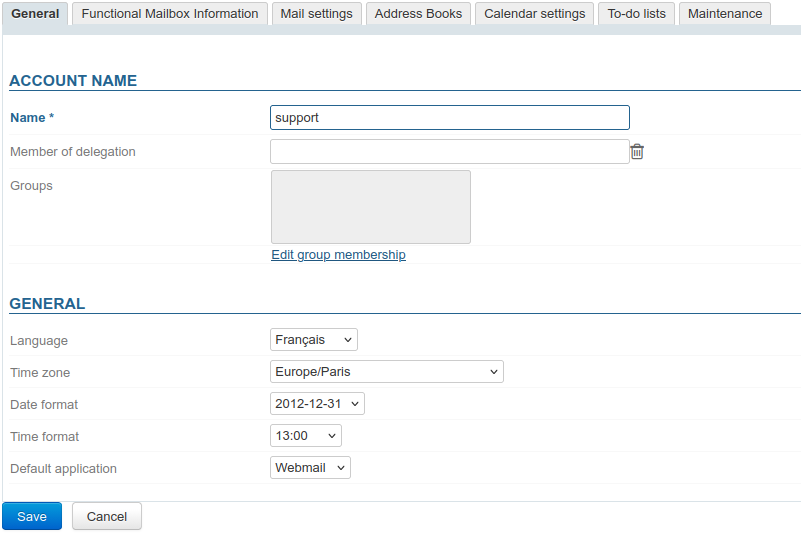
Account information
- Name: the box name is assigned when the box is created.
This name can be modified: in the event of a change, the old mailbox address is retained and a new alias is created with the new name (see section Mail for more information on alias management).
*Note: as when it was created, this name must not contain capital letters or spaces. - Delegation: the organizational unit to which the mailbox belongs.
- Group: like users, shared mailboxes can belong to groups.
By clicking on the "Modify group membership" link, a popup window allows you to view and modify the groups to which the mailbox belongs:
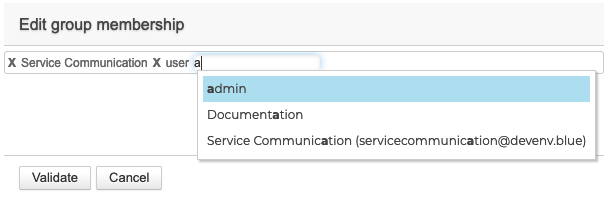
To delete a group, click on the corresponding cross; to add one, enter the first letters and validate a choice of those proposed by autocomplete.
General
Configuration options: language, time zone, date formats, etc.
Information on the functional mailbox
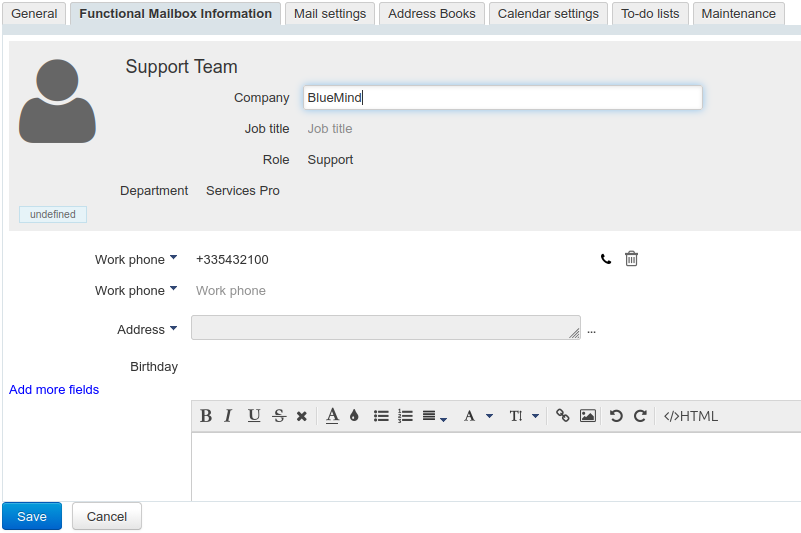
This tab shows the information that will be displayed on the directory entry for the shared mailbox.
These data can also be used to implement Corporate Signatures.
Here, the administrator can enter information such as telephone numbers and postal addresses, or assign a photo to be used throughout BlueMind (contact sheet, event invitation, etc.).
Contact details belong to the BlueMind internal directory and can be accessed by all users of the solution. For this reason, only an administrator with the appropriate role can modify this information: users, even with full sharing right on the box, cannot modify it.
Mail
This tab allows you to manage everything related to the mailbox:
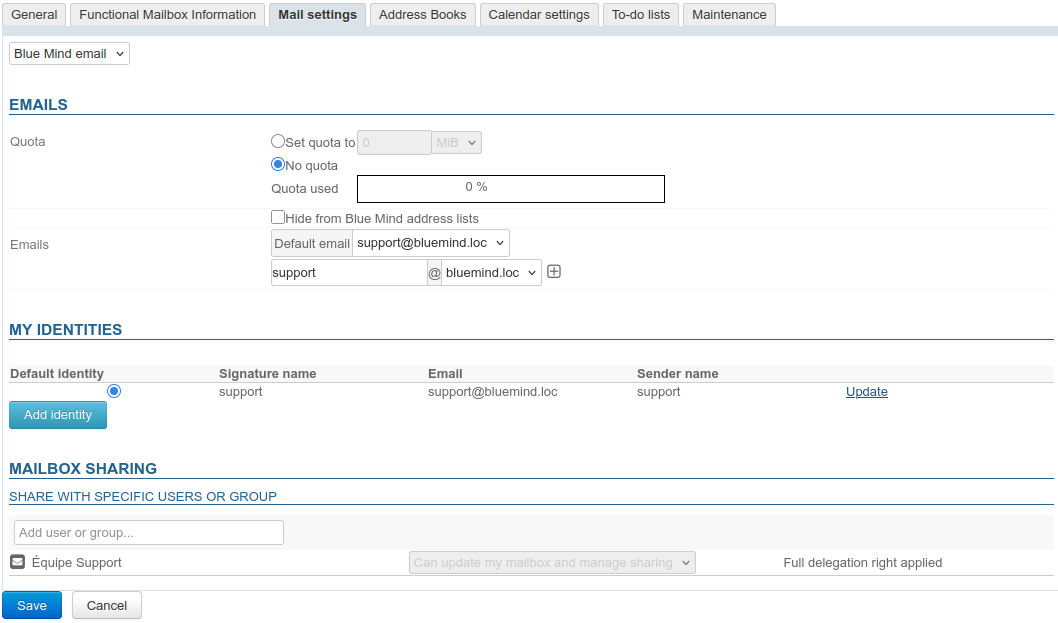
Quota and e-mail addresses
- Quota: the maximum size the mailbox can reach. The space used is indicated by a progress bar. For further information, see, Managing storage capacity (quota).
-
Hide BlueMind address lists: the mailbox exists but is not visible in autocompletion (webmail dialer or calendar) or in the directory. Its address can still be used by administrators or those who know it.
- Mail addresses and aliases: the shared mailbox can have as many mail aliases as you like, on any or all of the available domain aliases.
My identities
Here, the administrator can define identities that can be retrieved by users with write access to the mailbox: when the user chooses one of these identities, the name, label and signature are retrieved. That way users don't have to enter the information again, which prevents errors and enables users to share a signature for one mailbox, and makes it consistent and transparent for recipients.
For further details, see the User Guide page: Managing Account Identities.
Sharing and delegation
The section "Mailbox sharing" lets you manage sharing and delegation options for the mailbox of the shared mailbox :

Enter the desired user or group, then use the 2 drop-down lists to define :
- The sharing right on the mailbox :
- Can see my mailbox: designated users can read emails
- Can update my mailbox: designated users can add, delete and move emails and folders. They can also Write on behalf of a shared box
- Can update my mailbox and manage sharing: in addition to the right to edit, designated users can manage sharing rights for the mailbox
⚠️ This is a full share of the the shared mailbox mailbox.
- The right to delegate :
- No Delegation: the designated user only has sharing right on the mailbox.
- Send as (total impersonation): corresponds to the Write as me option of the delegations.
- Send on behalf: corresponds to the Write from me option of the delegations
💡 Full delegation rights applied
In the case of a fully shared mailbox (see above), the maximum delegation is applied (right level "Send as (total impersonation)") and cannot be changed.
Adding a sharing right activates the same level of sharing for other items belonging to the box: address books, calendar and task list by default.
To share only the mailbox, go to the dedicated tabs and delete unwanted shares:
For further information, see user guide pages :
Automatic email forwarding
Automatic email forwarding transfers all incoming emails to one or more mail addresses.
It is possible to specify several addresses to which emails can be forwarded.
Check the box to activate the transfer and enter a valid e-mail address:

Validate the autocomplete proposal, even if it is identical to the address entered. It is necessary that the blue cartouche with the deletion cross appears:

It is possible to add external addresses manually; these will not be added to the address book collected during transfers.
This type of transfer is subject to authorization by the administrators. For further information, see: Mail roles.
Automatic reply
This section allows you to enable or disable the automatic responder for the shared mailbox. When auto-reply is activated and for the specified period, an email will automatically be sent to the sender when the box receives a message.
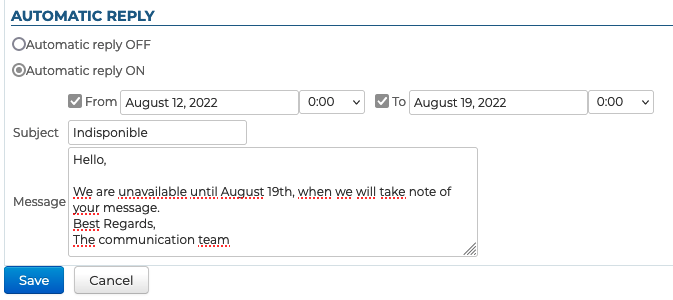
Please note that :
- Start and end dates are not mandatory :
- if no start date is specified, the automatic reply is activated as soon as the new settings are saved.
- if no end date is specified, the automatic reply remains active until the user changes its settings and selects "Do not send automatic replies".
- The subject is optional: if it is not filled in, an email with an empty subject will be sent.
- The content of the email is mandatory, it will appear in the body of the email sent.
Just one away message is sent in reply to a single sender (email address) for every 3-day period.
If the user disables and then enables auto-reply again during that time without editing the subject or the message content, the senders who have already received an automatic reply will not receive a new one – the countdown for the period starts again where it was left off.
For example:
- you enable auto-reply
- you get an email from user B on day D. An auto-reply is sent to user B and the 3-day countdown starts
- you disable auto-reply on day D+1
- you receive a new email from user B. No auto-reply is sent
- you enable auto-reply with the same settings on day D+2
- you receive another email from user B: auto-reply considers this to be D+2, therefore no automatic message is sent.
Filters
This section lets you create and organize rules that apply to incoming mail to the inbox:

The operating principle is identical to that of user filters (see Applying sorting and action filters), but the interface differs. Unlike the user interface, conditional filters cannot be set here: all the criteria entered must be met by an incoming e-mail for a filter to be applied.
Address books
This tab lets you manage the shared mailbox 's subscriptions to the address books available to it (its own address books or shared address books), as well as manage the sharing of its address books with other users or groups:
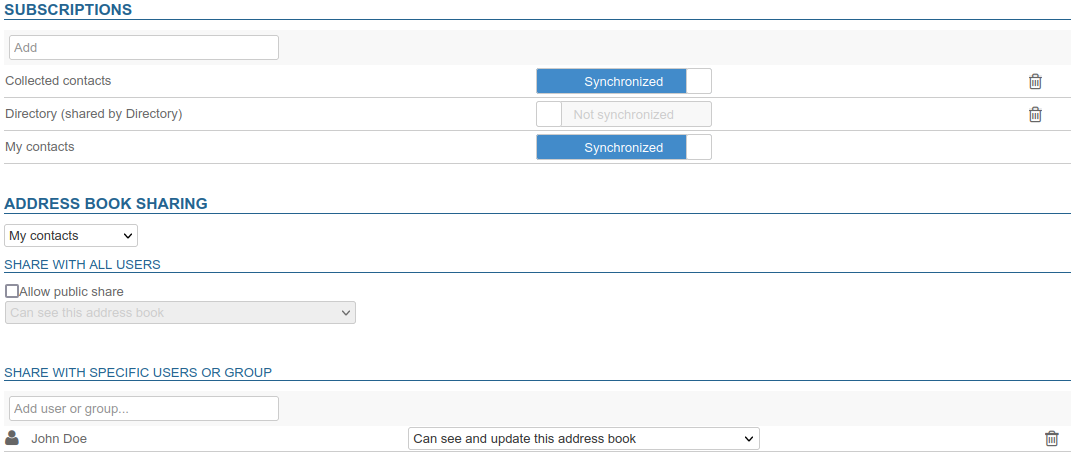
It is not possible for the administrator to create address books for the shared mailbox, they can only be created from the preferences of an entitled user.
For further information, see Creating and Editing Address Books
For further information, see:
Calendar
The Calendar tab lets you :
-
access the calendar settings of the shared mailbox (working days and hours, items displayed, default reminders, etc.):
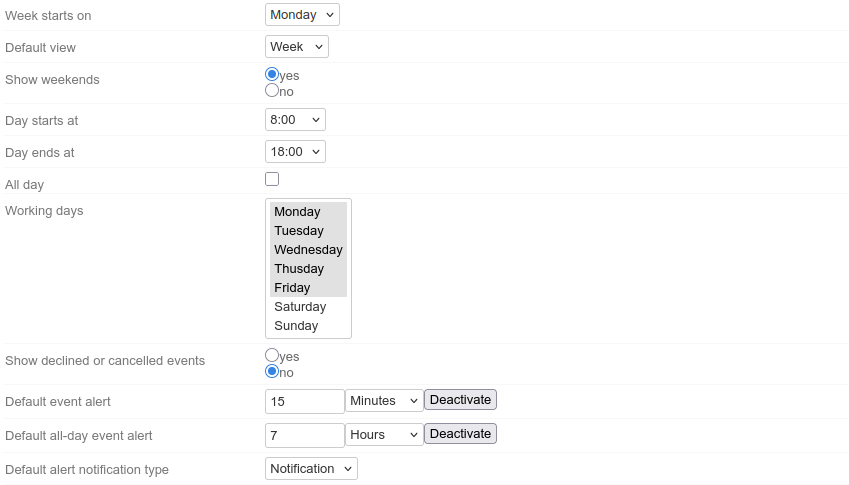
⇒ For further information, see Setting Calendar Preferences. -
to create additional calendars:
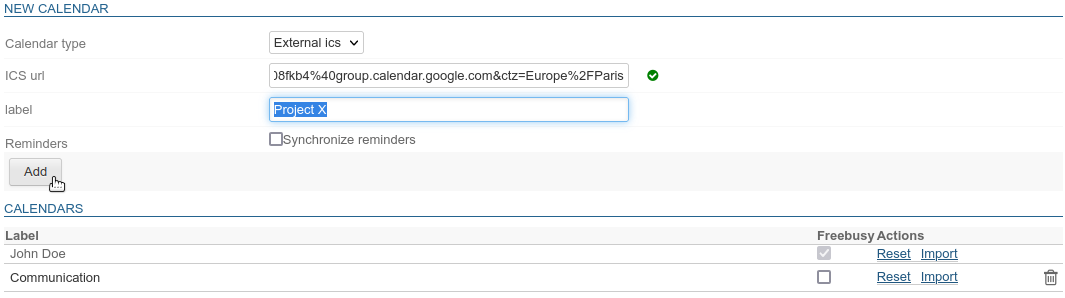
⇒ For further information, see Creating and Editing Calendars. -
manage calendar sharing and availability:
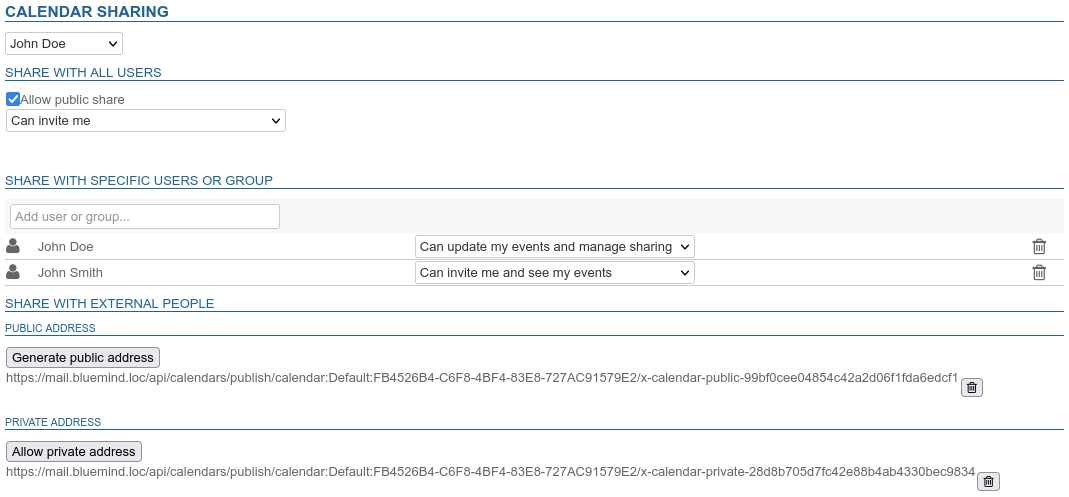
- internally: with all users or with specific users or groups
- externally: by generating a public or private address
⇒ For further information, see Sharing Calendars.
-
manage subscriptions to shared calendars (users or domains):

⇒ For further information, see Subscribing to a shared calendar.
Task lists
This tab allows you to manage the sharing of the shared mailbox's to-do lists and its subscriptions to the lists that are shared with it:
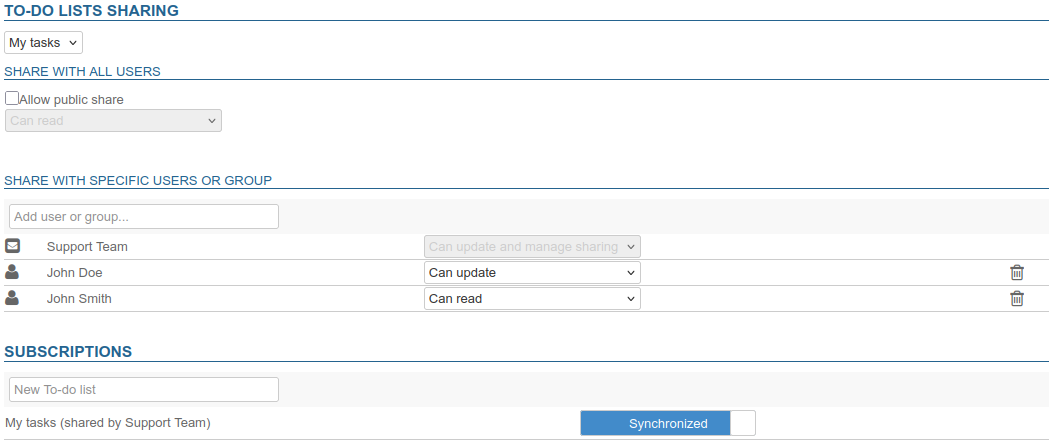
It is not possible for the administrator to create lists for the shared mailbox, they are created exclusively from the of this one.
For further information, see Creating and Editing Address Books
Related BlueMind documentation pages
Maintenance
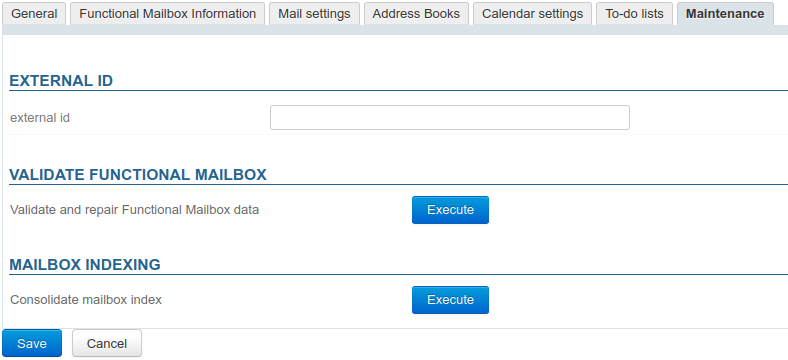
External ID
The field in this section is filled in when the box is synchronized with an AD or LDAP account (For further information, see pages LDAP Synchronization and Active Directory Synchronization). This field can be filled in or modified to force or correct the corresponding box UID in the AD or LDAP directory.
Validate shared mailbox
This operation groups together a set of operations which check and, if necessary, correct the integrity of the mailbox and its data in the BlueMind system: checking the mailbox in Cyrus, the IMAP folder hierarchy, mail filters, and so on.
Mailbox indexing
This operation completes the mailbox's current indexing by indexing only the missing elements.